User Manual

Vision Actions

23/2/26
Vision Actions

Kuika's Vision Actions feature allows you to integrate real-time image processing and computer vision capabilities into your applications.

With this module, you can create scenario-based visual processing pipelines such as object detection, tracking, segmentation, region analysis, and data logging via video streaming.

Vision Actions works with a drag-and-drop visual flow design and has a modular node structure.

Steps to Create a Vision Action

  1. Log in to the Kuika platform.
  2. Open the project you want to work on.
  1. Go to the Datasources module.
  2. Select the Vision Actions section from the left panel.
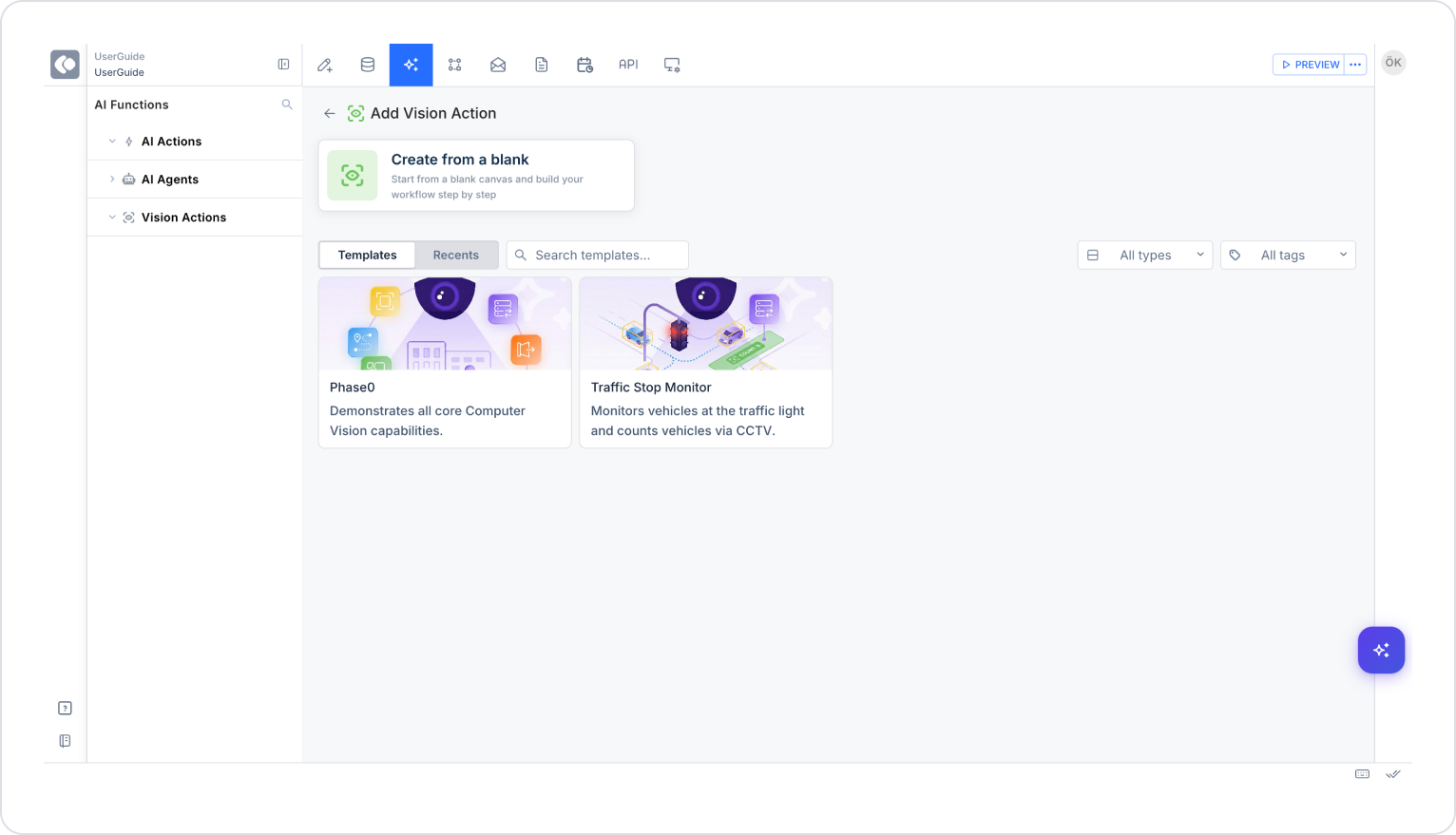
  3. Click the “+” icon to create a new Vision Action.
  4. From the screen that opens:
    • You can select a ready-made template,
    • Or you can create a flow from scratch with Create from scratch.

Vision Action Template Options

There are ready-made scenario templates within Vision Actions.

Phase 0

Phase 0 is a simple template designed to test the Phase 0 Nodes in the Vision Actions module. This flow only detects and tracks human and vehicle objects and logs timestamps. Therefore, the template can be called “Object Tracker & Logger” for demonstration purposes.

Usage Scenario

  • Reference pipeline for users trying the Vision infrastructure for the first time
  • Developers who want to see how node types are connected
  • Testing model parameters
  • Measuring performance and latency
  • Performing database connection verification
  • Testing analytics event generation

Phase 0 is used to observe all the technical capabilities of the system rather than for production scenarios.

Content and Technical Flow

The pipeline consists of the following components:

Video Input

Provides the image source.

  • Local video file
  • IP camera
  • RTSP stream

Output: Frame-based image stream

Object Detector

Detects objects on the frame. The YOLOv8 model family is commonly used.

Generated data:

  • Bounding box coordinates (x, y, width, height)
  • Confidence score
  • Class label (car, person, truck, etc.)

Object Tracker

Tracks detected objects between frames. The ByteTrack algorithm is typically used.

Generated data:

  • Unique tracking ID
  • Frame continuity
  • Object movement direction

Analytics Processor

Rules-based analysis is performed on detected and tracked objects.

Example analyses:

  • Total number of vehicles
  • Number of people in the frame at the same time
  • Time spent in a specific area
  • Event generation (zone enter/exit)

Database Service

The generated analysis outputs are stored in the database.

Sample record structure:

{
“objectId”: 78,
class”: “car”,
eventType”: “zone_enter”,
timestamp’: “2026-02-20T12:05:30”,
confidence”: 0.93
}

Supported DB types:

  • MSSQL
  • PostgreSQL
  • Managed DB

Traffic Stop Monitor

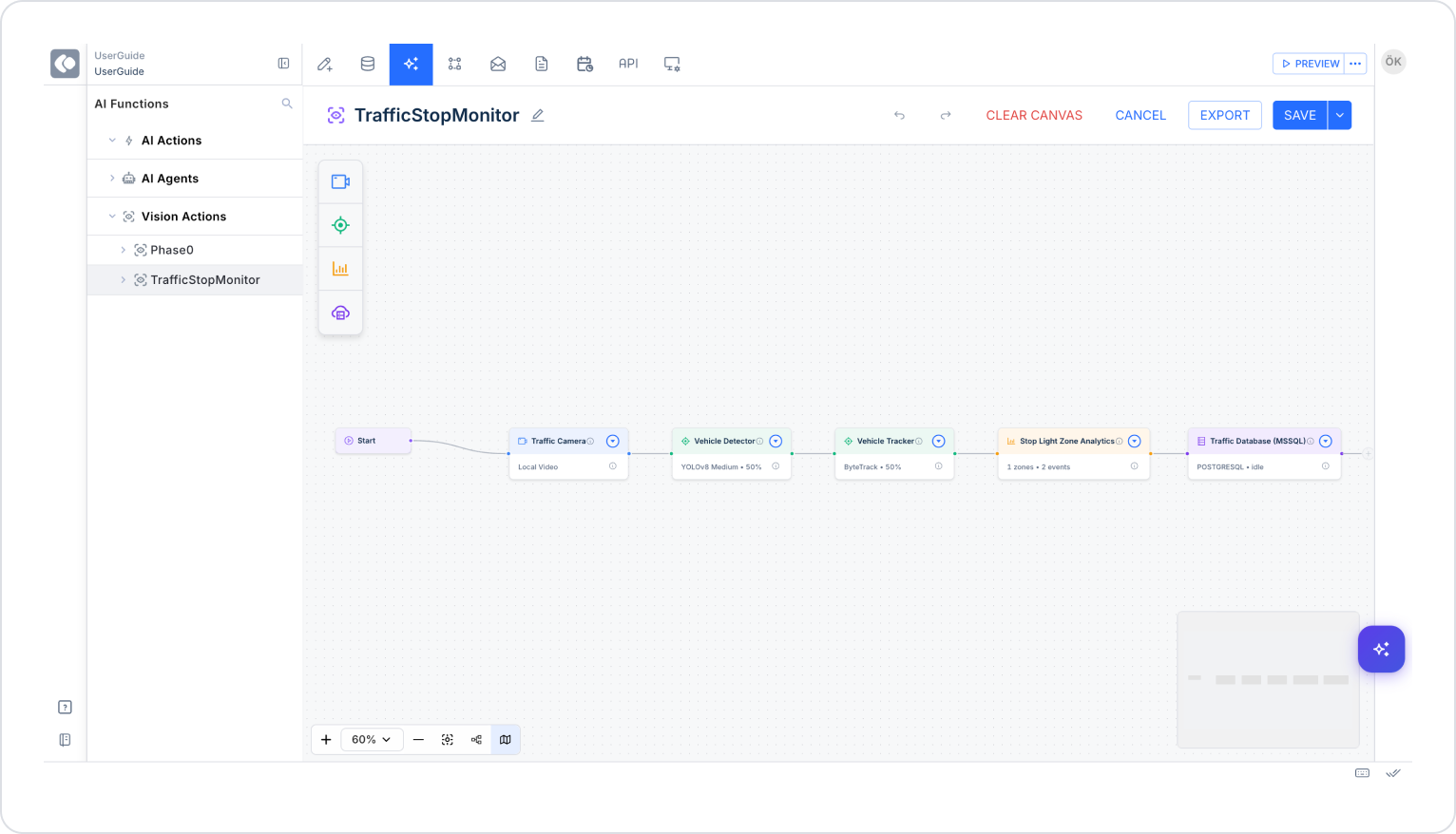
Traffic Stop Monitor is a scenario-based Vision pipeline that detects and tracks vehicles via a CCTV camera monitoring traffic lights and performs rule-based analysis in specific zones.

This template is specifically designed for smart city applications such as traffic density and violation detection.

Usage Scenario

  • Smart city infrastructure
  • Traffic density analysis
  • Intersection-based vehicle counting
  • Red light violation detection
  • Stop line violation
  • Lane violation analysis

Technical Flow

Video Input

Live images are captured via CCTV or IP camera.

Object Detector

Vehicle classes are detected on the frame.

Typically:

  • car
  • bus
  • truck
  • motorcycle

For each vehicle:

  • Bounding box
  • Confidence
  • Class information is generated.

Object Tracker

Each vehicle is assigned a unique ID and tracked across frames.

This ensures:

  • The same vehicle is not counted repeatedly,
  • The direction of vehicle movement is determined,
  • Zone entry/exit is analyzed.

Zone Analytics

Specific areas (zones) are defined:

  • Stop line
  • Pedestrian crossing
  • Intersection area

The analytics engine generates the following events:

  • zone_enter
  • zone_exit
  • dwell_time
  • violation_event

Example rule:

If:
trafficLight = RED
AND
vehicle enters stop_zone
THEN
violation = true

Database Recording

Generated events are recorded in the database.

Example violation record:

{
“vehicleId”: 145,
“eventType”: “RedLightViolation”,
“zone”: “StopLine”,
‘timestamp’: “2026-02-20T12:15:45”,
“confidence”: 0.91
}

System Behavior

Traffic Stop Monitor:

  • Counts the same vehicle only once,
  • Generates zone-based events,
  • Creates a real-time event stream,
  • Can display a real-time counter if desired,
  • Reporting can be done via the DB.

Vision Action Node Structure

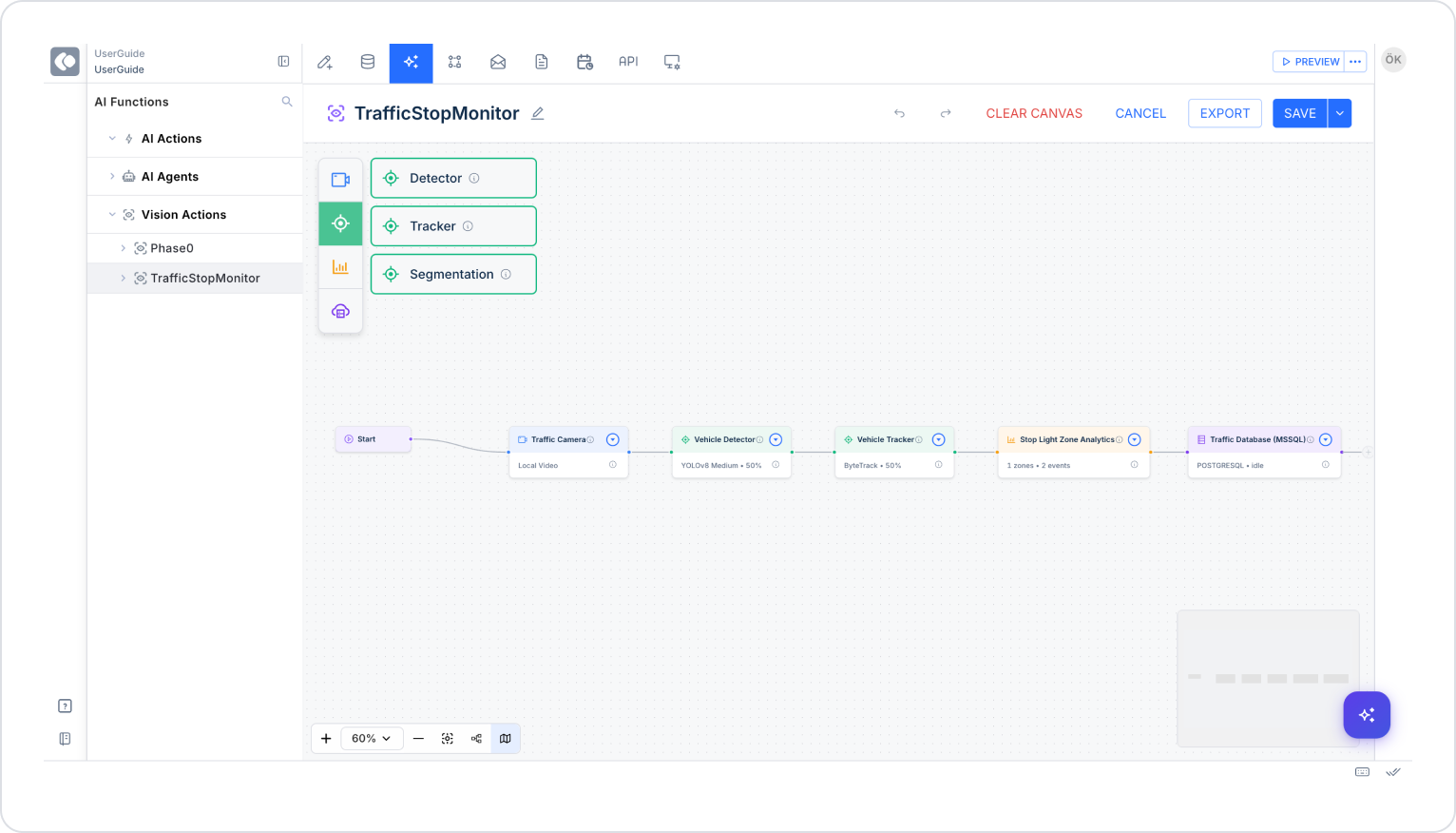
The Vision pipeline operates using node logic. Each node performs a specific task.

  • Start Node: Every Vision Action stream starts with the Start node. This node is the trigger for the stream.
  • Input Sources: Defines the image source.
  • Video Input: Receives the image stream into the system. Video Input is the basic input for all AI processing steps. Source Types:
    • Local video
    • RTSP camera
    • IP camera
    • CCTV
  • AI Processing Nodes: Performs artificial intelligence operations on the image.
    • Detector: Detects objects. Model Example: YOLOv8
      • Usage:
        • Human detection
        • Vehicle detection
        • Product detection
      • Output:
        • Bounding box coordinates
        • Confidence score
        • Class label
    • Tracker: Tracks detected objects between frames. Model Example: ByteTrack
      • Usage:
        • Tracking the same vehicle throughout the system
        • Generating object IDs
      • Output:
        • Unique tracking ID
        • Direction of movement
        • Duration information
    • Segmentation: Separating objects on a pixel basis. Model Example: SAM2
      • Usage:
        • Area-based analysis
        • Creating object masks
        • Region violation detection
      • Output:
        • Mask data
        • Area calculation information
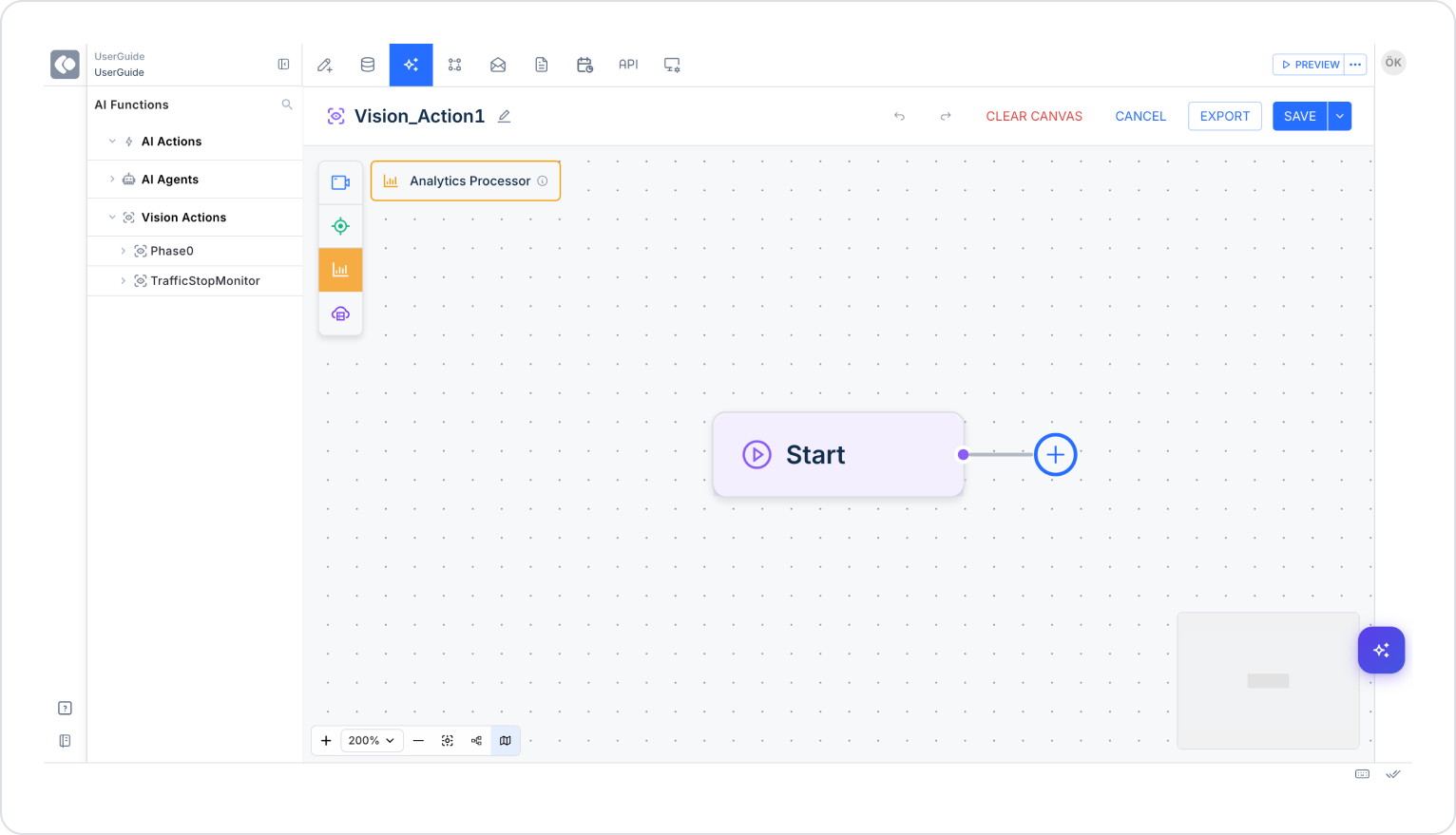
  • Analytics Processor: Perform rule-based analysis on detected objects.
    • Sample Scenarios:
      • Calculate the number of vehicles entering a specific zone
      • Detect red light violations
      • Identify vehicles that have been stationary for longer than a specified time
    • Zone Analytics Features:
      • Defined zones (Zones)
      • Event generation
      • Counter logic
    • Output:
      • Event list
      • Numerical analysis data
  • Database Service: To save analysis results to the database.
    • Supported Connections:
      • MSSQL
    • Usage:
      • Event records
      • Daily logging
      • Analytical data storage

Vision Action Custom Pipeline Creation

To create a pipeline from scratch:

  1. Add a start node.
  2. Click the “+” icon.
  3. Select Input Source (Video Input).
  4. Add AI Processing nodes (Detector / Tracker / Segmentation).
  5. Add Analytics Processor.
  6. Save the results with Database Service.

The pipeline is designed visually using drag-and-drop.

Sample Scenario: Traffic Light Violation Detection

Objective: Detect vehicles passing through a red light.

Steps:

  1. Video Input → Traffic camera
  2. Object Detector → Detect vehicles
  3. Object Tracker → Generate vehicle ID
  4. Zone Analytics → Define stop line area
  5. Generate event:
    • If vehicle enters zone at red light → violation = true
  6. Save to Database

Example of Output:

{
“vehicleId”: 145,
“eventType”: “RedLightViolation”,
‘timestamp’: “2026-02-20T12:15:45”,
“confidence”: 0.91
}

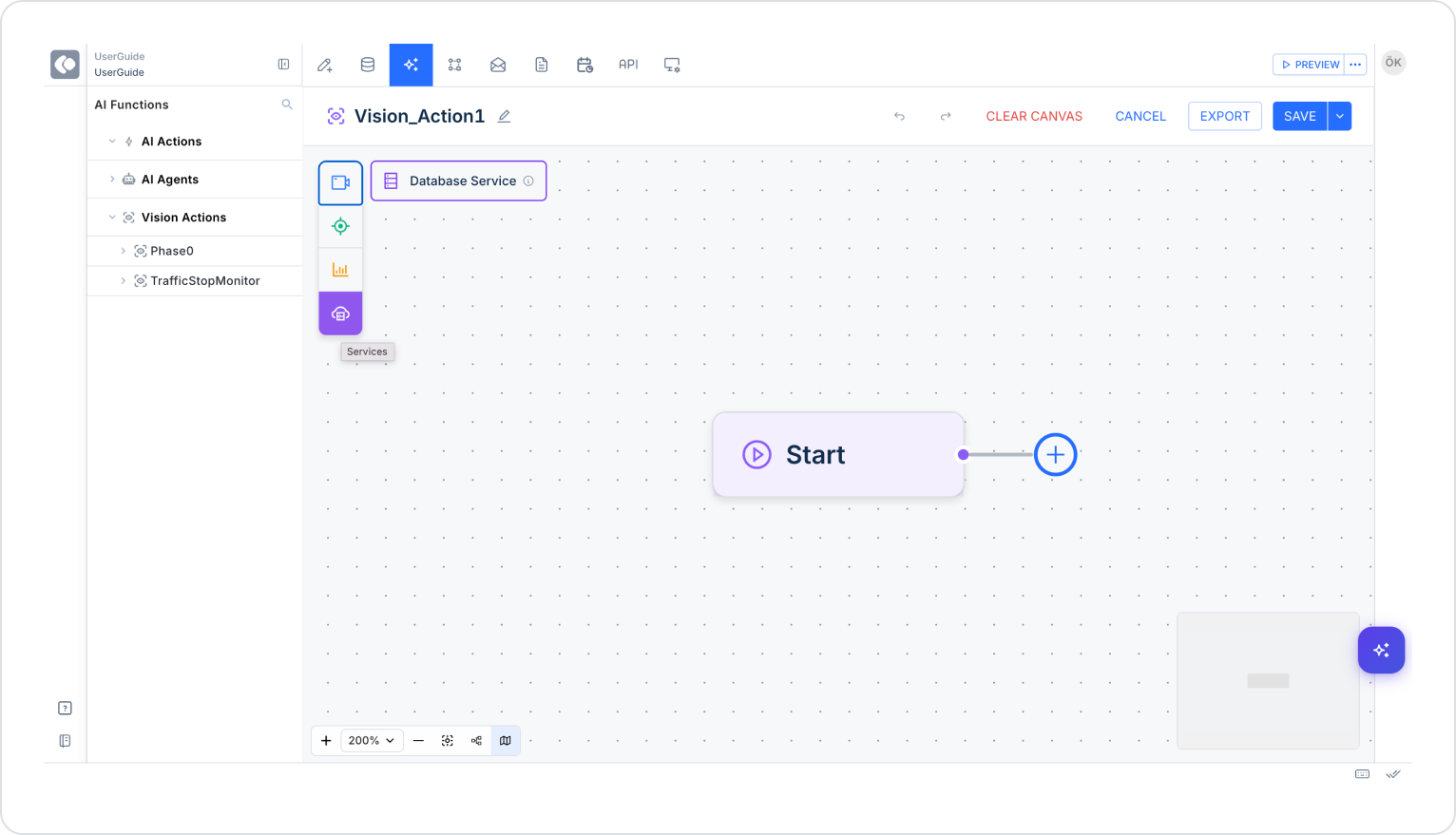
Node Categories

Nodes in the Vision Action panel are divided into the following categories:

  • Input Sources
  • AI Processing
  • Analytics
  • Services

This structure provides the system with a modular and scalable architecture.

Testing and Publishing

After creating a Vision Action:

  1. Test the flow with Preview.
  2. Observe the real-time result via video.
  3. Check that the event outputs are generated correctly.
  4. Save with the CREATE button.
No items found.

Other Related Content

No items found.

Glossary

No items found.

Alt Başlıklar