Reports created in the Report Designer module are not limited to the design phase. These reports can be used within the application to:
- Generate dynamically with parameters,
- Be retrieved in Base64 format,
- Be downloaded to the user's device,
- Be exported to external systems.
This process is managed through two main actions:
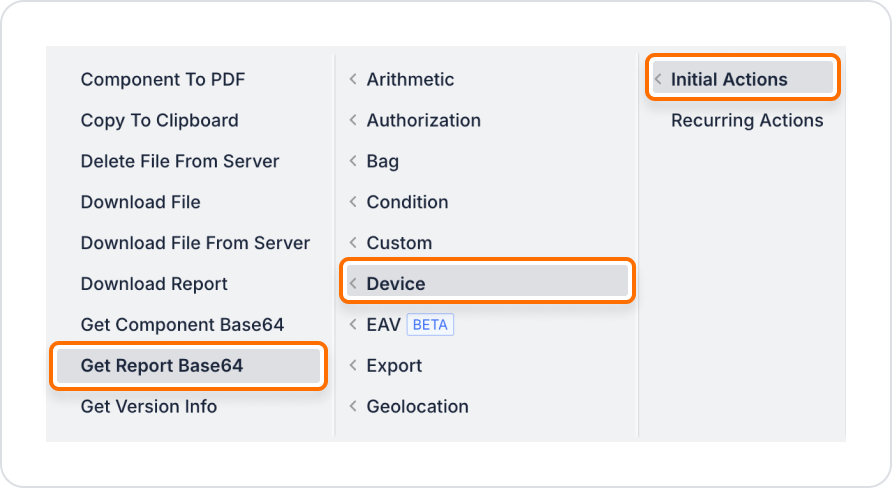
- Get Report Base64
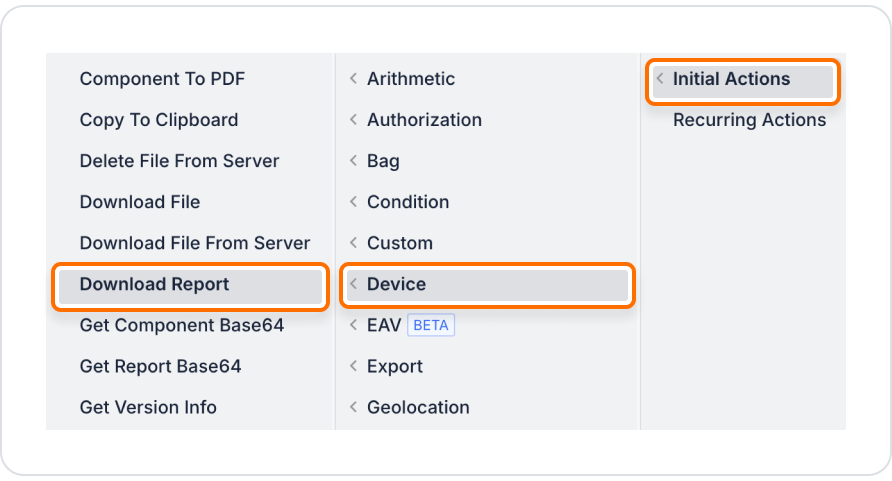
- Download Report
These actions are typically used together.
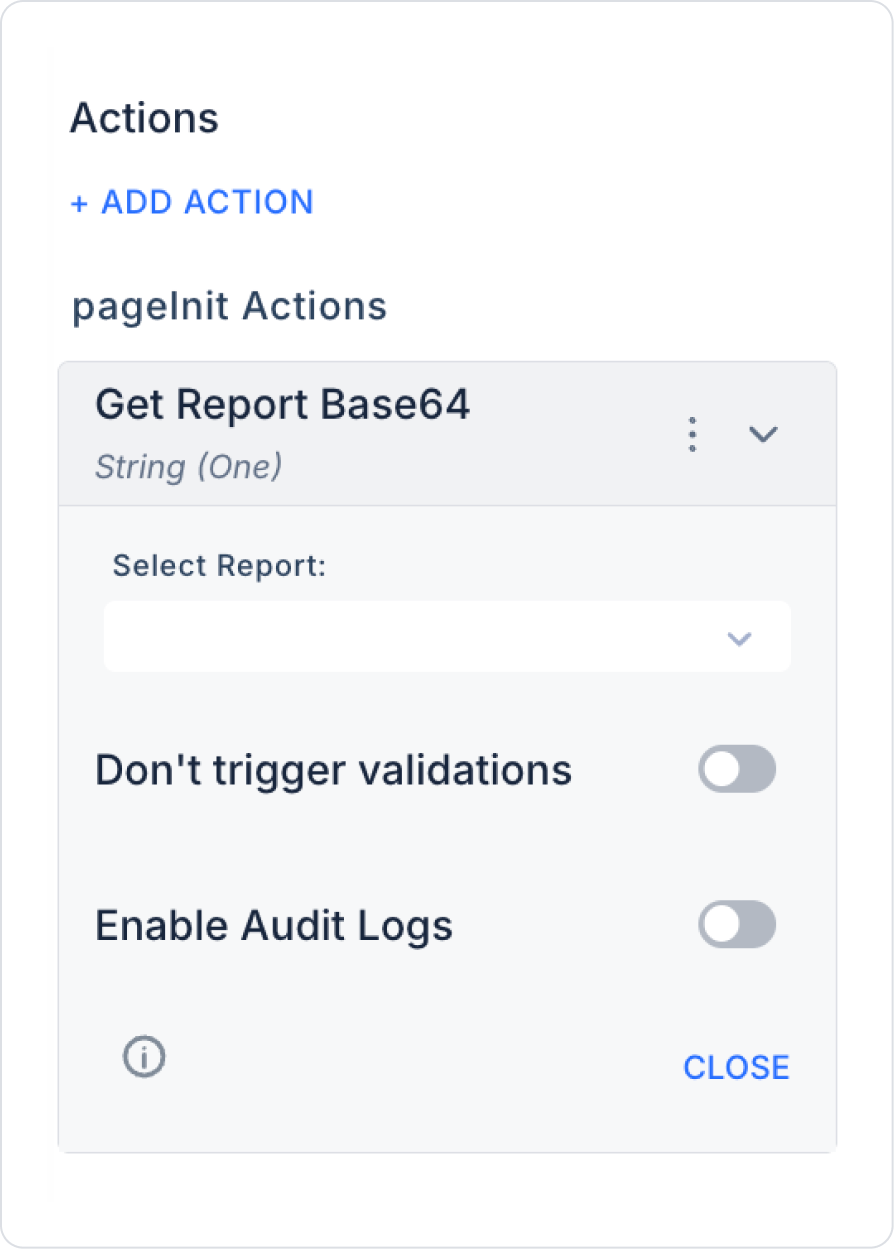
The Get Report Base64 action generates a report created in Report Designer in Base64 format.
This action:
- Runs the report,
- Retrieves any Report Inputs parameters,
- Creates the report,
- Returns the result as a Base64 string.
This output is typically:
- Transferred to the Download Report action,
- Used in API calls,
- Sent as an email attachment,
Technical Specifications
- The report output is in Base64 format.
- Works in web and mobile applications.
- Supports parametric report generation.
- Output size may increase for large reports.
Get Report Base64:
- This is where the report is actually “run”.
- The Data Source connection is triggered here.
- Report Inputs receive values here.
- The Dataset is queried here.
- The PDF output is generated here.
In other words, this action is the bridge between the design and the output.
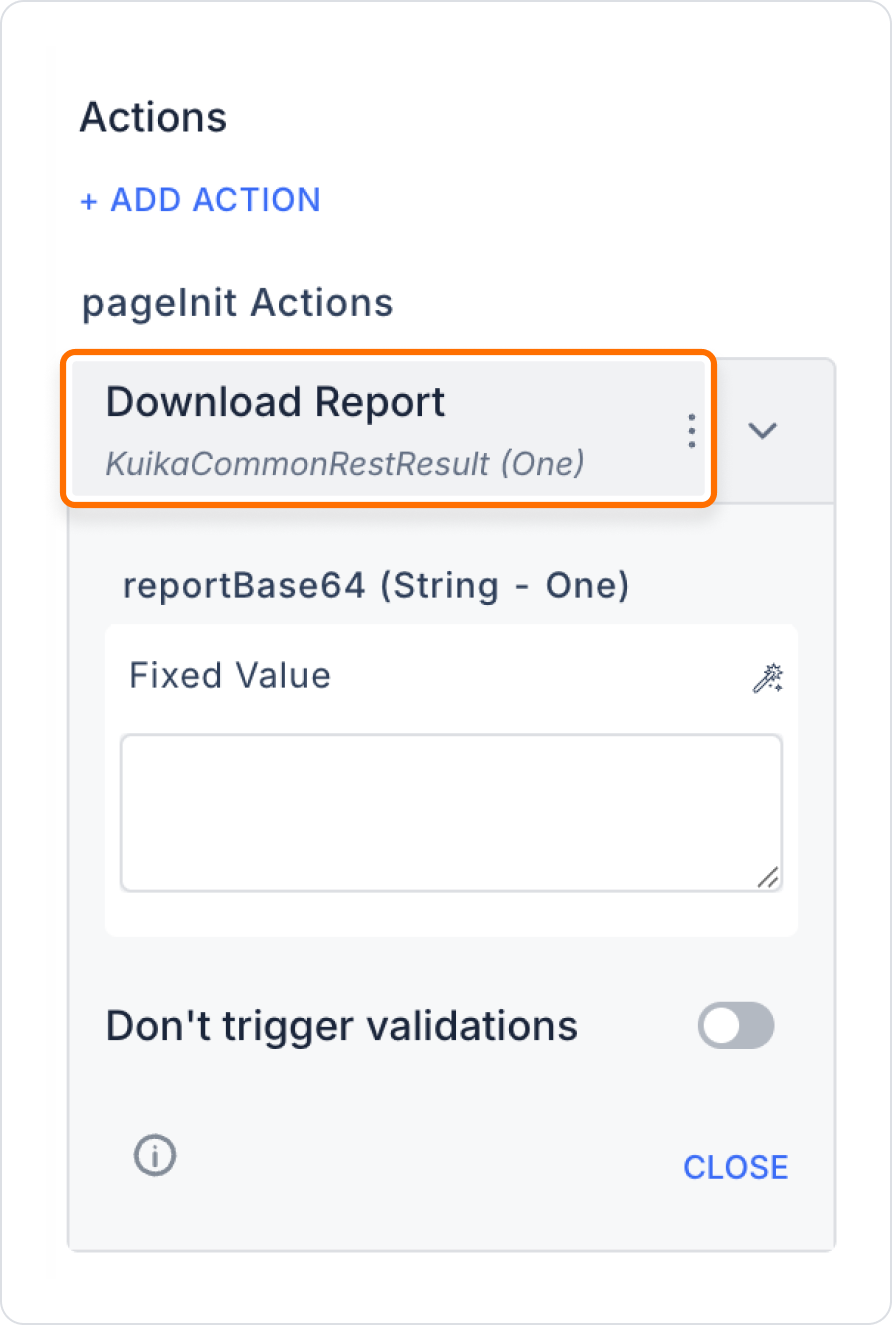
The Download Report action converts the Base64 output generated by Get Report Base64 into a downloadable file on the user's device.
Important:
- Direct download in Base64 format is not possible.
- Get Report Base64 must be run first.
Technical Specifications
- Works only in web applications.
- The Base64 parameter is required.
- Can be easily connected to UI elements.
- It is saved as a local file on the device.
3. Workflow in Report Designer
These two actions are typically used in the following order:
User → Button → Get Report Base64 → Download Report → Device
Detailed flow:
- The user clicks the “Download Report” button.
- The Get Report Base64 action runs.
- Report:
- Connects to the Data Source.
- Runs the dataset query.
- Uses the Report Inputs parameters.
- Is generated in PDF Base64 format.
- The Download Report action takes this Base64 data.
- The file is downloaded to the user's device.
4. Architectural Importance in the Context of Report Designer
Thanks to these actions:
- Report design and data generation are separated.
- Reports become reusable.
- Parametric report generation is enabled.
- A clear flow is established between the UI side and the report engine.
The Report Designer architecture consists of the following layers:
- Layout
- Data Source
- Report Inputs
- Get Report Base64 (Execution)
- Download Report (Distribution)
5. Best Practice
- First, design the report.
- Test the Data Source connection.
- Define Report Inputs if necessary.
- Validate the output with Get Report Base64.
- Add Download Report in the final step.
Position the actions sequentially in the same OnClick chain.