Apify MCP Server enables your Kuika application to retrieve LinkedIn and Instagram data via MCP (Model Context Protocol).
With this integration:
- Professional information from LinkedIn profiles,
- Organizational data from company pages,
- Profile and content data from Instagram accounts
can be retrieved in JSON format. It operates independently of LinkedIn's official API and provides a data source for AI agents.
Configuring Settings via Config Manager
- Log in to the Kuika platform.
- Open the project you want to work on from the Apps screen.
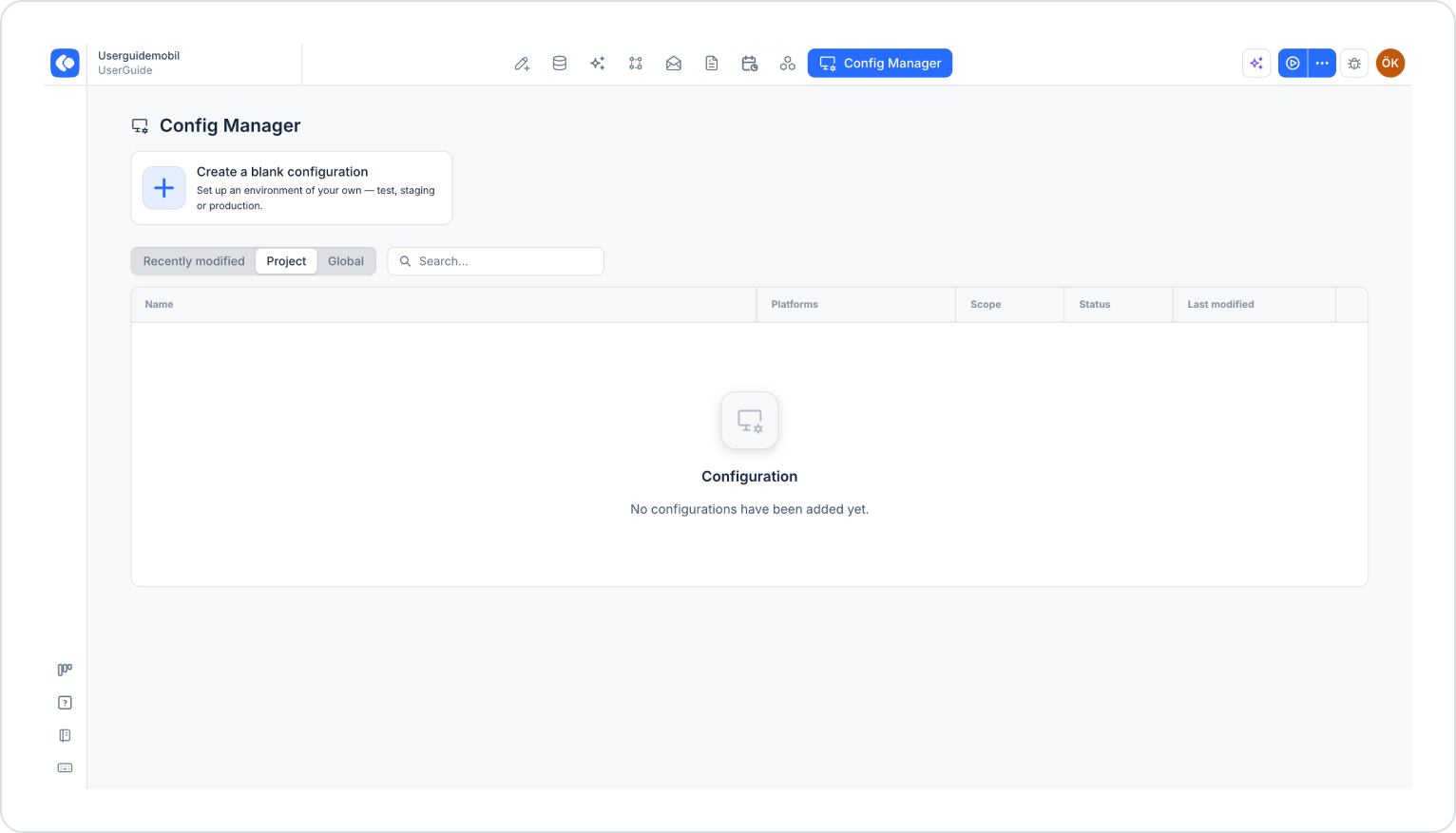
- Click the Config Manager module in the top menu.
- To edit an existing configuration, click its name in the list, or create a new configuration using the Create a blank configuration card.
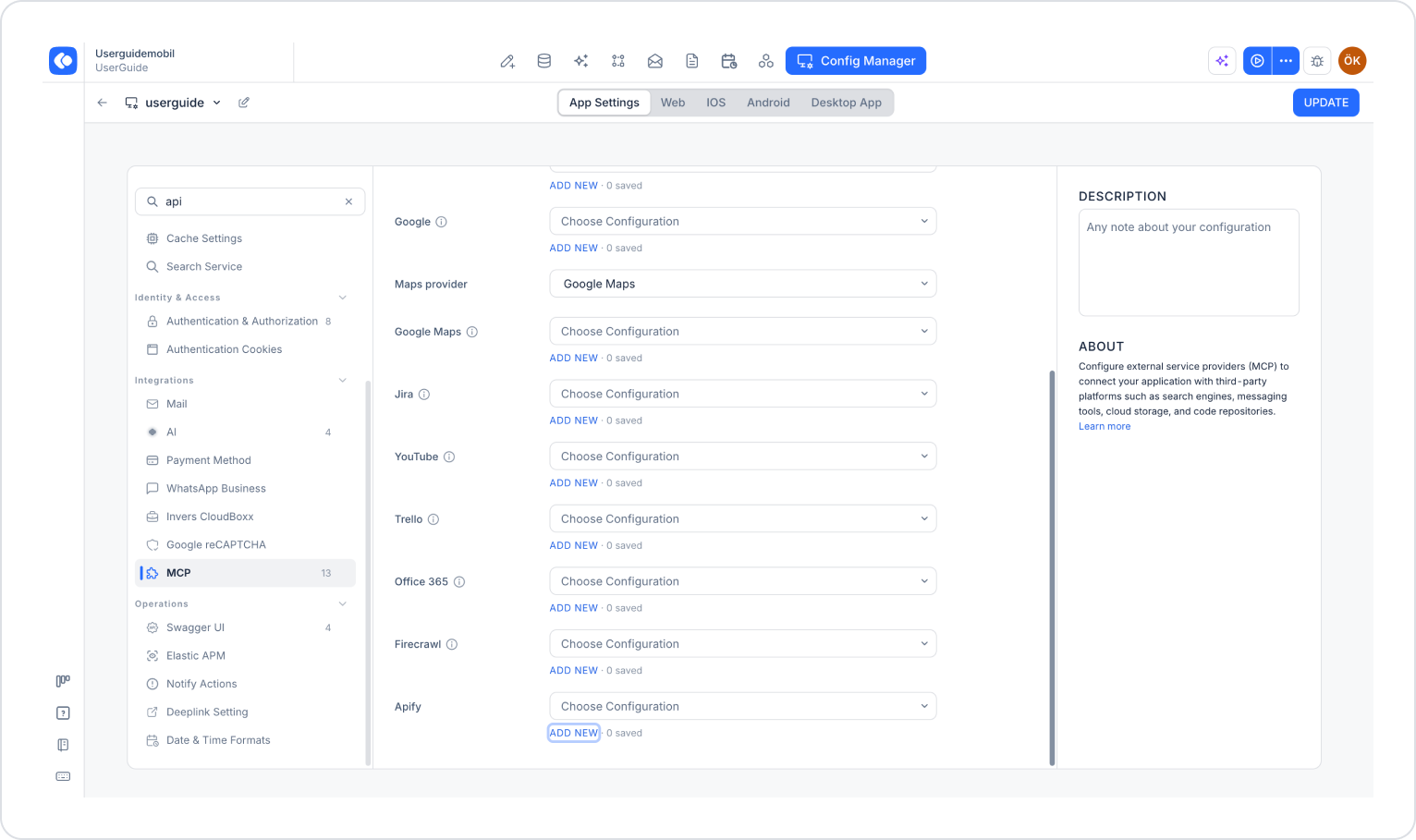
- Make sure the App Settings tab is selected at the top of the configuration screen.
- In the left menu, click the MCP option under the INTEGRATIONS heading.
- Go to the Apify section at the bottom of the list and click the Add New link below it.
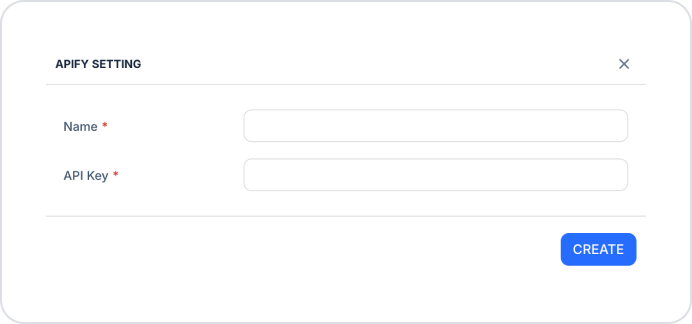
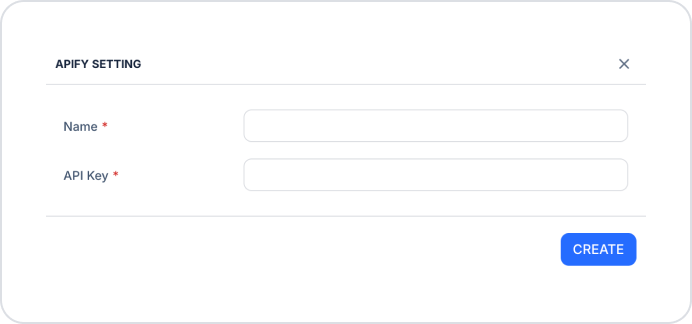
- In the Apify Settings window that opens, fill in the following fields (all fields are required):
- Name: A unique name for the integration (e.g., ApifyLinkedInProd).
- API Key: The API key generated via the Apify Console. You can retrieve your key from the Settings > API & Integrations page in the Apify Console.
- Click the Create button.
- Select the configuration you created from the Apify dropdown menu.
- Click the Save button in the top-right corner to save your changes. (In an existing configuration, this button appears as Update.)
Creating an Apify API Key
Follow these steps to create an API Key:
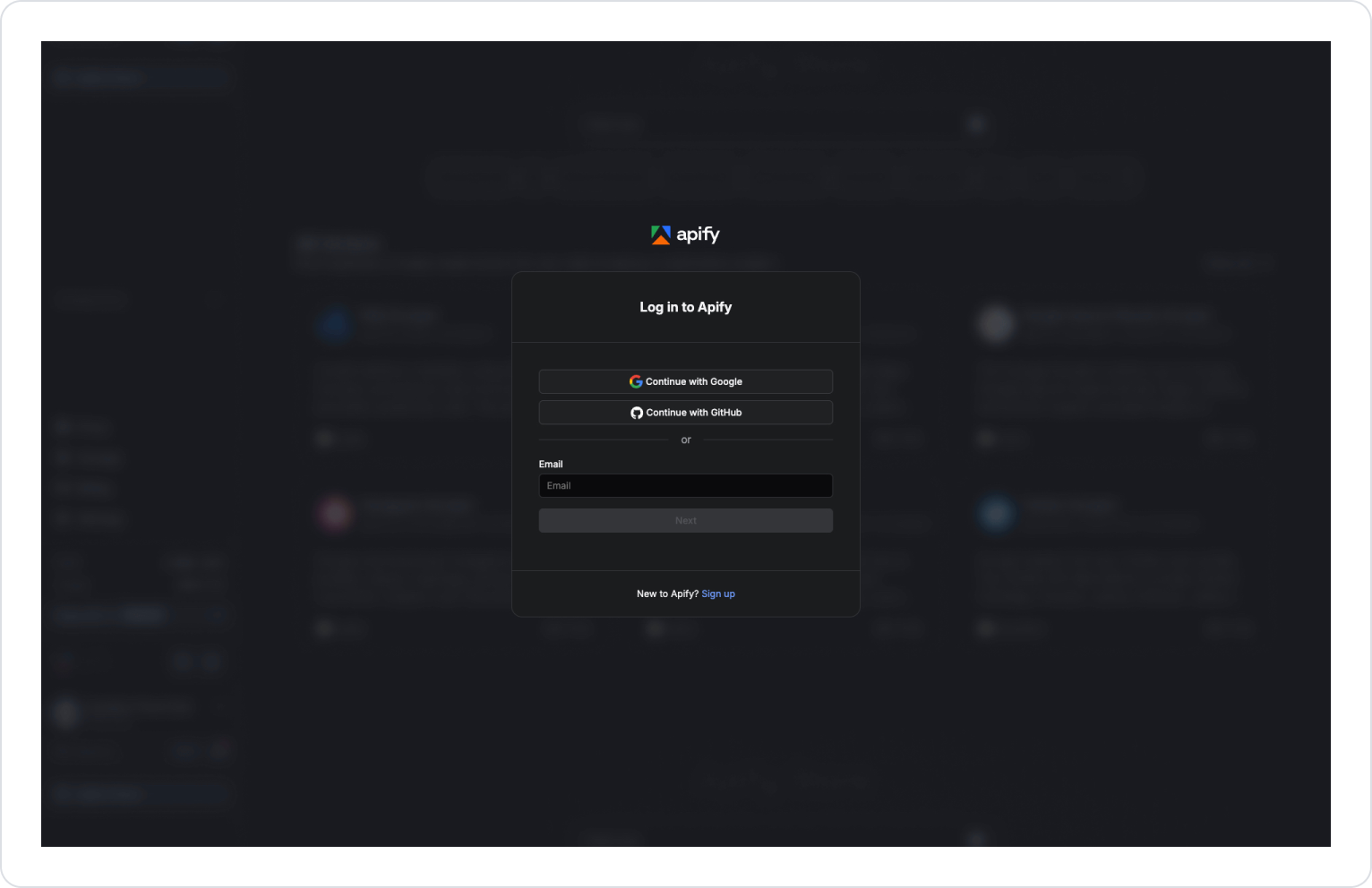
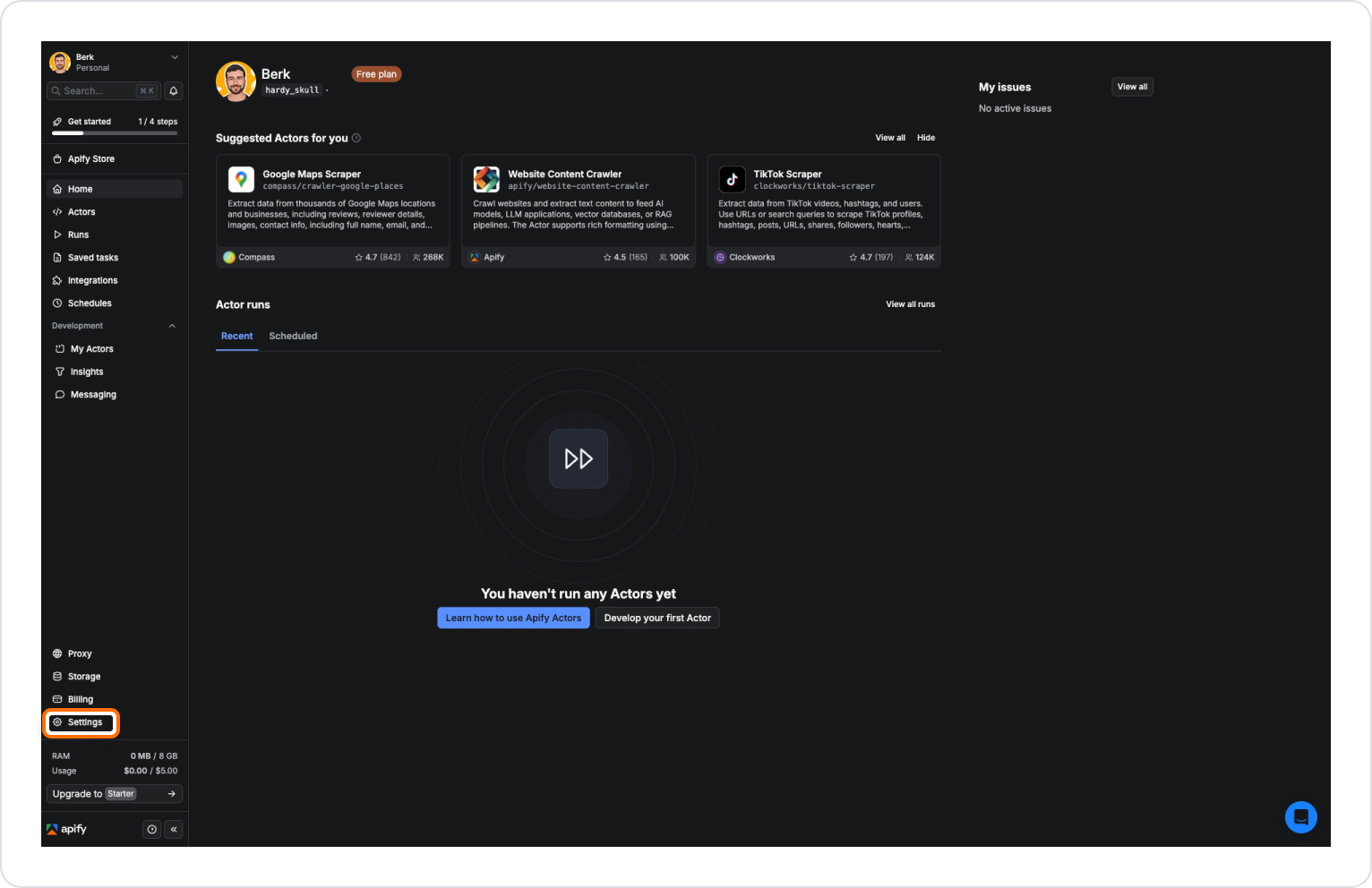
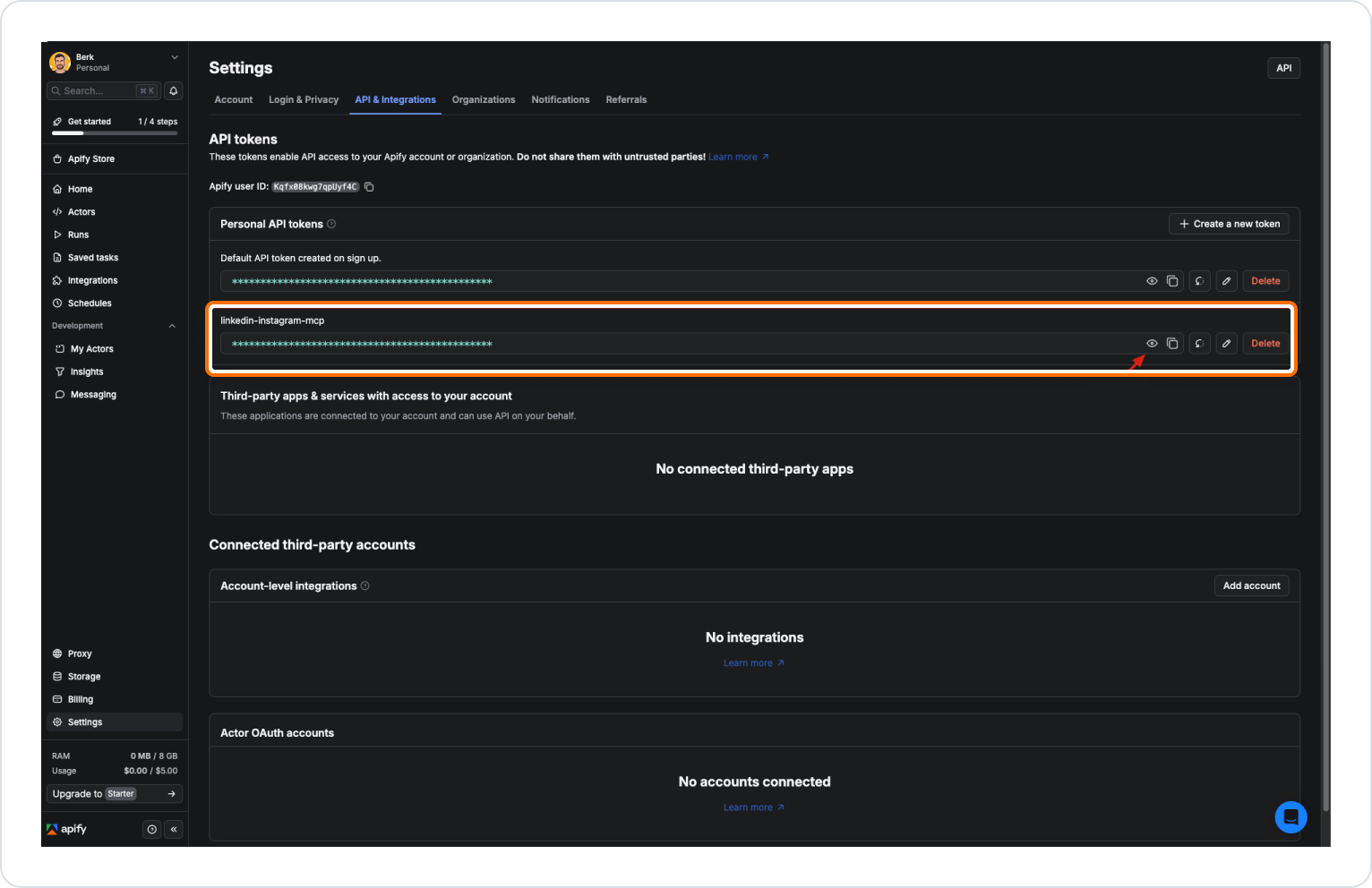
- After logging in, click on the Settings option in the left menu.
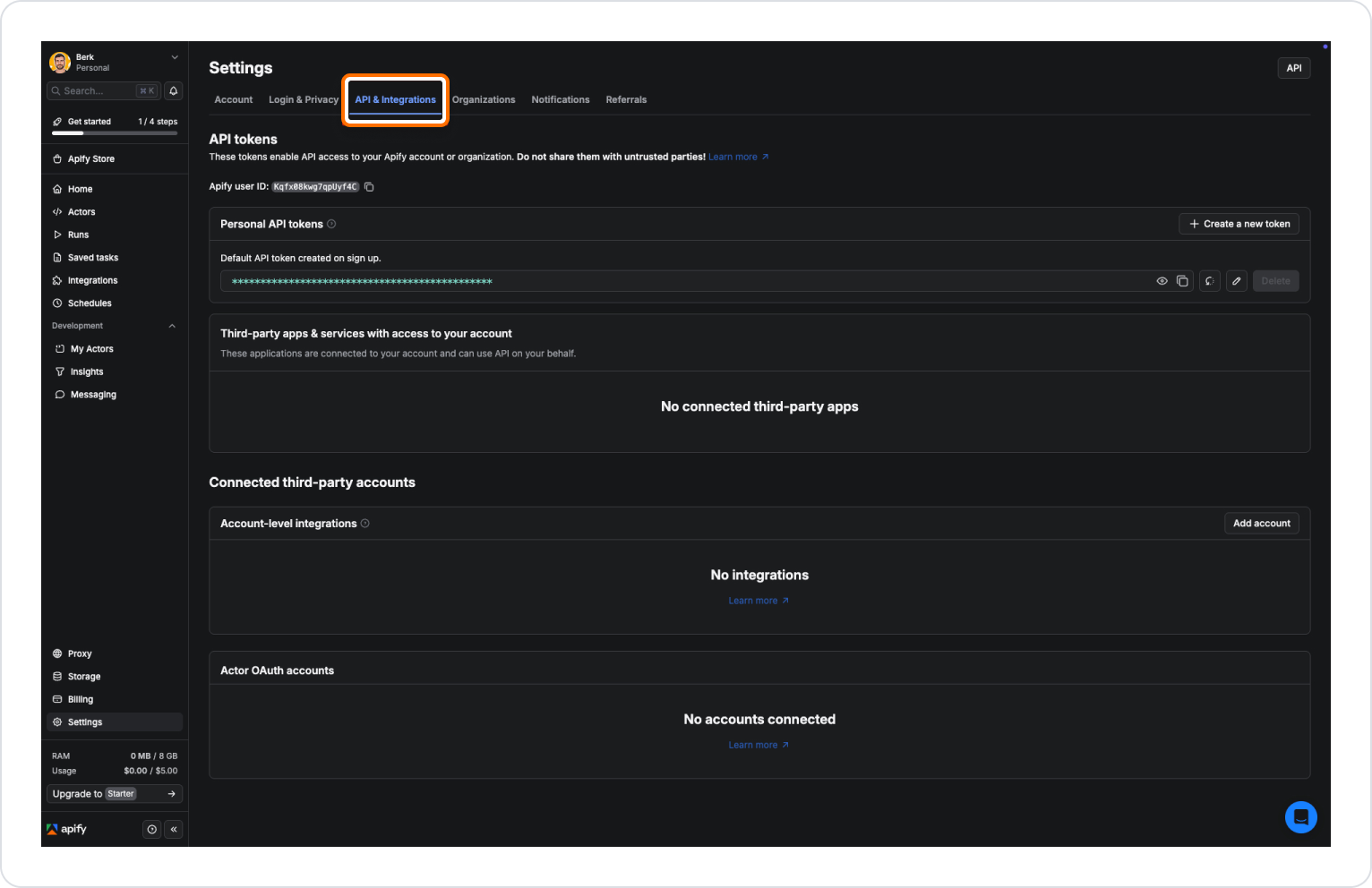
- Go to the API & Integrations section from the top tabs.
Here:
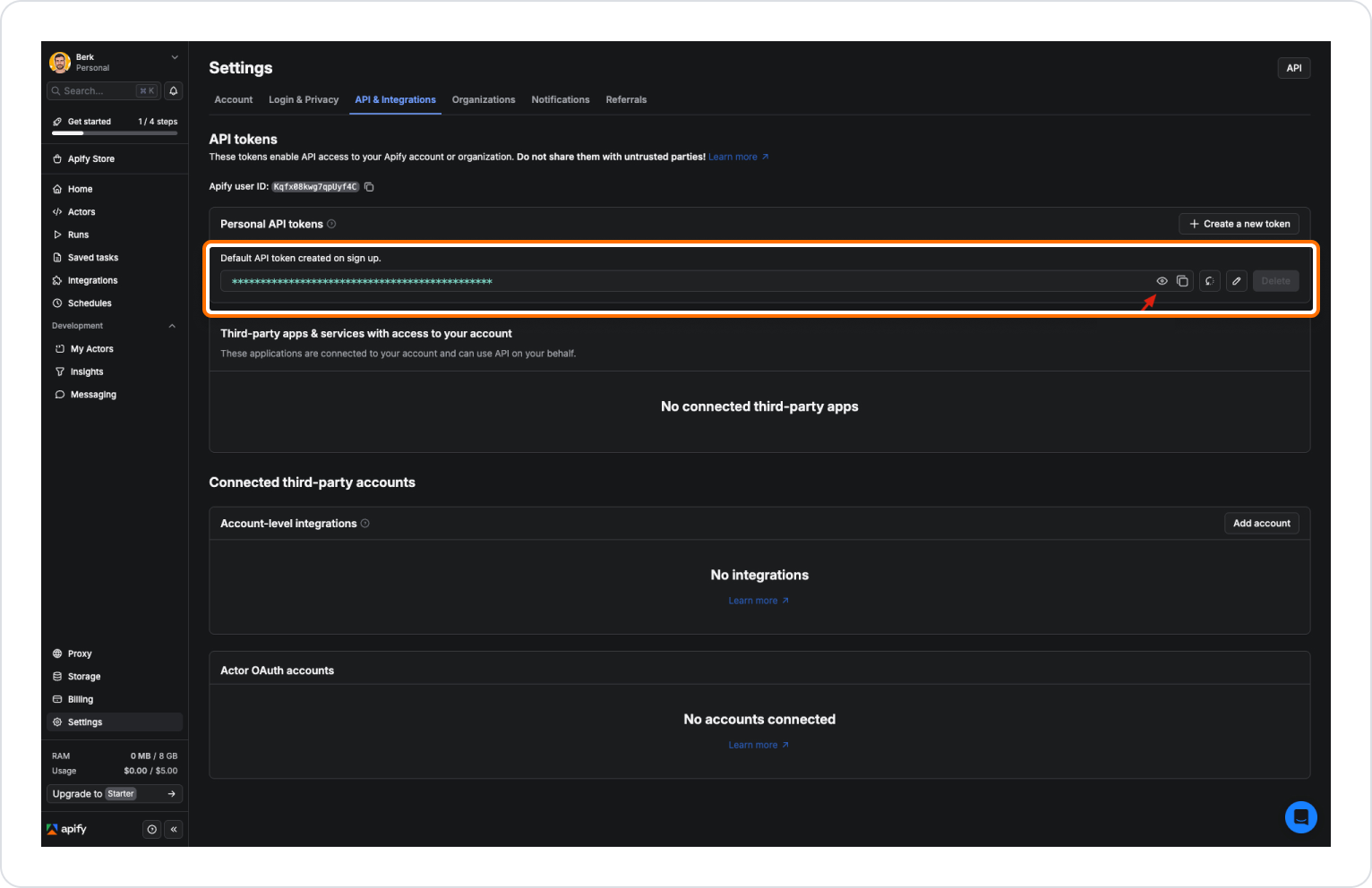
- There is an API Key created specifically for your profile.
- You can view the existing API key by clicking on the Show button.
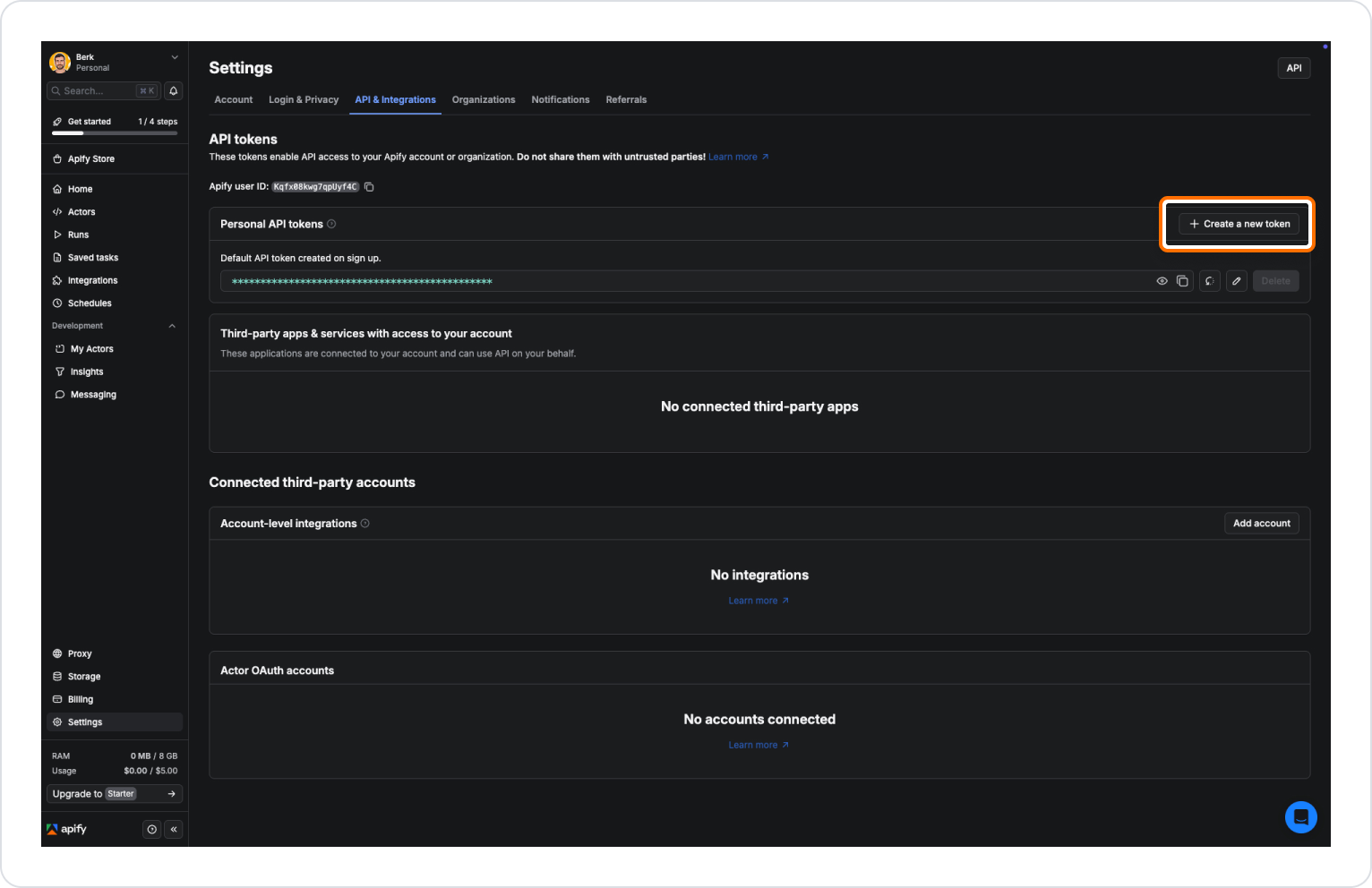
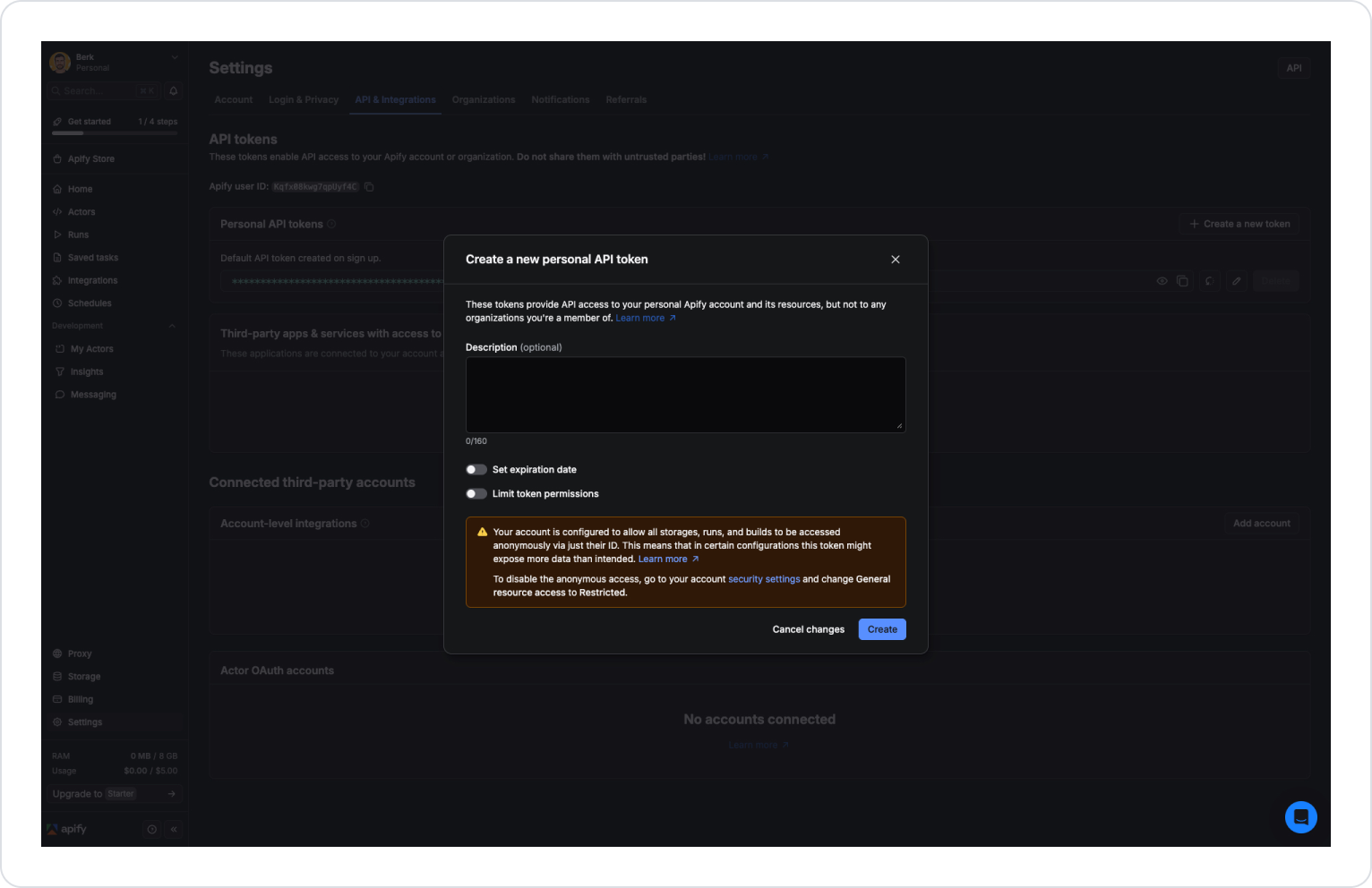
- Click the API Tokens → Personal API → Tokens Create a new token button.
- Enter a descriptive name for the token.
- Select and fill in the required permissions.
- Click the Create button.
- The generated API Key will be displayed in the Personal API Tokens list.
Store the API Key in a secure location and do not share it with third parties.
Defining Apify Settings in Kuika
Paste the API Key you created into the:
- API Key field on the Configuration Manager → MCP → Apify → ADD NEW screen.
- After saving, this setting can be used by linking it to the settings parameter in the Apify Action in the project.