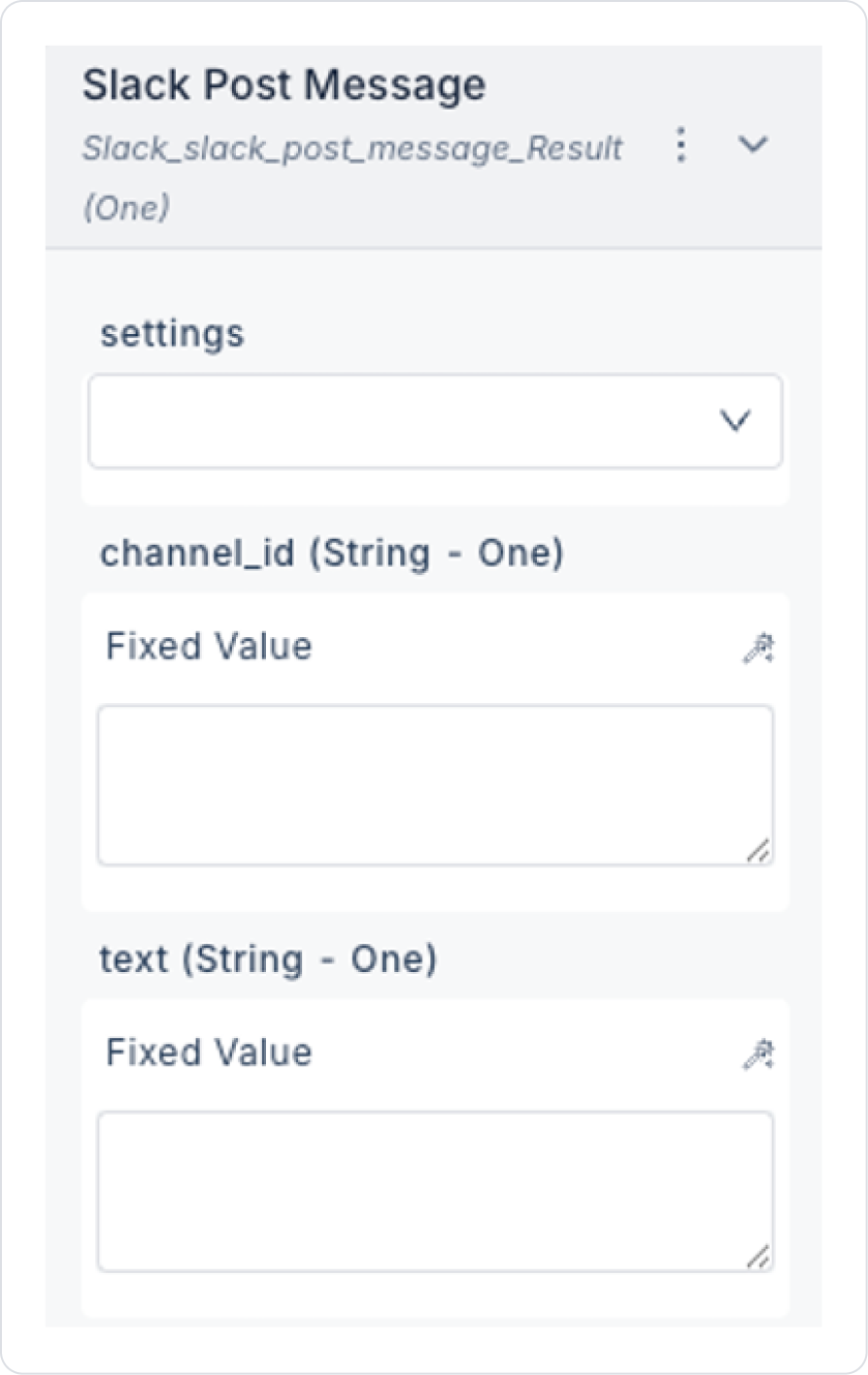
Slack MCP enables your application to interact directly with the Slack API. This allows natural language-based clients (ChatGPT, Claude, Cursor, etc.) to perform actions such as sending messages on Slack, retrieving user and channel information, and fetching channel history.
Configuring Settings via Config Manager
Log in to the Kuika platform.
Open the project you’ll be working on from the Apps screen.
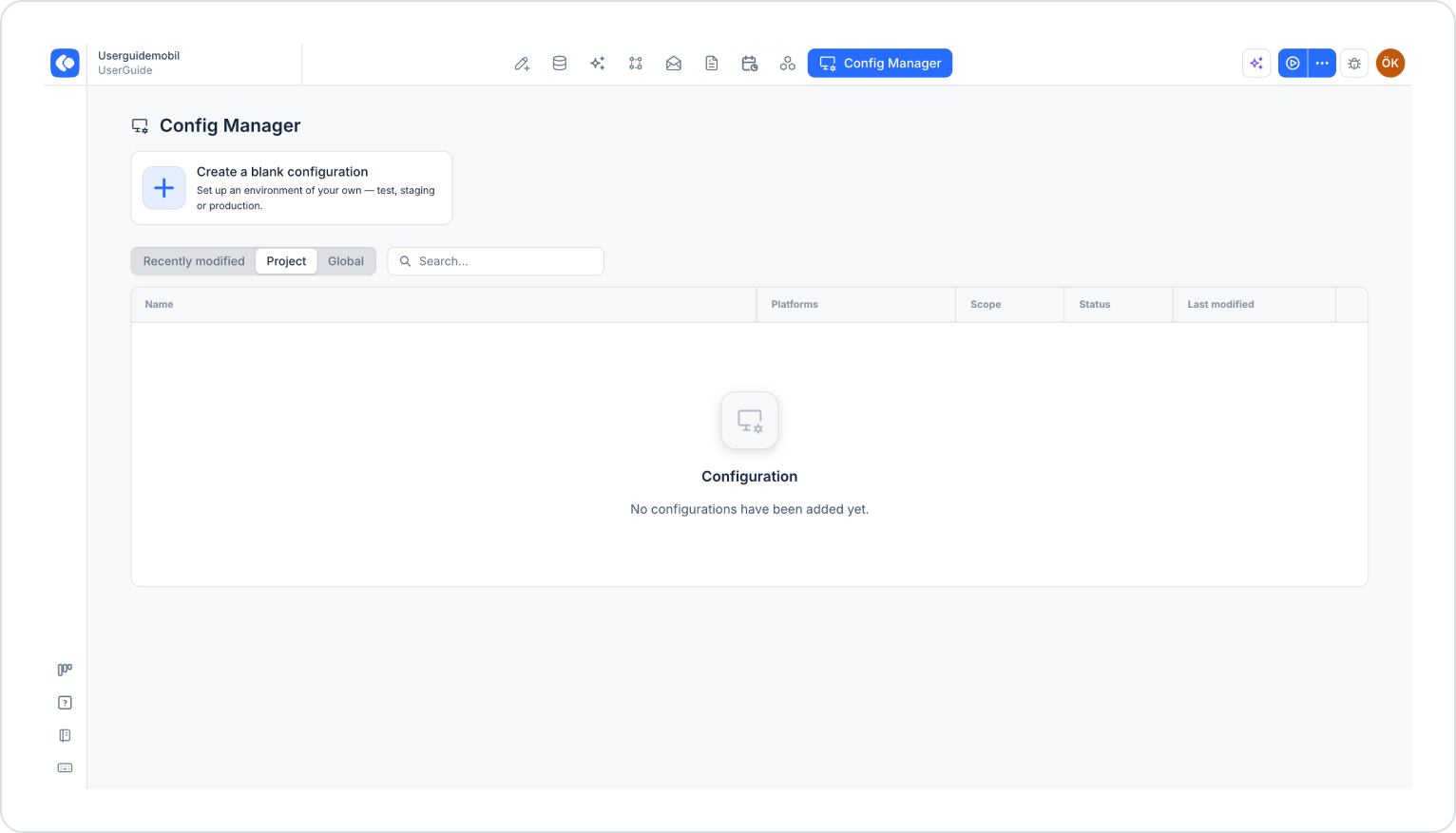
Click the Config Manager module in the top menu.
To edit an existing configuration, click its name in the list, or create a new configuration using the Create a blank configuration card.
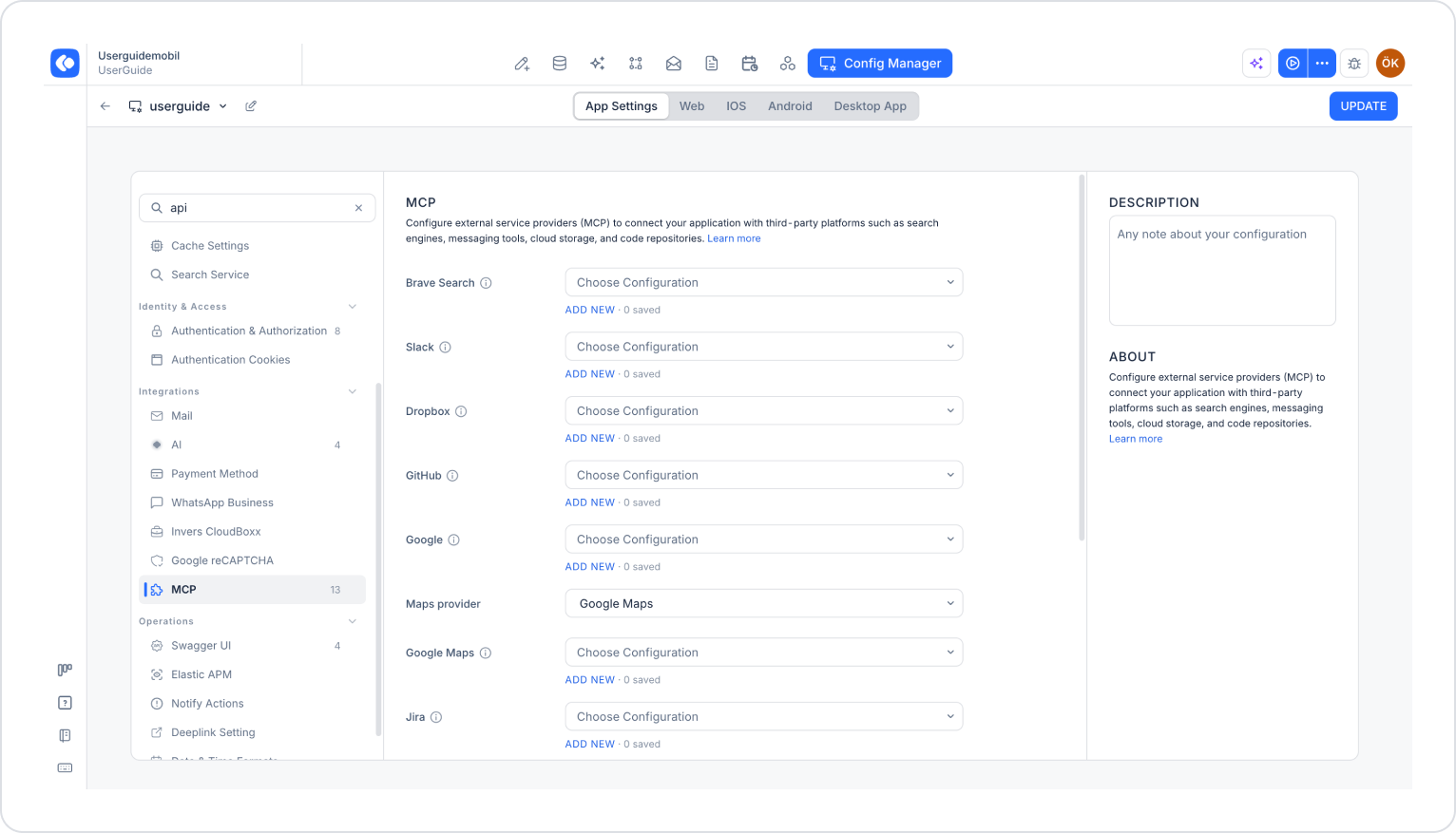
Make sure the App Settings tab is selected at the top of the configuration screen.
In the left menu, click the MCP option under the INTEGRATIONS heading.
Click the Add New link under the Slack section.
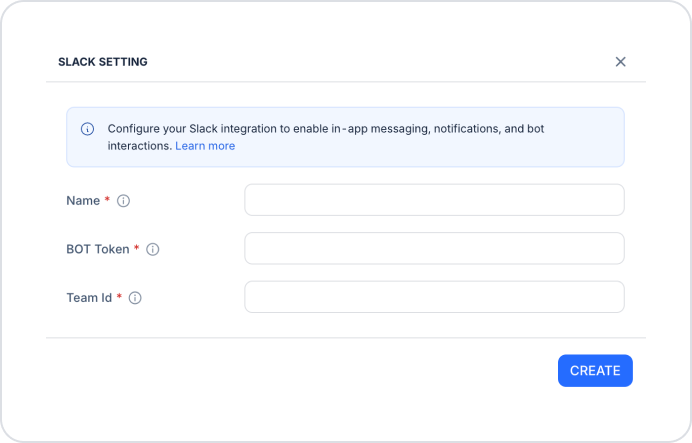
In the Slack Settings window that opens, fill in the following fields (all fields are required):
Name: A unique name for this integration.
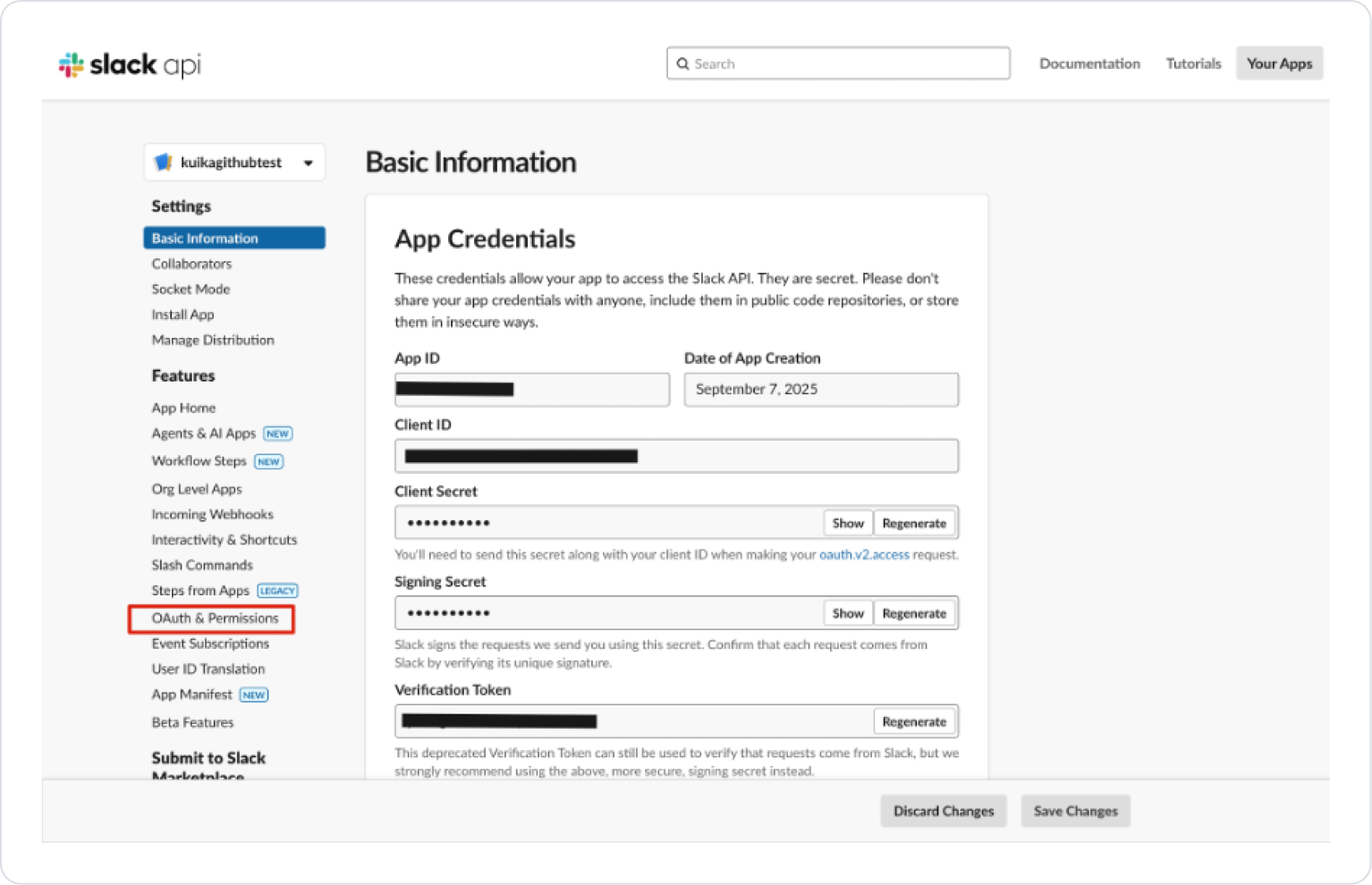
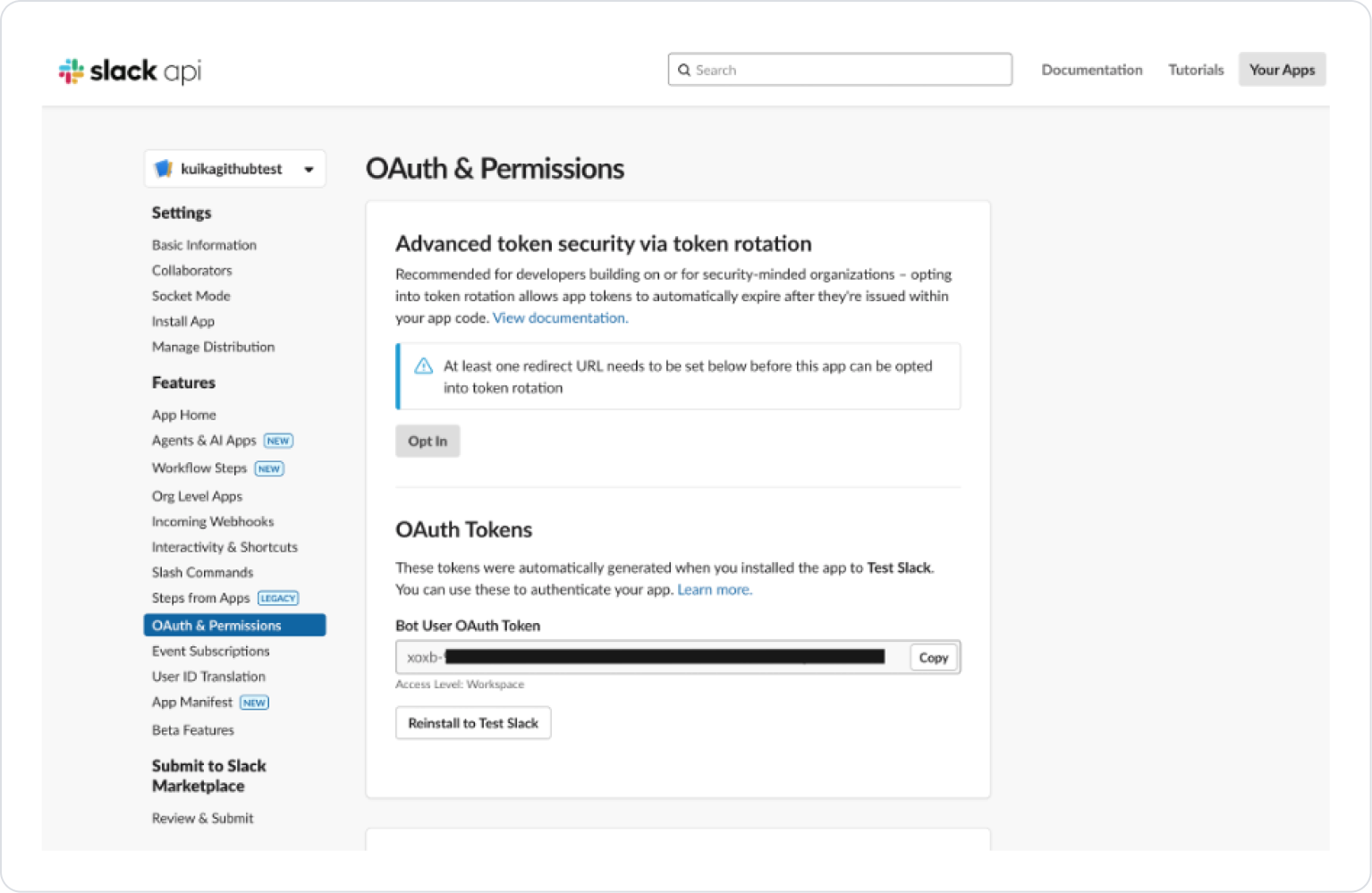
BOT Token: The Bot User OAuth Token value for your Slack app (starts with xoxb-). You can retrieve the token from your app’s OAuth & Permissions page in the Slack API dashboard.
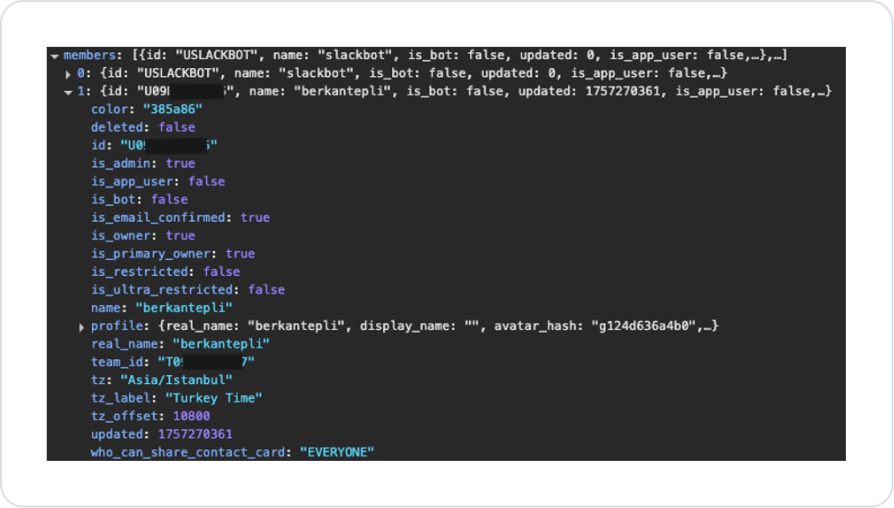
Team ID: The code in your Slack workspace URL that starts with T. For example, in the URL https://app.slack.com/client/T01234567/..., the Team ID is T01234567.
Click the Create button.
Select the configuration you created from the Slack dropdown menu.
Click the Save button in the top-right corner to save your changes. (In an existing configuration, this button appears as Update.)