Brave Search adds search engine capabilities to your application. Since it is MCP-compatible, it can be used directly by LLM-based systems (Claude, Cursor, ChatGPT Desktop, etc.).
Supported search types:
Web Search – General web searches
Image Search – Visual searches
Video Search – Video results
News Search – News content
Local Points of Interest Search – Local businesses and venues
Configuring Settings via Configuration Manager
Configuring Settings Through Config Manager
A configuration setting can only be used in a single project. If you want to use it in other projects, you must recreate the same settings.
Log in to the Kuika platform.
Open the project you want to work on from the Apps screen.
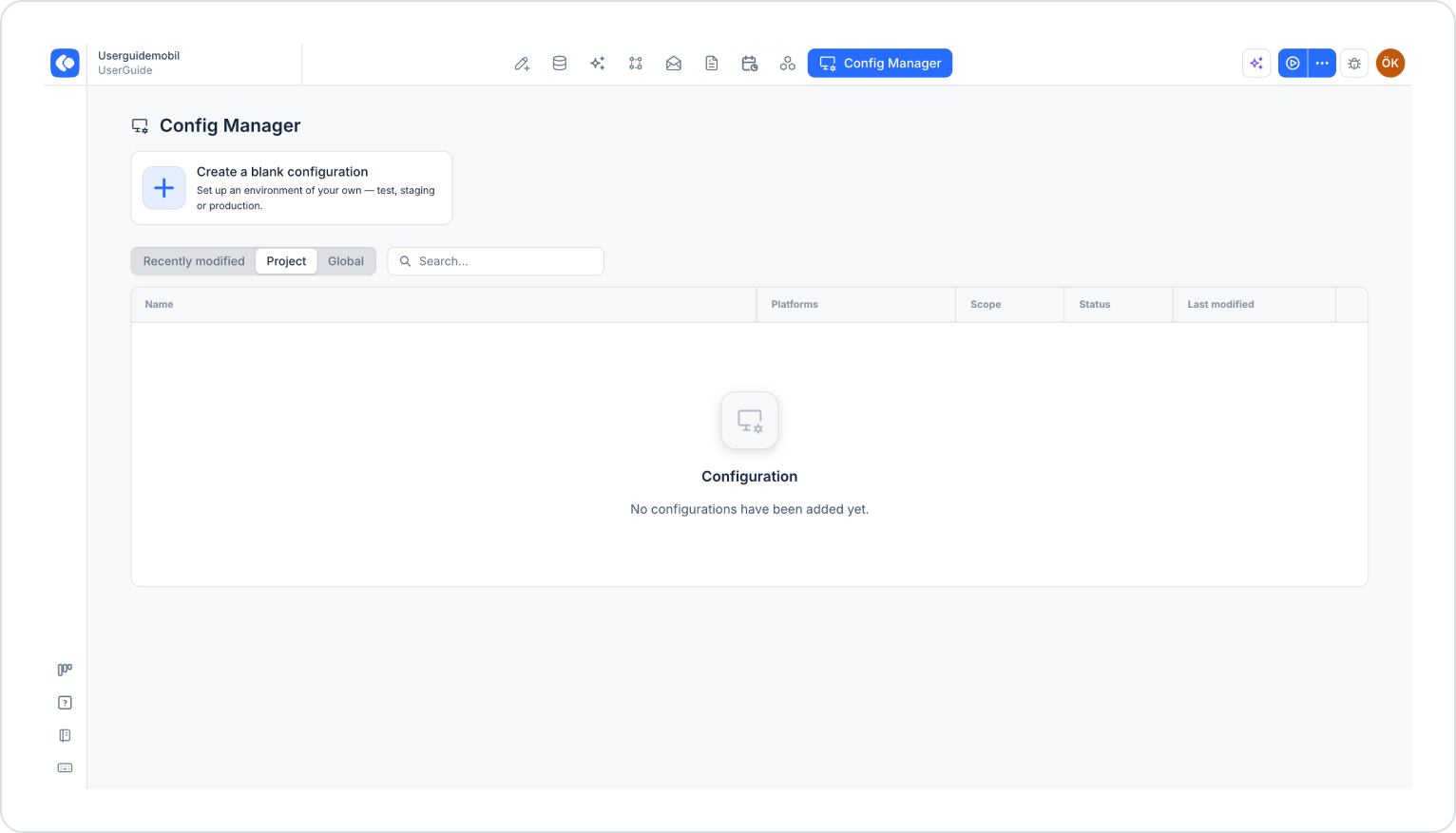
Click the Config Manager module in the top menu.
To edit an existing configuration, click its name in the list, or create a new configuration using the Create a blank configuration card.
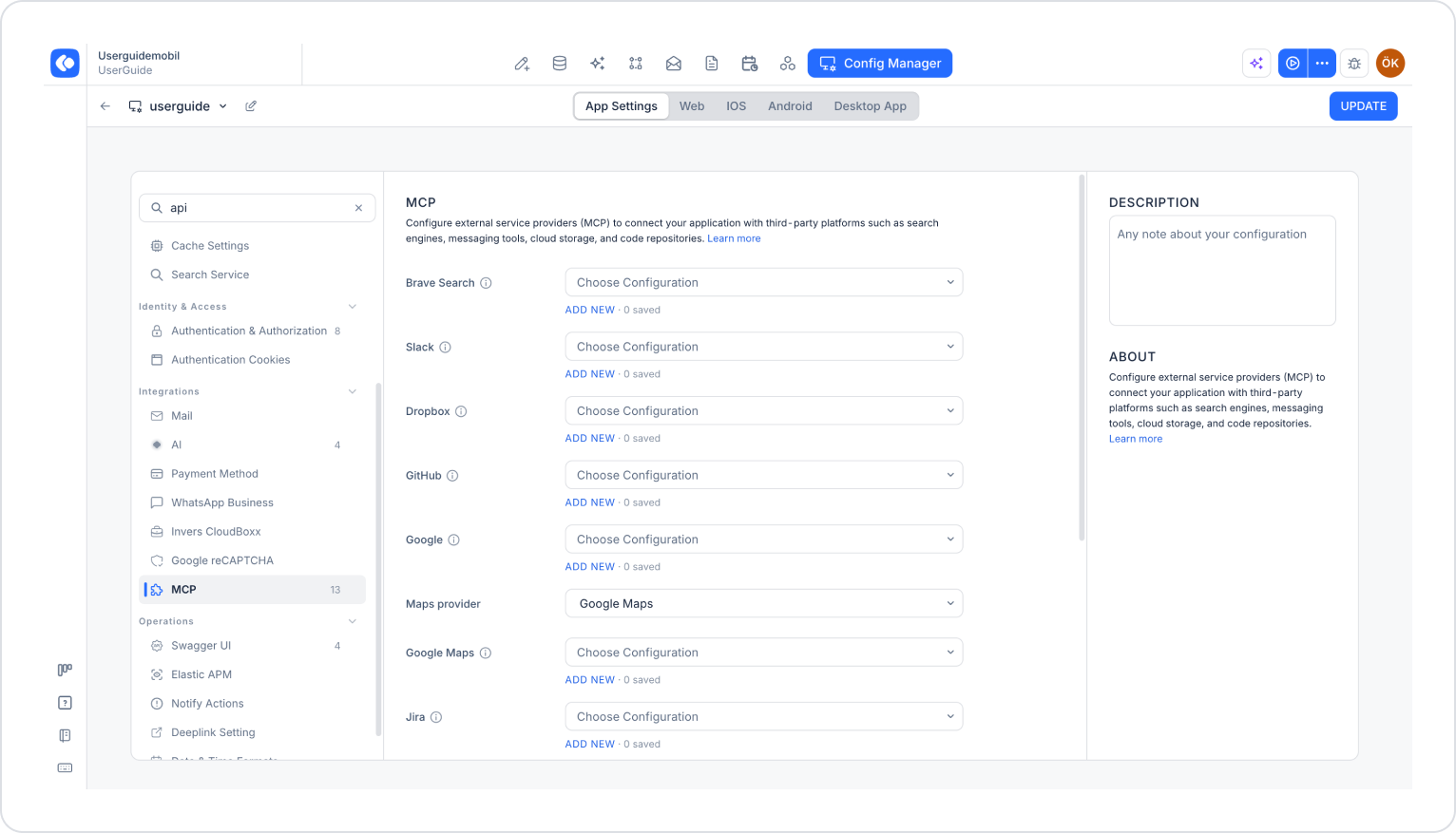
Make sure the App Settings tab is selected at the top of the configuration screen.
In the left menu, click the MCP option under the INTEGRATIONS heading.
Click the Add New link under the Brave Search section.
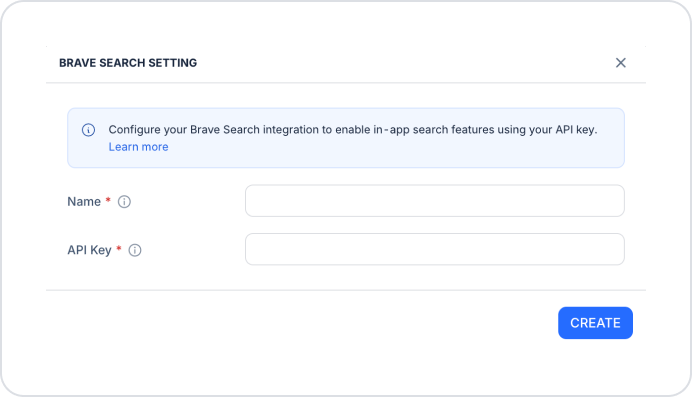
In the Brave Search Settings window that opens, fill in the following fields (all fields are required):
Name: A unique name for this integration.
API Key: The API key you created in the Brave Search API dashboard.
Click the Create button.
Select the configuration you created from the Brave Search dropdown menu.
Click the Save button in the top-right corner to save your changes. (In an existing configuration, this button appears as Update.)
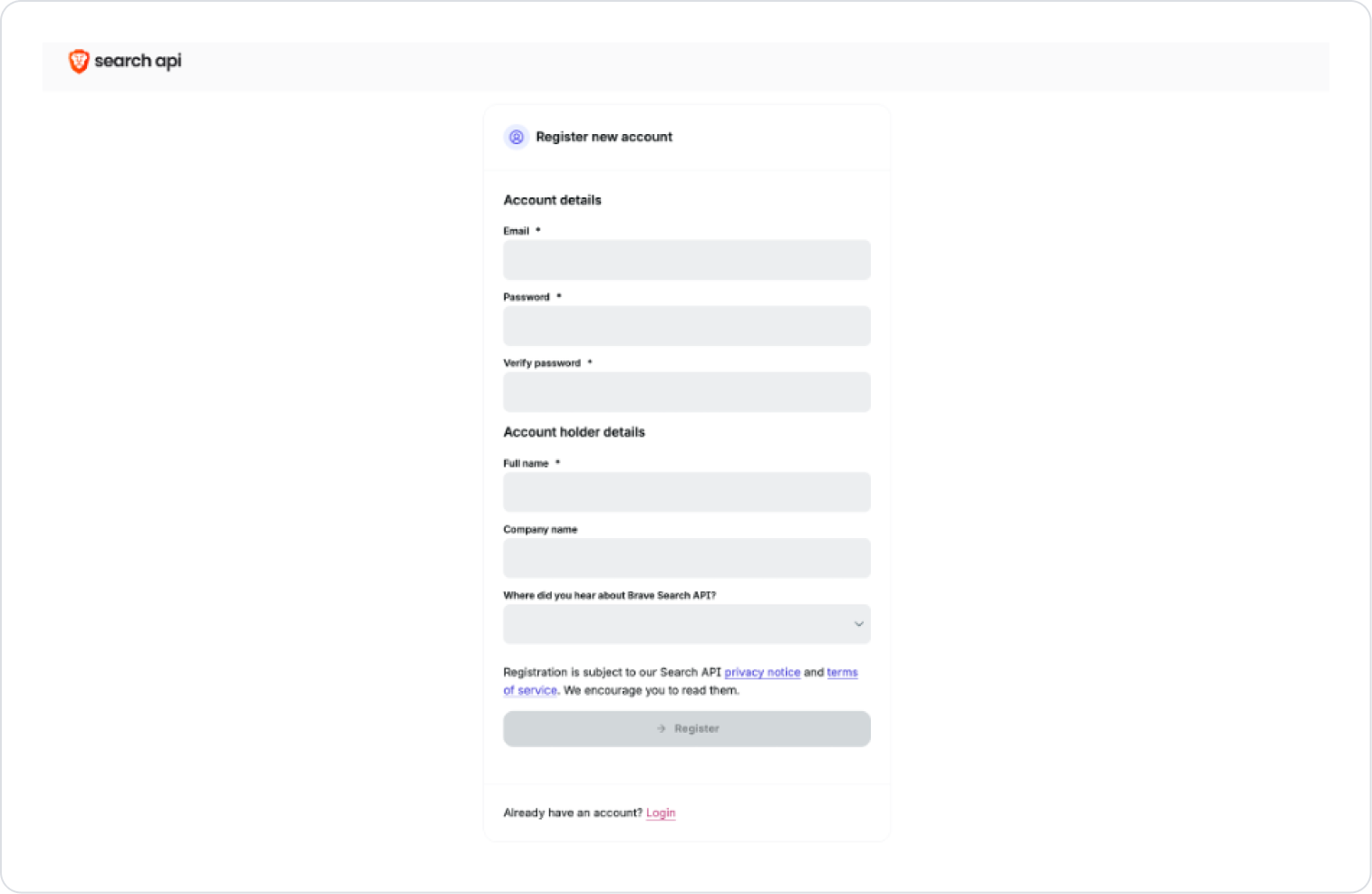
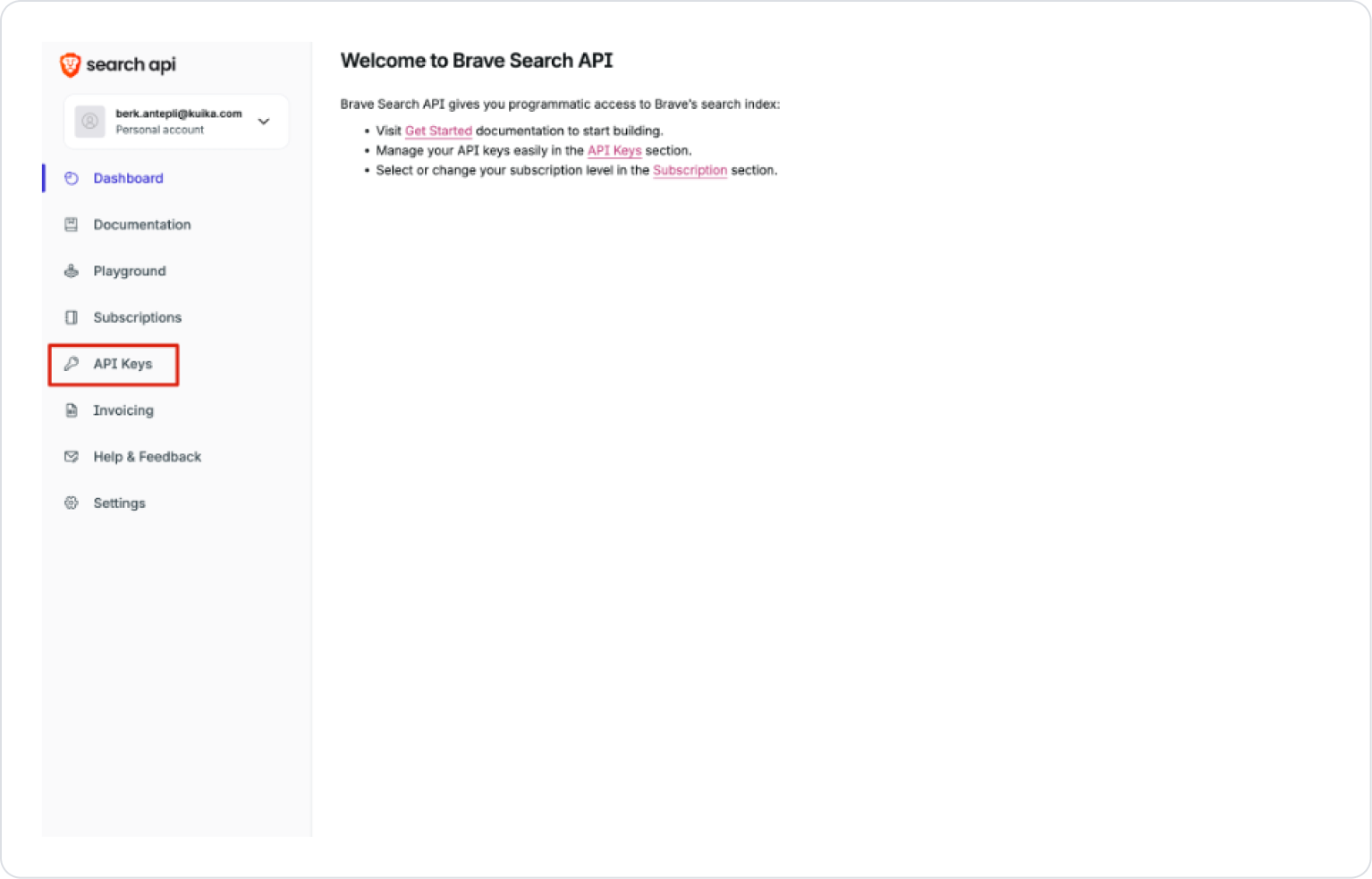
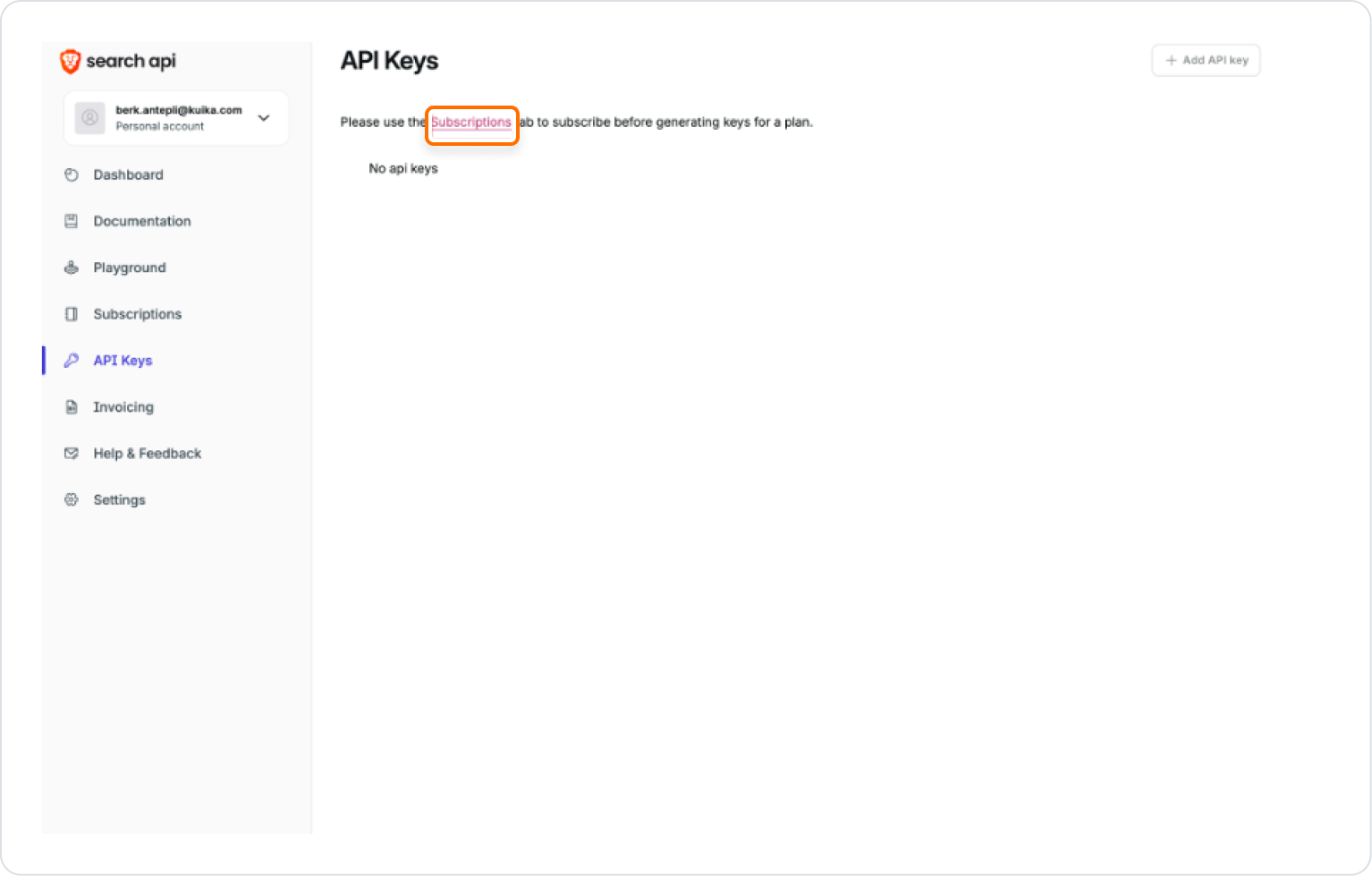
To use the API, first select a Subscription plan and complete the payment process.
Go back to the API Keys tab and click the ADD API Key button.
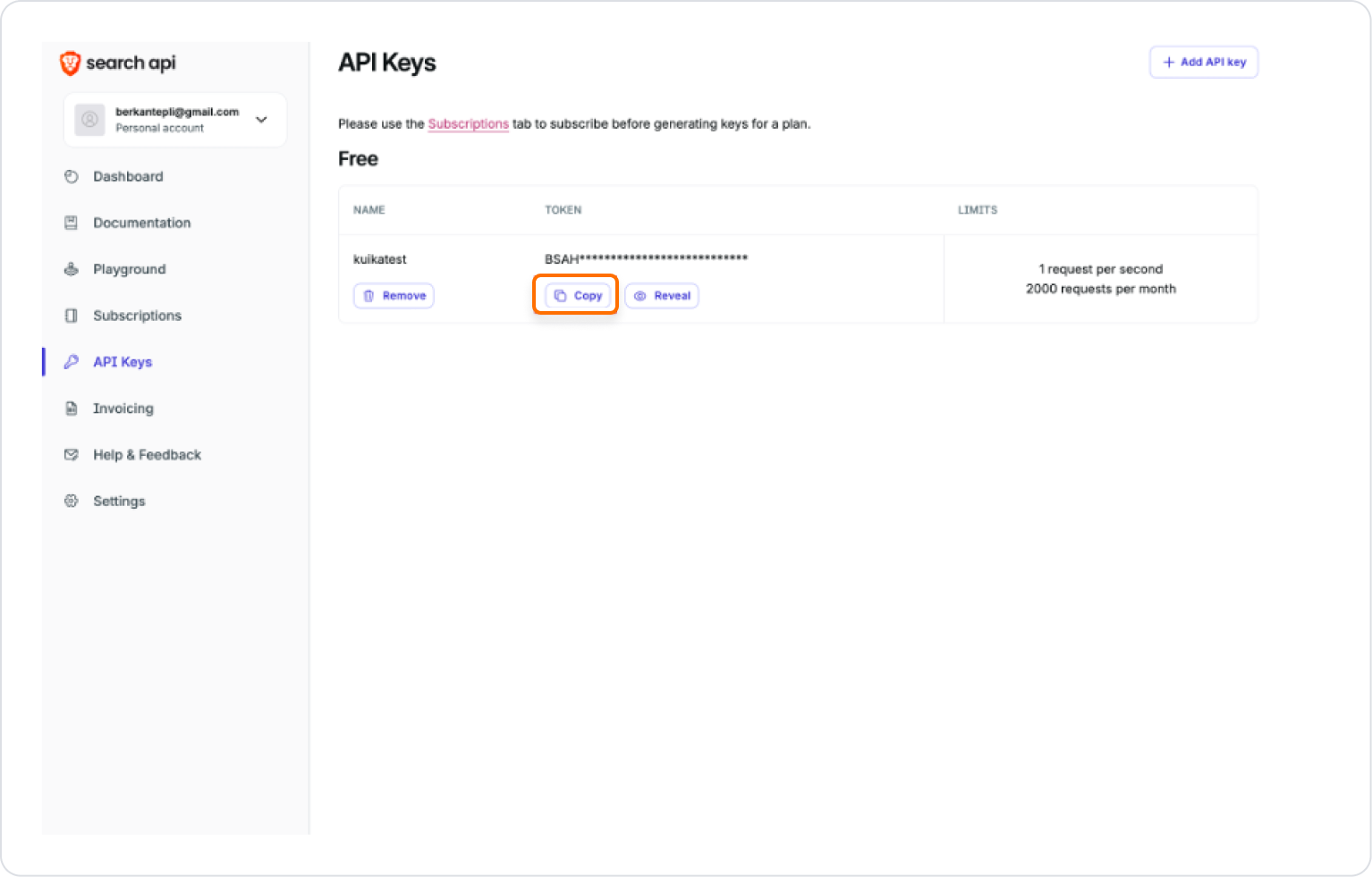
Enter a name, select a plan, and create your API key.
Copy the generated API key and paste it into the Configuration Manager → Brave Search Settings screen in Kuika.
Action Types
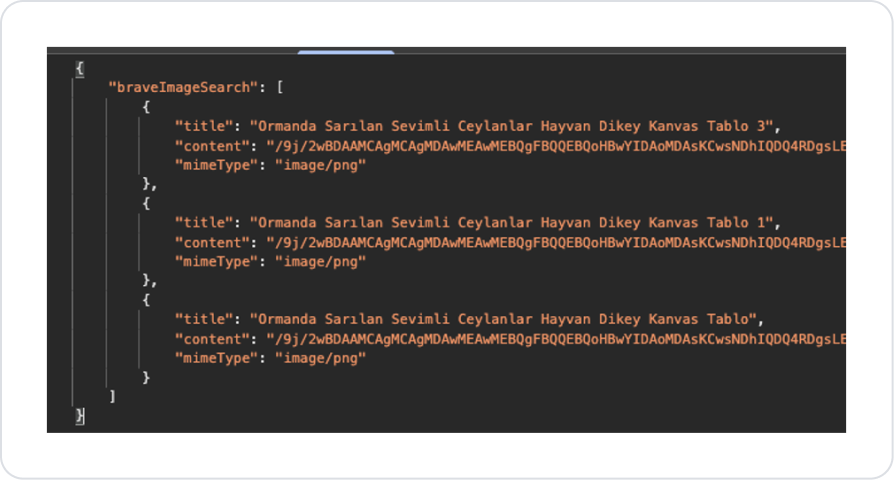
Brave Image Search
Action Input
settings: The Brave setting you defined in Config Manager.
query: Keywords for the image to be searched. (e.g., “deer roaming in the forest”)
count: Maximum number of results to be returned.
Action Output
title: Title of the image.
content: Image data in Base64 format.
mimeType: MIME type of the image (e.g., image/jpeg).
Brave Local Search
Action Input
settings: Brave setting.
query: Local business or venue search. (e.g., “best cafes in Istanbul”).
count: Maximum number of results.
Action Output
title: Title.
url: Result URL.
description: Short description/snippet.
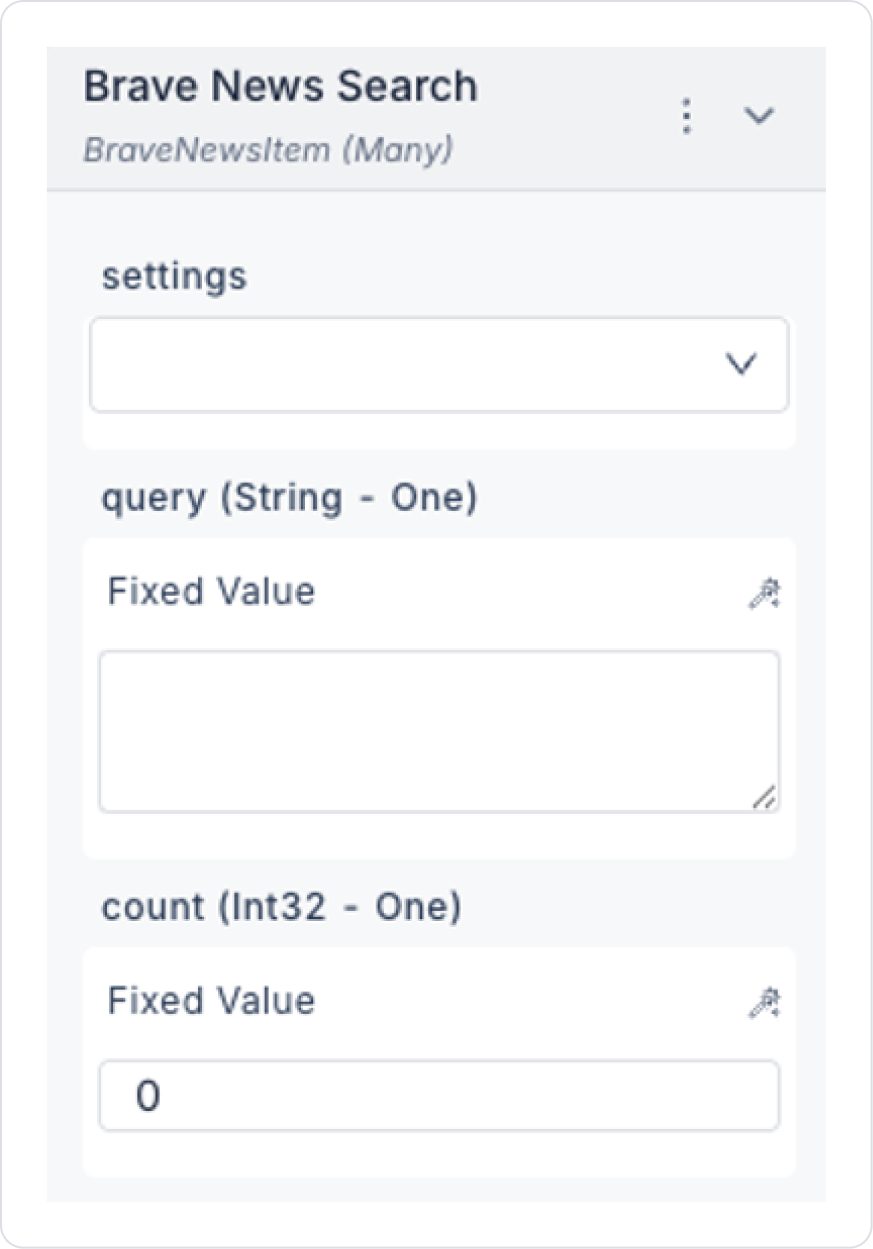
Brave News Search
Action Input
settings: Brave setting.
query: Keywords for the news. (e.g., “Turkey presidential election”).
count: Maximum number of results.
Action Output
age: Publication date.
title: News headline.
url: News link.
description: Short description.
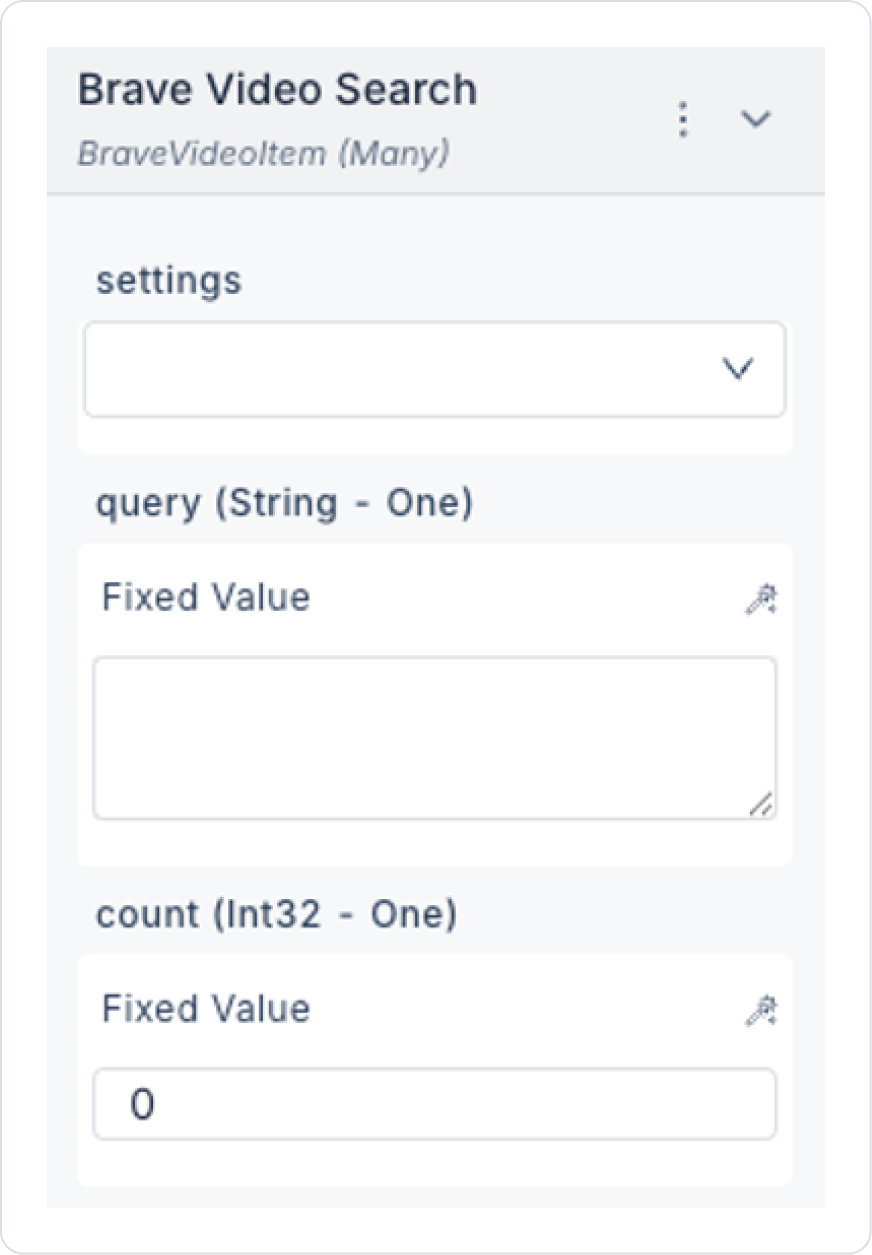
Brave Video Search
Action Input
settings: Brave setting.
query: Keywords for the video. (e.g., “menemen recipe”).
count: Maximum number of results.
Action Output
duration: Video duration.
views: Number of views.
creator: Content creator.
tags: Video tags.
age: Publication date.
title: Video title.
url: Video link.
description: Video description.
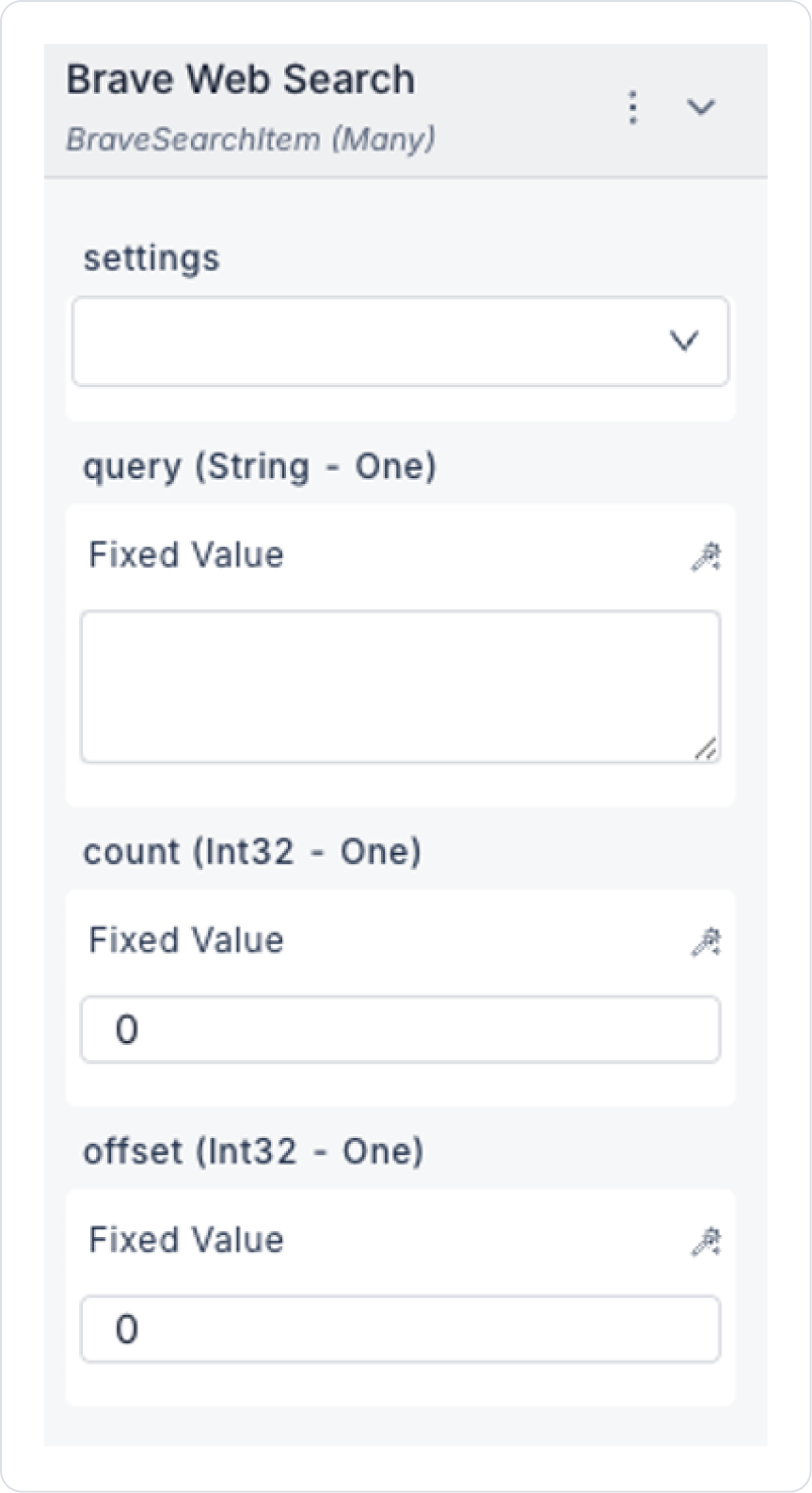
Brave Web Search
Action Input
settings: Brave settings.
query: Keywords for web search.
count: Maximum number of results. (e.g., count=5 → maximum of 5 results).
offset: Pagination parameter. (e.g., 0 → first 10 results, 10 → next 10 results).
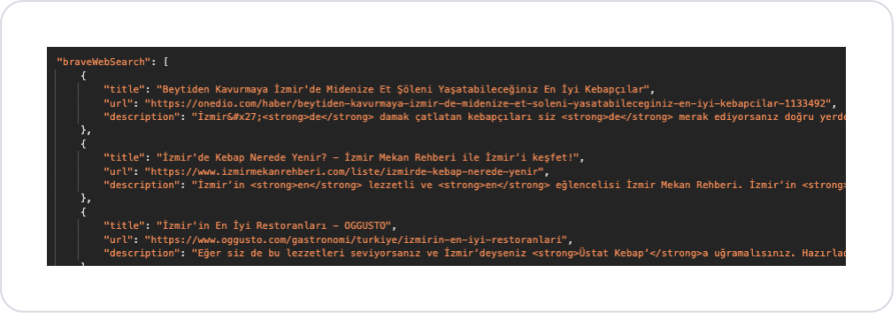
Action Output
title: Web page title.
url: Web page link.
description: Short description/snippet.
Usage in Kuika
Brave Search settings created in Configuration Manager can be used by selecting them as the settings parameter in the Brave Search Action in the project.
For example:
Web Search for “low-code platform”,
Local Search for “Istanbul breakfast places”,
News Search for “AI trends 2025” can be performed.