Kuika’s Run feature lets you run and preview the app you’ve developed in a test environment before publishing it. The Run process automatically generates and runs your app’s front-end and back-end components, then opens the app in a new browser tab. This allows you to test your app in real time.
In this guide, you’ll learn how to start the Run process, update the Run Settings, and explore the options in the GENERATE APP panel.
About the Run Process
The front-end and back-end are regenerated with every Run process.
During the first Run, the infrastructure setup is performed automatically. Therefore, the first run may take a little time.
The test environment created by a Run remains active for 72 hours (3 days). This duration resets with each new Run.
How to Start a Run
1. Open Your Project
Log in to the Kuika platform.
From the Apps screen, click on the project you want to test.
2. Open the GENERATE APP Panel
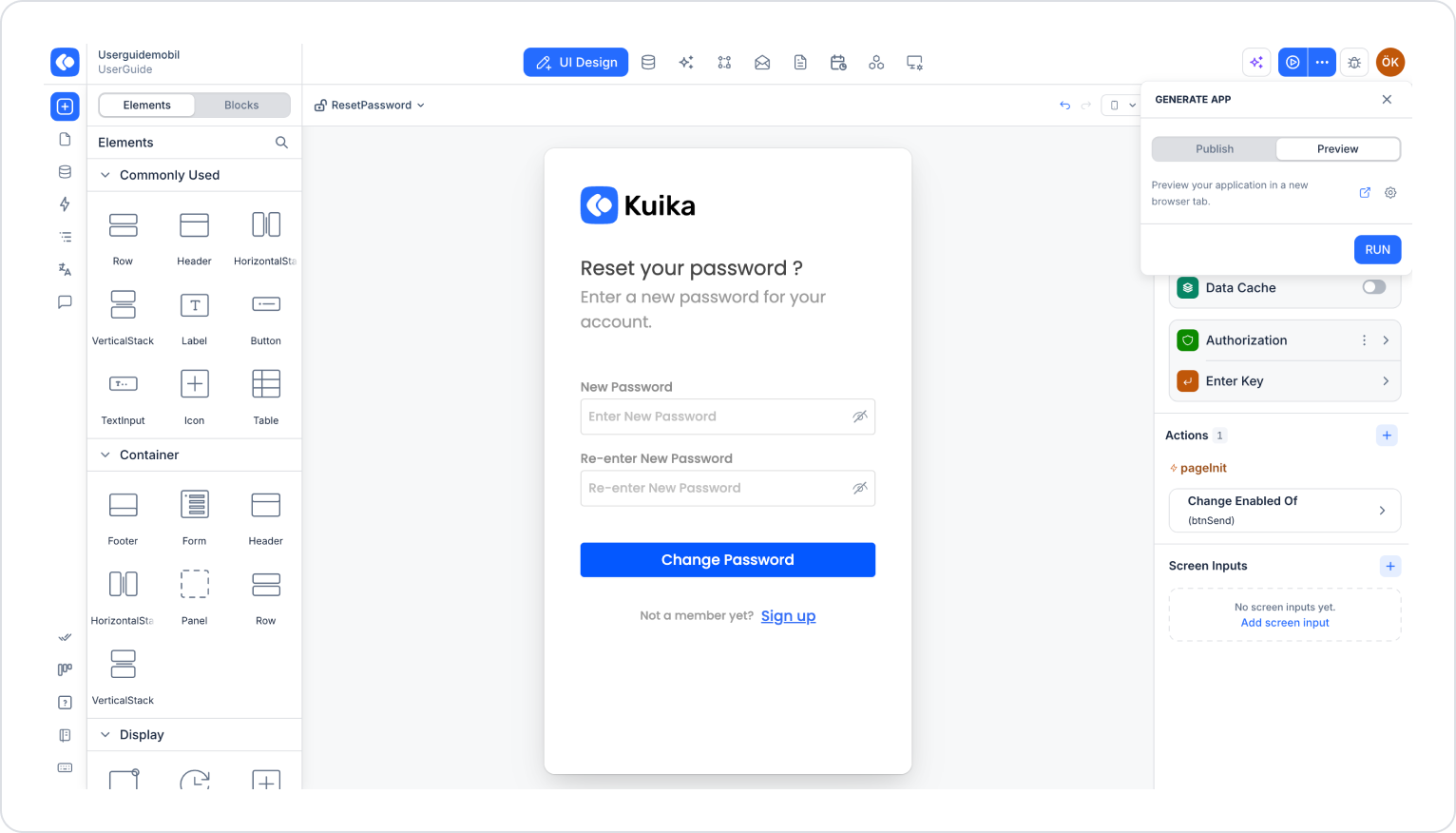
Click the three dots next to the Preview button in the top-right corner of the screen.
The GENERATE APP panel opens. The panel contains two tabs:
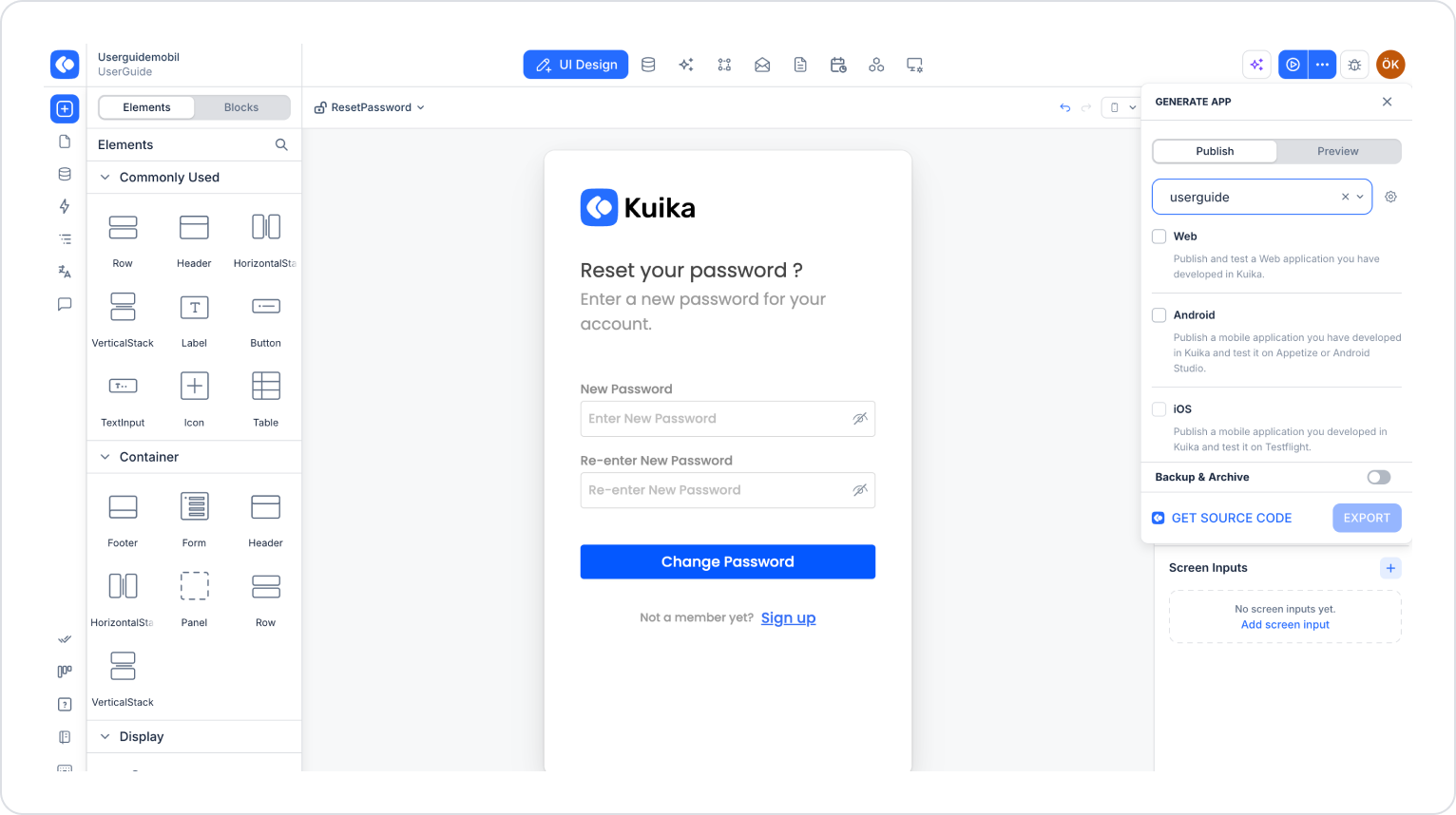
Publish: Allows you to publish and export your app for Web, Android, or iOS platforms.
Preview: Allows you to preview your app in a new browser tab using Run.
3. Start the Run Process from the Preview Tab
In the GENERATE APP panel, select the Preview tab.
Click the RUN button.
When the process is complete, your app will open in a new browser tab.
Updating Run Settings
Run Settings allow you to customize the settings used in the test environment created by Run according to your app’s needs.
Select the Preview tab in the GENERATE APP panel.
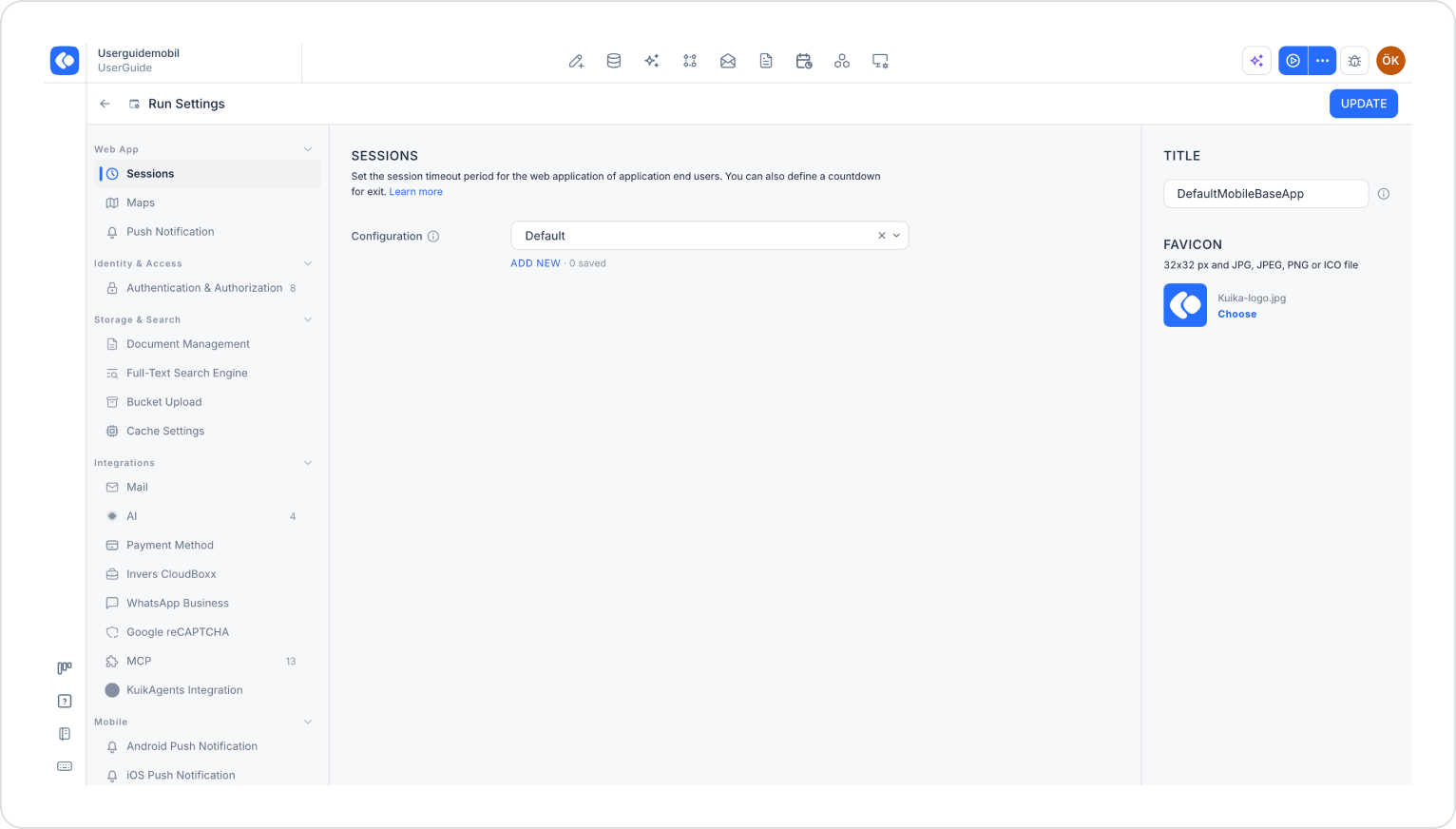
Click the gear icon on the right.
The Run Settings screen opens.
Select the setting you want to configure from the left menu. Settings are grouped under the following headings:
Operations: Notify Actions, Date & Time Formats, Build Type
In the TITLE and FAVICON fields on the right side of the screen, you can specify the tab title and icon that will appear in the test environment.
After making your settings, click the UPDATE button in the top-right corner to save your changes.
Publish Tab
The Publish tab in the GENERATE APP panel is used to publish your app and access the source code.
Select a publish configuration from the Choose publish configuration dropdown menu. Platform options will not be displayed until a configuration is selected.
After selecting a configuration, check the platforms you want to publish to:
Web: Publishes the web app you developed in Kuika and allows you to test it.
Android: Publishes your mobile app and allows you to test it in Appetize or Android Studio.
iOS: Publishes your mobile app and allows you to test it on TestFlight.
Backup & Archive: Creates a backup of your project and archives it. You can create up to 5 backups. You can access and restore archived projects from the Archive section on the Apps screen.
GET SOURCE CODE: Allows you to retrieve your app’s source code and edit it in your own development environment.
EXPORT: Starts the publishing process for the selected platforms.
Pop-up Blocking and Preview
Kuika automatically makes the necessary adjustments to prevent pop-up blockers from blocking the test page.
Limitations During the Preview Process
While the RUN process is in progress, the RUN button and Run Settings are disabled.
The following actions do not automatically refresh the preview page:
Refreshing the Designer environment (refresh)
Switching projects or workspaces
Logging in or out of the Designer environment
When the preview page opens, the application redirects the user to the login screen or the projects page, depending on the user’s authentication status.
Important Tips
The test environment closes after 72 hours. To keep the environment active during long-term tests, restart the Run process.
Changes you make in Run Settings affect only the test environment. Configure settings for the production environment via Config Manager.
The first Run operation may take a long time due to infrastructure setup. Do not close the page before the process is complete.
By following these steps, you can test your application using the Run feature before deploying it and efficiently manage the preview process.