Working with Components

Symbol Picker

About this lesson

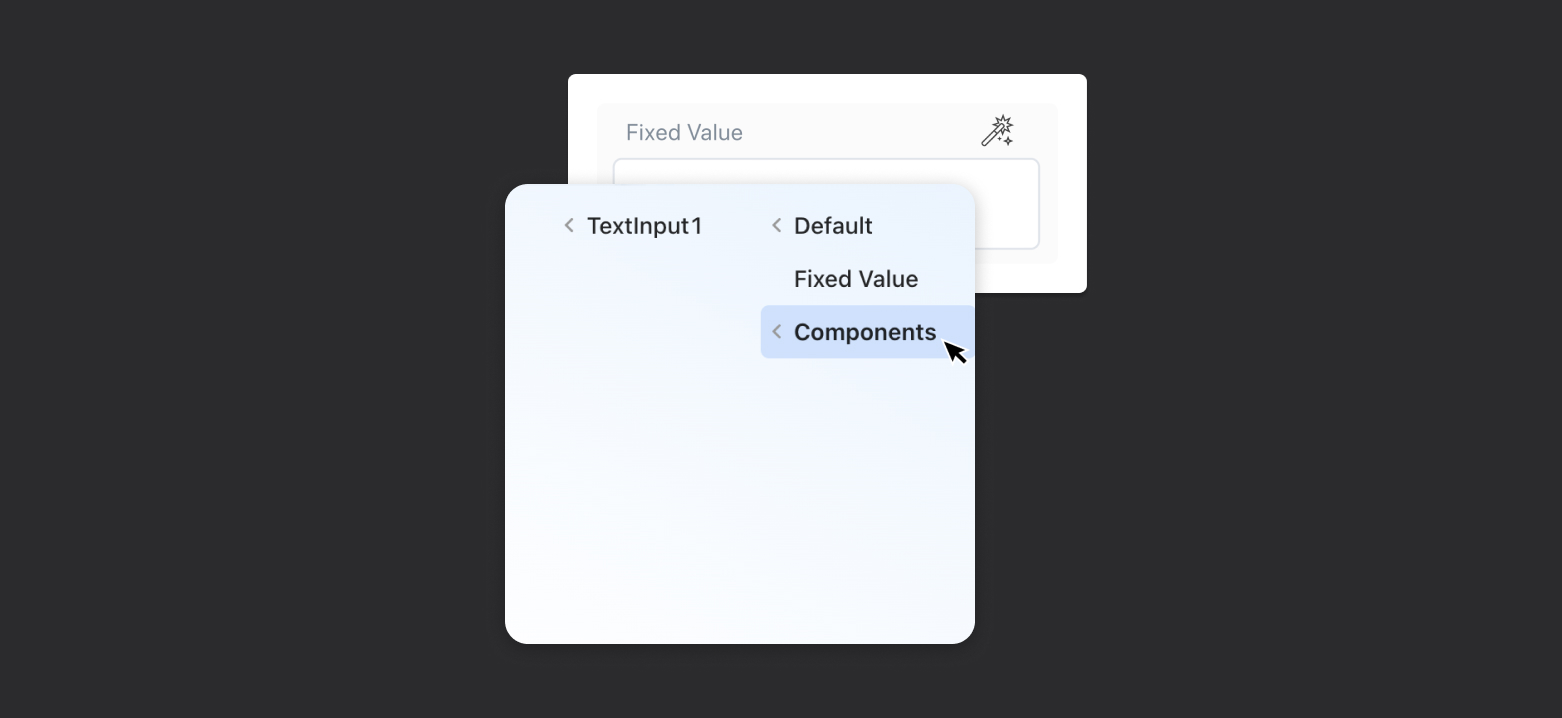
Another one of the categories offered under the Symbol Picker category is the Components category. This category is used to define a value entered or selected through an element in the user interface as the value of another element or as the parameters of an action.

For example, suppose a TextInput element is used in an application to retrieve name information from the user. When the user enters a value in this TextInput, this value can be used as a parameter of another function or action. The Components category allows you to establish such connections and pass user input directly to actions and other elements. This way, you can create dynamic and interactive user experiences.

Heading 1

Heading 2

Heading 3

Heading 4

Heading 5
Heading 6

Lorem ipsum dolor sit amet, consectetur adipiscing elit, sed do eiusmod tempor incididunt ut labore et dolore magna aliqua. Ut enim ad minim veniam, quis nostrud exercitation ullamco laboris nisi ut aliquip ex ea commodo consequat. Duis aute irure dolor in reprehenderit in voluptate velit esse cillum dolore eu fugiat nulla pariatur.

Block quote

Ordered list

  1. Item 1
  2. Item 2
  3. Item 3

Unordered list

  • Item A
  • Item B
  • Item C

Text link

Bold text

Emphasis

Superscript

Subscript

Another one of the categories offered under the Symbol Picker category is the Components category. This category is used to define a value entered or selected through an element in the user interface as the value of another element or as the parameters of an action.

For example, suppose a TextInput element is used in an application to retrieve name information from the user. When the user enters a value in this TextInput, this value can be used as a parameter of another function or action. The Components category allows you to establish such connections and pass user input directly to actions and other elements. This way, you can create dynamic and interactive user experiences.

Another one of the categories offered under the Symbol Picker category is the Components category. This category is used to define a value entered or selected through an element in the user interface as the value of another element or as the parameters of an action.

For example, suppose a TextInput element is used in an application to retrieve name information from the user. When the user enters a value in this TextInput, this value can be used as a parameter of another function or action. The Components category allows you to establish such connections and pass user input directly to actions and other elements. This way, you can create dynamic and interactive user experiences.

Files

No items found.

Sources

No items found.

Glossary

No items found.

Assignment

E-Posta Tasarımı
Email Builder Basics
Using Email Templates
New Email Design
Introduction to Mobile Interface Design
Tabbar Menu Design
Dashboard Screen Design
Form Screen Design
Listing Screen Design
Detail Screen Design
Mobile UI Prototyping
Web UI Prototyping
Working with Actions
Working with Navigations
Screen Display Types
Web App Prototyping
Add Notify
Preview
Introduction to Web Interface Design
Introduction to Registration Screen Design
Preparation of Header Design
Working with Master Screens
Menu Design
Dashboard Screen Design
Listing Screen Design
Form Screen Design
Display Screen Design
Elements
Container Elements
Date and Time Input Elements
Display Elements
Text Input Elements
Numeric Input Elements
Select Input Elements
Data Elements
Navigation Elements
Interactive Elements
Chart Elementler
Introduction to Interface Design in Kuika
User experience on the Kuika platform
The Application Interface Design Process
Working with Color
Definition of paddings
Working with Font Styles
Working with complex styles
Working with Mock Data
Concept Design
Wireframe: visualization of the first idea
Preparation of Concept Design
UX Design
Principles of usability
Basic design Principles
Information architecture
Screen Flow
Analysis and Planning
Defining the project scope and objectives
Reading the analysis document
Reading the example flow chart and defining the requirements
Planning of the project
Introduction to Designer Training Kit
What is Low-code?
What is Kuika?
What can be done with Kuika?
Let's examine the platform interface
Understanding the learning process‍