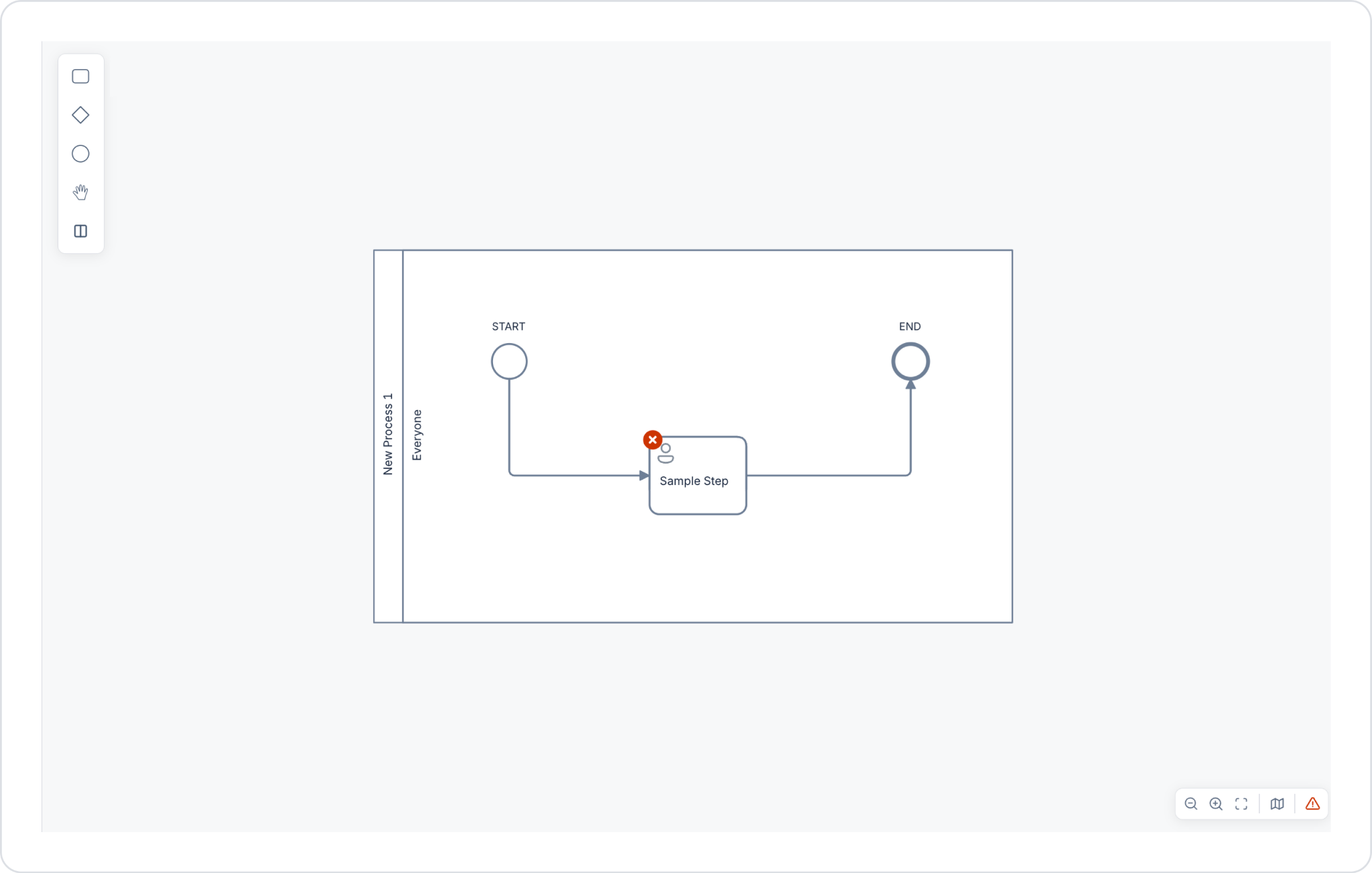
Process Automation refers to the automation of business processes using digital tools to make them more efficient. Repetitive and time-sensitive tasks are performed automatically through software systems, resulting in savings in time and labor. The Kuika Process Automation module, as a built-in feature of the platform, offers user-friendly tools and flexible building blocks; all integration processes, system actions, and data management functions available in Kuika can be used directly within this module.
Core Components and Principles of Process Automation
1. Process Modeling
Process modeling is the visual mapping of all steps, user interactions, and systems within a process on a BPMN diagram.
Kuika provides the ability to visually create workflows in a design area called the Canvas; process steps, gateways, and events are positioned and connected within this area.
Each process consists of four tabs: Diagram, Parameters, Forms, Version History. The visual design of the process is created in the Diagram tab; variables associated with the process are defined in the Parameters tab; user screens and interactions are managed in the Forms tab; and past versions are listed in the Version History tab.
2. Process Triggers and Conditions
A process’s starting point is represented by a Start Event; this can be triggered by a user action, a system event, or a timer (Timer Event). For the workflow to function correctly, there should generally be a single starting point.
Gateways determine the direction in which the process proceeds: An Exclusive Gateway ensures that only one path is selected; a Parallel Gateway triggers all paths simultaneously without conditions; and an Inclusive Gateway runs all relevant paths in parallel when multiple conditions can be met at the same time.
3. Automatic and Manual Tasks
System Tasks (Automatic Tasks): These are tasks executed by the system without user intervention; they include operations such as REST API calls, integrations with external systems, or background data processing.
User Task (Manual Tasks): These are tasks that require the user to fill out a form, enter data, or make a decision such as approval or rejection. The process does not proceed to the next step until the user completes the task.
Kuika Process Automation features a structure that allows both task types to be used flexibly together within the same workflow.
4. Data Integration and Information Flow
Throughout the process, data is transferred between steps via process parameters (Input/Output) defined in the Parameters tab.
REST API calls or predefined Custom Actions can be triggered through the Actions section in System Task steps; the returned results are mapped to workflow parameters via Step Outputs, making them available for use in subsequent steps (conditions, notifications, or other tasks).
Kuika instantly checks BPMN diagrams during design to ensure they comply with both BPMN standards and Kuika platform rules.
For elements that violate the rules, a warning (exclamation mark) icon appears if there is only a warning, and an error (x) icon appears if there is an error; when the cursor hovers over the icon, the violated rule is displayed as a tooltip. This validation is applied in the same way during the preview and export stages.
6. Performance and Reporting
Data related to processes executed in Process Automation—such as pending jobs, task history, process summary, and user load—can be queried via SQL Views.
Thanks to these Views, process data can be joined with other application data for use in reporting, analysis, and monitoring scenarios (e.g., number of pending tasks per user, load analysis by department).
7. Task Assignment and Continuity
Task assignment is performed in the Assignment field at each step: Options include Everyone (task pool), Role (assignment to a specific role), Dynamic Assignment (assignment based on process variables), or External Users (assignment to users outside the application).
With the Proxy System, a user can ensure that tasks assigned to them are transferred to a proxy in their absence; this is managed via the Get Agent and Set Agent actions and helps ensure that processes continue without interruption. Only one proxy can be assigned to a user at a time.