Kuika's Mobile App Activate Subscription action is used to activate a subscription product selected by the user in mobile applications. With this action, the user can start the subscription package they have selected through the iOS or Android stores from within the application.
Mobile App Activate Subscription is particularly used in subscription purchase, premium membership initiation, and plan upgrade scenarios.
Technical Specifications
Subscription Activation (Device Panel): Activates the subscription product with the specified subscriptionProductId value for the user.
Single Result (One): The action returns the subscription activation result as a single (One) result of type MobileAppActivateSubscriptionResult.
Mobile Store Integration: Works in integration with iOS and Android stores and performs subscription activation according to platform rules.
Mobile App Activate Subscription Action Application Steps
1. Creating a Mobile App
Log in to the Kuika platform.
On the Apps screen, click the New App button.
Choose a name for the app.
Check the Mobile compatible app option.
Click the CREATE button to create the app.
2. Defining the Action in UI Design
Open your project on the Kuika platform.
Go to the UI Design module and select the relevant screen.
Identify an element where the user will purchase a subscription or upgrade to premium (e.g., “Buy”, “Upgrade to Premium” button).
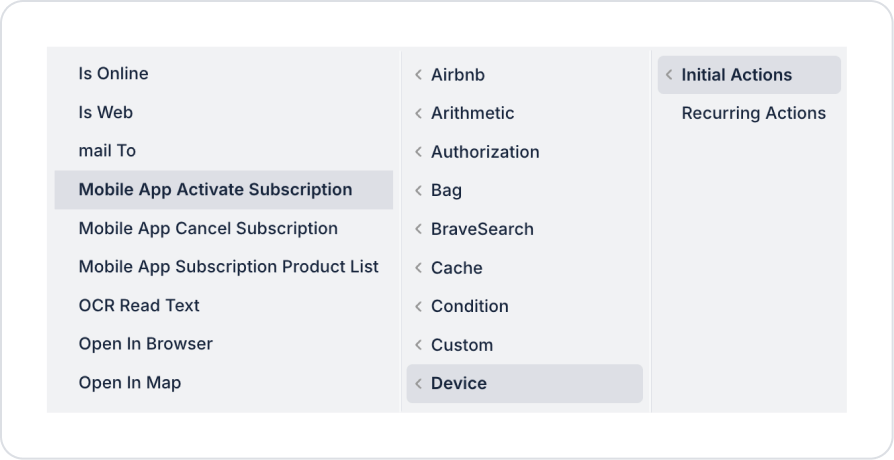
Select the relevant element. Then add the + ADD ACTION → Device → Mobile App Activate Subscription action according to the trigger event to be used.
3. Configuring Action Parameters
Required Parameter
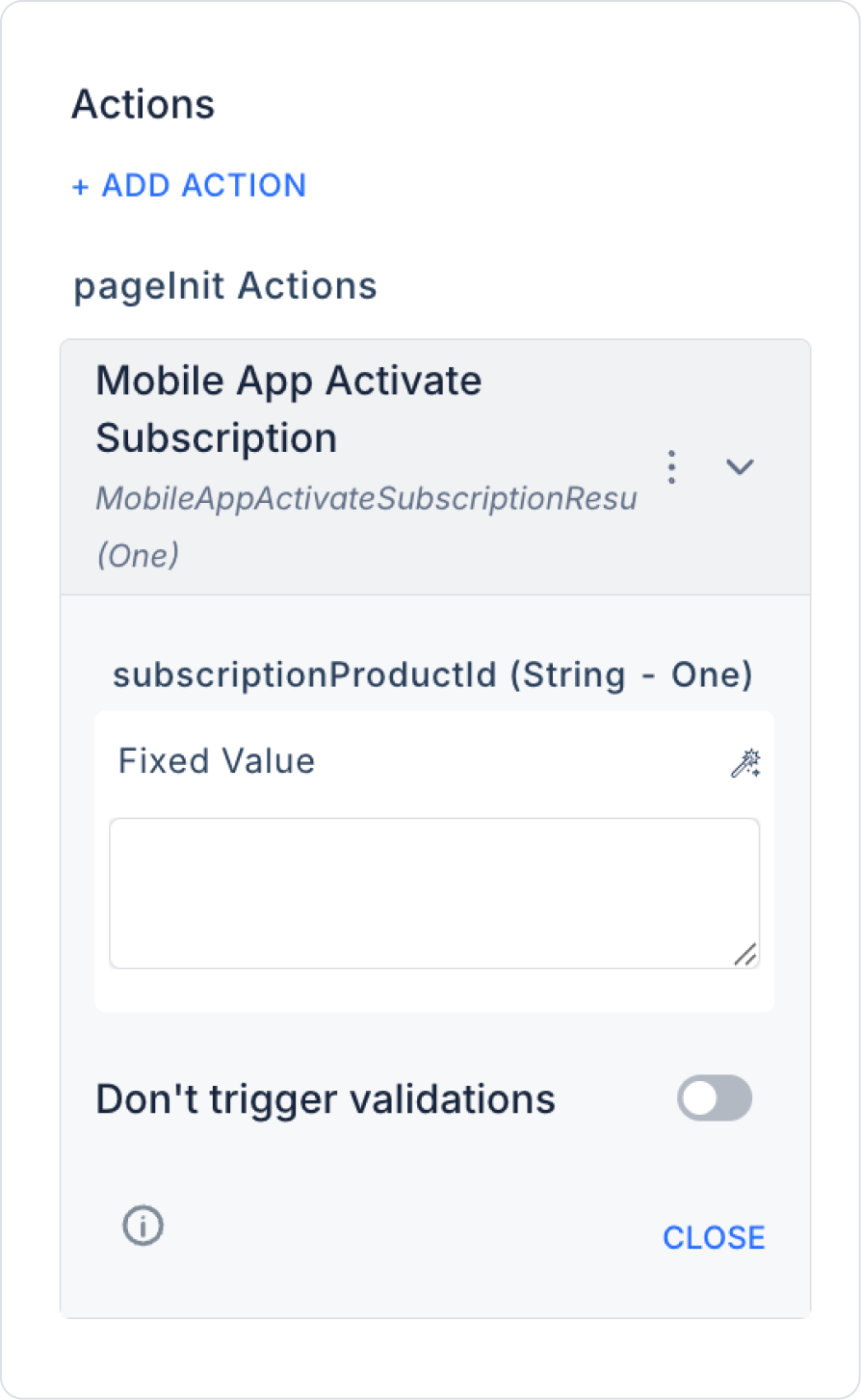
subscriptionProductId (String – One): Specifies the unique ID of the subscription product to be activated. This field is usually linked from the following sources:
Action Result: Product ID returned from the Mobile App Subscription Product List action
Current / Screen Input: The subscription plan selected by the user
Fixed Value: Fixed product ID in test or demo scenarios
Usage Scenario: Subscription Purchase Flow
A user opens the Premium Packages screen in a mobile app.
The Mobile App Subscription Product List action is triggered when the page opens.
Monthly, yearly, or promotional subscriptions are listed.
The user selects a plan and clicks the “Buy” button.
The Mobile App Activate Subscription action is triggered with the subscriptionProductId value of the selected product.
If the action is successful:
The user's subscription is activated.
Premium features become accessible.
A notification message is displayed to the user.
Technical Risks
Incorrect Subscription Product ID: If an invalid or undefined product ID is sent, activation will fail.
Existing Active Subscription: If the user has an active subscription, the same product may not be activated again.
User Experience: Pricing and subscription duration information must be clearly displayed to the user before the purchase process.