Kuika's OCR Read Text action allows you to read text from photos using the native Vision (OCR) capabilities of mobile devices. Users can quickly and securely transfer text from an image to the application without consuming tokens.
OCR Read Text can be used for scenarios such as reading invoices, scanning documents, and recognizing license plates or labels.
Technical Specifications
Mobile App Support: Works on iOS and Android mobile apps.
Token Usage: Does not consume tokens as it uses local device libraries.
Input Type: Image in Base64 format (imageBase64).
Output Type: Read text (String).
How it works: Works with user-triggered actions (e.g., button click). The OCR Read Text action does not initiate the camera or gallery process itself; the Base64 format output of the relevant image must be provided as input.
Working with AI: For example, text read from an invoice using OCR Read Text can be fed into an AI Action for summarization, classification, or field extraction.
OCR Read Text Action Application Steps
1. Creating a Mobile Application
Log in to the Kuika platform.
Click the New App button on the Apps screen.
Choose a name for the application.
Check the Mobile compatible app option.
Click the CREATE button to create the application.
2. Adding the OCR Read Text Action
Go to the UI Design module.
Drag a Button element from the Elements panel on the left side to the screen.
Type a phrase such as “Read Text” in the Button's Label field.
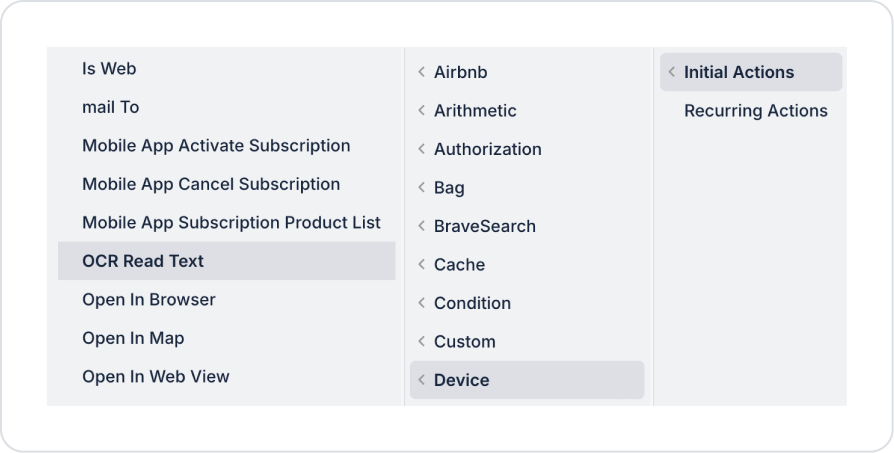
Select the Button and from the + ADD ACTION menu, depending on the event you want to trigger: Initial Actions / OnClick / OnChange → Device → Add the OCR Read Text action.
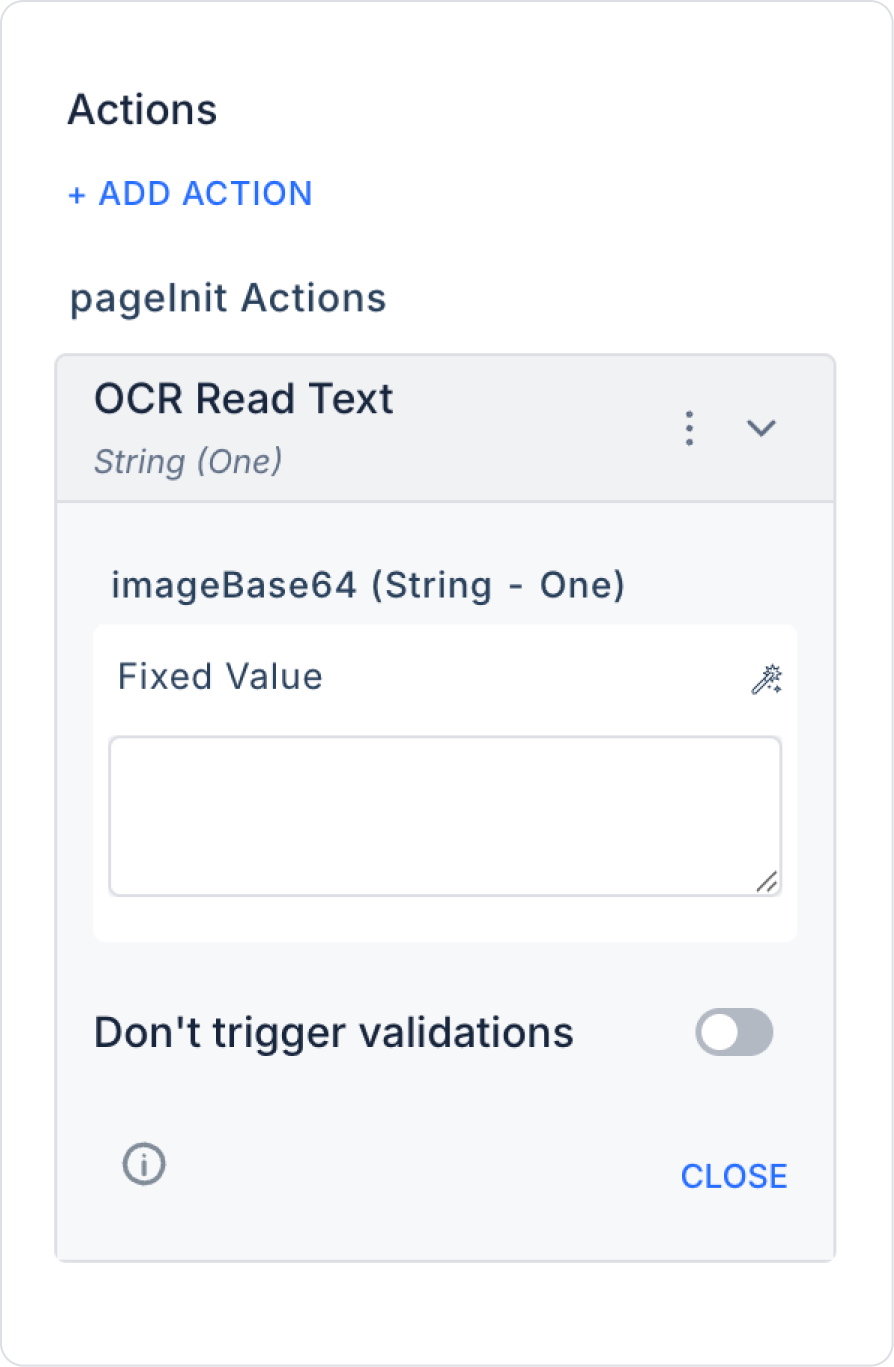
3. Configuring Action Parameters
imageBase64 (String – One): This is the Base64 format equivalent of the image to be processed by OCR.
This field can be dynamically filled from:
A photo taken with the camera
An image selected from the gallery
An image previously saved in the application
4. Testing the Application
Click the Preview button in the upper right corner to get the mobile output of the application.
Tap the “Read Text” button you created on the screen.
At this step:
A new image can be scanned using the device camera or
An existing image can be retrieved from the device using the file upload/gallery selection action.
The selected or captured image is sent to the OCR Read Text action, and the text on the photo is automatically read.
The read text becomes available for use as action output within the application.
Open the application on a physical iOS or Android device.
Use Case: Reading Invoice and Document Text
In an accounting application, users can take a photo of their invoices with their phone camera and automatically transfer text such as:
Invoice number
Date
Amount
and other text automatically to the system. This reduces manual data entry and lowers the error rate.
Data Processing After OCR Reading
The read text can be displayed in Label, Input, or Text Area elements.
The read data can be used for API calls or database records.
OCR Read Text Action Advanced Customizations
Conditional Execution: Run OCR if an image is present.
Data Validation: Display validation or warnings based on the read text.
Multiple Scenarios: Use OCR for different images on the same screen.
Error Management: Display meaningful messages to the user when the image is empty or invalid.
Technical Risks
Image Quality: Reading performance may decrease with low-resolution or blurry images.
Language Support: Reading accuracy depends on the local OCR language support of the device used.