With the Text Area element, you can allow users to share text or voice feedback of up to 500 characters and provide a seamless feedback experience with features like a character counter and a clear button.
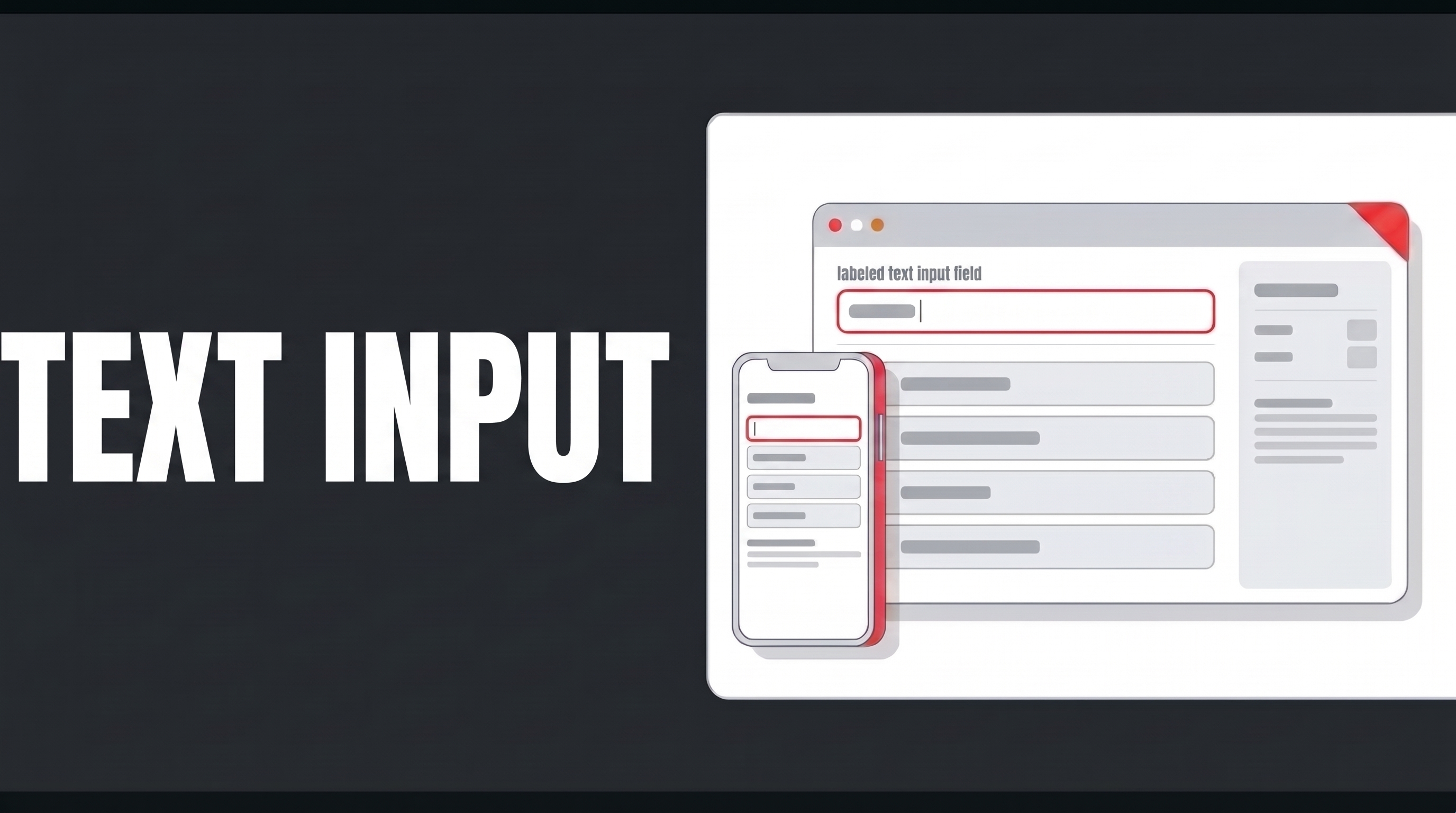
The “Text Area” element is a data input element that allows users to enter long, multi-line text. By providing a wider writing area compared to standard single-line input fields, it makes it easy to write and edit text.
In this video, we’ll explore the “Text Area” element using the “Service Evaluation and Feedback Sharing” scenario.
First, set up the “UserReviews” table structure in the “Tables” section of the “Data Sources” module as shown on the screen. Next, create an action named “GetUserReviews” from the “New SQL Action” section. Delete the table name, retype it, and press “Enter.” This will automatically add the correct schema name before the table name. Then, test it and save your changes.
Switch to the “UI Design” module. Add a “Label” element to the page and type “Evaluate the Service” in the “Value” field. In the “Style” field of the “Styling” panel, select the “Heading 5” font. Drag a “TextArea” element below it. Type your text into the “Placeholder.” Enable the “AllowClear” property. Set the “MaxLength” value to “500.” Enable the “ShowCount” and “SpeechToText” properties. Add a “Button” element below it. Type “Share” in the “Label” field. Add the “Save Record” action to the button via “onClick” by following the “ManageDB” steps. In the window that opens, select your table and select all columns. Define the “CommentText,” “CreatedDate,” “UserName,” and “Id” fields. Add the “GetUserReviews” action to the button via “onClick.” Next, configure the “onClick,” “UI Control,” and “Set Value Of” settings. In the “Component to Change” field that opens, select “TextArea.” Set the “Value” field to “Default” and “Empty.” Click on an empty area on the page and add the “GetUserReviews” action as the “Initial Action” to the page. Click the “Action Tree” area in the left-hand panel, then drag and drop the “GetUserReviews” action onto the page by holding the icon next to it. Select “Table” and “Outputs,” then save.
When the application is tested, the user can write a review in the designated field or use the microphone icon in the lower-right corner to provide a voice input. The character count and the 500-character limit are tracked in real time via the counter in the lower-right corner.