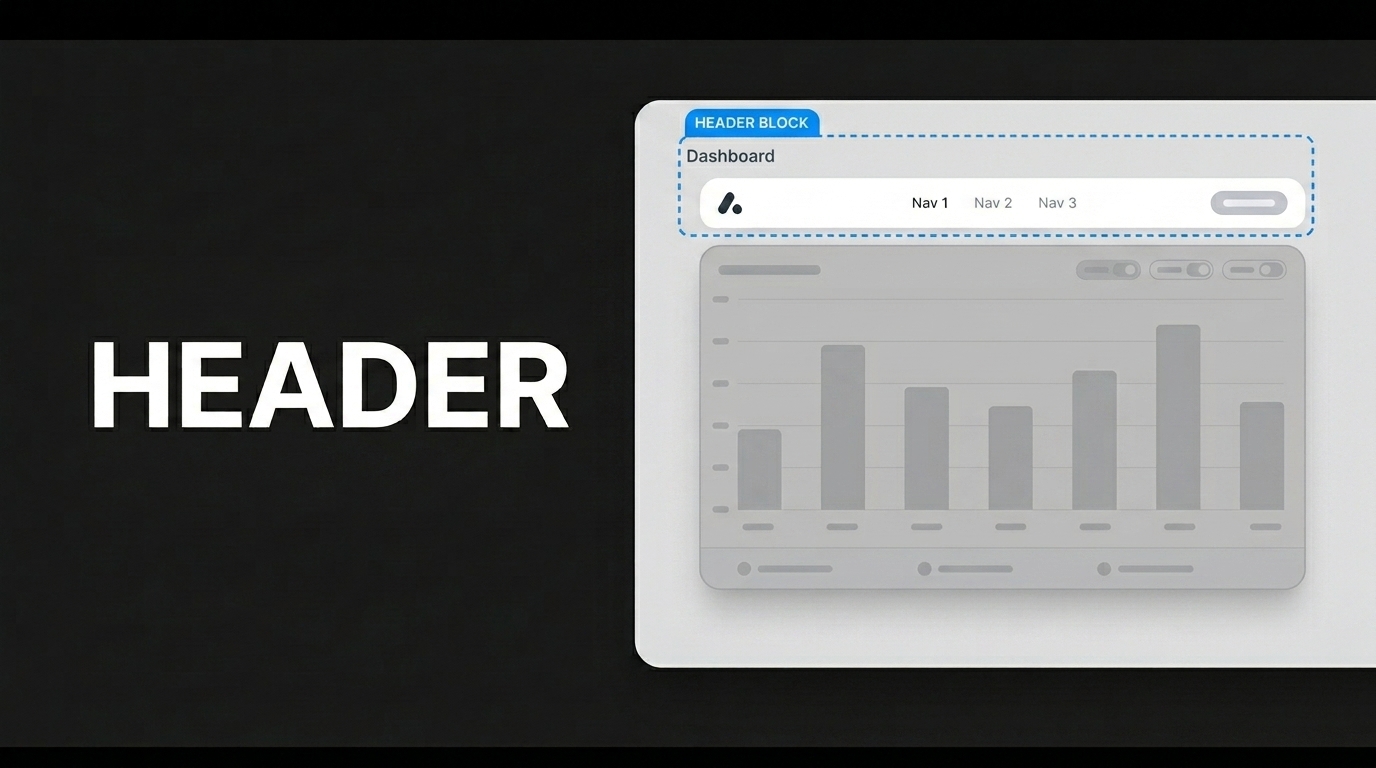
It is used to create a vertically aligned, organized form structure by aligning multiple elements on a single line (e.g., the logo, title, input field, and button on the password reset screen).
The Row element is a basic layout element used to align user interface components along a horizontal line. It allows you to arrange multiple UI elements in a single row, control their alignment, and manage the spacing between them.
We’ll explore how to use this element through the “Creating a Password Reset Screen” scenario. Drag a Row element onto the page, select “Single Column” from the Desktop section, and set the left and right Padding values to 100 in the Styling Layout section. Add an Image element inside it and set its width and height to 64 in the Styling Layout section.
Below the Image element, add four Row elements in sequence; we’ll set each one to “Single Column” in the Desktop section. Place a Label element inside the first Row and set it to Heading 3 in the Styling section. Drag a Text Input element into the second Row. Add a Button element to the third Row and select “Block” from the Display field in the Styling Layout section. Place a Label element inside the fourth Row, center it in the Styling Layout section, and select “ButtonSecondaryText.”
Add an appropriate image to the Image element. Type “Forgot your password?” in the Value field of the Label element, fill in the Placeholder field of the Text Input element, type “Send Reset Link” in the Value field of the Button element, and type “Return to Login Screen” in the Value field of the bottom Label element.
Click the Button element and, from the Properties panel, use “Add Action” to link the “onClick” event to the “Authorization, Forgot Password” action; configure the settings in the ‘Component’ field. For the Label element labeled “Return to Login Screen,” use “Navigation, Navigate” to link it to the Sign-in page.
When you click the “Preview” button, you’ll see a well-organized password reset screen with optimized alignment and spacing.