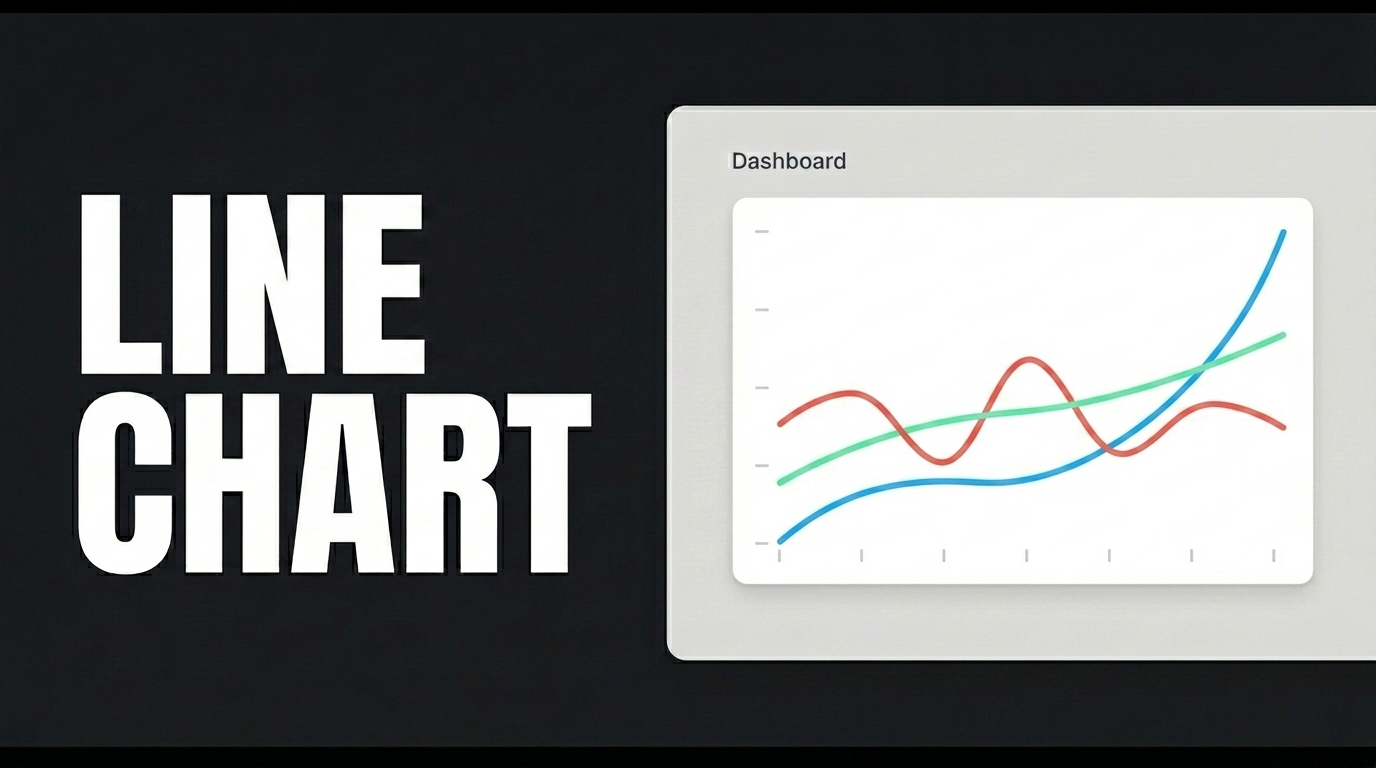
An Area Chart is used to visualize time-series data (e.g., monthly sales); tables and SQL actions are created and linked as the Initial Action, and the chart is made interactive using the Date Range filter.
The Area Chart, which aesthetically displays changes in data over time, creates a strong visual impression in web and mobile applications for time-series scenarios such as financial reporting and sales performance.
First, create the table on the screen from the Tables section in the Data Sources module. Then, click the plus button in the Actions section and select New SQL Action. Type the InsertMonthlySalesData action, which adds sample data. Delete the “MonthlySales” part, retype “MonthlySales,” and press Enter. This will add the correct schema name before the table name. Press the TEST button to test the application with sample data. Add your GetMonthlySalesByRange action, which retrieves and filters the data. Perform the same steps for this action as well.
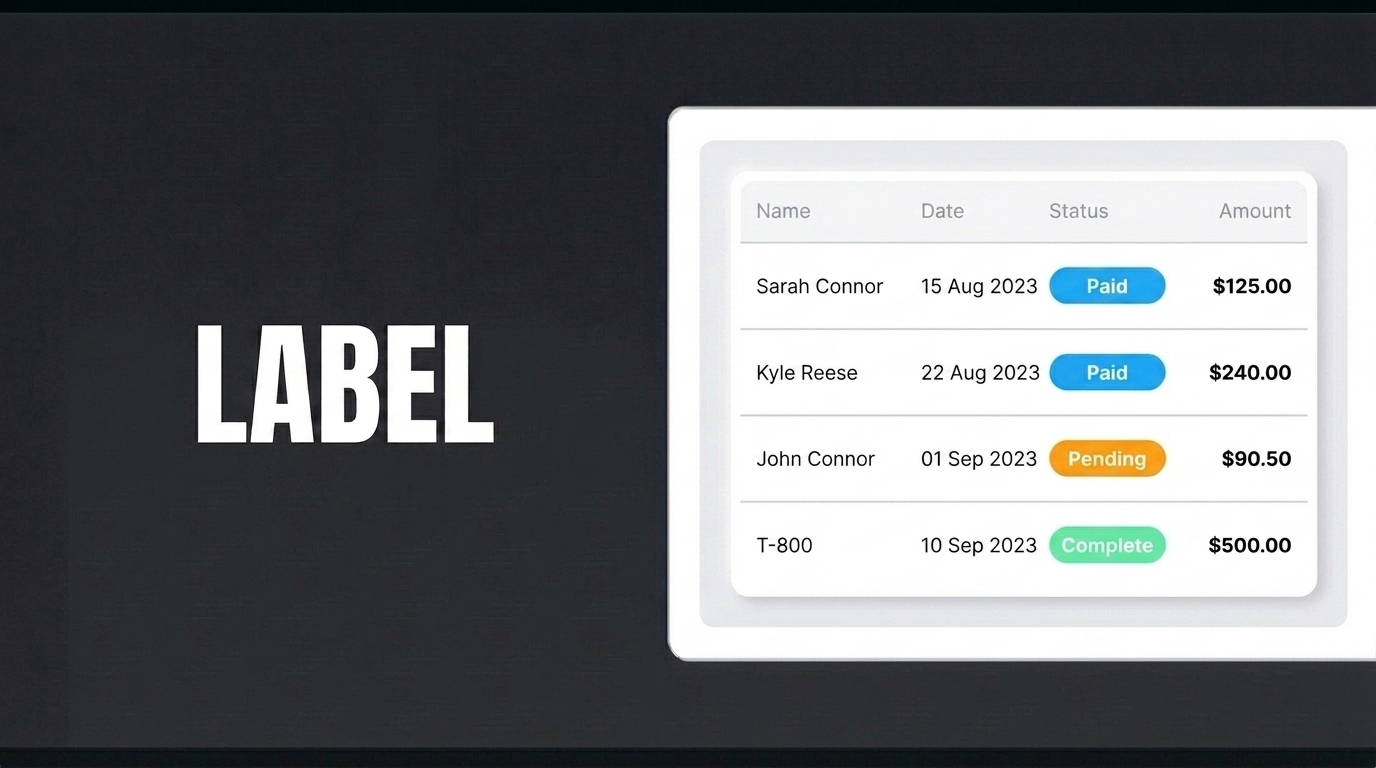
To load the data when the page opens, bind your GetMonthlySalesByRange SQL action as the Initial Action. Set the StartDate and EndDate fields to null in the Default section. In the UI Design module, add a Label, an Area Chart, and a Date Range element for filtering to your page. In the Properties panel, name the Label field “Sales Trend.” In the Text field of the Styling panel, set it to Heading 2. Go to the Properties panel and click on DateRange. From the Add Action field below, follow the onChange, Custom, and Managed DB steps to select GetMonthlySalesByRange. In the field that opens, define the StartDate and EndDate fields as startValue and endValue, respectively, from the Component’s DateRange1 field. After clicking the Area Chart element, fill in the Action, DataLabel, DataField, DataBackgroundColor, SecondDataField, and SecondDataBackgroundColor fields in the DataSource section of the Properties panel in the appropriate order. When you test the application using the Preview button in the upper-right corner, you can view the data for the selected 7-month date range on the Area Chart.