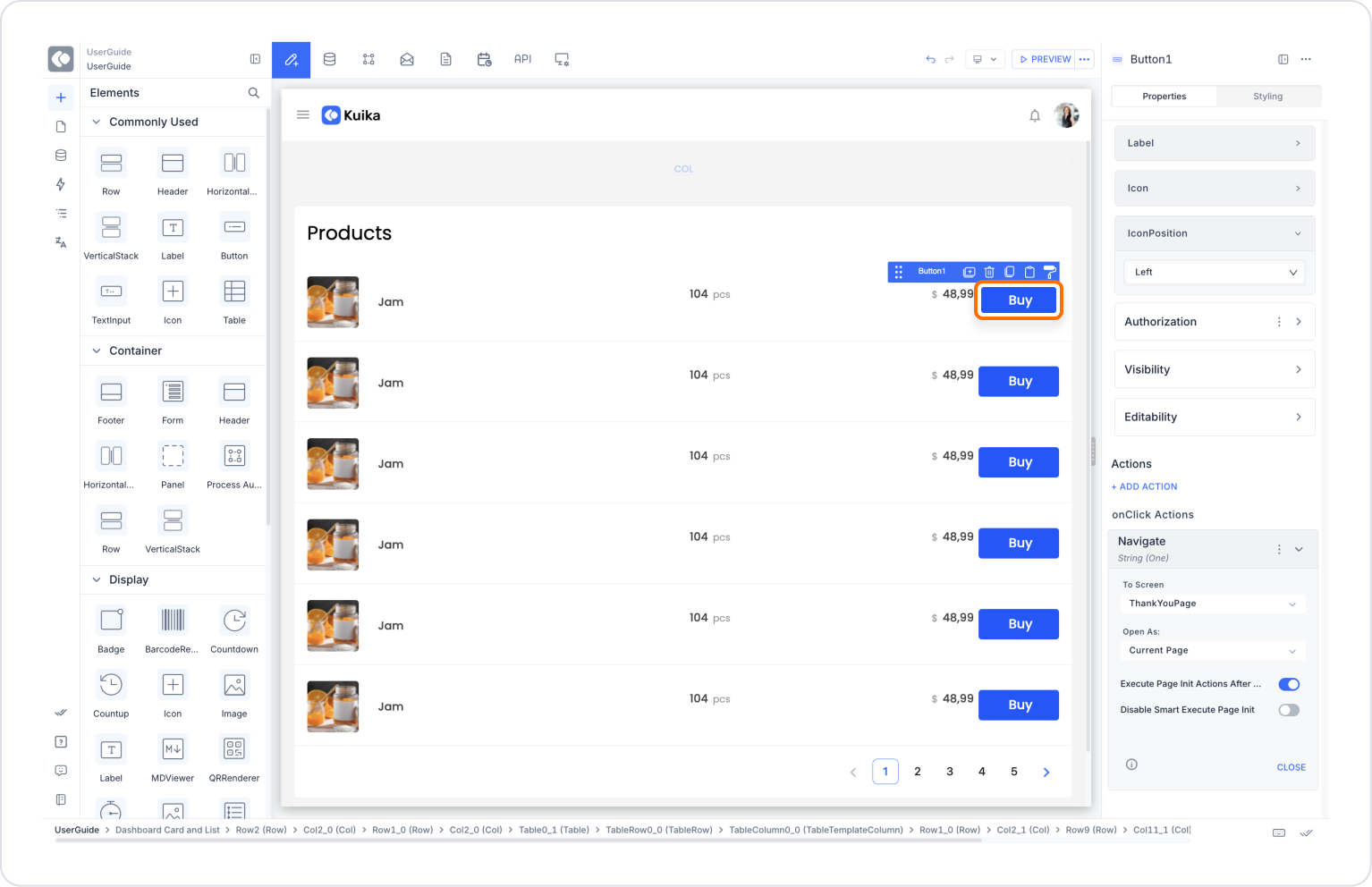
Scenario: The user places an order for a product. When the transaction is complete, a modal screen with a thank you message opens.
Configuration Steps:
Add a Button element in the UI Design module → Label it ‘Buy’.
+ADD ACTION → OnClick → Select Navigate.
To Screen: ThankYouPage
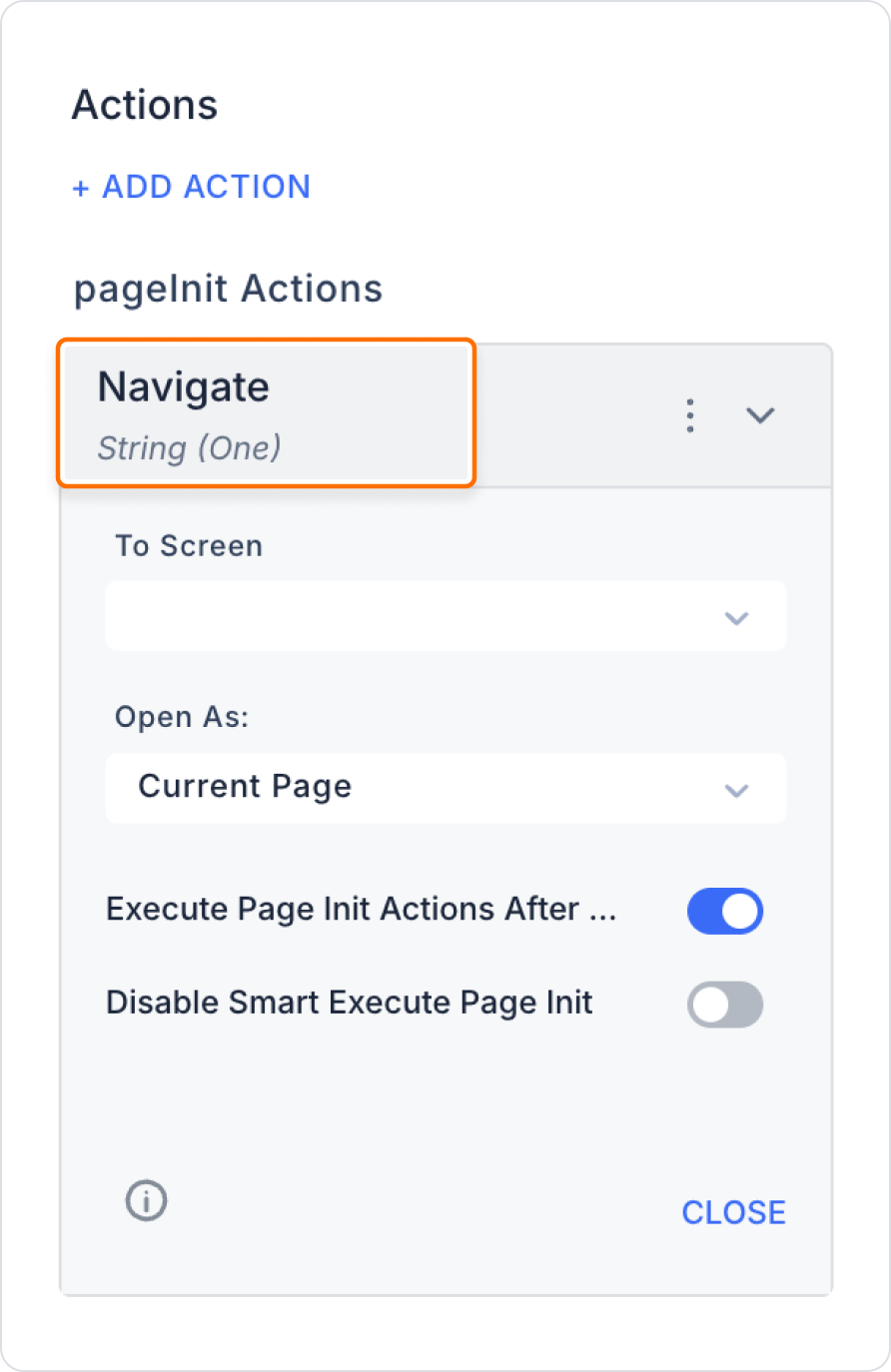
Open As: Modal
Width / Height: “500px” / ‘300px’
Closable: true
Execute Page Init Actions After Closed: false
The user remains in the current list when the modal screen closes. If additional redirection is desired, a second Navigate action can be defined.
Navigate Action Configuration
Required Parameters
To Screen (String): The name of the target screen to redirect to. Example: ‘ThankYouPage’
Open As: Specifies how the screen should be opened. One of the following options must be selected:
Current Page: The target screen is loaded in place of the page currently open in the browser window or within the application. In other words, the page changes completely.
New Tab: The target screen opens in a new browser tab. The user can view the new page in a separate tab without closing the current page.
Drawer: The target screen opens as a panel that slides in from the side of the screen within the application. It is typically used for side menus or additional options.
Modal: The target screen is displayed as a pop-up window that slides over the current screen and captures focus. The user cannot interact with the main screen until the modal is closed.
Float Panel: The target screen opens as a small window that can move freely on the page and is usually movable by the user. Similar to Modal, but provides a more flexible appearance.
HideCloseButton: When this feature is enabled, the close (X) button on the Float Panel is hidden. This allows the panel's closing behavior to be entirely determined by actions specified by the developer (e.g., clicking a button or an external area).
Optional Parameters
Placement (String): Specifies the direction from which the drawer screen will open. Example: ‘Right’
Width (String): The width of the drawer or modal window. Example: “400px” or ‘80%’
Height (String): The height of the drawer or modal window. Example: ‘300px’ or ‘90%’
Closable (Boolean): Determines whether the modal window can be closed by the user. Example: true
Execute Page Init Actions After Closed (Boolean): Determines whether the initialisation actions of the redirected page are executed when the page opened with Navigate is closed.
true: Initialisation actions are executed after the page is closed.
false: No initialisation actions are executed after the page is closed.
If this parameter is false, the ‘Disable Smart Execute Page Init’ setting has no effect.
Disable Smart Execute Page Init (Boolean): Applies when Execute Page Init Actions After Closed = true.
false: The init action does not run when returning to the page unless a backend request was made on the redirected page.
true: The init action runs in all cases when returning to the page, regardless of whether a backend request was made on the redirected page.
This setting is only meaningful when Execute Page Init Actions After Closed = true.
All parameters can be taken from Action Result, Method Input, Current, Screen Input, Fixed or Component sources. These sources can be accessed and linked via Symbol Picker.