Log in to the Kuika platform and open the project you’ll be working on from the Apps screen.
Go to the AI Functions module from the top menu.
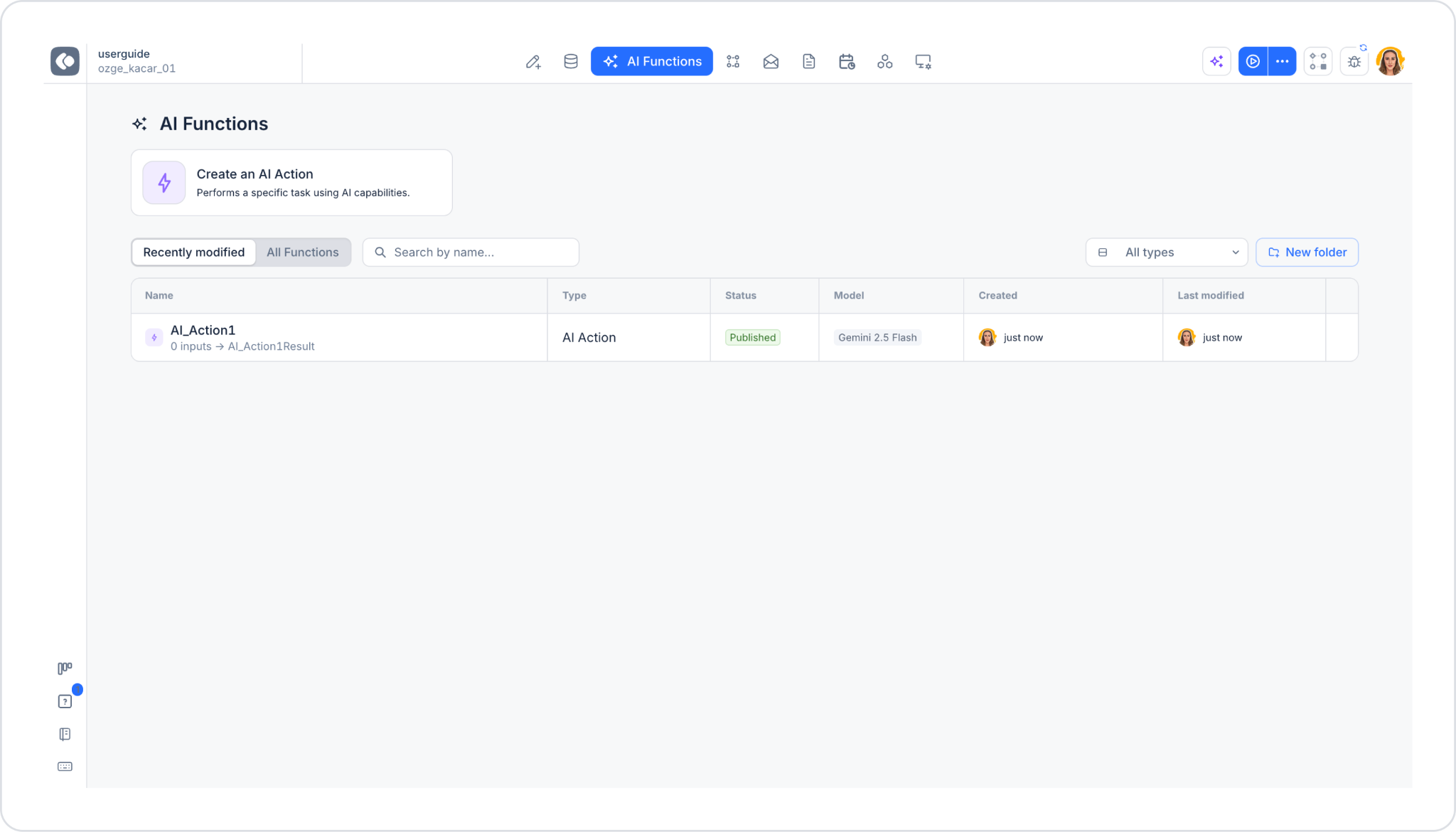
When you enter the AI Functions screen, you’ll see the following items:
Create an AI Action card: Allows you to start creating a new AI action.
Previously created actions are listed in the table below the card. This table consists of two views: Recently modified and All Functions; you can search by action name using the search box on the right (Search by name...), filter by type using the All types dropdown list, and create folders to organize actions using the New folder button.
Table columns: Name (action name and input/output summary, e.g., “0 inputs → AI_Action1Result”), Type (e.g., AI Action), Status (e.g., Published), Model (AI model used), Created (creator and date), Last modified (last modifier and date).
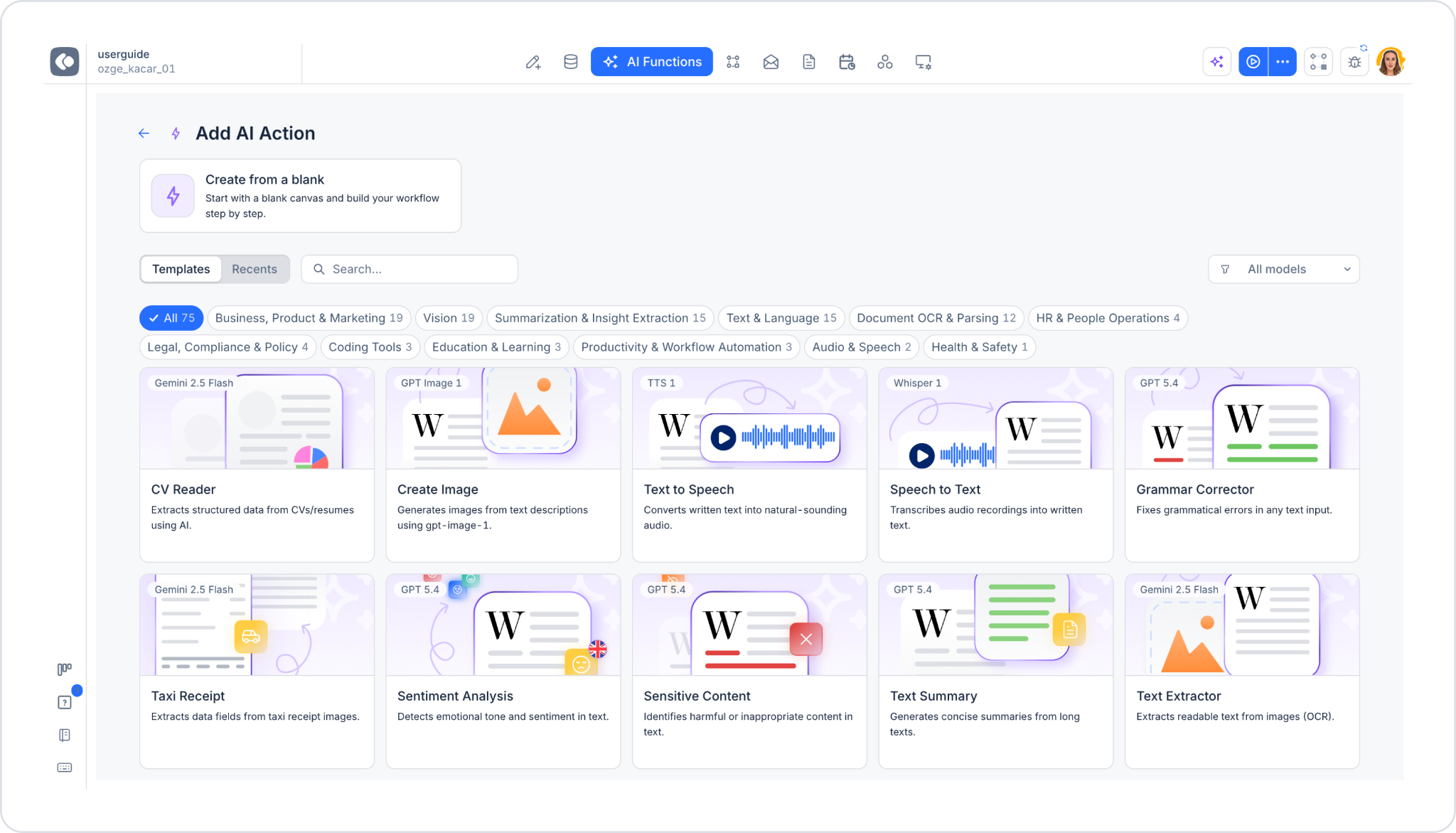
When you click the “Create an AI Action” card, the “Add AI Action” screen opens:
At the top is the “Create from a blank” card. This allows you to create a custom action from scratch.
Below that are two tabs—“Templates” and ‘Recents’—a search box, and the “All models” filter on the right.
Templates can be filtered by category tags: All, Business, Product & Marketing, Vision, Summarization & Insight Extraction, Text & Language, Document OCR & Parsing, HR & People Operations, Legal, Compliance & Policy, Coding Tools, Education & Learning, Productivity & Workflow Automation, Audio & Speech, Health & Safety. The number of templates in each category is displayed next to it.
Each template card includes the AI model it uses (e.g., Gemini 2.5 Flash, GPT Image 1, TTS 1, Whisper 1, GPT 5.4), a visual icon, the template’s name, and a short description.