Notify Actions is a setting that allows you to manage, from a single location, how long notification messages (success, info, warning, error, etc.) displayed on the screen in your app will remain visible. By configuring this setting in the Kuika Config Manager module, you can specify the display duration for each notification type.
How to Configure Notify Actions Settings?
1. Open or Create a Configuration
Log in to the Kuika platform.
From the Apps screen, open the project you’ll be working on.
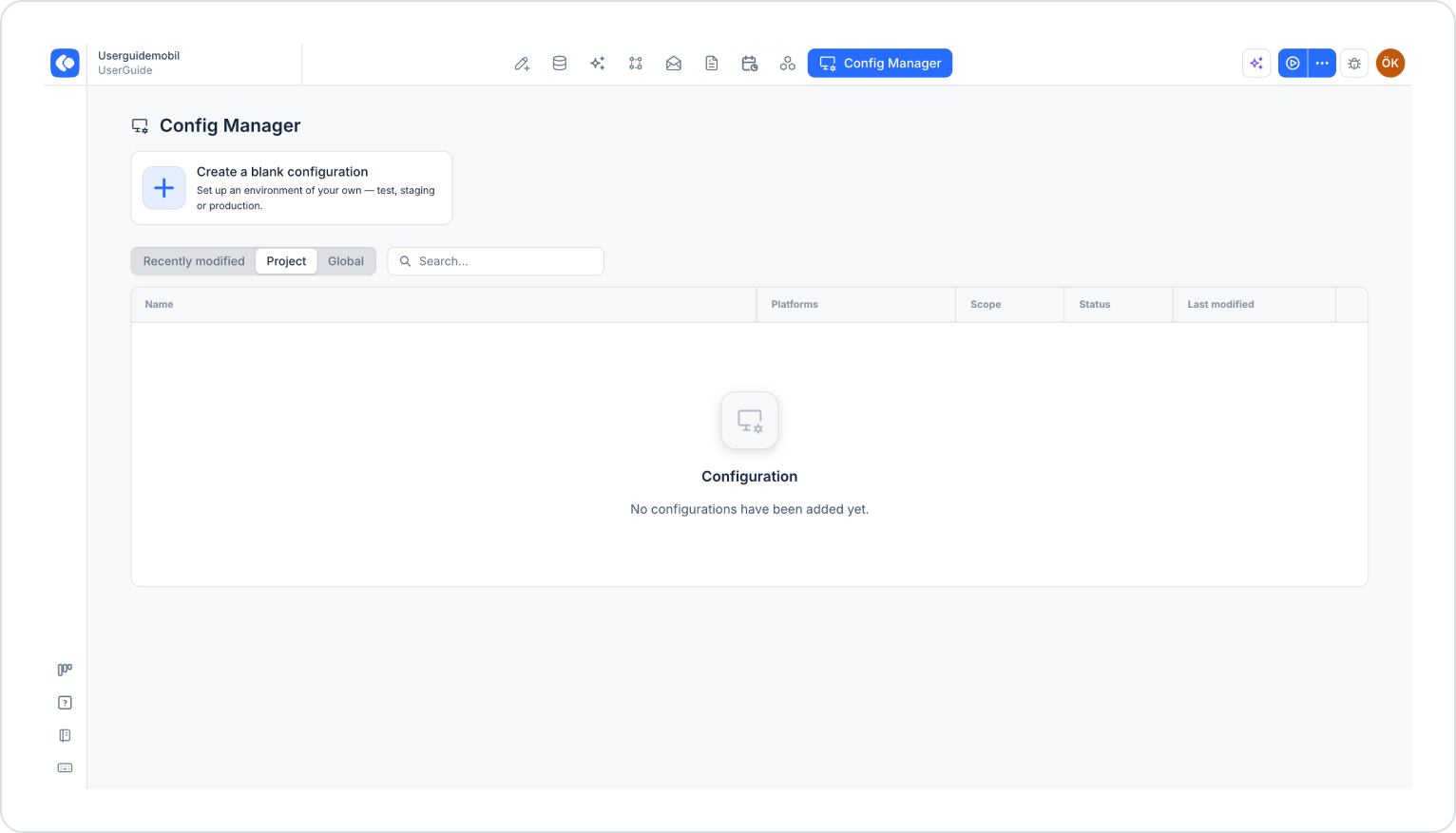
Click the Config Manager module in the top menu.
To create a new configuration, click the Create a blank configuration card, give the configuration a name, and complete the creation process. If you want to use an existing configuration, click its name in the list.
2. Configure Notify Actions Settings
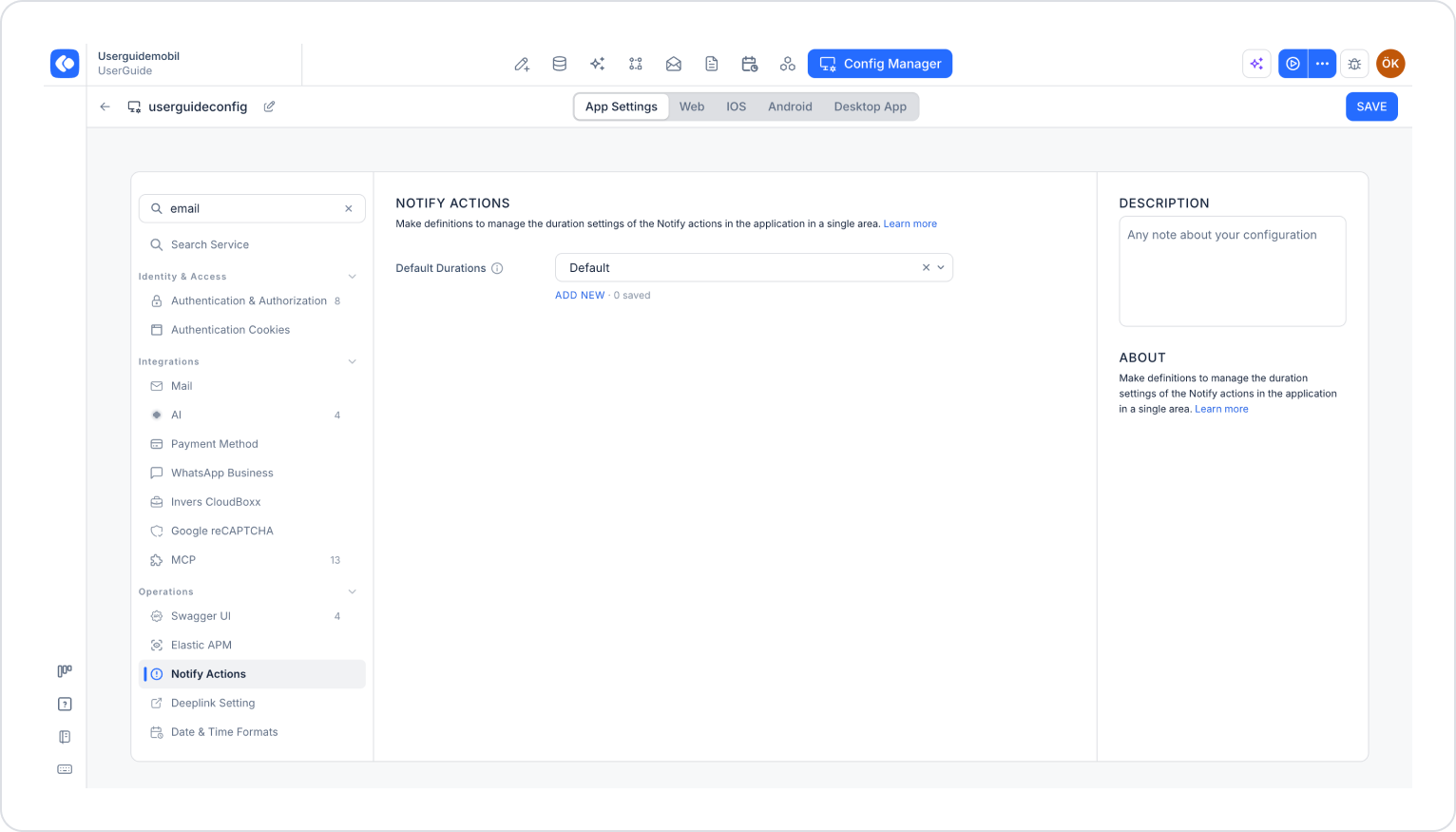
Make sure the App Settings tab is selected at the top of the configuration screen.
In the left menu, click the Notify Actions option under the OPERATIONS heading.
Click the Add New link below the Default Durations field.
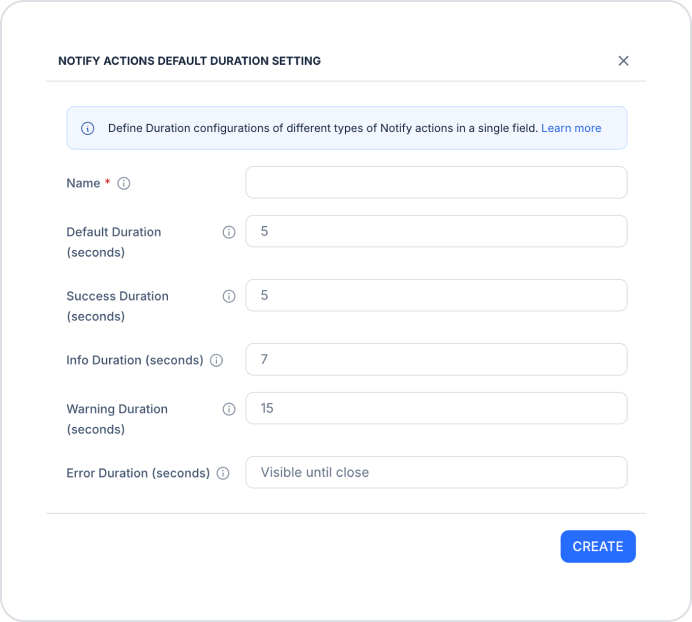
In the Notify Actions Default Duration Setting window that opens, configure the following fields. All durations are entered in seconds:
Name (required): The descriptive name to assign to the configuration.
Default Duration (seconds): The default duration that notifications remain on the screen. The default value is 5 seconds.
Success Duration (seconds): The duration that notifications remain on the screen after successfully completed operations. The default value is 5 seconds.
Info Duration (seconds): The duration for which informational notifications remain on the screen. The default value is 7 seconds.
Warning Duration (seconds): The duration for which warning messages remain on the screen. The default value is 15 seconds.
Error Duration (seconds): The duration for which error messages remain on the screen. If this field is left blank, error messages remain on the screen until the user closes them.
After filling in all fields, click the Create button.
Select the configuration you created from the Default Durations dropdown menu.
Click the Save button in the upper-right corner to save your changes. (In an existing configuration, this button appears as Update.)
3. Test the Settings
Click the three dots next to the Preview button in the top-right corner of the screen.
From the dropdown menu, click the Run option.
When the app opens, test to ensure that notifications appear and disappear on the screen according to the specified durations.
By following these steps, you can easily configure Notify Actions settings on the Kuika platform and optimize notification durations.