Send Notifications to End Users with Push Notification
5/10/26
With Kuika’s Push Notification feature, you can send notifications to your users in the mobile and web apps you’ve developed. You can configure the necessary settings for iOS, Android, and Web platforms through the Push Notification settings in the Config Manager module.
Push Notification Settings
Step 1: Open or Create a Configuration
Log in to the Kuika platform.
Open the project you’ll be working on from the Apps screen.
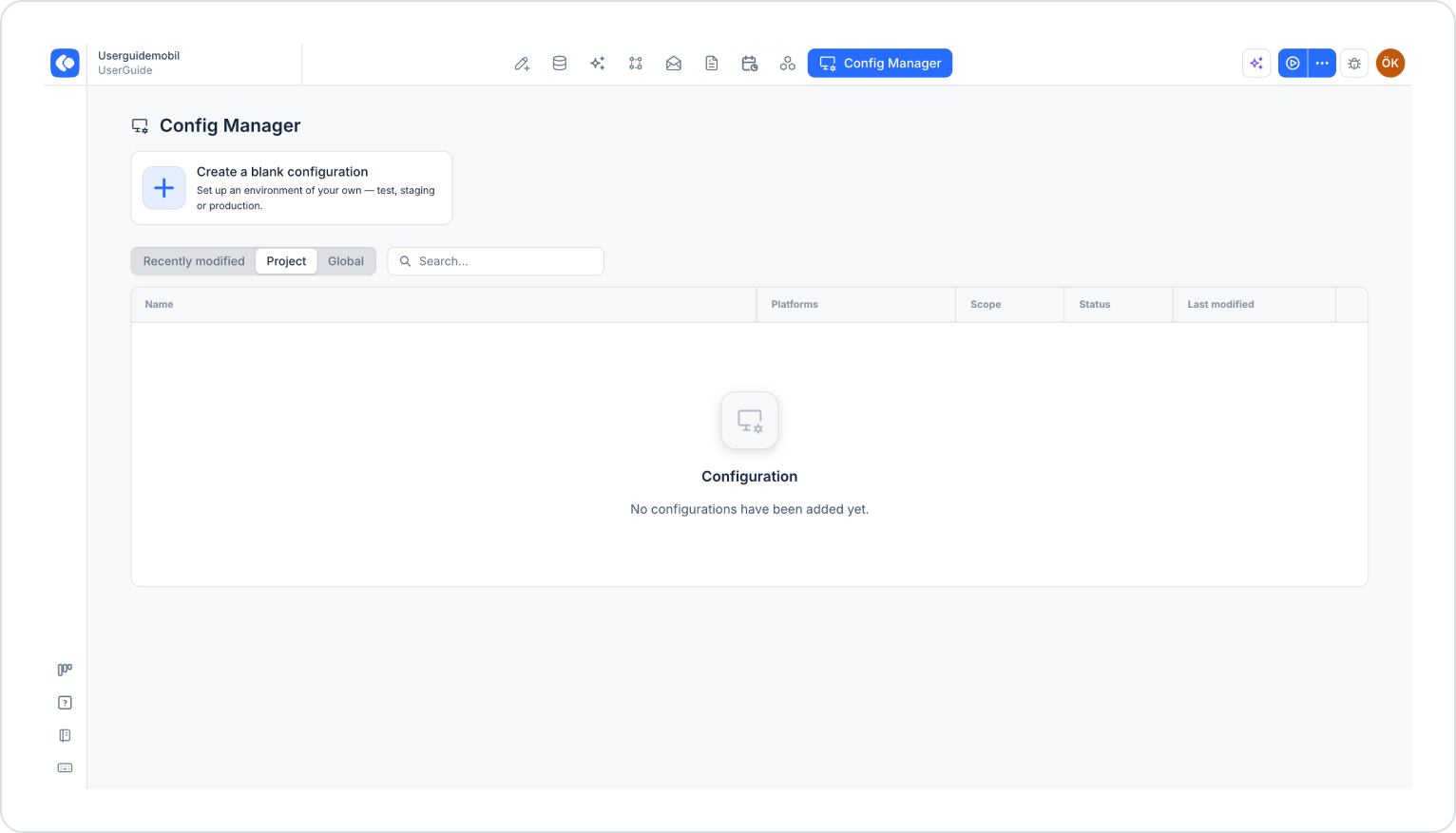
Click the Config Manager module in the top menu.
To create a new configuration, click the Create a blank configuration card, give the configuration a name, and complete the creation process. If you want to use an existing configuration, click its name in the list.
The iOS and Android tabs are displayed in mobile app projects.
Step 2: Configure Push Notification Settings for iOS Devices
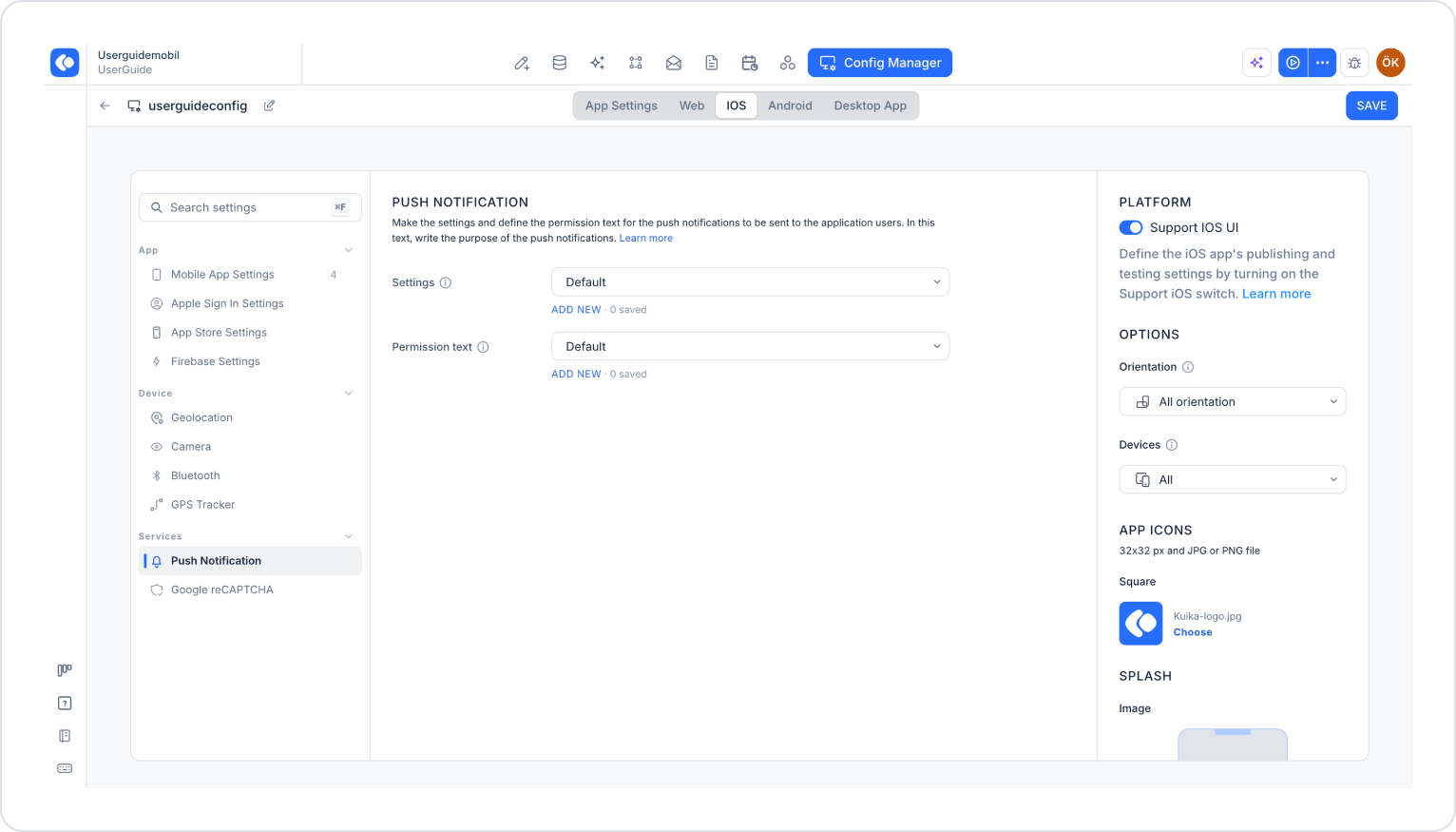
Click the iOS tab at the top of the configuration screen.
In the left menu, click the Push Notification option under the SERVICES heading.
Click the Add New link under the Settings section.
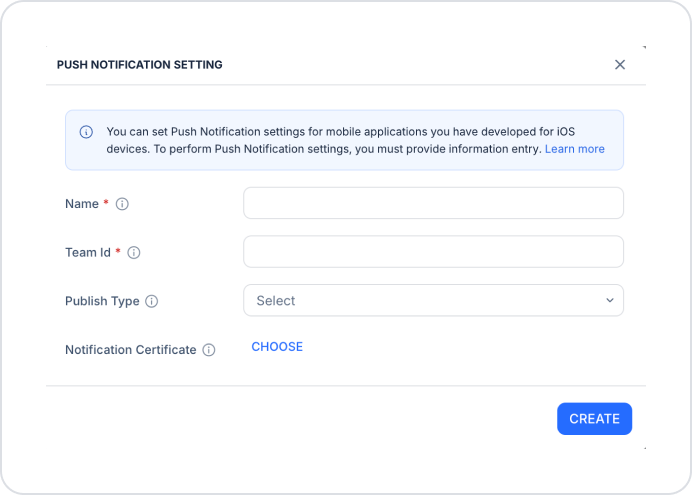
In the Push Notification Settings window that opens, enter the following information:
Name (required): The identifying name to be assigned to the configuration.
Team ID (required): Sign in to your Apple Developer account and enter the Team ID found in the Membership Details section.
Publish Type:
Development: Select this option if you’re using the app with builds intended for development and testing.
Production: Select this option if you’re publishing the app via TestFlight or the App Store.
Notification Certificate: Upload the key file with the “.p8” extension. To create the file:
Sign in with your Apple Developer account.
In the Certificates, Identifiers & Profiles section, go to the Keys page.
Click the + icon, select the Apple Push Notifications service (APNs) option to create the key, and download the “.p8” file.
In the Push Notification Settings window, click the Choose button to upload the file.
After entering all the information, click the Create button.
You can only download the “.p8” file once. Store the file securely.
To define the text that will be displayed when users are asked for notification permission:
Click the Add New link below the Permission text field.
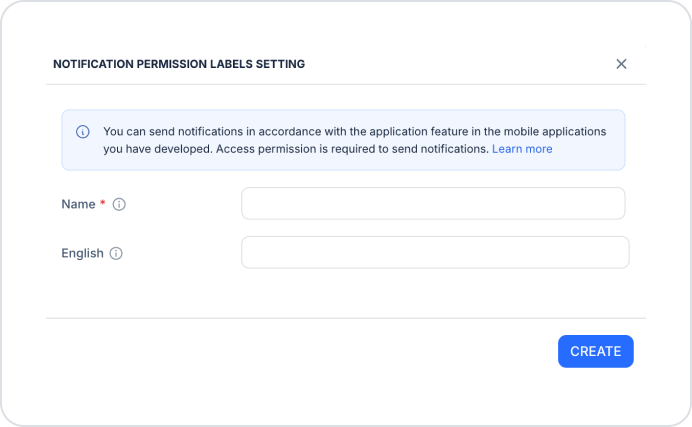
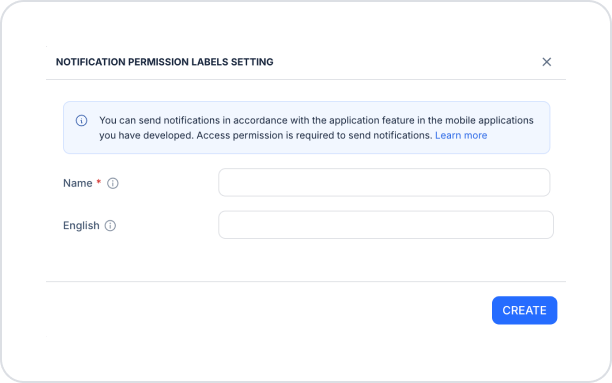
In the Notification Permission Labels Setting window that opens, enter the following information:
Name (required): The descriptive name to be assigned to the configuration.
English: The text that will be displayed to the user when permission for notifications is requested. In this text, explain the purpose for which push notifications will be sent.
Click the Create button.
Select the configurations you created from the Settings and Permission text drop-down menus.
Step 3: Configure Push Notification Settings for Android Devices
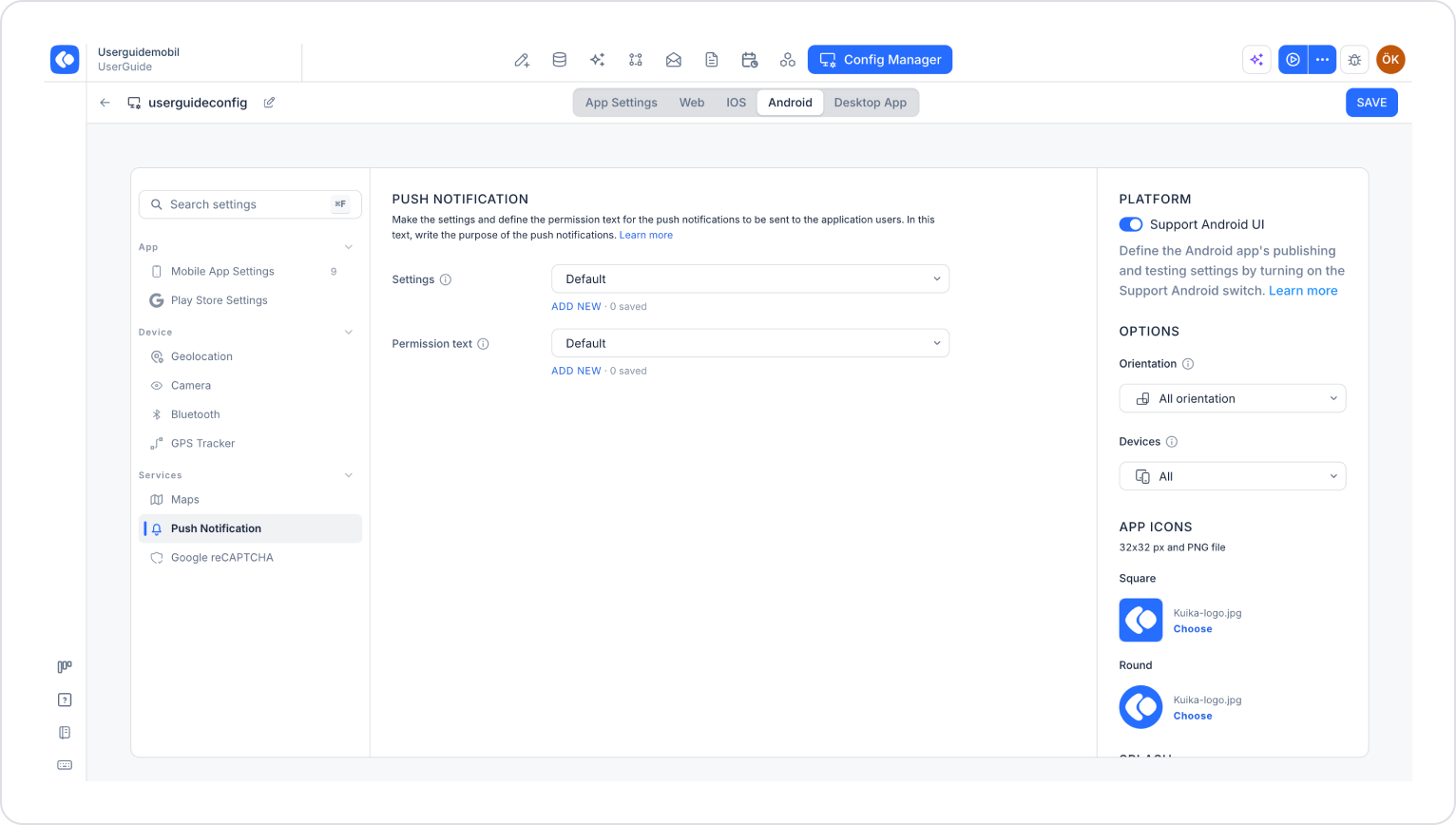
Click the Android tab at the top of the configuration screen.
In the left menu, click the Push Notification option under the SERVICES heading.
Click the Add New link below the Settings section.
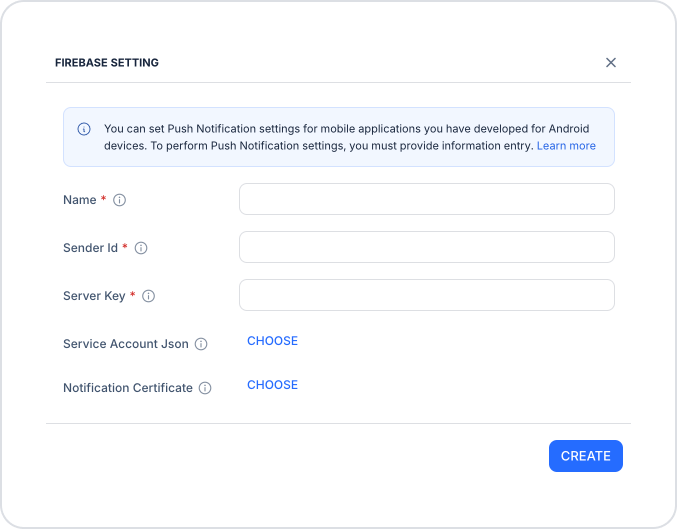
In the Firebase Settings window that opens, enter the following information:
Name (required): The identifier name to be assigned to the configuration.
Sender ID (required):
Sign in to the Firebase Console.
Select your project or create a new one.
In the project settings, go to the Cloud Messaging tab.
Retrieve the Sender ID.
Server Key (required): Retrieve the Server Key from the same tab.
Service Account JSON:
In the Firebase Console, go to the Service Accounts tab in your project settings.
Create a new private key and download the JSON file.
In the Service Account JSON field, click the Choose button to upload the file.
Notification Certificate:
In the Firebase Console, click the gear (settings) icon on the Project Overview page.
From the General tab, download the google-services.json file.
In the Notification Certificate field, click the Choose button to upload the file.
After entering the information, click the Create button.
To define the notification permission text that will be displayed to users, click the Add New link below the Permission text field and fill out the Notification Permission Labels Setting window that opens, just as you did in the iOS step.
Select the configurations you created from the Settings and Permission text dropdown menus.
Step 4: Configure Push Notification Settings for Web Apps
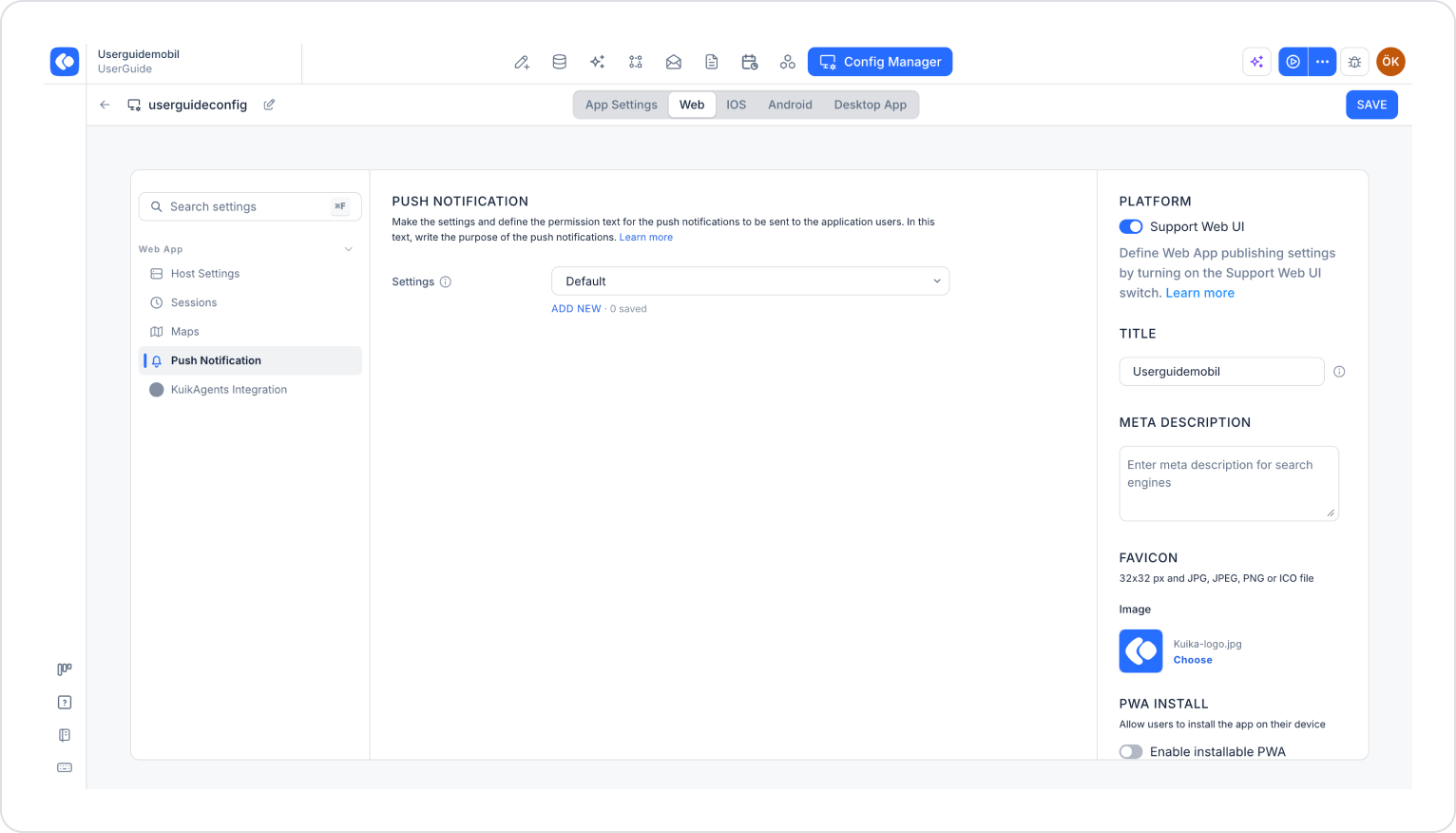
Click the Web tab at the top of the configuration screen.
In the left menu, click the Push Notification option under the WEB APP heading.
Click the Add New link below the Settings section.
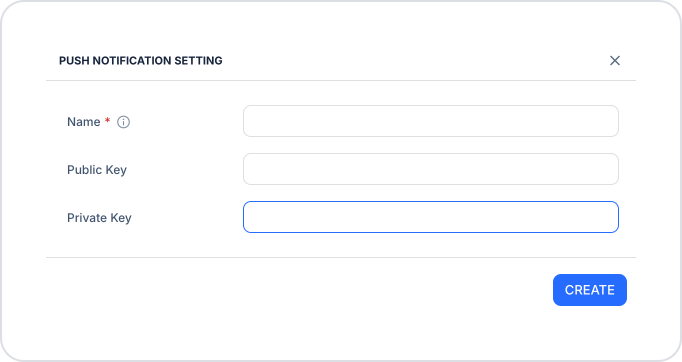
In the Push Notification Settings window that opens, enter the following information:
Name (required): The descriptive name to assign to the configuration.
Public Key: The Public Key for your web push service.
Private Key: The Private Key for your web push service.
After entering the information, click the Create button.
Select the configuration you created from the Settings drop-down menu.
Step 5: Save the Settings
After completing the configurations for all platforms, click the Save button in the upper-right corner to save the changes. (In an existing configuration, this button appears as Update.)
Once you’ve completed these steps, the Push Notification settings for iOS, Android, and Web platforms will be configured, and you can begin sending notifications to your users.