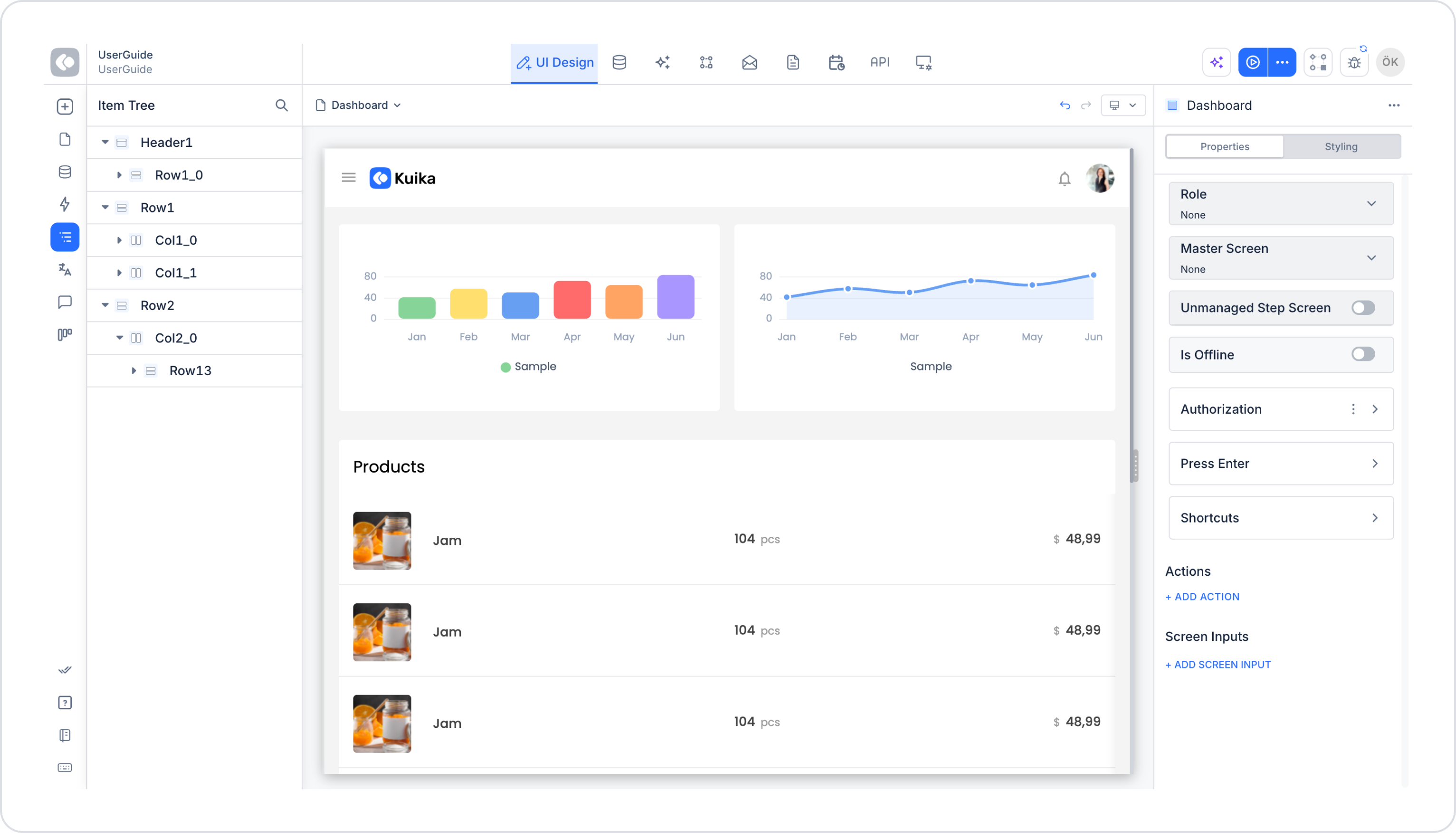
The Item Tree panel of the Kuika platform is a powerful tool you can use to organize and manage the elements in your projects. In this tutorial, you will learn how to view and edit the list of elements.
Editing Elements with the Item Tree Panel
Log in to the Kuika platform and select your project from the Apps screen.
Go to the UI Design module.
Open the Item Tree panel on the left side.
Click on the ellipsis icon opposite the element you want to edit.
Available Actions
Rename: Changes the element's name.
Copy: Creates a copy of the element.
Duplicate: Duplicates the element on the same screen.
Delete (Delete): Deletes the element.
Hide (Hide): Hides the element on the canvas during the design phase. The hidden element does not affect the app preview; it only hides it during design work.
Lock (Lock): Locks the element and prevents it from being dragged on the canvas. A locked element can be selected but its position cannot be changed.
By following these steps, you can easily organize and manage the elements in your projects. TheItem Tree panel helps you create your app design in a more organized and efficient way.