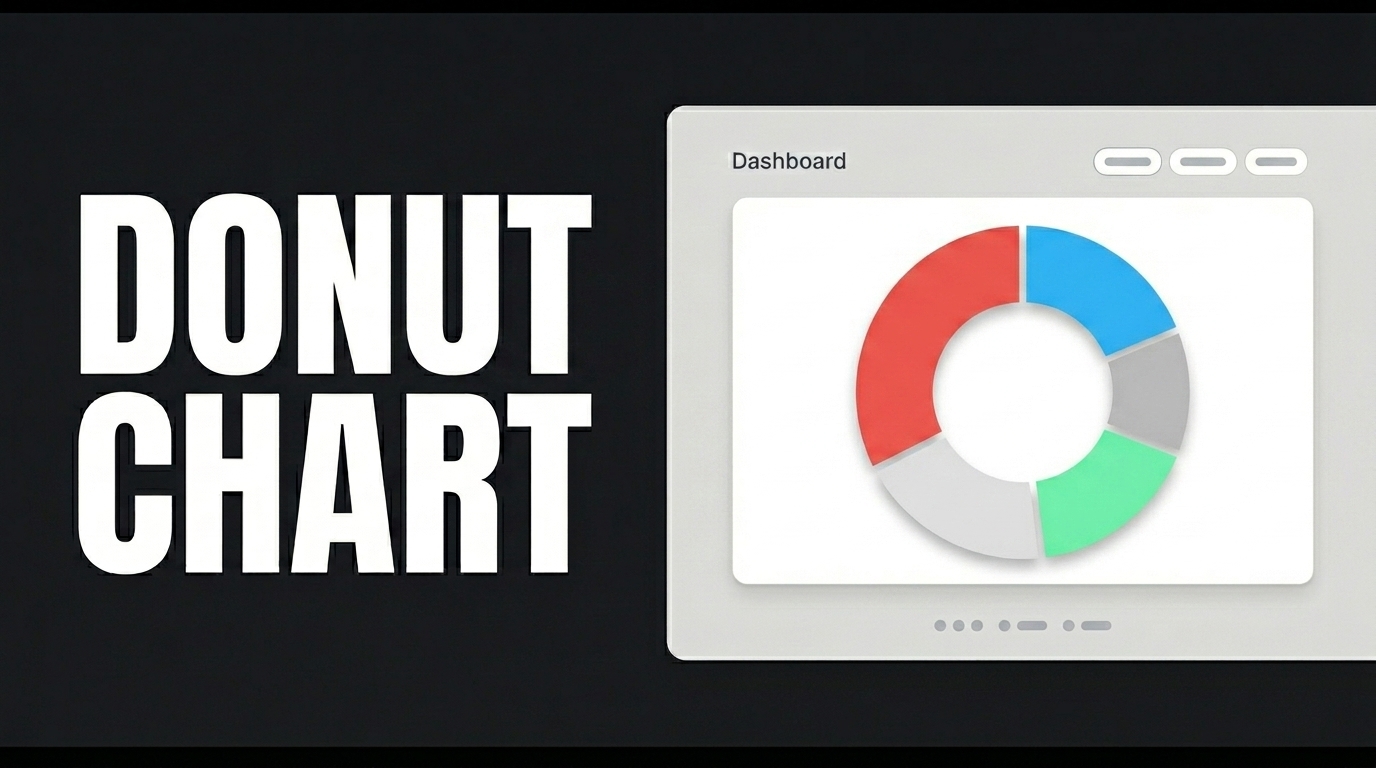
A donut chart is used to show the percentage share of categorical data within a total; the center label can be removed, and data labels can be displayed in currency format.
The donut chart—the most aesthetically pleasing way to visualize a data set’s share of the total and its percentage distribution—offers a much more modern and readable presentation than classic pie charts in many scenarios, from market share analysis to budget allocations, thanks to the empty space in its center.
To get started, create a table named “BudgetData” in the Tables section and fill it in as shown on the screen. Next, create the “InsertBudgetData” action to add the sample data. When applying the action, delete the “BudgetData” part, retype it, and press Enter; this step ensures that the correct schema name is prepended to the table name. Press the ‘TEST’ button to test the application. Repeat the same steps for the “GetBudgetData” action, which retrieves the data and calculates the percentages, and save it. To ensure the data is ready when the page opens, bind the GetBudgetData action as the Initial Action.
From the UI Design module, add a Label and a Donut Chart to the page. Enter “Category-Based Sales Distribution” in the Label element’s Value field, center the Column, and set the Text style to Heading 2. To remove the text in the center of the Donut Chart, click on the ChartLabel and clear the Text field in the Properties pane; then, set the height to 500 px in the Styling panel. Add the GetBudgetData action from the DataSource field and fill in the Data Label, Tooltip Custom Content, Data Field, and Data Background Color fields. Enable the ShowDataLabels option and select the Money-turkishlira format from the DataLabelFormatter field.
When you test the application using the Preview button in the upper-right corner, you’ll see that the total sales amounts by category are successfully displayed as proportional slices on the Donut Chart.