Working with the Microsoft Authentication Library Authentication Provider
1. Open or Create a Configuration
Log in to the Kuika platform.
From the Apps screen, open the project you’ll be working on.
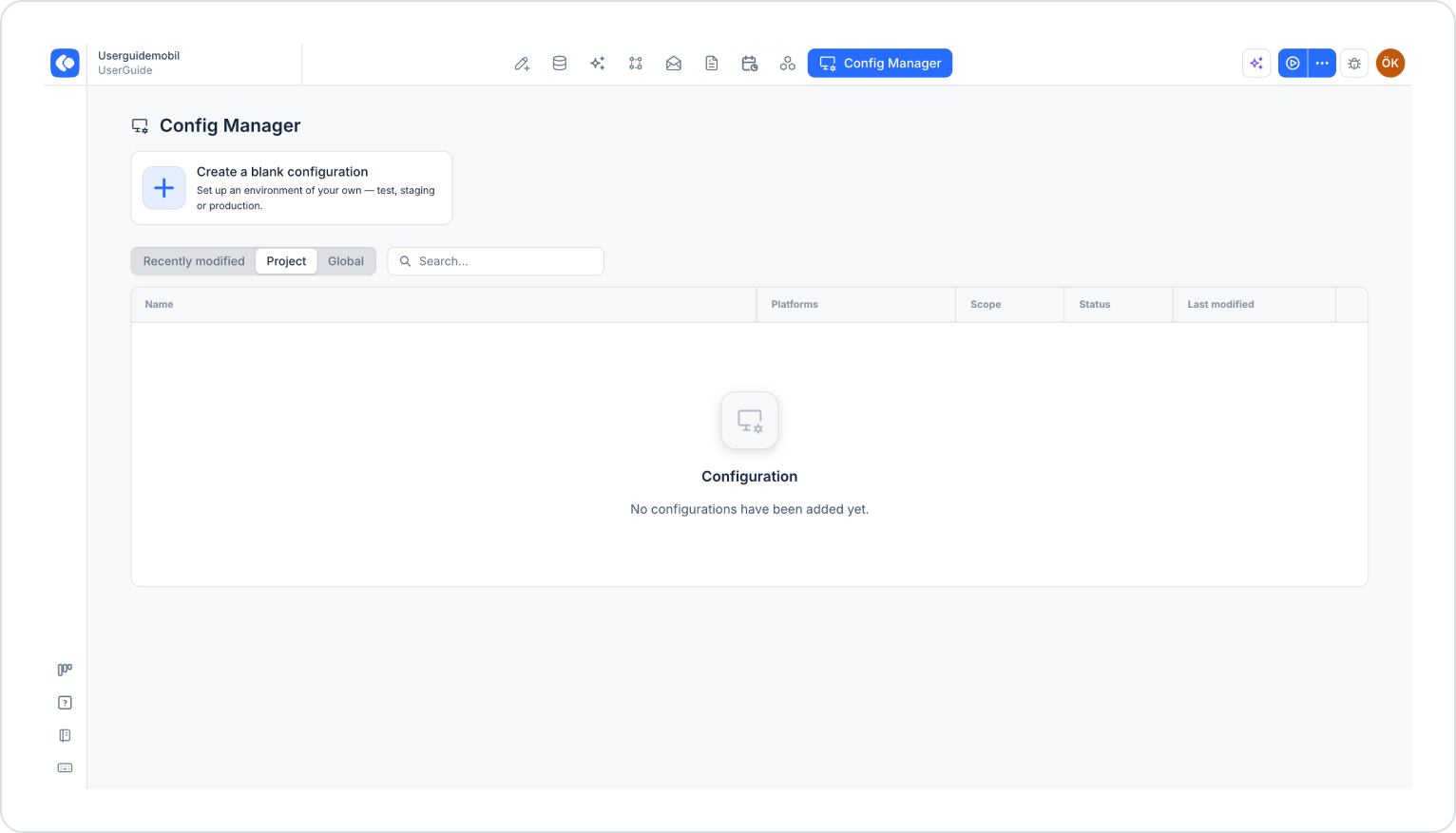
Click the Config Manager module in the top menu.
To create a new configuration, click the Create a blank configuration card, give the configuration a name, and complete the creation process. If you want to use an existing configuration, click its name in the list.
2. Go to the Authentication & Authorization Settings
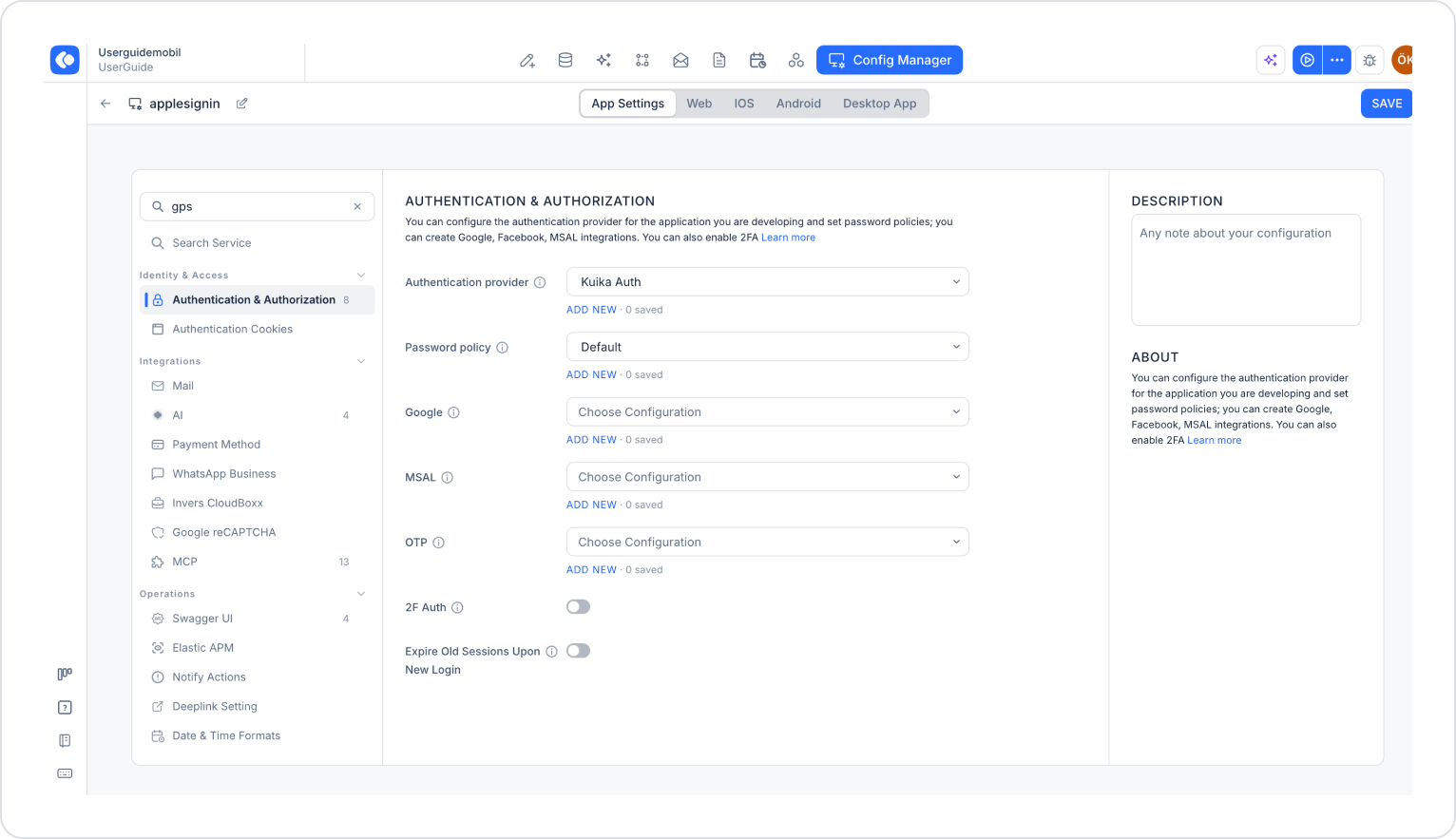
Make sure the App Settings tab is selected at the top of the configuration screen.
In the left menu, click the Authentication & Authorization option under the Identity & Access heading. You can also quickly access this setting by typing “authentication” into the Search settings field at the top of the menu.
Click the ADD NEW link under the MSAL dropdown menu. If you want to use a configuration you created earlier, you can select it from the dropdown menu.
3. Fill Out the MSAL Settings Window
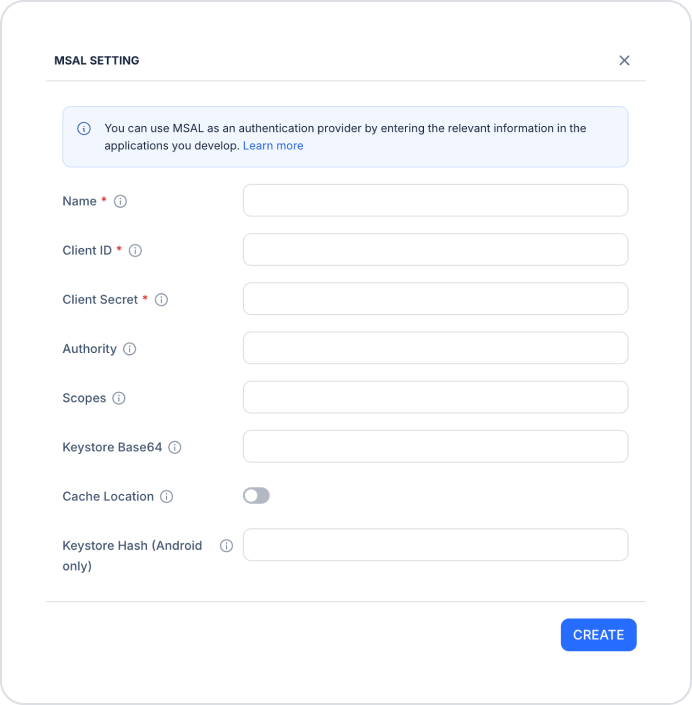
In the MSAL Settings window that opens, fill out the following fields:
Name (required): A descriptive name for the configuration.
Client ID (required): The client ID of your application registered in the Azure Portal.
Client Secret (required): The secret key used to authenticate the application.
Authority: The authentication URL (e.g., https://login.microsoftonline.com/{tenant} or https://login.microsoftonline.com/common/).
Scopes: The access permissions the application will request (e.g., user.read).
Keystore Base64: The contents of the keystore file in Base64 format.
Cache Location: The key that specifies the token cache location.
Keystore Hash (Android only): The keystore hash value for Android applications only.