Connecting a Data Source with Swagger API

‍

  1. Log in to the Kuika platform and open the project you’ll be working on from the Apps screen.
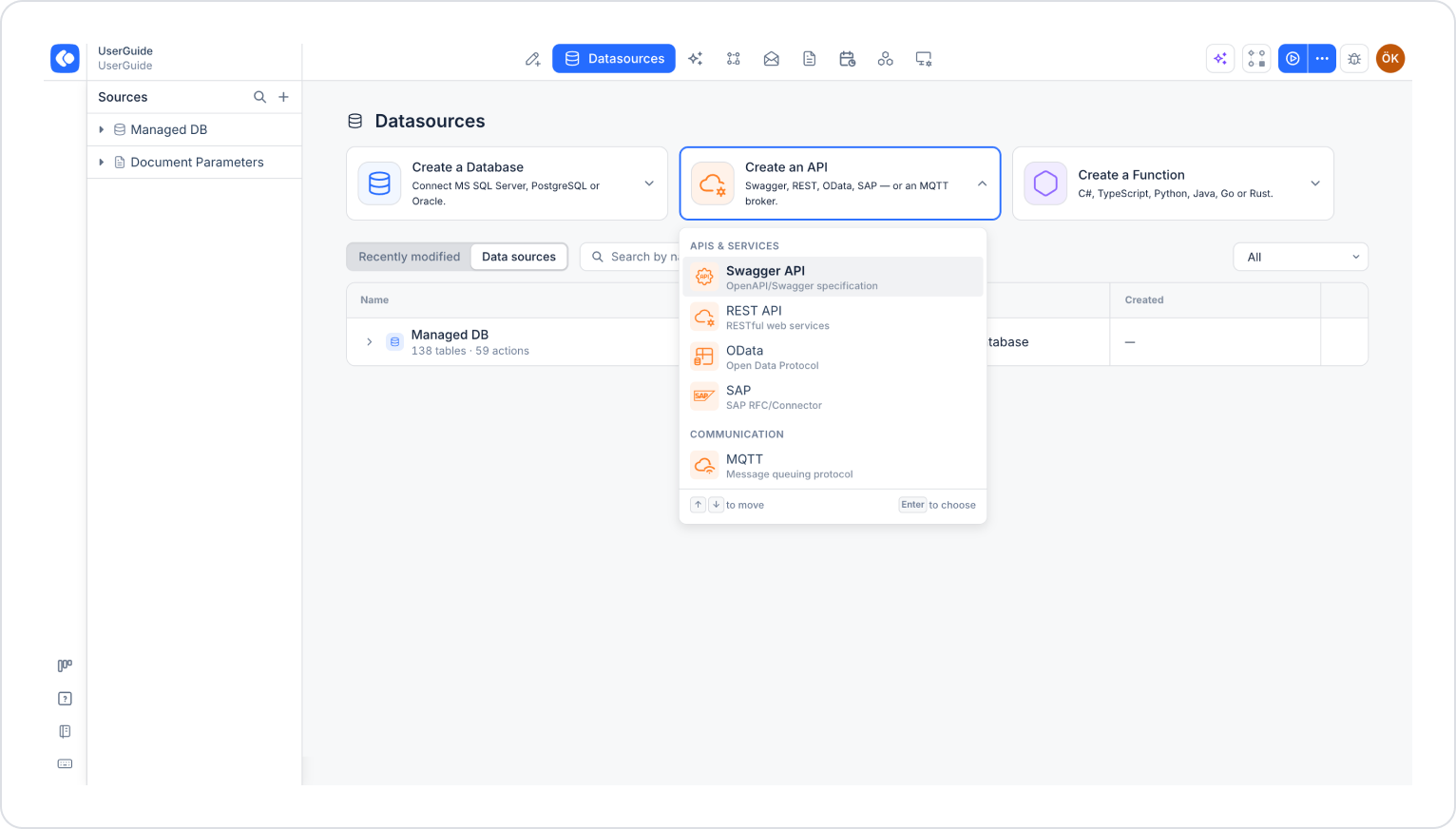
  2. Go to the Datasources module from the top menu.
  3. On the screen that opens, click the Create an API card. (Alternatively, you can use the + icon next to the Sources heading in the left panel.)
  4. In the list that opens, select the Swagger API option under the APIs & Services heading.
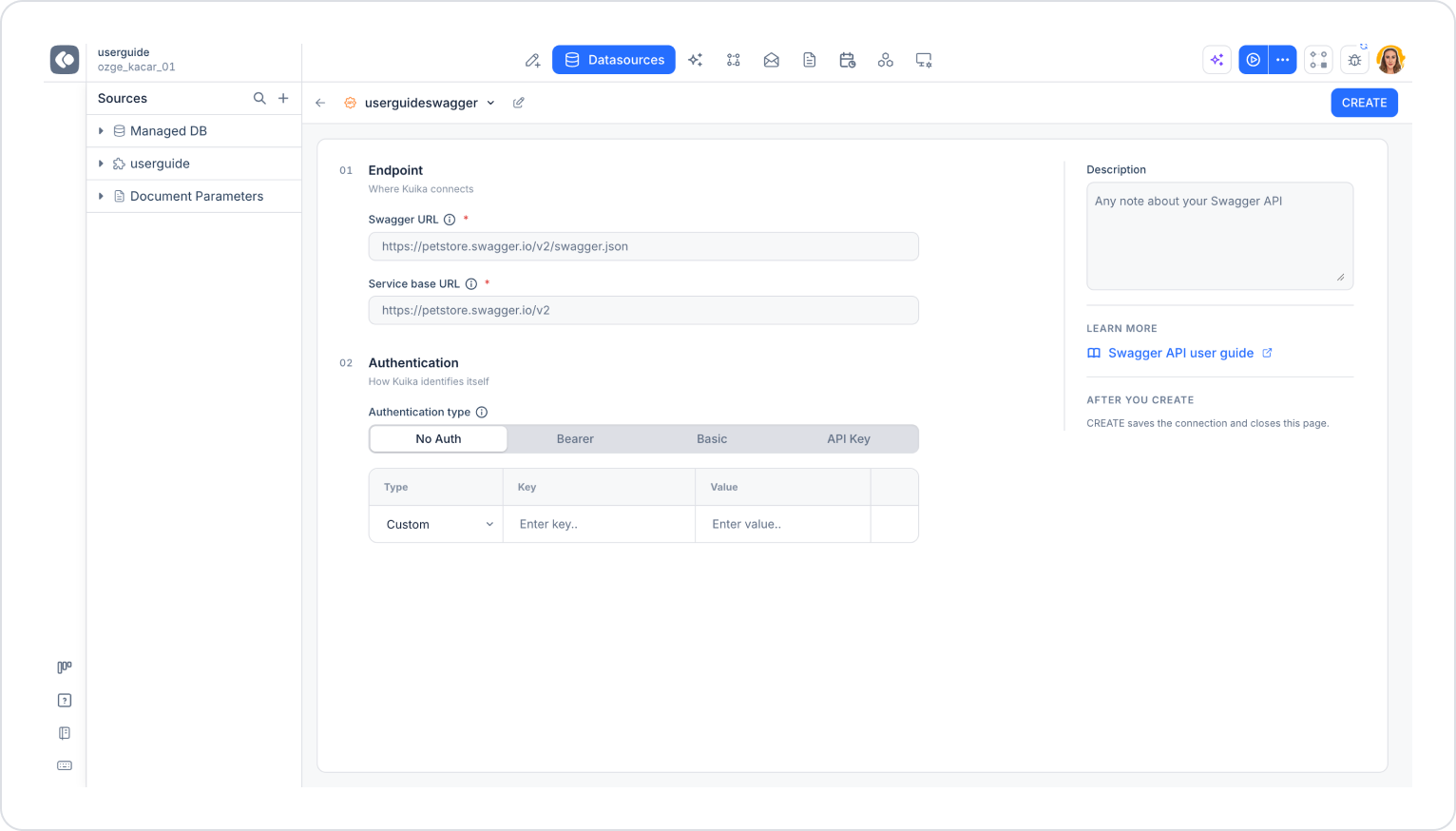
  5. Click the edit (pencil) icon at the top of the screen to name the data source (e.g., KuikaSwaggerAPI).
  1. Endpoint section: Fill in the following fields:
    • Swagger URL (required): https://builder3.kuika.com/KuikaSwaggerAPI/swagger/docs/v1
    • Service base URL (required): https://builder3.kuika.com/KuikaSwaggerAPI
  2. Authentication section: Set the Authentication type to No Auth. If the API requires authentication, you can use the appropriate option from Bearer, Basic, or API Key. If necessary, you can add Key and Value entries to the table below.
  3. If you wish, add a note about the connection to the Description field in the right panel.
  4. Click the CREATE button in the upper-right corner. The connection is saved and the page closes.