

The Canvas is the main workspace in the Report Designer module where report design is carried out. All elements that make up the report (Label, Box, Table, Image, Divider, etc.) are located in this area, and the page layout of the report is managed through the Canvas.
Thanks to the Canvas, users can:
The Canvas enables you to create professional report designs by offering free positioning and grid-based layout support.
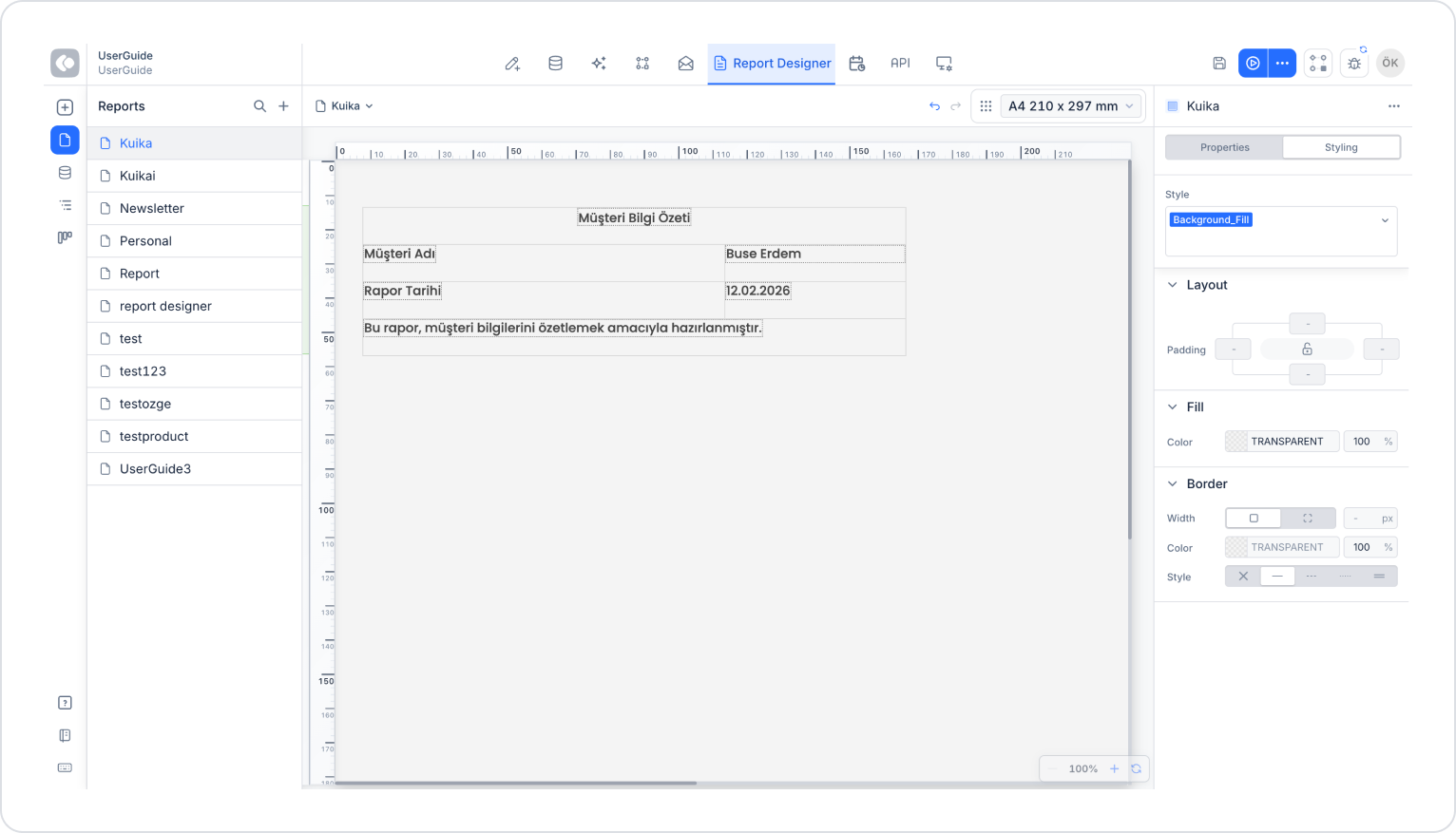
The positioning of elements on Canvas is performed using two different view modes.
Free Position Mode
In Free Position mode, elements can be freely moved on Canvas without any alignment restrictions. In this mode:
Free Position mode is suitable for reports requiring special design or visually heavy layouts.
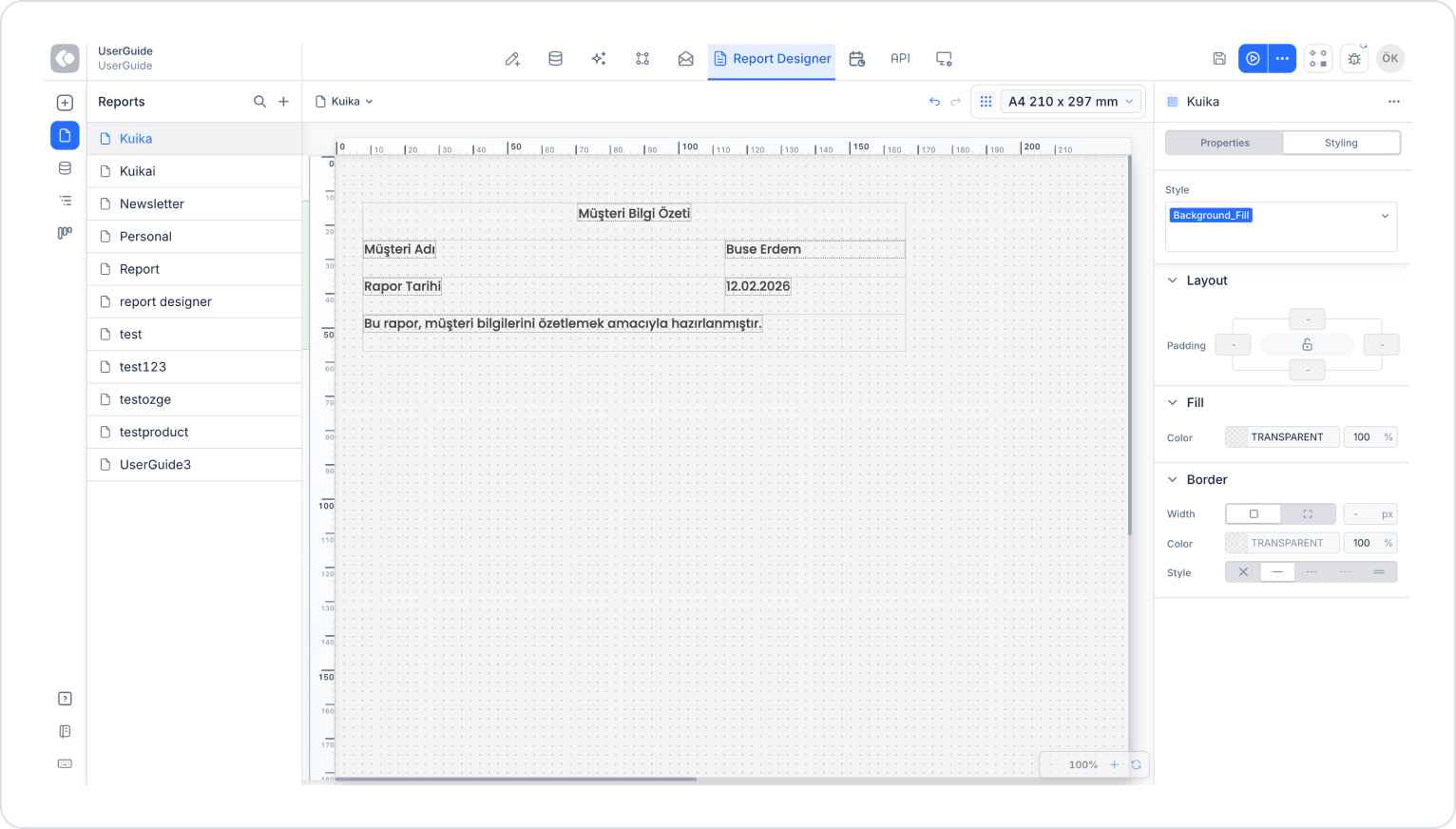
Grid mode provides an isometric (dotted paper) view. When this mode is enabled:
Grid mode is recommended especially for reports to be printed, table-heavy content, and designs requiring alignment precision. Users can switch between Grid and Free Position modes as needed.
The horizontal and vertical rulers on the canvas allow you to manage the position and size of report elements on the page based on measurements. With rulers, you can create a controlled page layout throughout the design process.
Report Designer supports different measurement units; however, manual adjustment of the measurement unit is only possible when the Custom option is used in the Paper Size field.
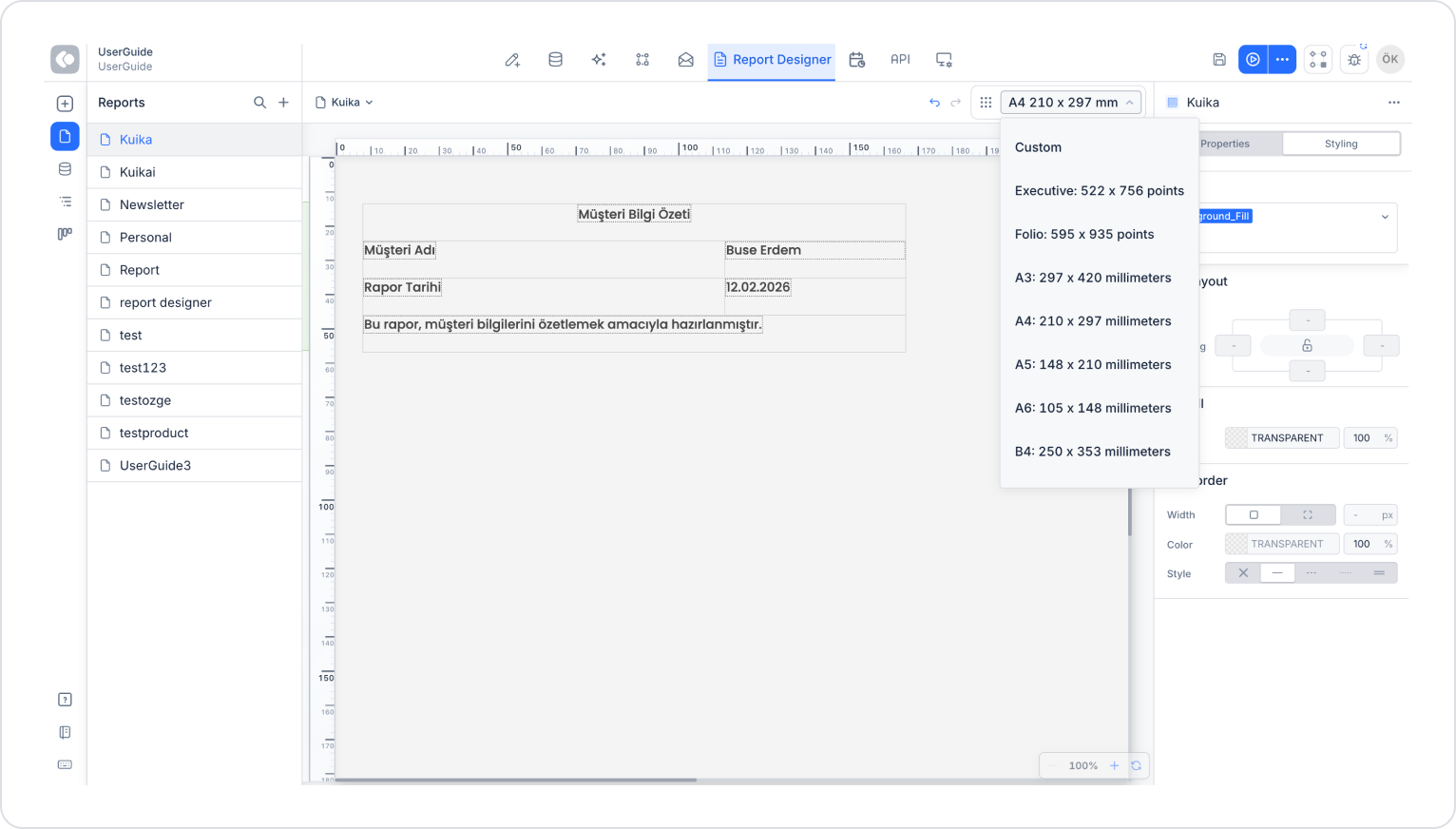
When a custom page is selected:
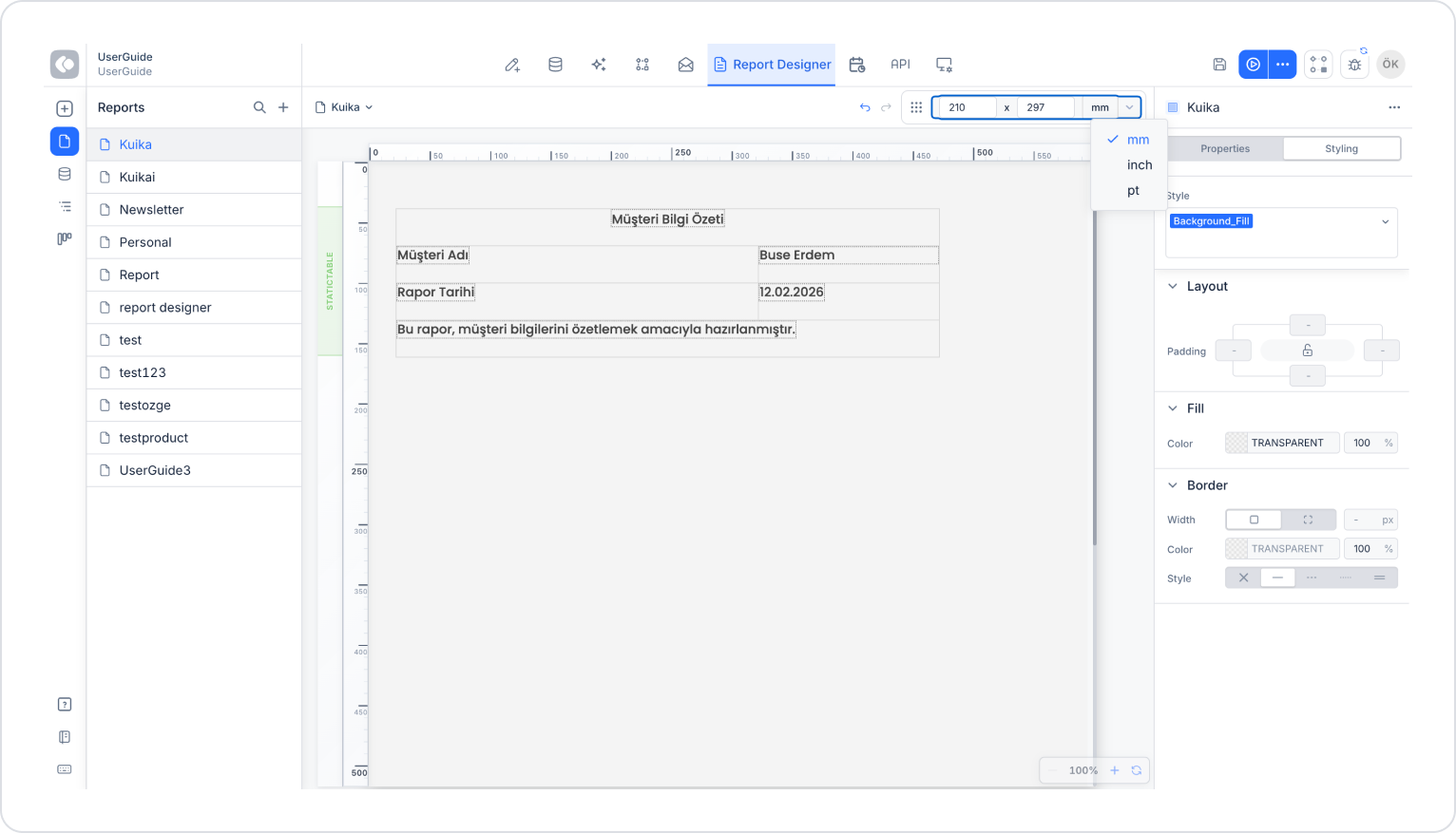
When standard paper sizes (A4, A3, A5, Letter, etc.) are used, the measurement unit is determined by the system and cannot be changed manually.
The measurement unit selection is critical for creating print-compatible reports. When using a Custom page:
Guide lines are added to the rulers to support the alignment of elements and prevent the page layout from being distorted during printing.
Page margins (padding) ensure that the report content is placed within a safe area within the page boundaries. Thanks to the padding settings, content:
When Grid (Dotted) mode is active, padding areas are displayed without dots. This allows the user to:
Since padding settings directly affect the overall layout of the report, it is recommended to determine them early in the design process.


