Box is a versatile container element used in Report Designer to group, highlight, and create organized areas for content. Box provides visual consistency in report design by bringing together specific content blocks, improving the report's readability.
The Box element can contain static or dynamic content and can be freely positioned on the report.
When Should You Use Box?
Box is preferred in the following situations:
To gather related content under a single area
To separate sections such as title–content, summary–details
To highlight specific areas with a background color
To make content boundaries more distinct using borders
To create card-like designs within the report
Basic Features of the Box Element
Box is a container element.
Any desired element can be dragged into it.
When the content does not fit, the Box area automatically expands.
It works with free positioning.
Box Sizing and Positioning
The following layout settings can be made for Box:
Width can be adjusted.
Height can be adjusted.
The position on the page can be precisely determined using X and Y values.
These settings can be controlled by:
Dragging on the ruler,
Or manually entering values in the Styling > Layout area.
Box Visual Settings
Fill Color
A background color can be defined for the Box.
Areas within the report can be highlighted using different colors.
This is ideal for summary information or important note areas.
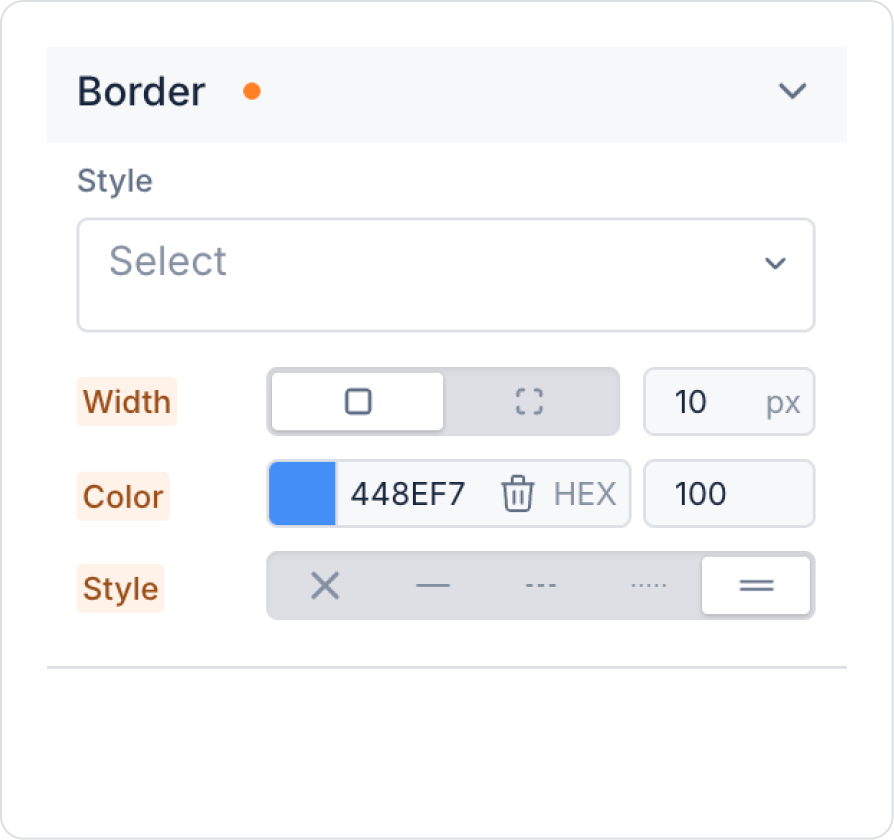
Border
Border settings can be configured for the Box:
Border color
Border thickness
These settings can be used to make the boundaries of the Box area more distinct and the content more organized.
Elements That Can Be Added to the Box
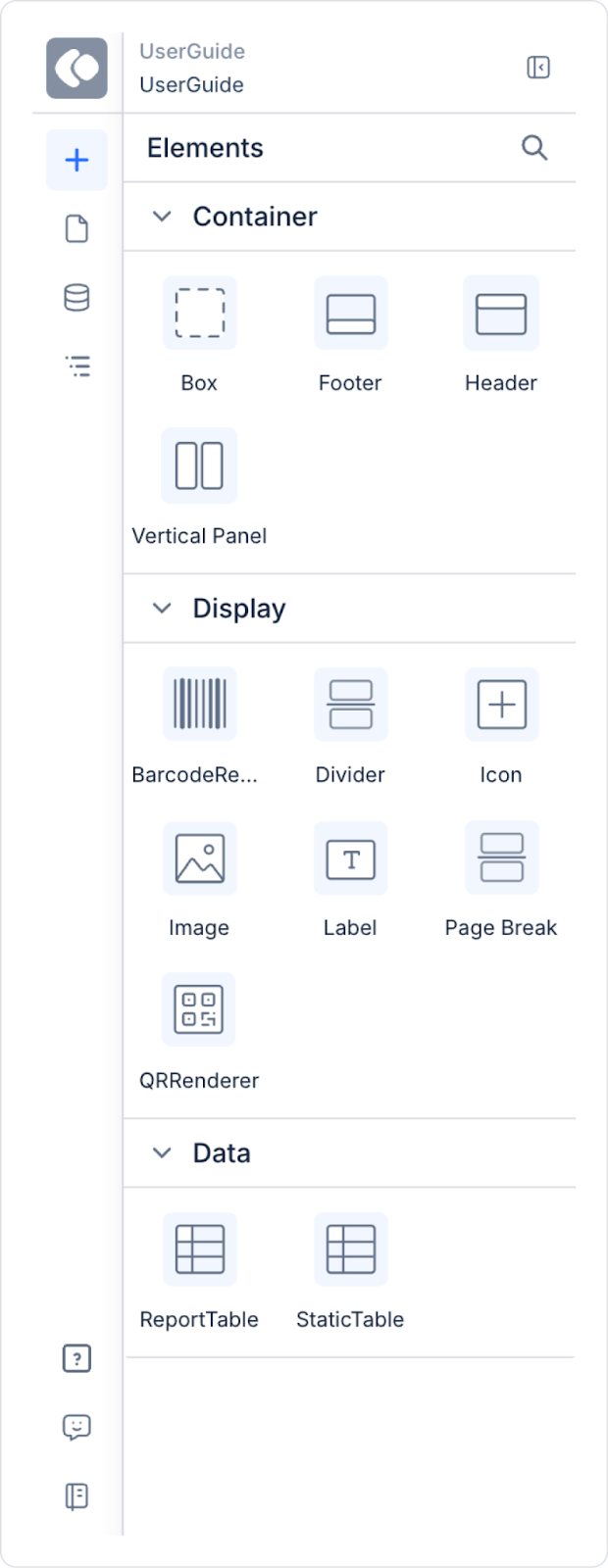
The following elements can be added to the box:
Label
Image
Icon
Divider
Static Table
Report Table
Other Box elements (nested usage)
The box behaves flexibly according to its content, and the added elements can automatically expand the box size.
Box Element Usage Scenario
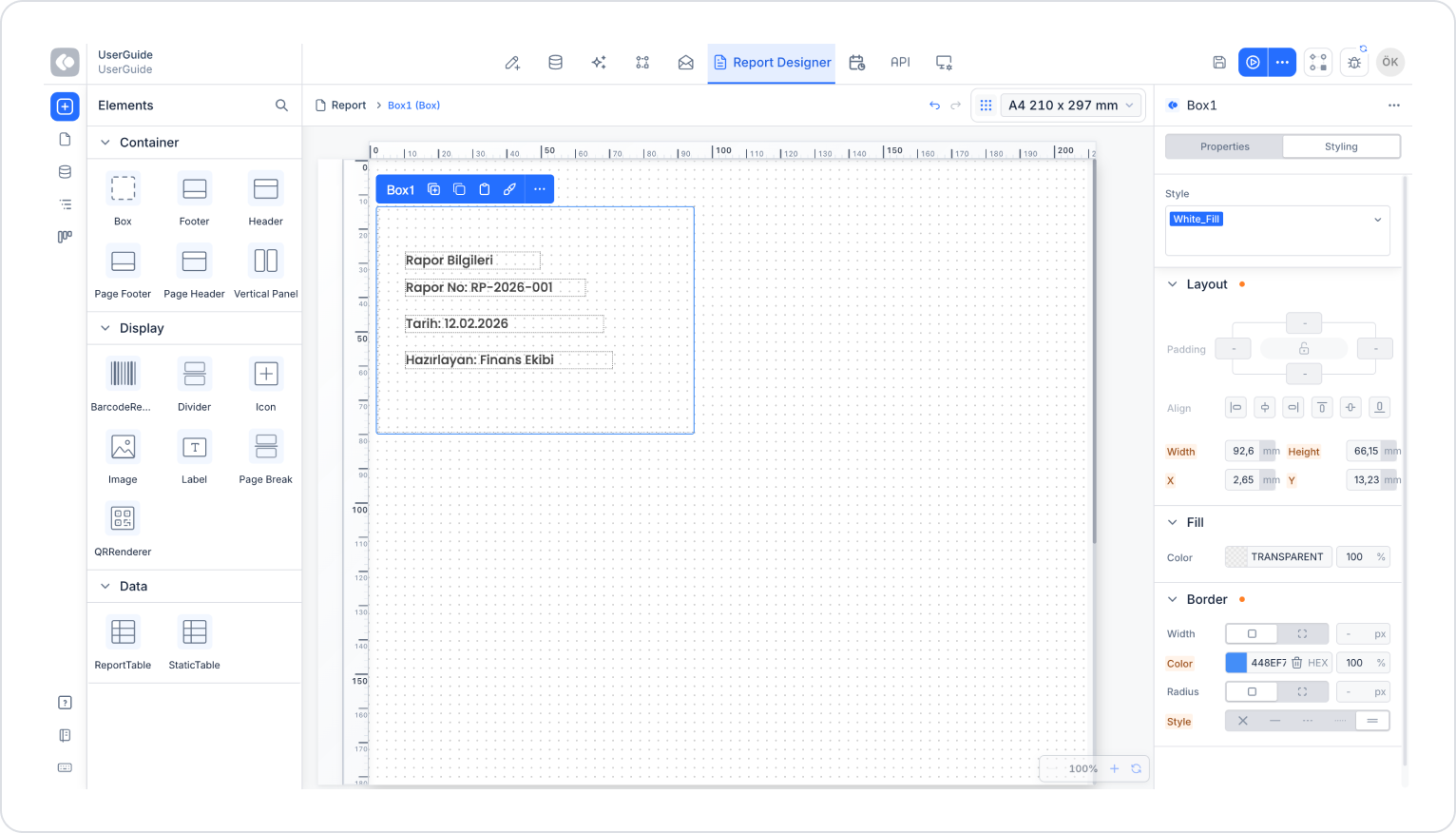
In a report, a simple and organized information area is created at the top of the page to provide the user with basic information about the report at a glance. This area contains information such as the date the report was created, the report number, and the unit that prepared the report.
In this scenario, the Box element is used to create a simple and clear header area independent of the report content. Thanks to the Box, the information is gathered under a single area and visually separated from the rest of the report content.
In the scenario:
The Box element is positioned at the top of the report.
Only text-based information is added to the Box.
The content layout is controlled manually.
The Box is distinguished from the body of the report by its background color and border.
The Box area automatically expands when the content increases.
1. Adding the Box Element
Open the Report Designer module.
Select the Box element from the Elements panel.
Drag the Box onto the Canvas and place it at the top of the page.
2. Box Sizing and Style Settings
From the Styling > Layout area:
Set the Width value as needed.
Leave the Height value as Auto.
Align the Box using the X and Y values.
From the Styling > Fill area, select a light background color.
Define a thin border from the Styling > Border area.
3. Adding Content
Add the following elements to the Box:
One Label (title):
Text: Report Information
Three Labels placed one below the other:
Report No: RP-2026-001
Date: 02.12.2026
Prepared by: Finance Team
Adjust the Label alignment and font settings via the Properties panel.
At the end of this scenario:
A simple and readable information area is created at the top of the report.
The purpose and basic information of the report are presented to the user at first glance.
Thanks to the Box element, the content is displayed in an organized, controlled, and print-compatible manner.