Kuika's Update Role Group action is used to update the information of an existing role group in the system. This action allows you to change the name of the role group, update the roles included in the group, or reconfigure role group-role group relationships.
Update Role Group is used specifically to organize role groups in authorization management screens, update role structures according to organizational changes, and maintain centralized authority control.
Technical Features
Role Group Update (Authorization Panel): Updates the name of an existing role group, its associated roles, and related role groups.
Authorization Compatibility: Updated role group information is fully compatible with the Authorization infrastructure, and changes are immediately reflected in authorization rules.
Web & Mobile Support: The action is supported in both web and mobile applications.
Update Role Group Action Application Steps
1. Define the Action in UI Design
Open your project on the Kuika platform.
Go to the UI Design module and select the relevant screen.
Create a button or save action that will initiate the role group update process (e.g., “Update Role Group”).
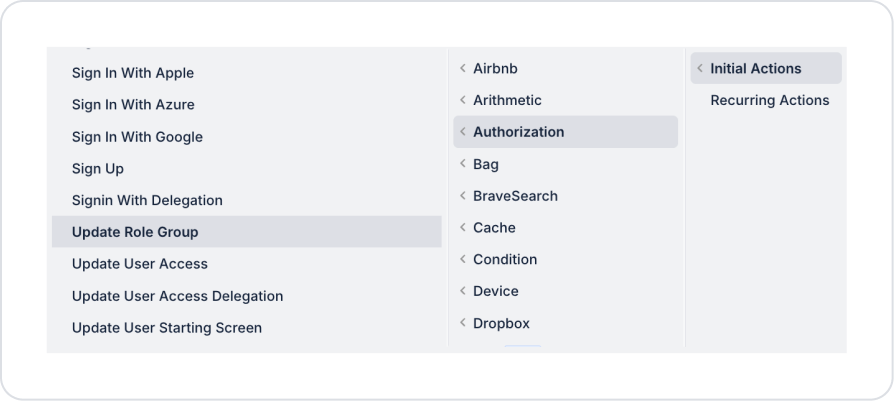
Select the relevant element and add the Authorization → Update Role Group action from the + ADD ACTION menu, depending on the trigger event to be used.
2. Configuring Action Parameters
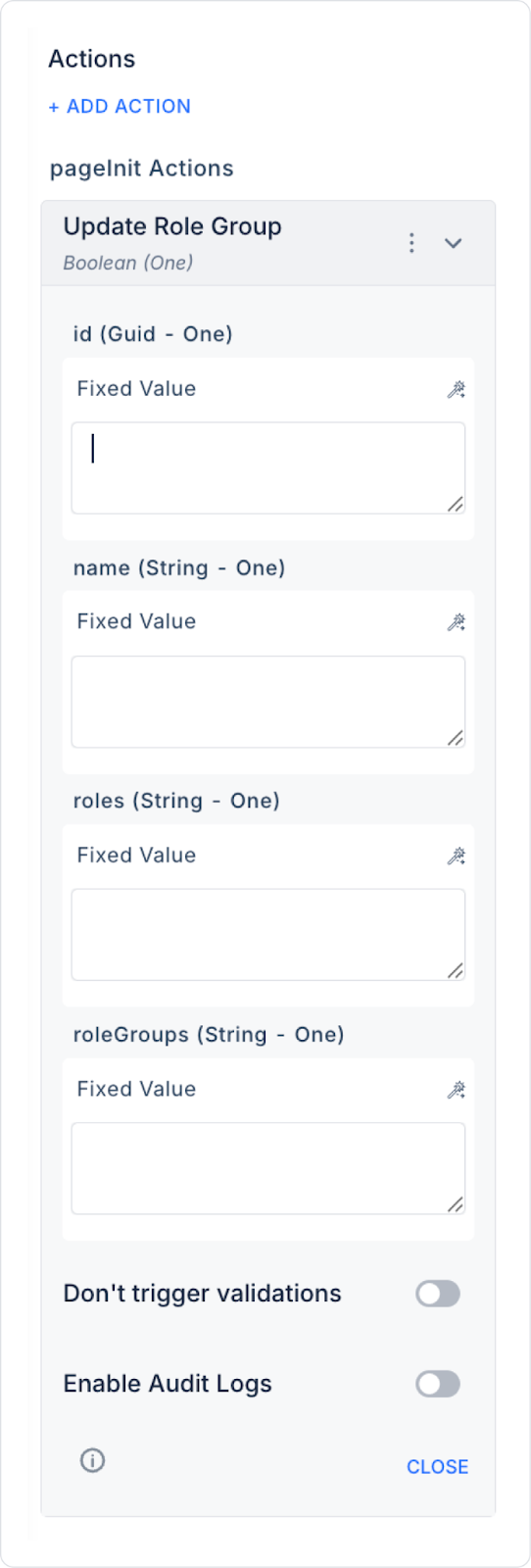
id (Guid – required): The unique ID of the role group to be updated in the system (Role Group ID). This field is usually linked via the Symbol Picker tool from one of the following sources:
Get Role Groups / Get Role Group Detail action return ID,
Table selected row,
Screen Input, or Fixed Value
name (String – optional): The new name of the role group to be updated. If this field is filled in, the name of the role group is changed.
roles (String – optional): The list of roles to be included in or updated for the role group. When this field is used, the roles associated with the role group are redefined.
roleGroups (String – optional): Specifies other role groups that the role group will be included in or associated with. It enables the updating of hierarchical role group structures.
3. Optional Settings
Enable Audit Logs (Boolean – optional): When enabled, the role group update operation is added to the audit log records. This allows you to track which role group, which fields, when, and by which user were updated. It is recommended to enable this for applications that require authorization and security tracking.
Usage Scenario: Role Group Update
An admin user in an admin panel wants to edit an existing role group.
After making the necessary changes on the role group details screen, they click the “Update Role Group” button.
This triggers the Update Role Group action and:
The role group name is updated,
The roles included in the group are changed,
Role group relationships are reconfigured.
The changes are immediately reflected in the authorization system.
Technical Risks
Invalid Role Group ID: Ensure that the id field belongs to an existing role group in the system.
Permission Conflicts: The existing authorization structure must be carefully checked when updating role and role group relationships.
Audit Tracking: In enterprise applications, it is recommended to enable the Enable Audit Logs option.