Swagger UI is an interface used to view, test, and document your application’s APIs. Using the Swagger UI settings in Kuika’s Config Manager module, you can enable Swagger UI for your application and control who can access it.
In this guide, you’ll learn step-by-step how to configure and test Swagger UI settings.
How to Set Up Swagger UI?
1. Open or Create a Configuration
Log in to the Kuika platform.
From the Apps screen, open the project you’ll be working on.
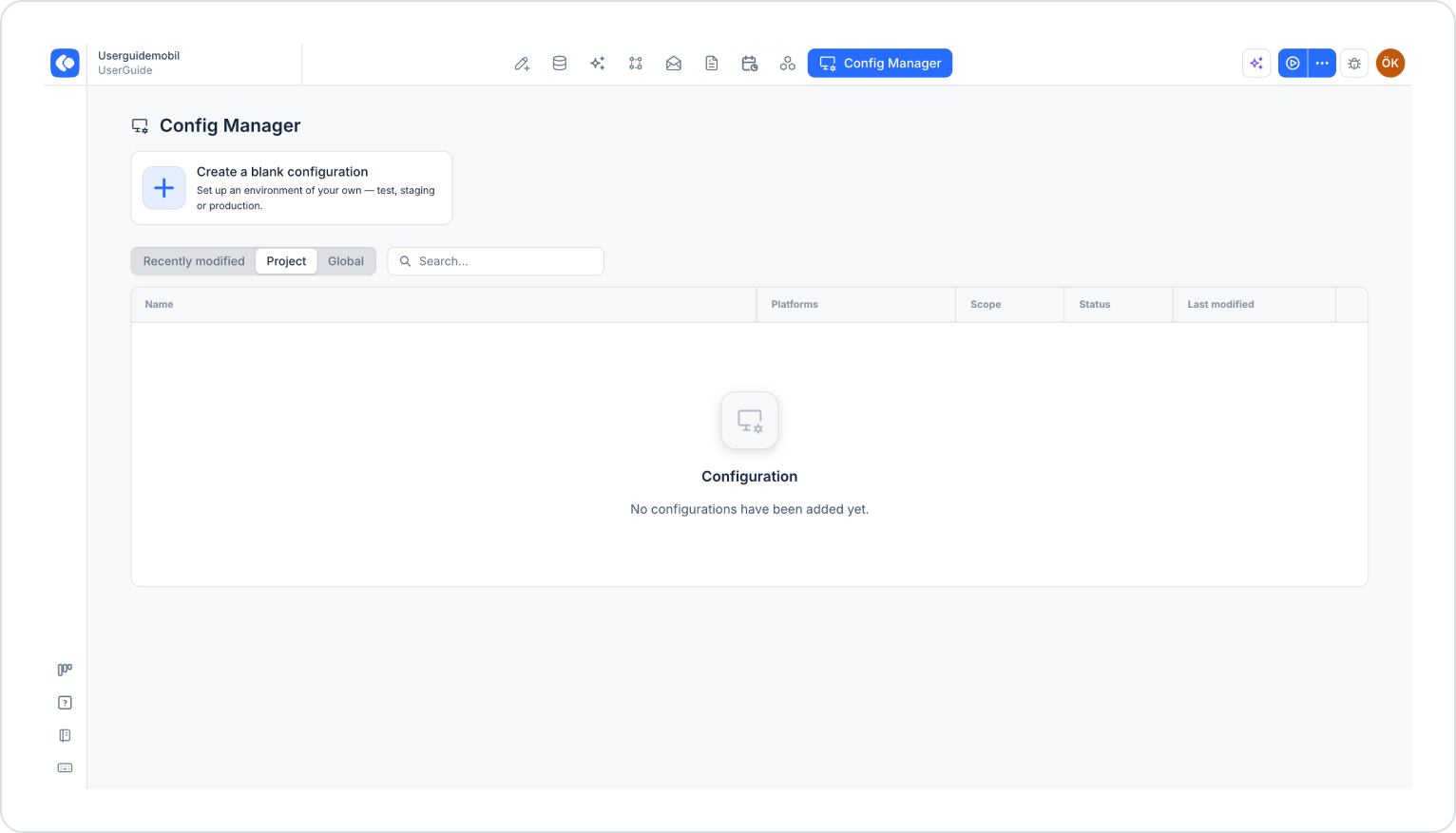
Click the Config Manager module in the top menu.
To create a new configuration, click the Create a blank configuration card, give the configuration a name, and complete the creation process. If you want to use an existing configuration, click its name in the list.
2. Go to the Swagger UI Settings
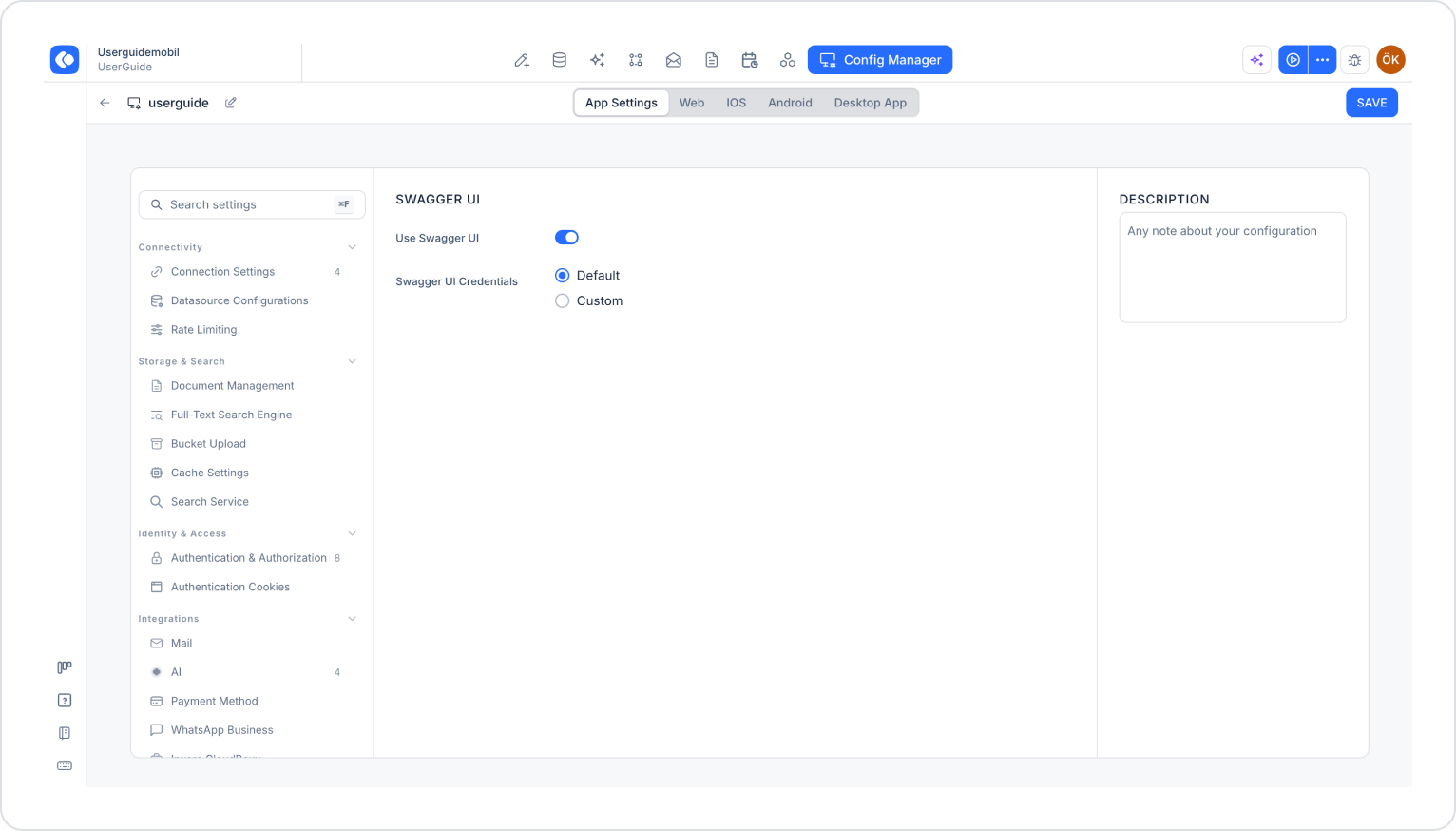
Make sure the App Settings tab is selected at the top of the configuration screen.
In the left menu, click the Swagger UI option under the Operations heading. You can also quickly access this setting by typing “swagger” into the Search settings field at the top of the menu.
3. Configure Swagger UI Settings
Use Swagger UI: Enables or disables Swagger UI for your application.
Swagger UI Credentials: Specifies the credentials used to access Swagger UI.
Default: Uses the default credentials defined by the system.
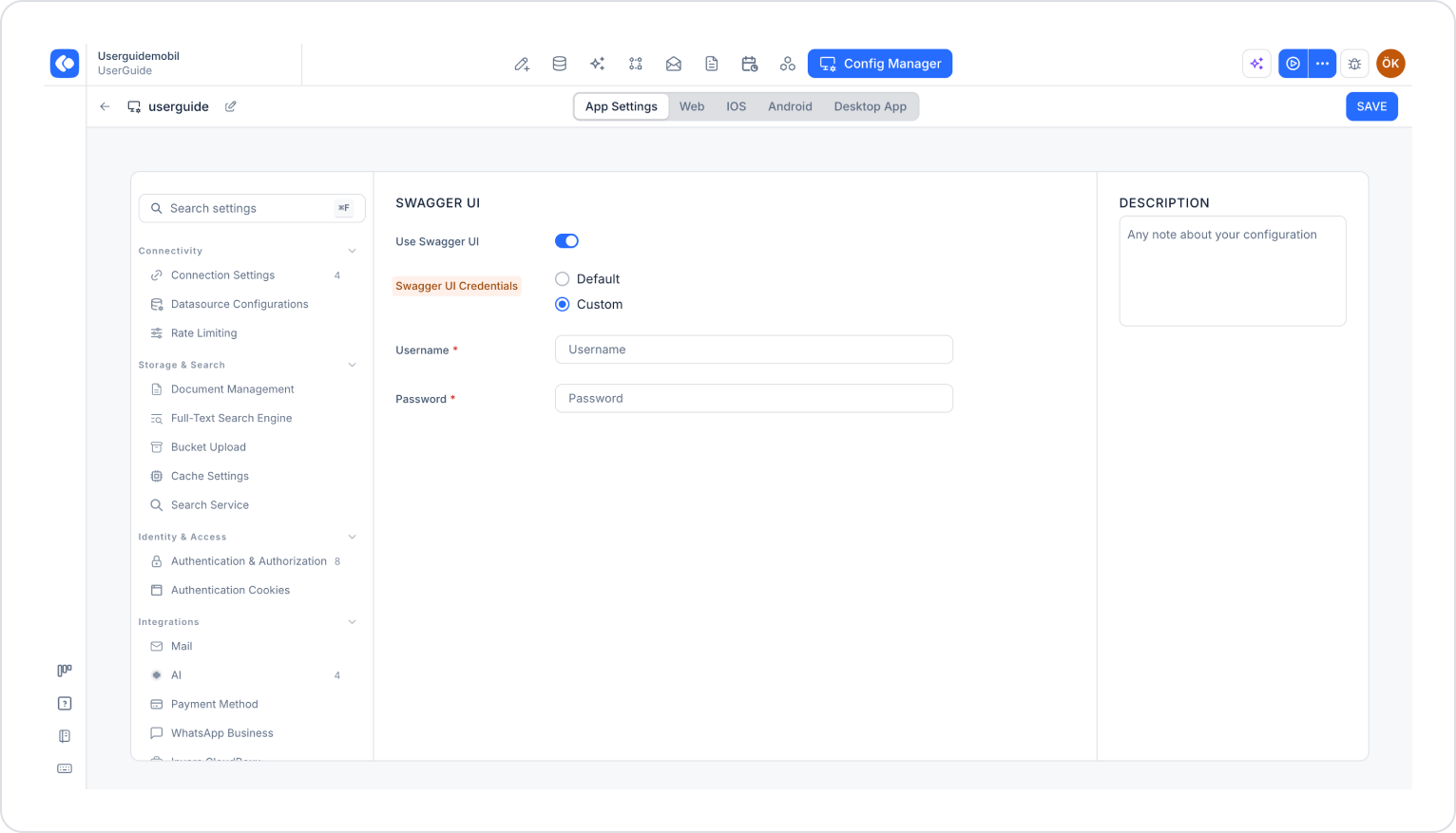
Custom: You define your own username and password to access Swagger UI.
When you select the Custom option, the following fields appear:
Username (required): The username to be used to access Swagger UI.
Password (required): The password to be used to access Swagger UI.
4. Save and Test the Settings
Saving Settings
Make sure you have filled out all required fields completely and correctly.
Click the SAVE button in the top-right corner to save your changes.
Testing
Click the three dots next to the Preview button in the top-right corner, then select RUN from the dropdown menu.
After the application runs, open the Swagger UI interface, log in with the credentials you specified, and verify that the API endpoints are displayed and can be tested.
Once you’ve completed these steps, you can view and test your application’s APIs through Swagger UI.
Important Tips
Use Swagger UI primarily in development and testing environments.
If you don’t need Swagger UI in a production environment, disable the Use Swagger UI key in the relevant configuration. If you must use it, be sure to restrict access.
For security, use Custom credentials instead of Default and set a strong password. Share credentials only with team members who need them.
By configuring Swagger UI settings correctly, you can easily test your APIs and securely manage access.