The Stop Vision Process action is used to stop a Vision (image processing/object recognition/camera stream) process initiated on the Kuika platform. It is preferred in scenarios where real-time Vision Flows need to be terminated in a controlled manner.
This action safely terminates an active Vision process, freeing up system resources.
This action is supported in both web and mobile applications.
Technical Features
Vision Flow Termination: Stops an active Vision process.
Real-Time Stream Control: Controlled termination of camera or video-based workflows.
Resource Management: Optimizes system resources by terminating GPU/CPU usage.
Audit Log Support: When Enable Audit Logs is activated, the process can be logged.
Validation Control: If desired, the process can be stopped without triggering validation.
Stop Vision Process Action Application Steps
Adding the Stop Vision Process Action
Log in to the Kuika platform.
Open the project you will be working on from the Apps screen.
Go to the UI Design module.
Select the button you want to stop the Vision process (for example, “Stop Detection”).
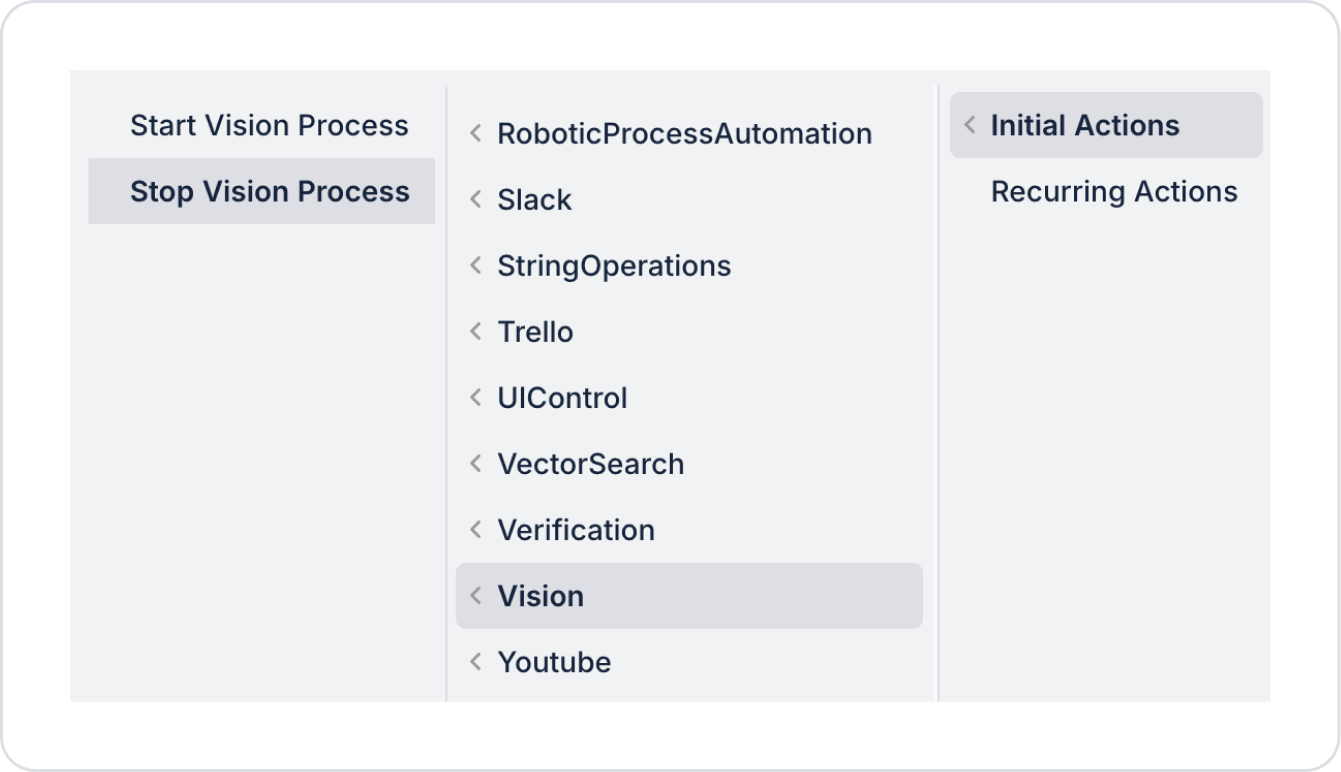
From the Properties panel on the right: ADD ACTION → OnClick (or relevant trigger) → Vision → Select the Stop Vision Process action.
Configuring Stop Vision Process Parameters
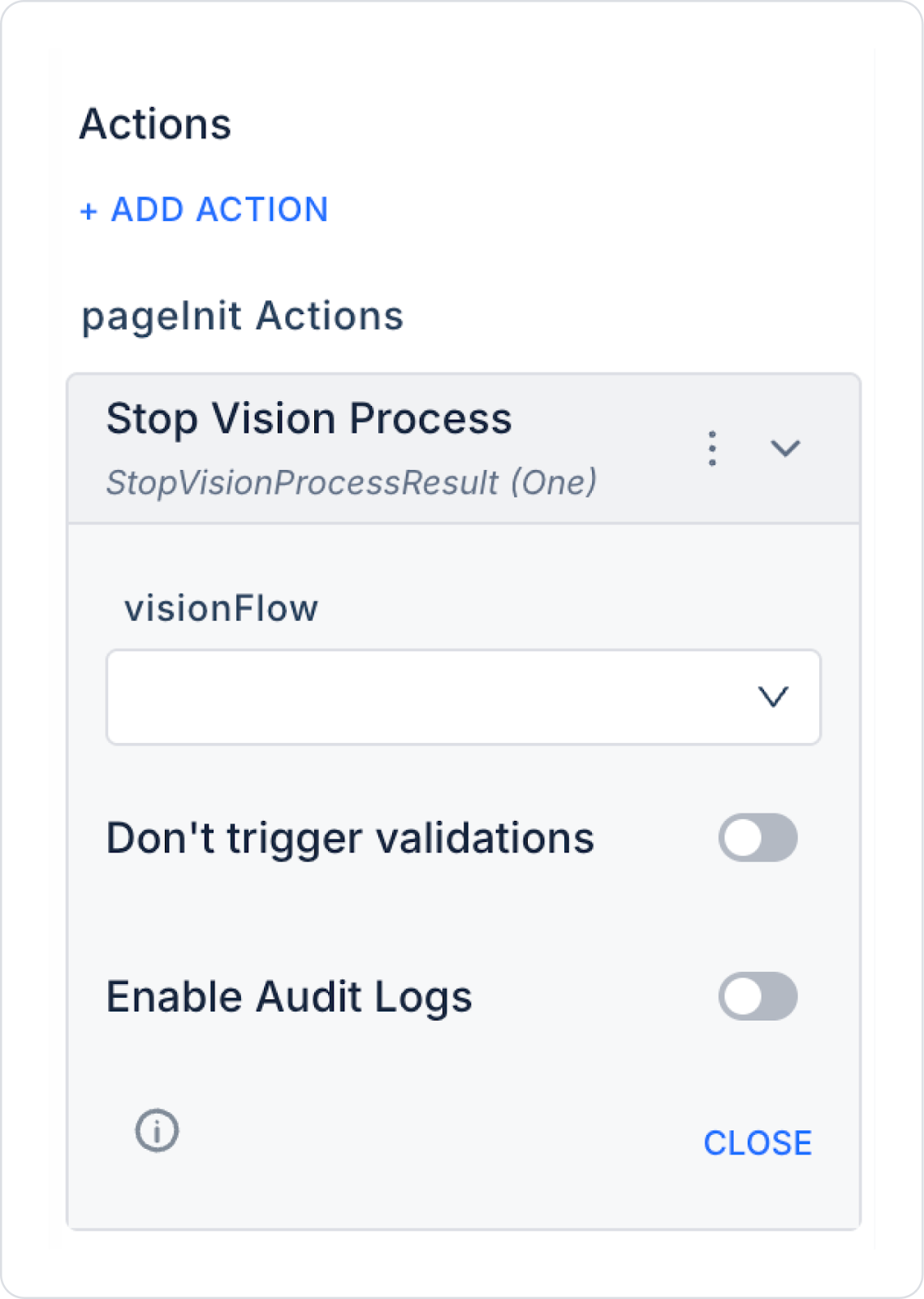
visionFlow (Required): Specifies the reference of the Vision Flow to be stopped. Usually, the Vision Flow object obtained as a result of the Start Vision Process action is linked. Via the Symbol Picker: Action Results → Start Vision Process → visionFlow is selected to establish the link.
Don't Trigger Validations (Optional): When enabled, validation rules on the page are not triggered during the stop process.
Enable Audit Logs (Optional): The process is logged. Recommended for corporate use and traceability.