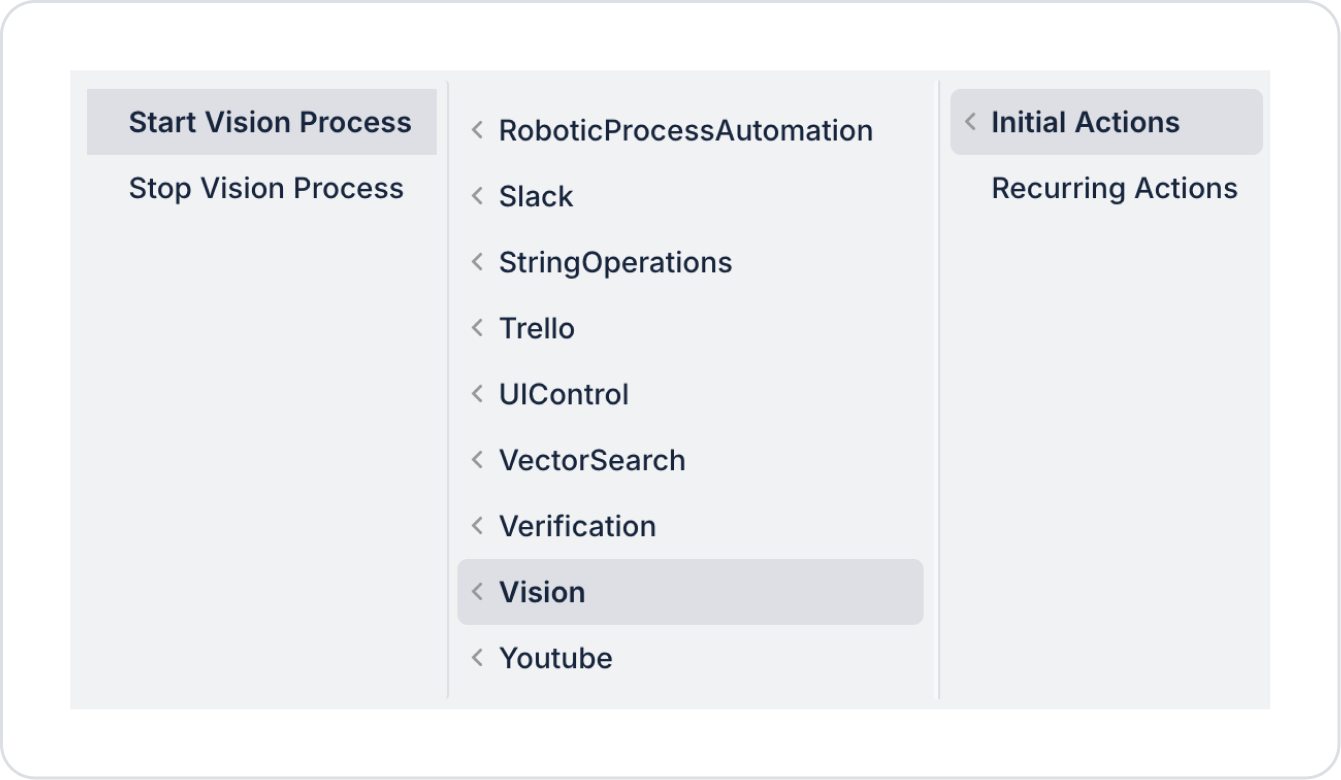
The Start Vision Process action initiates a Vision Flow (image processing, object recognition, tracking, or analysis process) defined on the Kuika platform. This action is used in real-time analysis scenarios running via camera or video stream.
Vision-based workflows are initiated with this action and continuously processed by the system in the background.
This action is supported in both web and mobile applications.
Technical Specifications
Vision Flow Start: Runs a defined Vision Flow.
Real-Time Analysis: Enables object recognition, tracking, and analysis via camera or video stream.
Generates Flow Reference: The started process returns a visionFlow reference. This reference is used in the Stop Vision Process action.
Audit Log Support: When Enable Audit Logs is activated, the process is logged.
Validation Check: If desired, the start process can be performed without triggering validation rules.
Start Vision Process Action Application Steps
Adding the Start Vision Process Action
Log in to the Kuika platform.
Open your project from the Apps screen.
Go to the UI Design module.
Select the button that will start the Vision process (e.g., “Start Detection”).
From the Properties panel on the right: ADD ACTION → OnClick (or relevant trigger) → Vision → Select the Start Vision Process action.
Configuring Start Vision Process Parameters
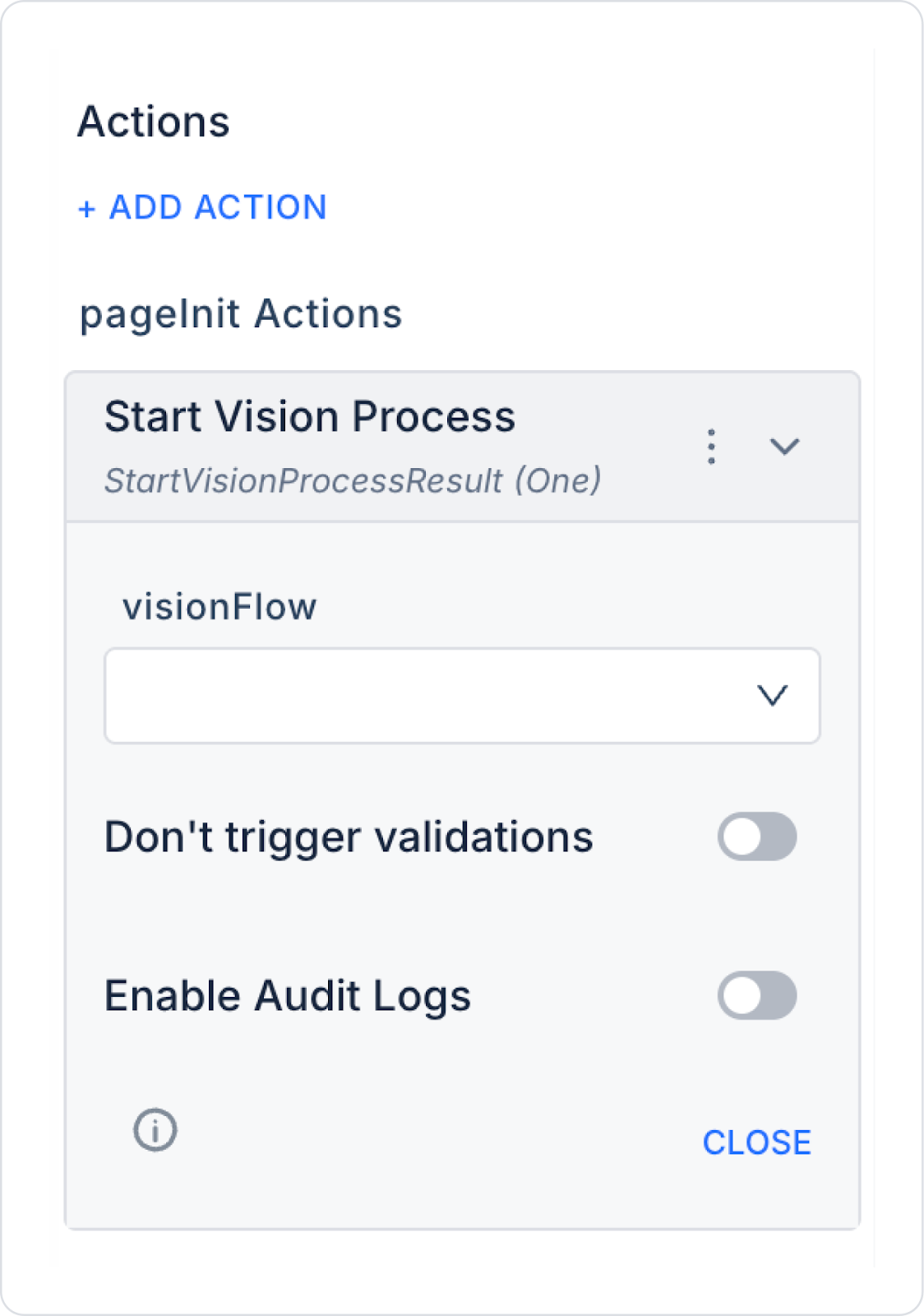
visionFlow (Required): Specifies the reference of the Vision Flow to be started. Select a flow previously defined via Vision Actions or Vision Builder.
Don’t Trigger Validations (Optional): When enabled, validation rules on the page are not triggered during the start process.
Enable Audit Logs (Optional): The start process is recorded in the system logs.
Recommended for traceability in enterprise projects.
Action Result
When Start Vision Process is executed:
Vision Flow is started
The system activates the analysis process
StartVisionProcessResult (One) result is returned
The visionFlow reference can be retrieved from this result and used in the Stop Vision Process action
Usage Scenario: Starting Object Tracking with Camera
Product control is performed via camera on a production line:
The user presses the “Start Inspection” button.
The Start Vision Process action is triggered.
Vision Flow becomes active.
The camera image begins to be analyzed.
Analysis continues as long as the process remains active.
Start–Stop Flow Logic
Vision processes are typically used in the following sequence:
Start Vision Process → Analysis begins,
Real-time analysis is performed,
A condition is met or the user intervenes,
Stop Vision Process → The process is terminated.
Each Start operation generates a new visionFlow reference. Therefore, multiple parallel Vision processes can be managed.
Advanced Customizations
Conditional Start: Can be started automatically based on a specific form input or state check.
Start on Page Open: Can be defined under Initial Actions and run automatically when the screen loads.
Scheduled Start: Vision processes can be triggered at specific intervals with Scheduled Jobs.
Dynamic Flow Selection: Different Vision Flows can be started based on user selection.
Technical Risks
Undefined Vision Flow: Unselected or deleted flows cannot be started.
Multiple Parallel Processes: Starting too many Vision Flows at the same time may affect performance.
Restart Without Stopping: Calling a new Start without stopping the previous process may create parallel Flows.
The Start Vision Process action is the fundamental starting point for Vision-based real-time analysis and object recognition scenarios. When used in conjunction with Stop Vision Process, it provides a controlled, high-performance, and traceable image processing infrastructure.