Serper Tool Settings is a configuration option that allows you to define your Serper API credentials to provide real-time access to Google search results in your app. By configuring this setting in the Kuika Configuration Manager module, you can integrate AI-powered search features into your app.
How to Get a Serper API Key?
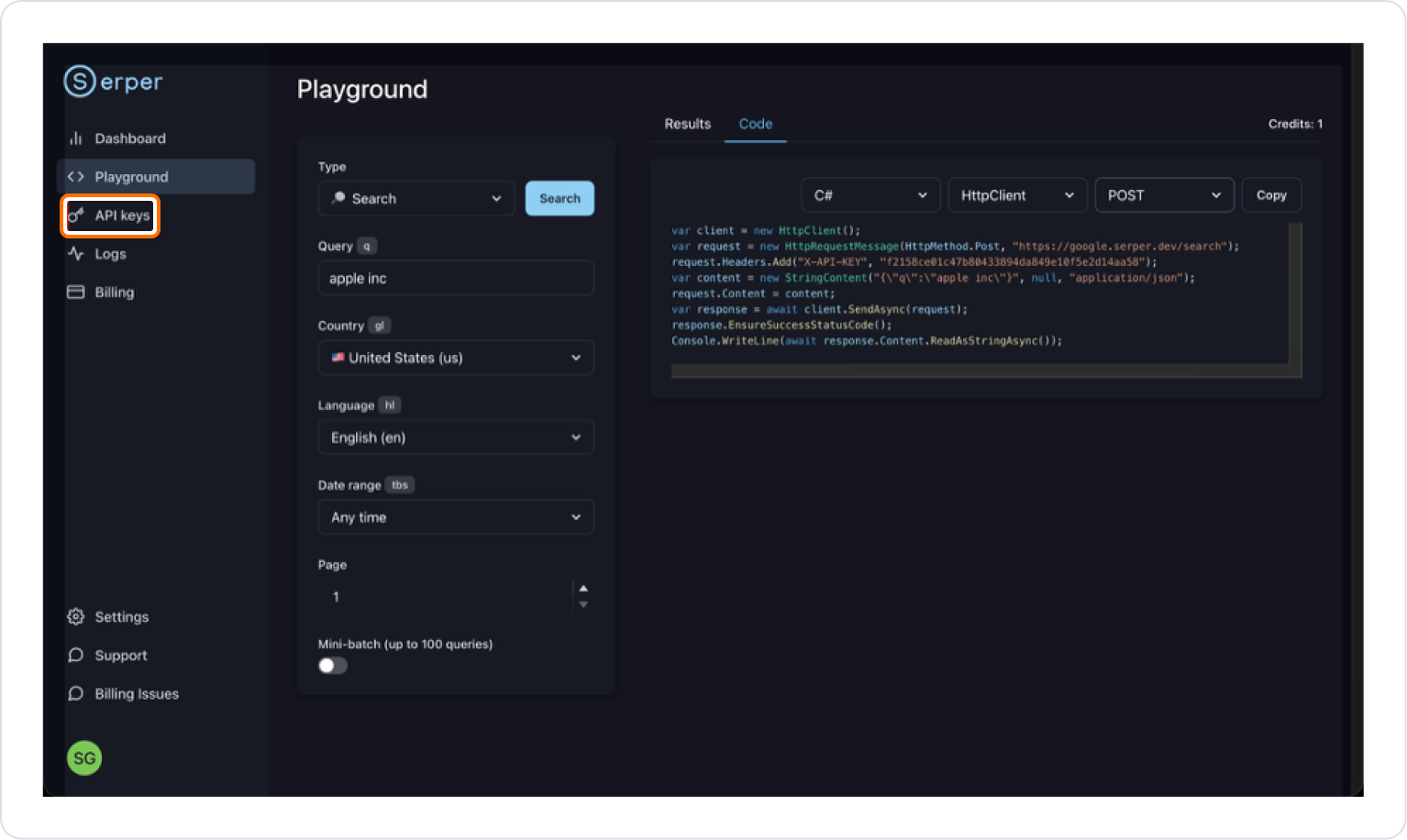
Go to serper.dev to create a new account or log in to your existing account.
Click the API Keys option in the left menu.
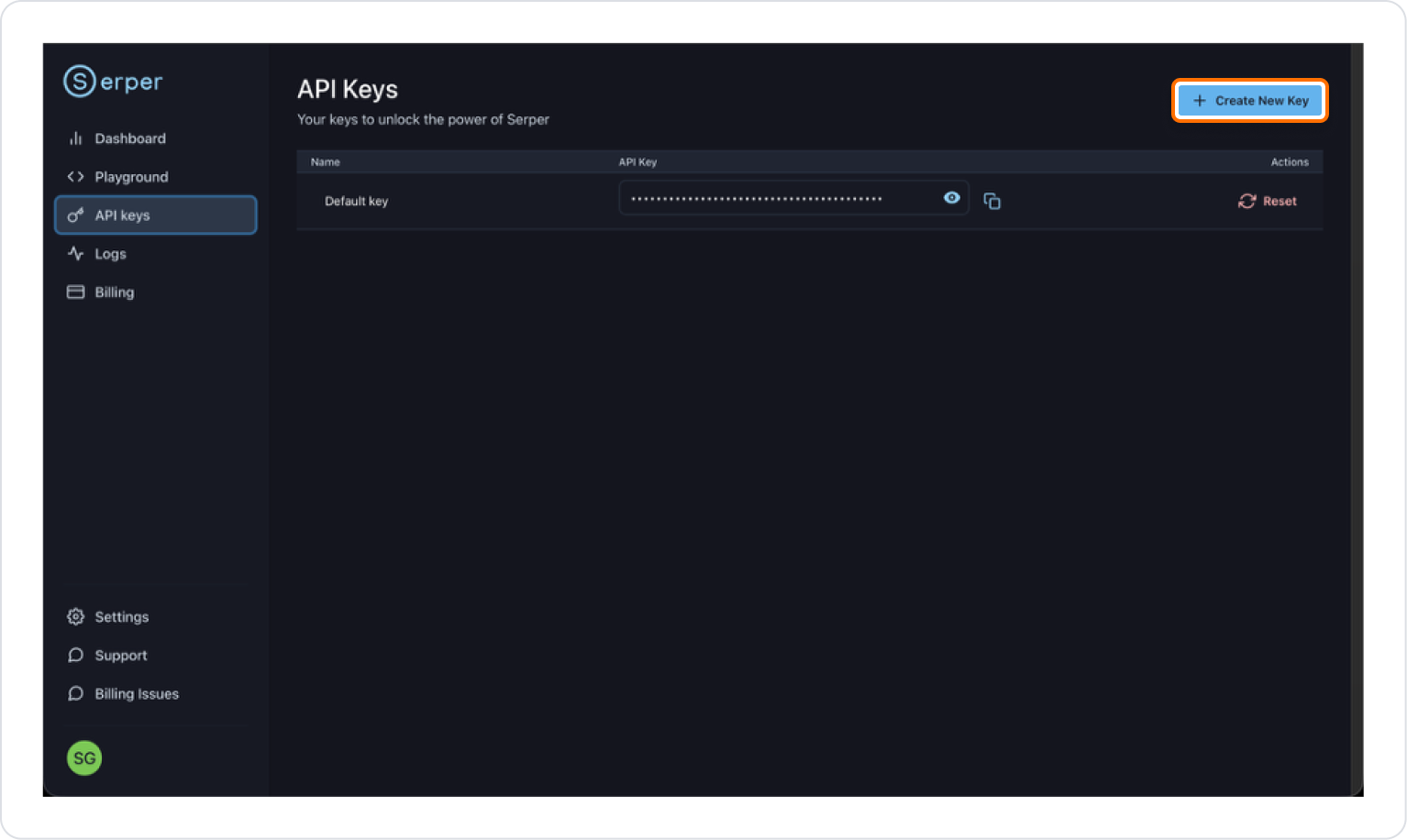
Click the Create New Key button.
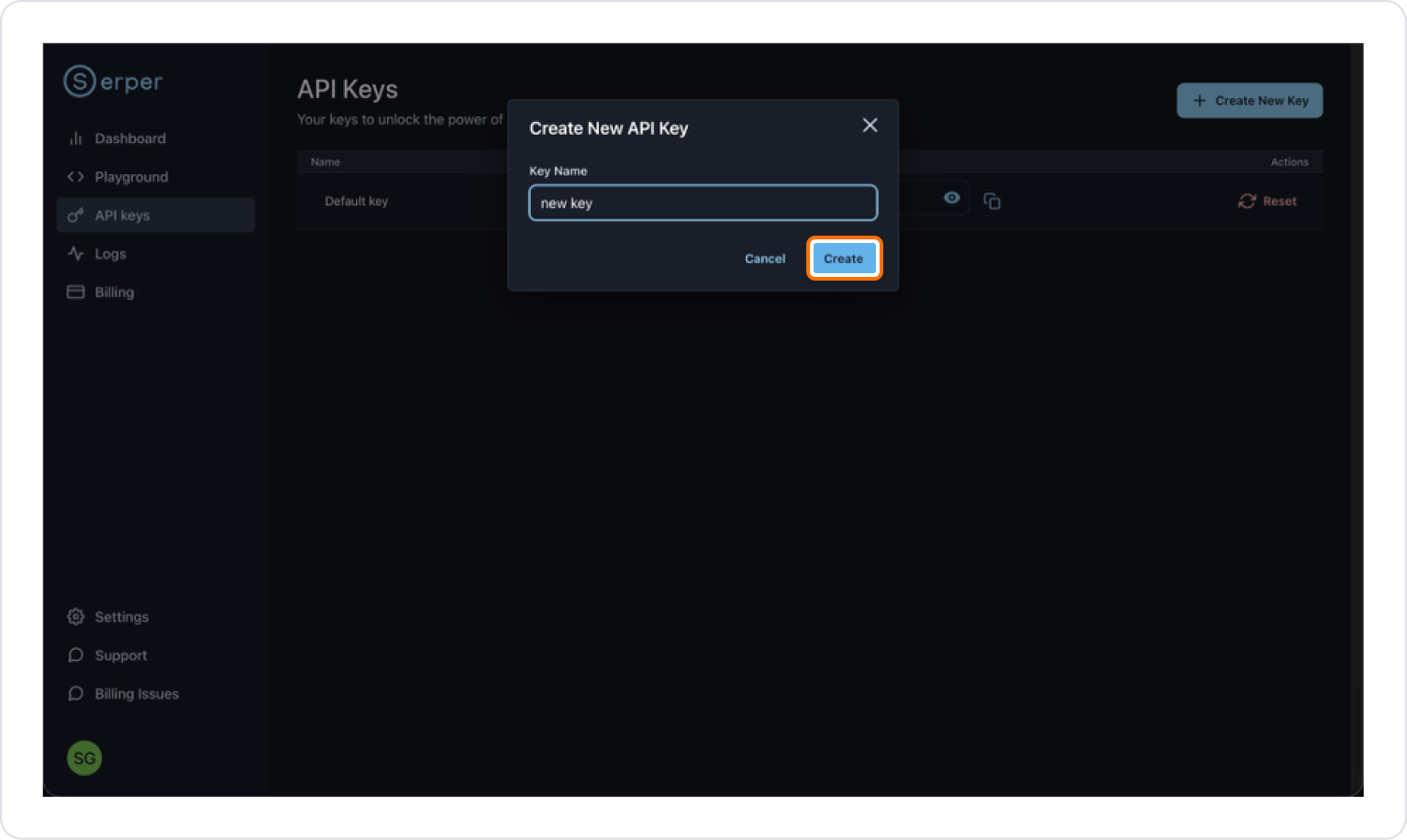
Give the key you created a name and click the Create button.
How to Configure Serper Tool?
Serper Tool enables your app to access real-time Google search results. These settings are configured through the Kuika Config Manager module.
1. Add a Configuration to the App
Log in to the Kuika platform.
From the Apps screen, open the project you’ll be working on.
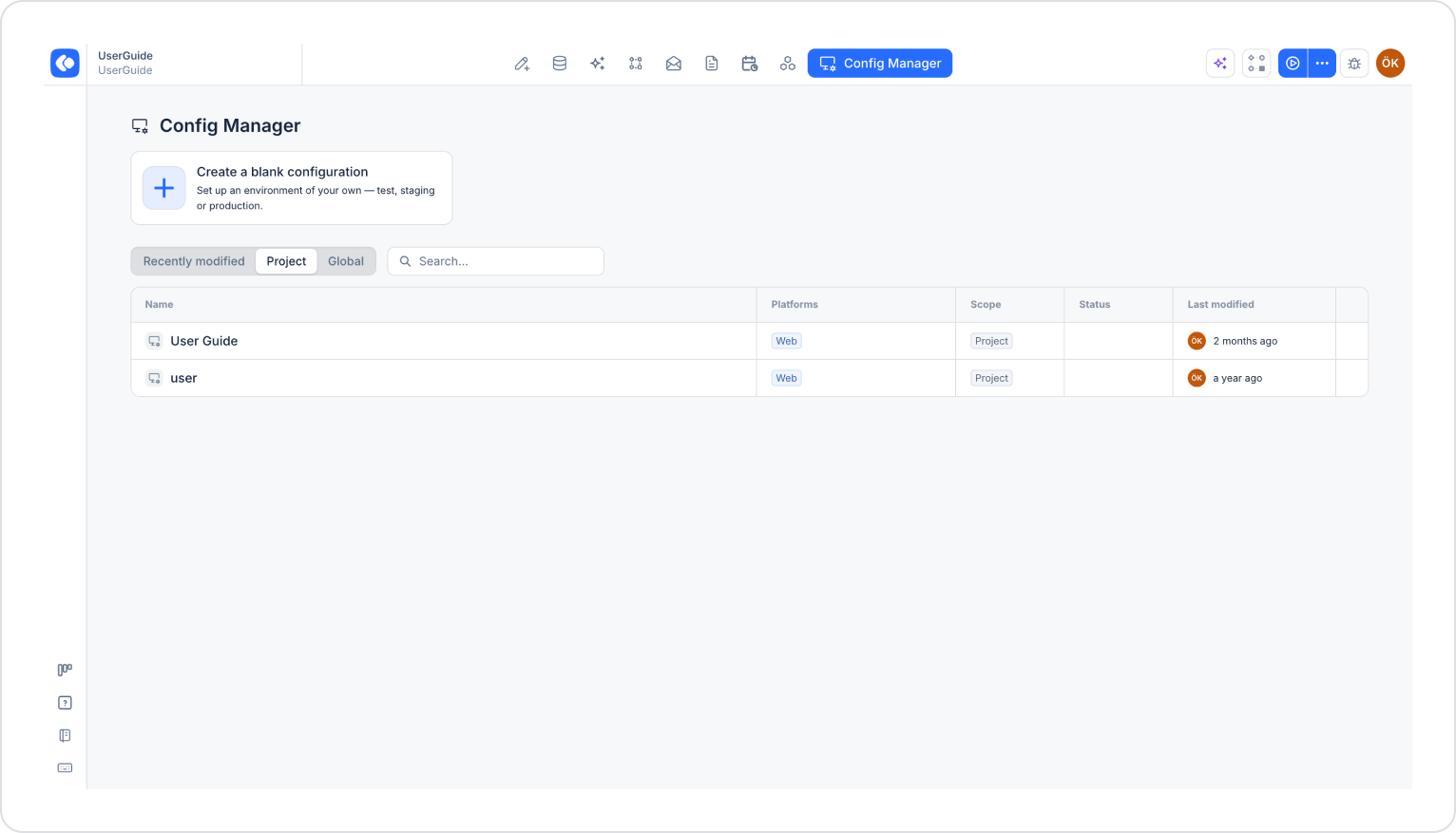
Click the Config Manager module in the top menu.
On the screen that opens, click the Create a blank configuration card.
Give the configuration a name and complete the creation process.
If you want to use an existing configuration, you can open the editing screen by clicking its name in the list.
2. Configure Serper Tool Settings
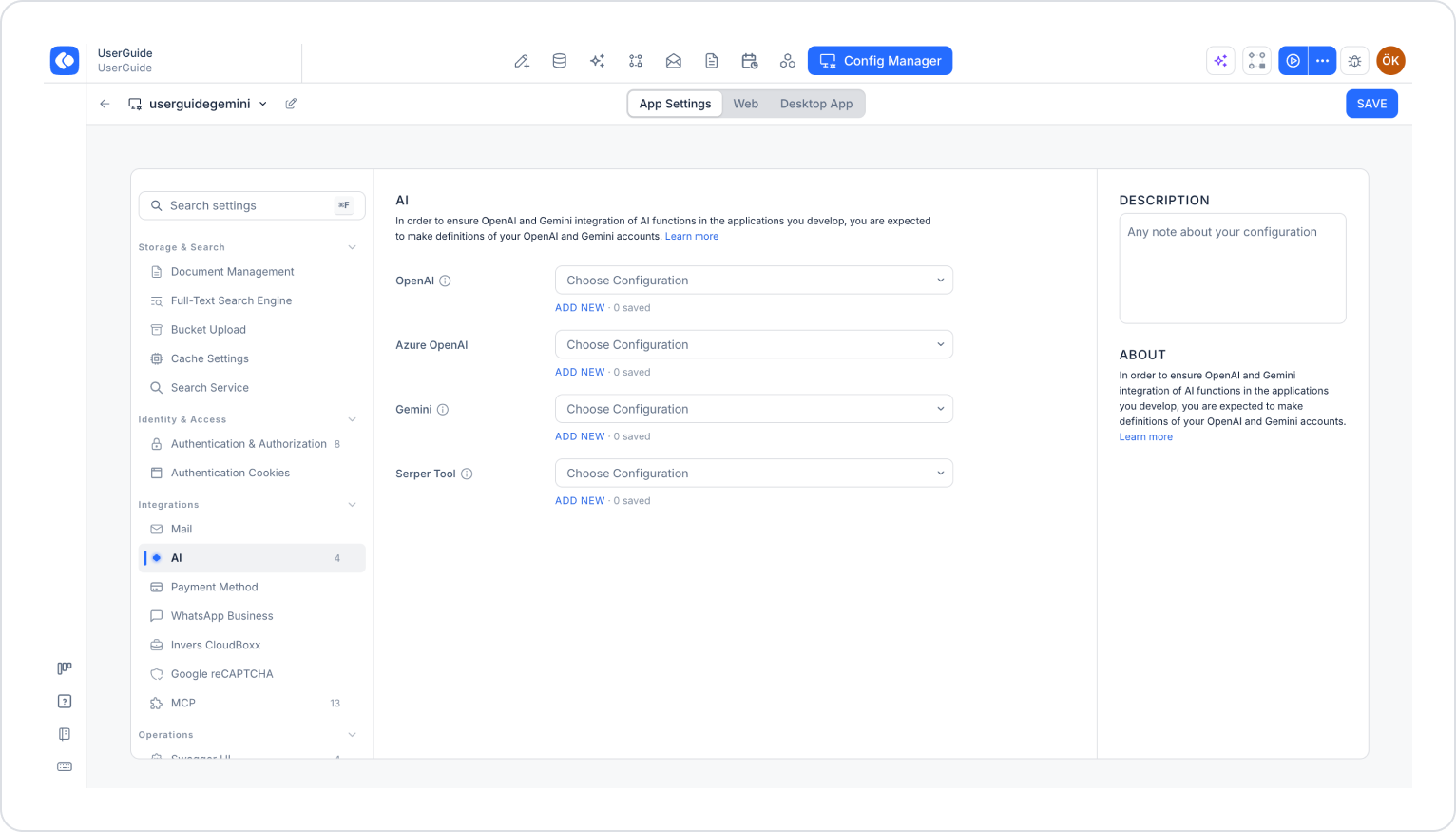
Make sure the App Settings tab is selected at the top of the configuration screen.
In the left menu, click the AI option under the Integrations heading.
Click the ADD NEW link under the Serper Tool section.
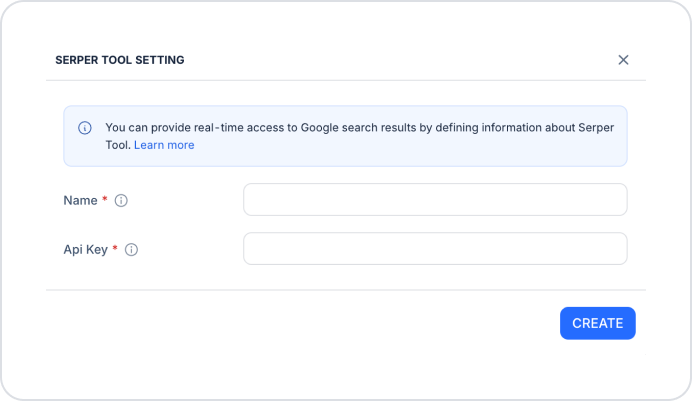
In the Serper Tool Settings window that opens, fill in the following fields:
Name (required): The descriptive name to be given to the configuration.
API Key (required): The API key you obtained from the Serper platform.
After filling in all fields, click the CREATE button.
From the Choose Configuration dropdown menu in the Serper Tool section, select the configuration you created.
Click the SAVE button in the upper-right corner to save your changes.
3. Test the Settings
Click the three dots next to the Preview button in the upper-right corner of the screen.
From the menu that opens, click the RUN option.
Once the app opens, test whether the Serper Tool integration is working correctly.
By following these steps, you can easily configure Serper Tool settings on the Kuika platform and enable access to real-time Google search results in your app.