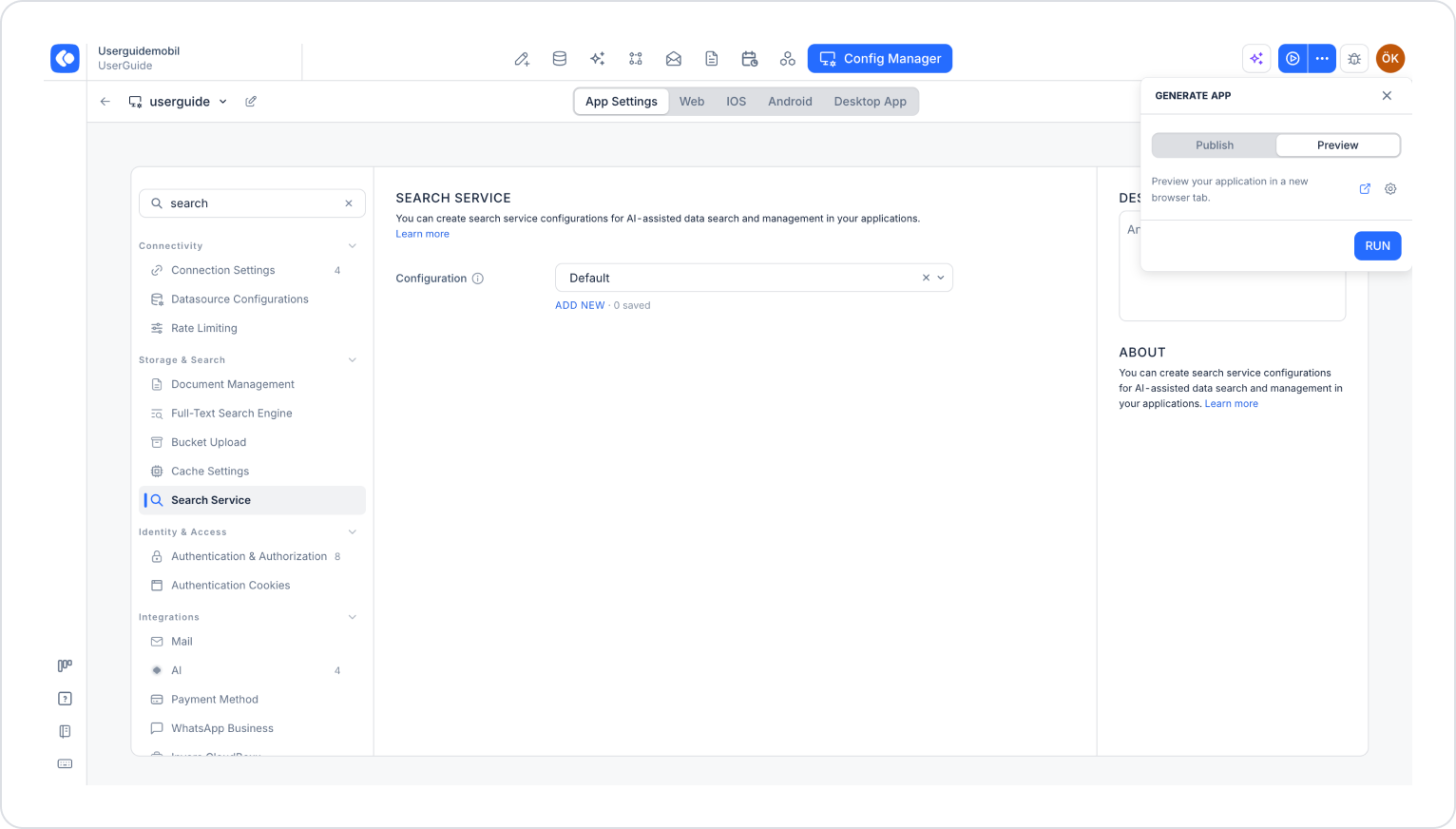
Search Service is a service used for AI-powered data search and management operations in your applications. You can manage search queries and optimize data access by configuring this setting in the Kuika Config Manager module.
How to Configure Search Service Settings?
1. Open or Create a Configuration
Log in to the Kuika platform.
Open the project you want to work on from the Apps screen.
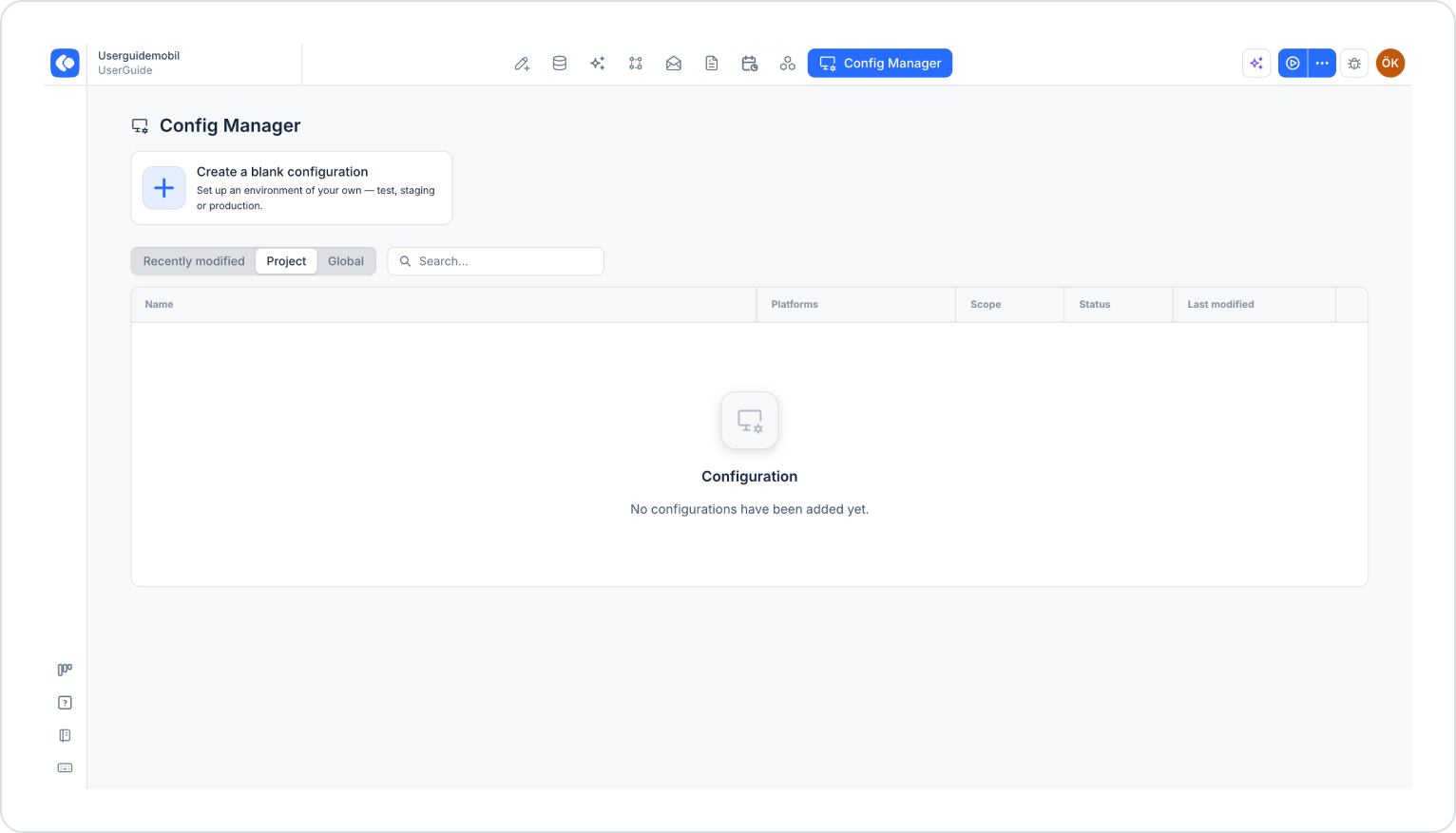
Click the Config Manager module in the top menu.
To create a new configuration, click the Create a blank configuration card, give the configuration a name, and complete the creation process. If you want to use an existing configuration, click its name in the list.
2. Configure Search Service Settings
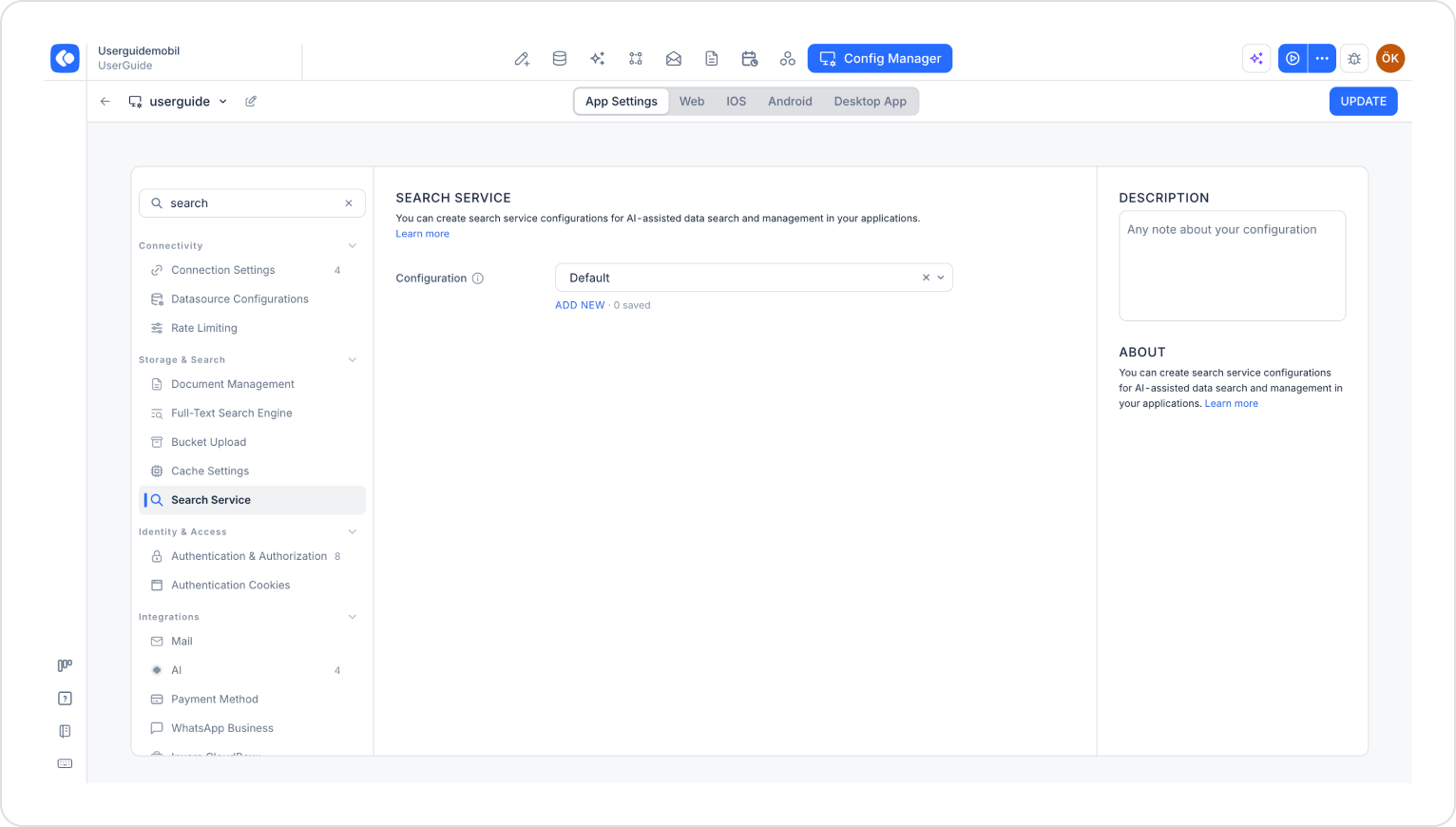
Make sure the App Settings tab is selected at the top of the configuration screen.
In the left menu, click the Search Service option under the STORAGE & SEARCH heading. You can also quickly access this setting by typing “search” in the Search settings field at the top of the menu.
Click the Add New link under the Configuration section.
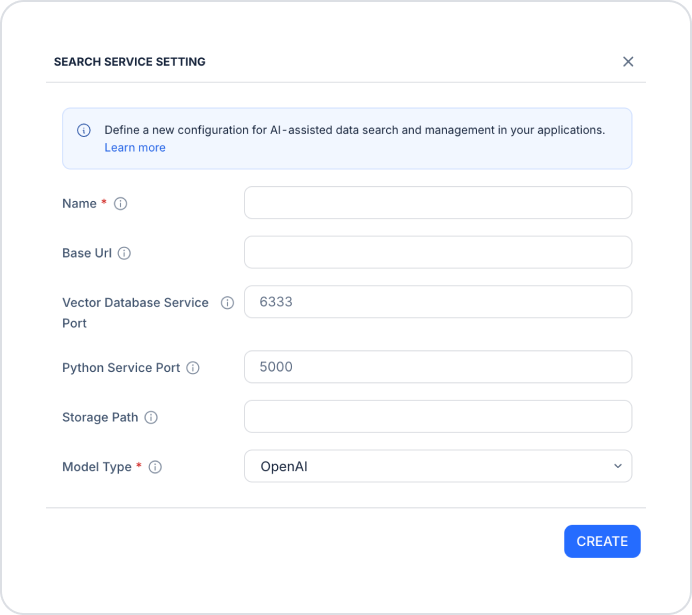
In the Search Service Setting window that opens, fill in the following fields:
Name (required): The name to be given to the search service configuration.
Base URL: The base URL used to establish a connection with the search service. It enables the application to send search queries and receive results via the Search Service API.
Vector Database Service Port: The port number of the vector database service used to perform similarity-based searches on large and complex datasets. The default value is 6333.
Python Service Port: The port number of the Python service that facilitates communication between the search service and the vector database and performs operations such as adding sources and searching. The default value is 5000.
Storage Path: The directory where the search service’s data, indexes, and results are stored.
Model Type (required): The type of AI model to be used in the search service:
OpenAI: OpenAI models are used.
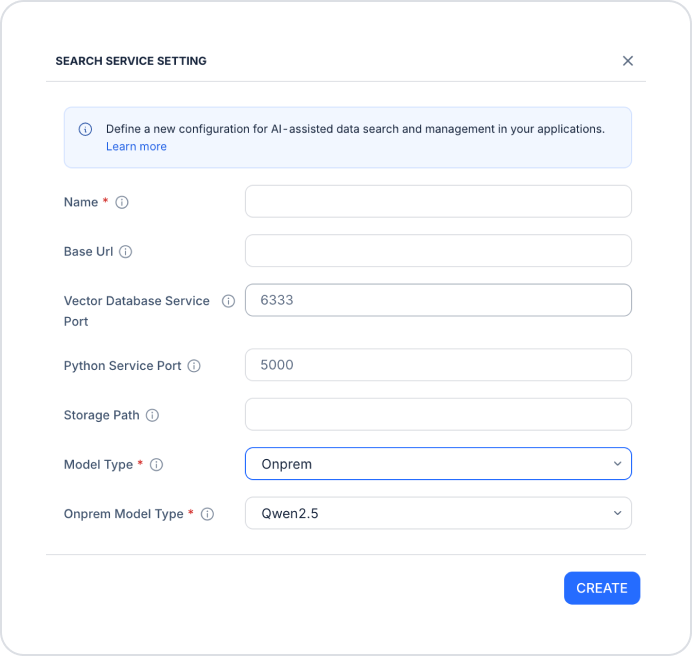
Onprem: A model running on your own server (on-premise) is used. When this option is selected, the Onprem Model Type field is added to the window.
Onprem Model Type (required when Onprem is selected): The on-premise model to be used (e.g., Qwen2.5).
After filling in all fields, click the Create button.
Select the configuration you created from the Configuration dropdown menu.
Click the Save button in the upper-right corner to save your changes. (In an existing configuration, this button appears as Update.)
3. Test the Settings
Click the three dots next to the Preview button in the top-right corner of the screen.
In the Generate App panel that opens, go to the Preview tab and click the Run button.
When the application opens, test that the search service is working with the specified configuration.
By following these steps, you can easily configure Search Service settings on the Kuika platform and optimize your data search processes.