Scan Pharma Code is an action that reads the Laetus pharmacode (a black-and-white vertical barcode) on medication packaging via the live camera or gallery and converts it into a numeric code. Packaged as a PoC on the Android side, this action works just like a barcode scanner: the camera screen opens, a scanning area (overlay) is displayed, and when the user holds the code over this area, live scanning occurs, returning a result of type PharmaScanResult (One).
Technical Specifications
Laetus Pharmacode Reading: Recognizes the black-and-white vertical barcode sequence specific to medication packaging and converts it into an integer code.
Live Camera Scanning: When the action is triggered, the camera screen opens and a scanning area (overlay) is displayed; when the user holds the code over this area, scanning occurs automatically.
Gallery Support: Optionally, scanning can be performed using an image selected from the gallery instead of the live camera.
Structured Return: The scan result is returned as a PharmaScanResult (One) type; the returned structure contains the pharmacode value and binary decoding information.
Mobile Compatibility: Works only on Android apps.
Scan Pharma Code Action Implementation Steps
Log in to the Kuika platform and open your project.
Go to the UI Design module.
Select the element where you want to initiate the scanning process and open the onClick event.
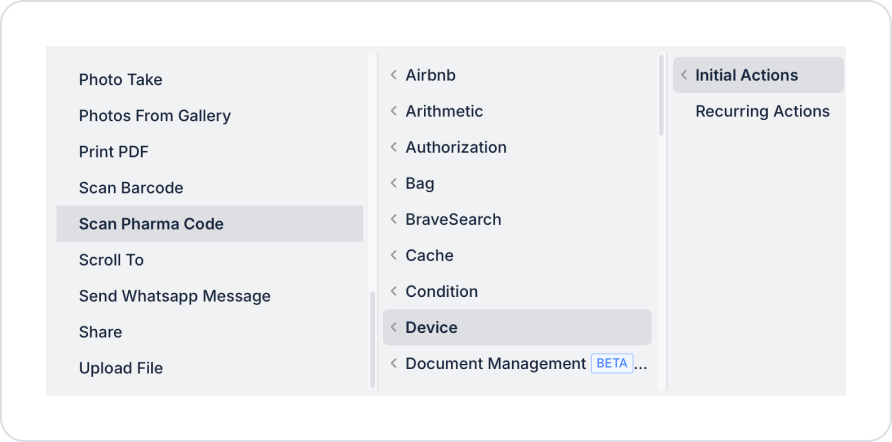
Click the + ADD ACTION menu in the Properties panel.
Select the trigger event from the menu that opens (Initial Actions or Recurring Actions).
Select the Device category from the middle column.
Click the Scan Pharma Code option from the action list.
Action Parameters
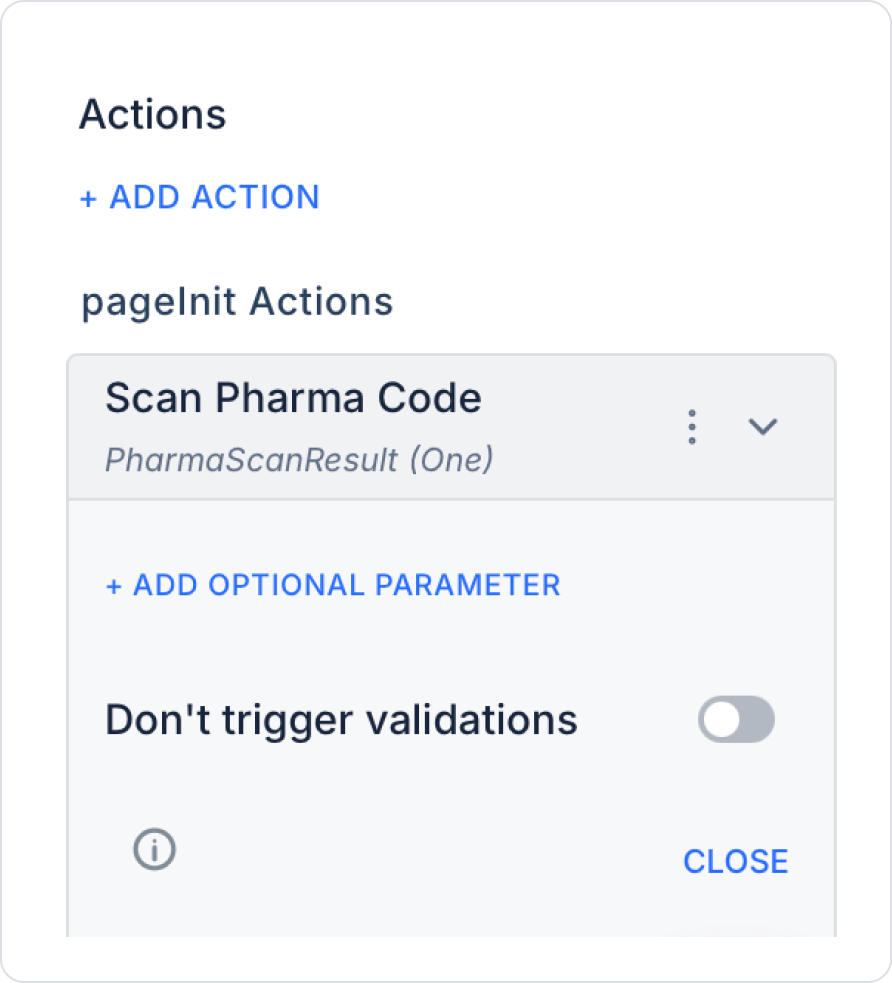
The Scan Pharma Code action has no required input parameters. When the action is triggered, the camera screen opens automatically, the scanning area (overlay) is displayed, and when the user holds the code over this area, live scanning occurs, returning the result as a PharmaScanResult (One) type.
Optional Parameters
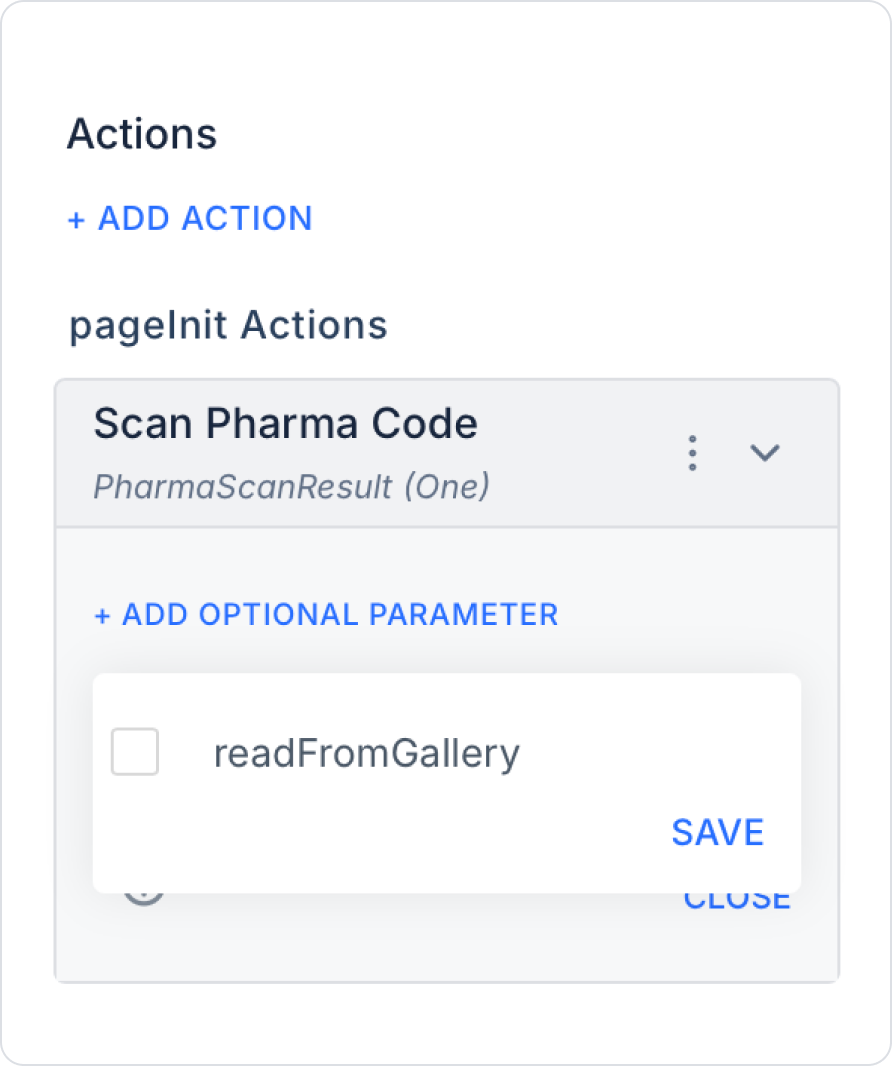
The following additional settings can be configured using the + ADD OPTIONAL PARAMETER button:
readFromGallery (Boolean): When enabled, scanning is performed by selecting an image from the device’s photo gallery instead of using the live camera. This is used in scenarios where camera access is not possible or when a previously taken photo of a medication needs to be processed.
False (default): Behaves as if the parameter were not added; scanning is performed using the live camera.
True: The device’s photo gallery opens, and the user selects an image to start the scanning process.
Advanced Settings
Don't Trigger Validations: When enabled, validation rules on the page are not triggered while the action is running. Used in scenarios where the scanning process must operate independently of the validation process.
Return Value
The Scan Pharma Code action returns data of type PharmaScanResult (One) upon a successful scan. The returned structure contains the following fields:
pharmacode: The integer value of the scanned pharmacode.
binaryDecoding: The binary representation of the barcode.
It can be used in subsequent actions via the Action Result source; for example, it can be connected to query a database for the scanned pharmacode value or display it on the screen.
Use Case: Retrieving Product Information by Scanning the Pharmacode on a Medication Package
Scenario: A user wants to quickly access product information by scanning the Laetus pharmacode on a medication package within a pharmacy app.
Configuration:
Action: Scan Pharma Code
readFromGallery: Unchecked (scan using live camera)
Post-scan: The pharmacode value within PharmaScanResult is used as a query parameter in the next action, and the user is redirected to the relevant product details screen.
The user holds the camera over the medication packaging according to the scanning area (overlay); the pharmacode is automatically read, and product information is listed on the screen.
Advanced Customizations
Gallery Integration: With the readFromGallery parameter, images can be processed from the gallery instead of the live camera; this allows previously taken photos of medications to be scanned as well.
Chained Actions: The pharmacode value within PharmaScanResult can be linked to an API call or database query via the Action Result.
Conditional Flow: Depending on the scan result, the user can be redirected to different screens using the Condition action.
Technical Risks
Camera Permission: If the user has denied camera permission, scanning cannot be initiated. The application must ensure that the necessary permissions are defined.
Low-Quality Image: Scanning may fail on blurry or damaged barcodes. If readFromGallery is used, a high-resolution image is recommended.
Unsupported Format: The Action is optimized for the Laetus pharmacode format; it may not return results for non-standard barcode types.
The Scan Pharma Code action is a powerful tool designed to provide fast and error-free access to pharmacode information on medication packaging in healthcare and pharmacy applications. It digitizes medication management processes and enhances the user experience through live camera scanning, structured response, and chained action compatibility.