

Report Table is an element used within Report Designer to display information from dynamic data sources in table format. The number of rows is automatically generated based on the data received from the connected datasource, and the table content is dynamically updated as the data changes.
Report Table is designed for data-driven reports and is particularly used in listing, summarizing, and reporting scenarios.
The Report Table is suitable for scenarios such as transaction lists, invoice statements, user records, order lists, and date-based reports.
When Should the Report Table Be Used?
The Report Table is preferred in the following situations:
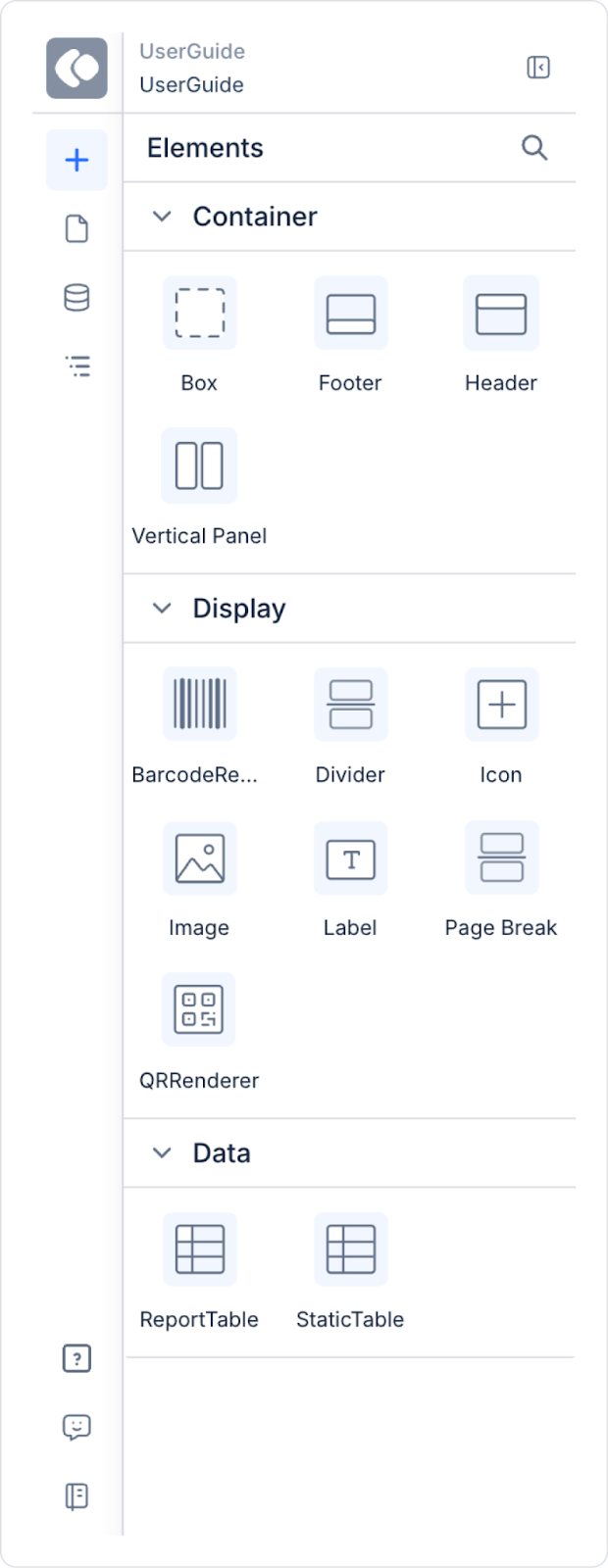
For the Report Table to work correctly and generate output, the following actions must be added to the UI Designer module in sequence:
As long as these actions are not defined, the Report Table:
All settings for the Report Table are managed through the Properties Panel. This panel contains general settings for the table, header properties, and column-based configurations.
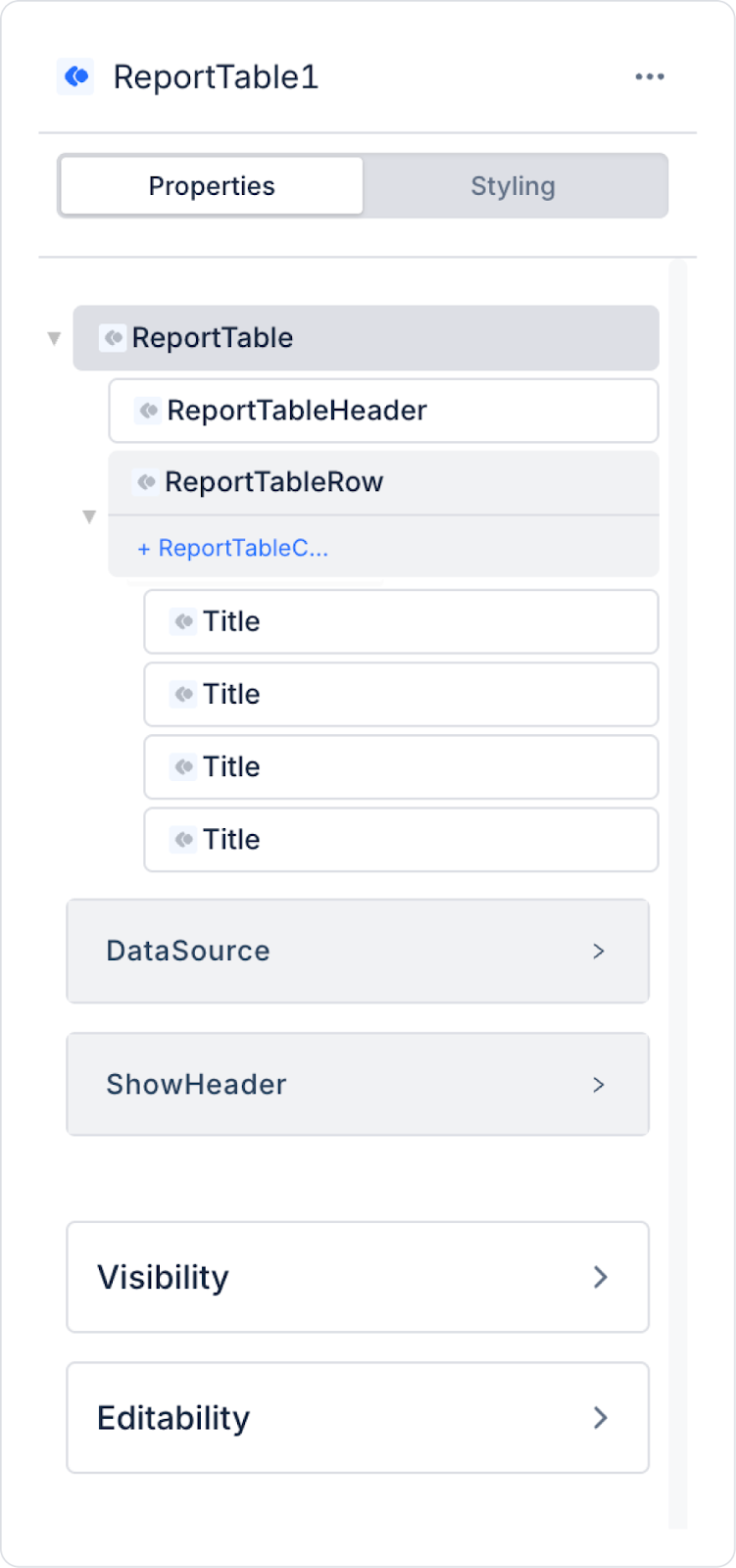
Datasources
Determines which data source the Report Table will be fed from.
Show Header
Determines whether the table header row is displayed.
Striped
Striped Color
Report Table Header Properties
Report Table Header refers to the header area at the top of the table. These settings only apply when the Show Header is active.
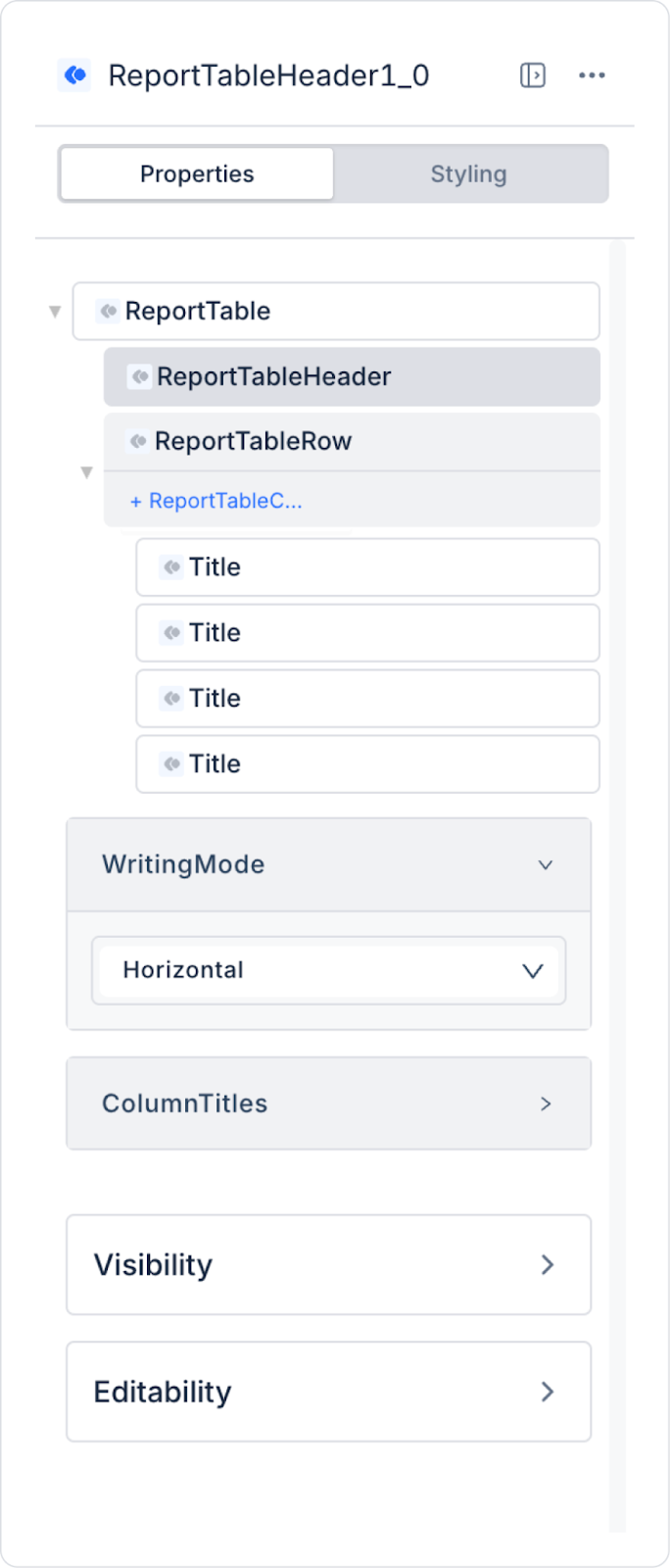
Writing Mode
Determines the writing direction of column headers.
Supported modes:
Can be used for easier reading of headers in narrow columns.
Column Titles
This is where the header text for each column is defined.
Header Border
You can configure border settings for the report table header area.
With this feature:
Header border settings make table headers stand out more clearly from the data rows and improve readability, especially in reports containing large amounts of data.
Height
Sets the height of the header row. It can be adjusted by entering a value in pixels (px) via the Styling panel. This ensures that the header area is large enough to accommodate the content, particularly when dealing with long header text or when using Vertical writing mode. Increasing the header height does not affect the height of the data rows; only the header area expands.
Report Table Column Properties Panel
When a column is selected in the Report Table, its settings are managed via the Properties Panel. The layout and visual behavior of the column are controlled by these settings.
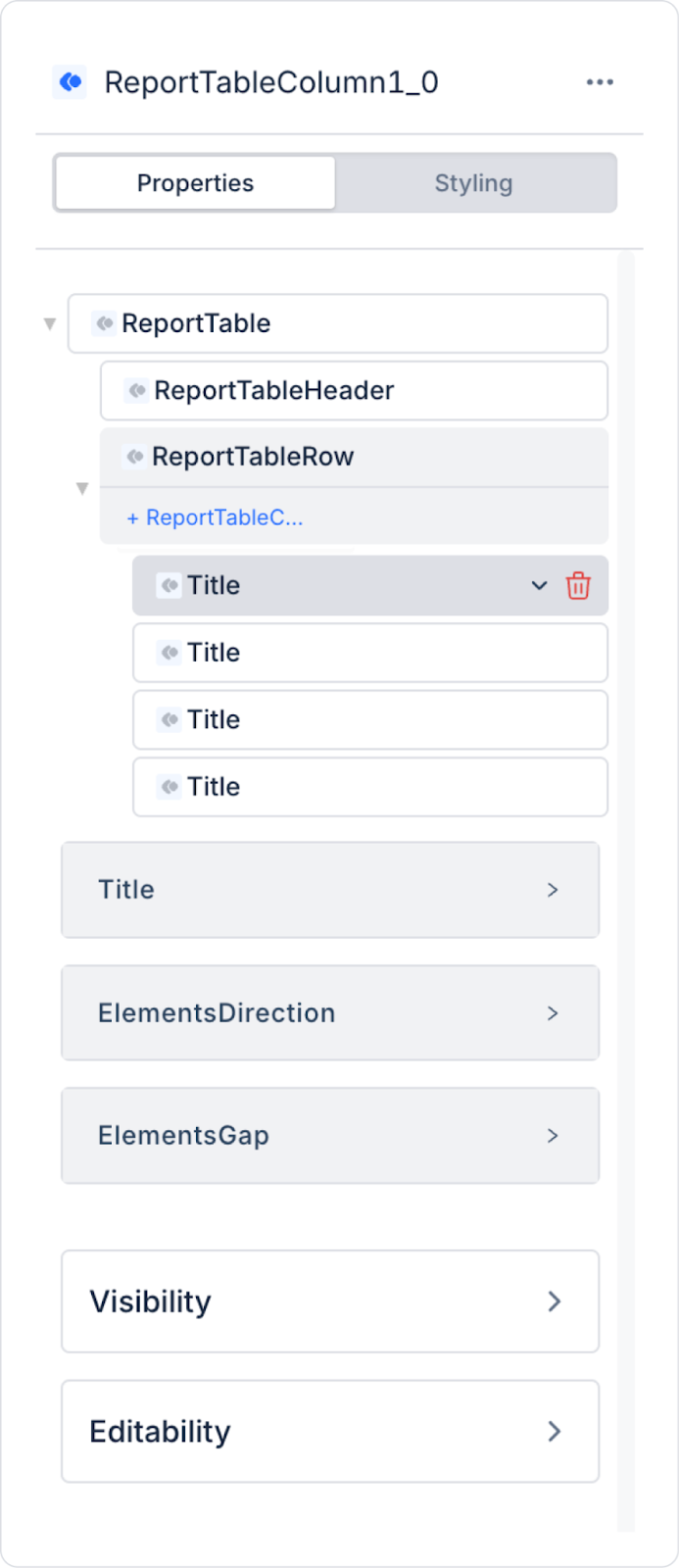
Title
Specifies the title text for the selected column.
Elements Direction
Specifies the placement direction for multiple elements added to a column.
Supported directions:
Used when multiple Labels are used in a column or when header-value structures are to be created.
Elements Gap
Elements Gap controls the space between elements within a column.
Used to improve readability in tables containing dense data.
Visual Editing (Styling)
Visual edits for Report Table are made via the Styling Panel.
In a reporting or accounting application, a table-based invoice list is used so that users can track generated invoices through a report that is dynamically updated with data. This list allows the user to quickly analyze the invoice status by presenting the invoice records from the database in an organized and readable format on a single report page.
The invoice list displays critical fields such as invoice number, invoice date, recipient company information, invoice status, amount, and currency in columns. Each row is configured to represent a single invoice in the system. The table content is automatically generated based on the number of records from the connected data source, and the report content is updated as new invoices are added.
Users can review invoices from top to bottom via the report output. The invoice status field allows for clear differentiation between statuses such as “Paid” and “Overdue,” enabling quick analysis of which invoices are overdue. The table structure expands based on the data, eliminating the need for manual editing.
The Report Table creates the report while preserving the table structure and data layout when a PDF or download output is taken. This allows the user to export the invoice list seen on the screen in the same format and use it for reporting or sharing purposes.
In the scenario:
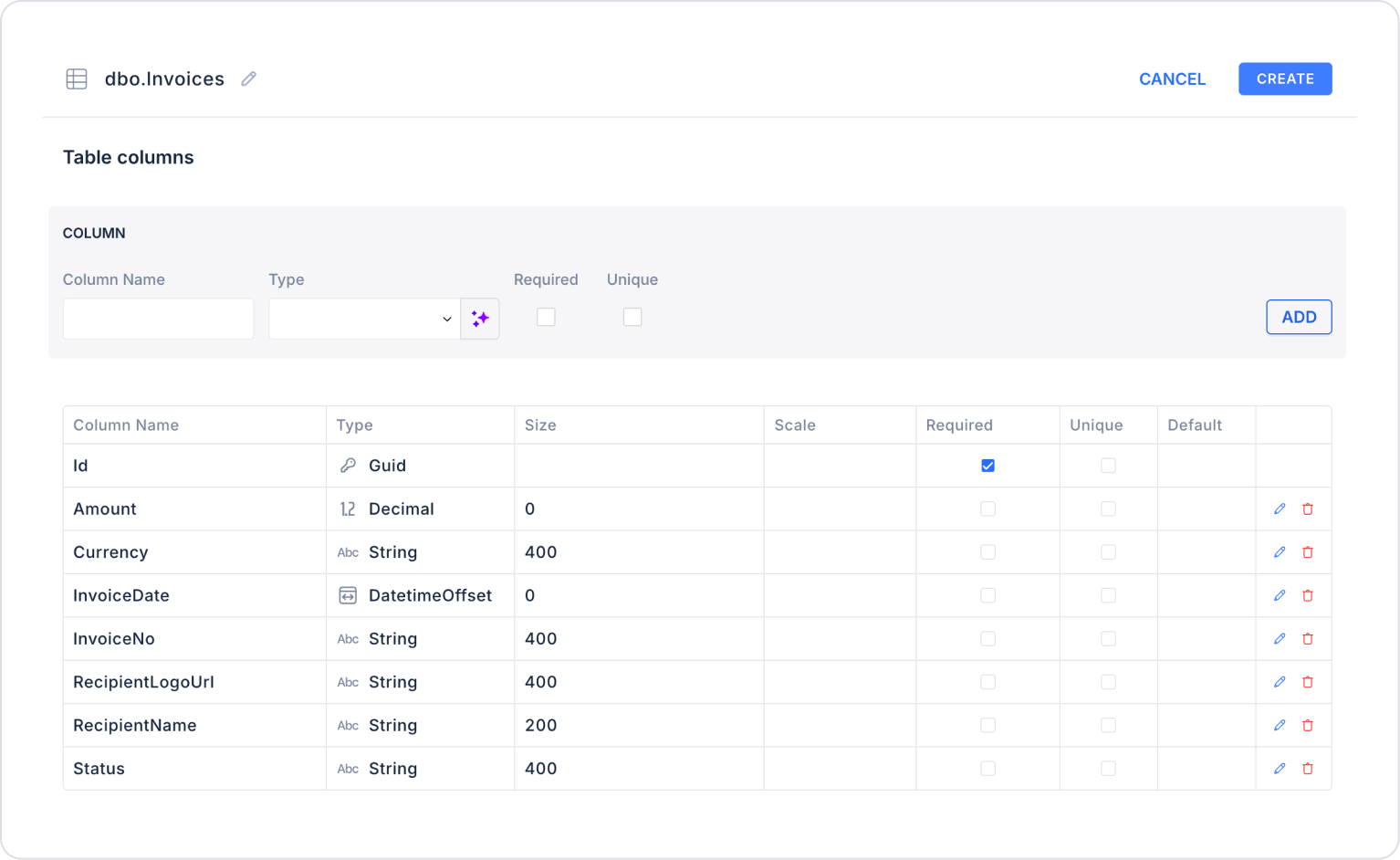
Step 1 - Creating a Data Source
Creating a table in the DataSources module:
Step 2 - Defining the Necessary Actions
To display and add data in the interface:
INSERT INTO Invoices
(
Id,
InvoiceNo,
InvoiceDate,
RecipientName,
RecipientLogoUrl,
Status,
Amount,
Currency
)
VALUES
(
NEWID(),
‘AXZ-177’,
CAST(‘2022-06-07’ AS DATETIMEOFFSET),
‘Figma Inc.’,
‘https://simpleicons.org/icons/figma.svg’,
‘Paid’,
351.02,
‘USD’
),
(
NEWID(),
‘AXZ-922’,
CAST(‘2022-06-05’ AS DATETIMEOFFSET),
‘Dribbble’,
‘https://simpleicons.org/icons/dribbble.svg’,
‘Overdue’,
710.68,
‘USD’
),
(
NEWID(),
‘AXZ-703’,
CAST(‘2022-06-04’ AS DATETIMEOFFSET),
‘Youtube’,
‘https://simpleicons.org/icons/youtube.svg’,
‘Paid’,
778.35,
‘USD’
),
(
NEWID(),
‘AXZ-883’,
CAST(‘2022-06-02’ AS DATETIMEOFFSET),
‘Spotify’,
‘https://simpleicons.org/icons/spotify.svg’,
‘Overdue’,
490.51,
‘USD’
),
(
NEWID(),
‘AXZ-798’,
CAST(‘2022-06-02’ AS DATETIMEOFFSET),
‘Discord’,
‘https://simpleicons.org/icons/discord.svg’,
‘Paid’,
275.43,
‘USD’
),
(
NEWID(),
‘AXZ-154’,
CAST(‘2022-06-01’ AS DATETIMEOFFSET),
‘Github’,
‘https://simpleicons.org/icons/github.svg’,
‘Paid’,
105.55,
‘USD’
);
SELECT * FROM Invoices;Step 3 – Defining Report Designer Prerequisites
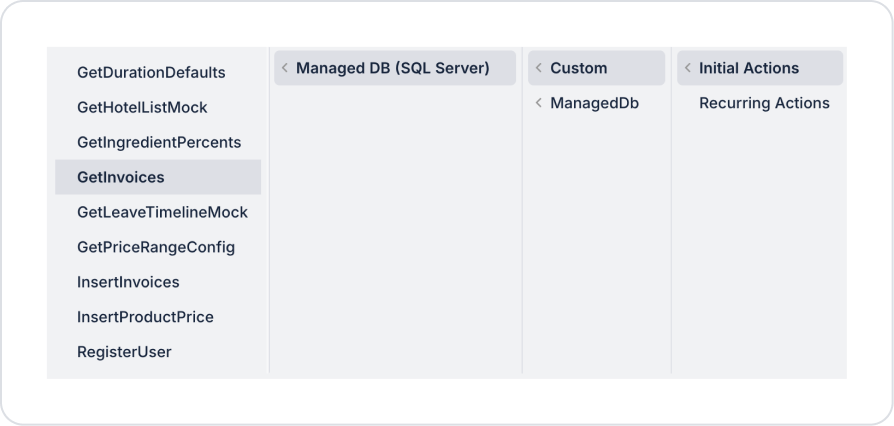
To use Report Table, the following action must be added:
Initially on the home page:
Step 4 – Adding the Report Table Element and Editing the Style
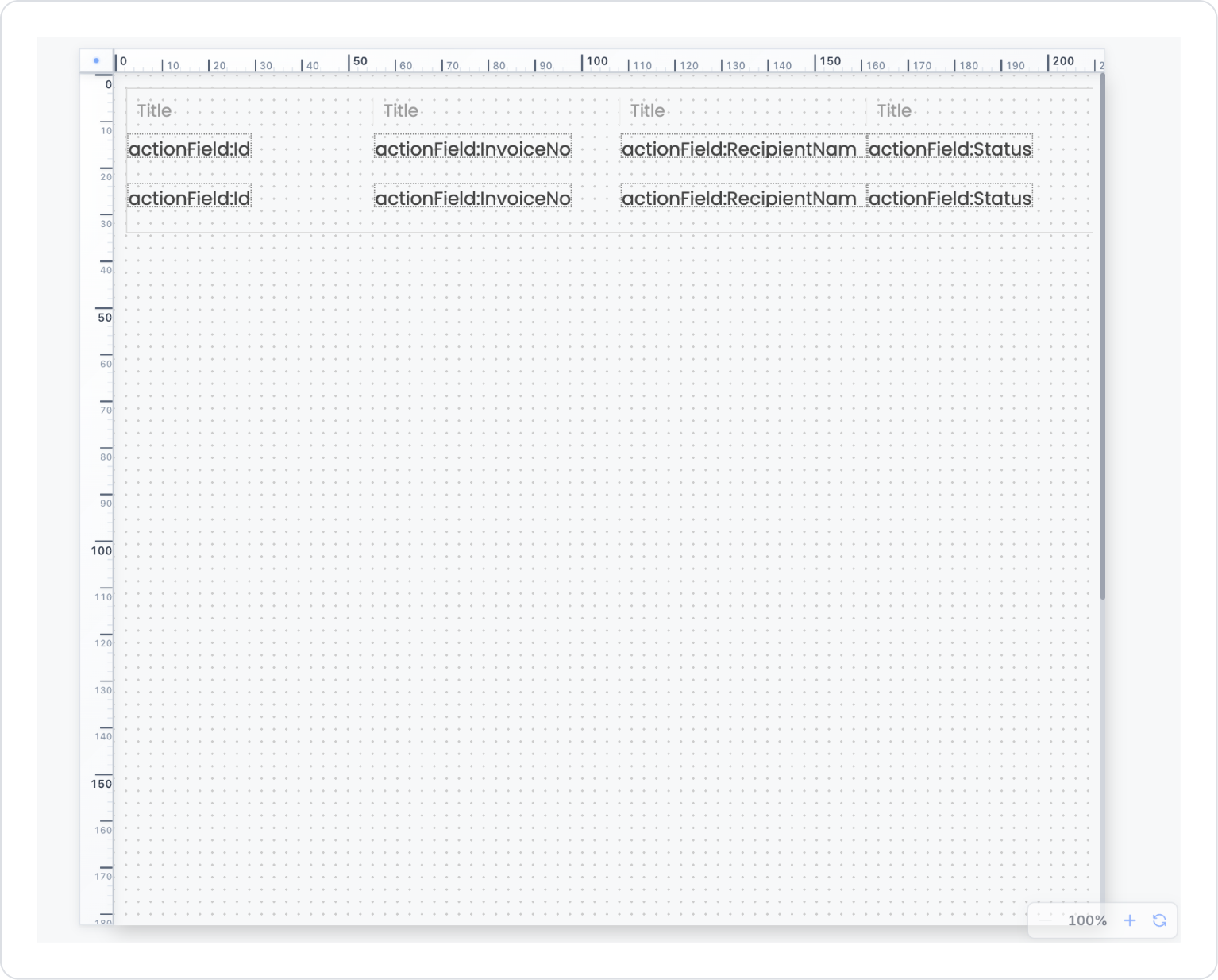
Step 5 – Configuring Report Table Settings
Step 6 – Editing Column Content (Elements Direction / Gap)
This will display the amount and currency one below the other, making it more readable.
Step 7 – UI Design Operations
Preview
When the application is tested, an Invoice List Report is displayed, listing invoices line by line within the Report Table. Each line presents the invoice number, invoice date, recipient company name, invoice status, amount, and currency information in an organized and readable format.
When a PDF output is generated, the table structure is preserved, and the invoice list displayed on the screen is reflected in the report output with the same layout. “Paid” and “Overdue” statuses are easily distinguishable at a glance; users can quickly compare invoices.


