Kuika's Mobile App Cancel Subscription action is used to cancel an active subscription belonging to a user in mobile applications. With this action, the user can manually terminate their subscription within the application, and the relevant cancellation process is triggered on the platform side.
Mobile App Cancel Subscription is particularly preferred in subscription management, account settings, and membership cancellation scenarios.
Technical Specifications
Subscription Cancellation (Device Panel): Cancels the active subscription associated with the specified subscription product (subscriptionProductId).
Single Result (Boolean – One): The action returns whether the cancellation was successful as a Boolean (true/false) value.
Mobile App Focused: Used for store-based subscription cancellations in iOS and Android apps.
Mobile App Cancel Subscription Action Application Steps
1. Creating a Mobile App
Log in to the Kuika platform.
Click the New App button on the Apps screen.
Choose a name for the app.
Check the Mobile compatible app option.
Click the CREATE button to create the app.
2. Defining the Action in UI Design
Open your project on the Kuika platform.
Go to the UI Design module and select the relevant screen.
Identify an element where the user can cancel their subscription (e.g., the “Cancel Subscription” button).
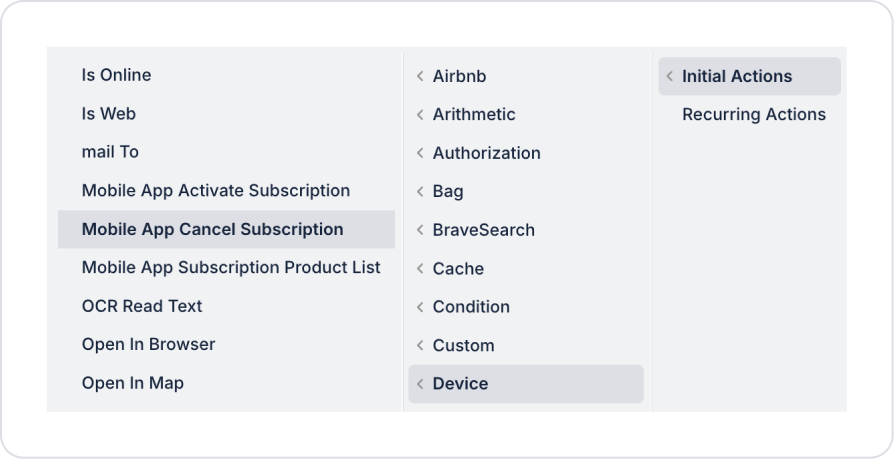
Select the relevant element. Then, add the Device → Mobile App Cancel Subscription action via + ADD ACTION → based on the trigger event to be used.
2. Configuring Action Parameters
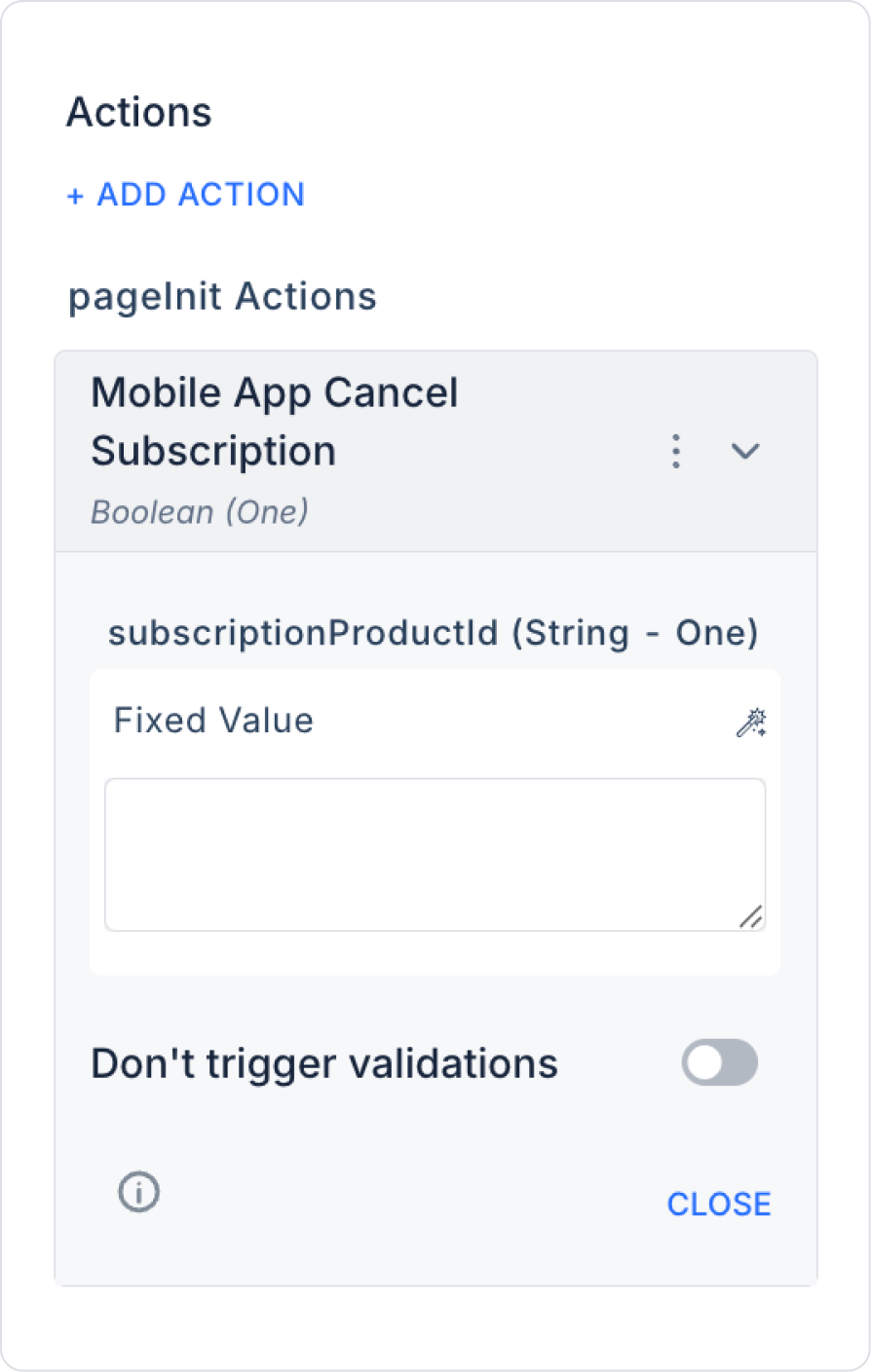
Required Parameter
subscriptionProductId (String – One): Specifies the unique ID of the subscription product to be canceled. This value is usually linked from the following sources:
Action Result: Product ID returned from the Mobile App Subscription Product List action
Current / Screen Input: The active subscription selected by the user
Fixed Value: Fixed product ID (not recommended, except for test scenarios)
Usage Scenario: Subscription Cancellation Screen
In a mobile app, the user enters the My Account → My Subscriptions screen.
The user's active subscription is displayed on the screen.
When the user clicks the “Cancel Subscription” button:
The Mobile App Cancel Subscription action is triggered.
The ID of the selected subscription is sent as subscriptionProductId.
If the action returns true, the user is informed that the cancellation was successful.
If necessary, the screen is updated or the user is redirected.
Technical Risks
Incorrect Subscription ID: If an invalid or non-user-owned subscriptionProductId is sent, the cancellation process will fail.
Inactive Subscription: The action may not produce the expected result for subscriptions that have been previously canceled or have expired.
User Experience: Since the cancellation process is irreversible, it is recommended to obtain confirmation from the user (confirm popup).