The Maps setting allows you to specify the map provider and its connection details if your web or mobile app uses maps. Kuika supports Google Maps and Amap as map providers. If you wish, you can also allow end users to choose which map provider to use within the app.
Accessing Maps Settings
Log in to the Kuika platform.
Open the project you’ll be working on from the Apps screen.
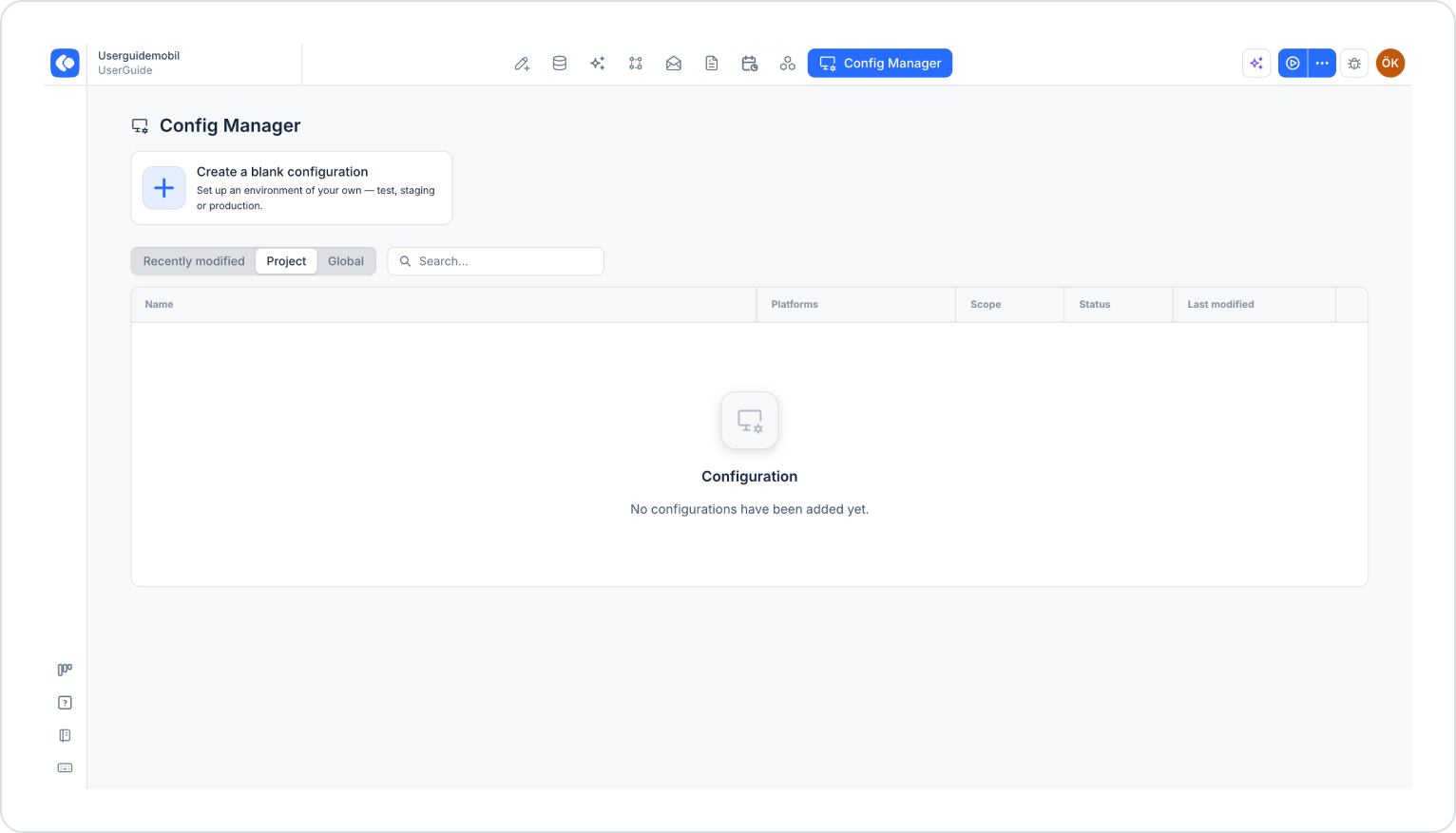
Click the Config Manager module in the top menu.
To edit an existing configuration, click its name in the list, or create a new configuration using the Create a blank configuration card.
Go to the relevant tab based on your app’s platform:
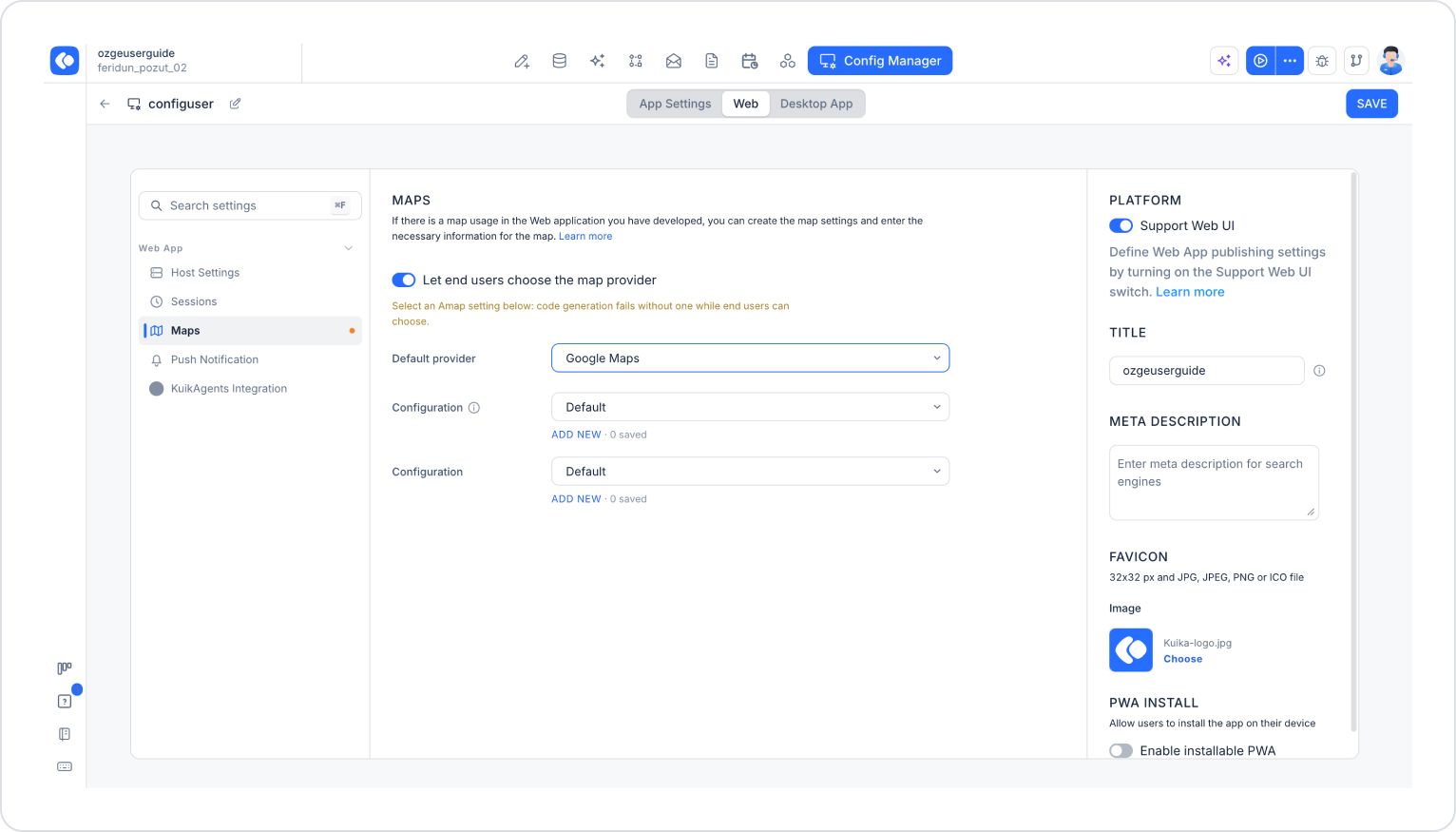
For web apps: Click the Web tab, make sure the Support Web UI option in the right panel is enabled, and open the Maps option under the WEB APP heading in the left menu.
For Android apps: Click the Android tab, make sure the Support Android UI option in the right panel is enabled, and open the Maps option under the SERVICES heading in the left menu.
Fields on the Maps Screen
Let end users choose the map provider: When enabled, end users can choose between Google Maps and Amap in the app. The user’s selection is managed via the SetMapProvider and GetMapProvider actions (see End User Map Provider Selection).
Default provider: The map provider to be used by default in the app (e.g., Google Maps). This provider is used if the end user has not yet made a selection.
Configuration (Google Maps): A field where you can select a saved configuration for Google Maps or create a new one using the Add New link.
Configuration (Amap): A field where you can select a saved configuration for Amap or create a new one using the Add New link.
When the Let end users choose the map provider option is enabled, selecting an Amap configuration is mandatory. If an Amap configuration is not selected, code generation will fail. In this case, a warning icon will appear next to the Maps option in the left menu.
Google Maps Configuration
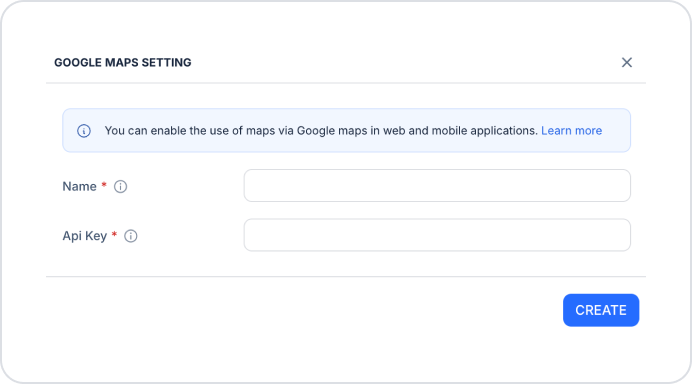
Click the Add New link under the Configuration section for Google Maps.
In the Google Maps Settings window that opens, fill in the following fields (all fields are required):
Name: A descriptive name for the map configuration.
API Key: Your Google Maps API key. You can generate the key in the Google Cloud Console under APIs & Services > Credentials. The Maps JavaScript API must be enabled in your project for web applications, and the Maps SDK for Android must be enabled for Android applications.
Click the Create button.
Amap Configuration
Click the Add New link under the Configuration section for Amap.
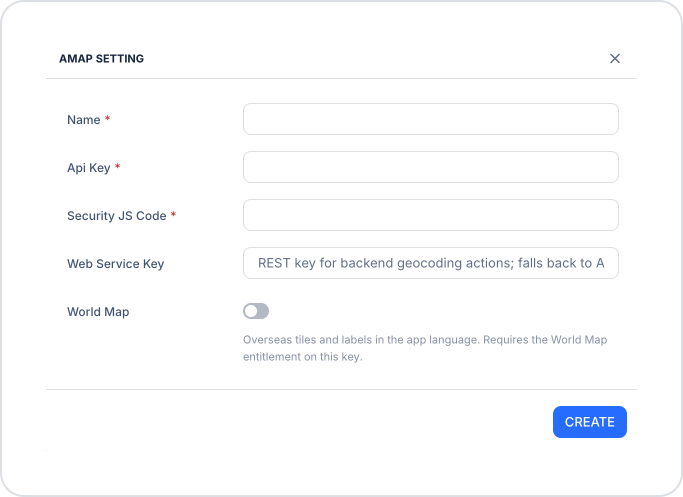
In the Amap Settings window that opens, fill in the following fields:
Name (required): A descriptive name for the Amap configuration.
API Key (required): The API key you created in the Amap Open Platform console.
Security JS Code (required): The security code provided along with the API Key. It is required for the Amap JS API to function.
Web Service Key: The REST key used for geocoding (address and coordinate conversion) actions on the backend. If left blank, the API Key is used.
World Map: When enabled, map layers and labels for regions outside of China are displayed in the application’s language. To use this option, your Amap key must have the World Map permission defined.
Click the Create button.
Save Settings
Select the default map provider from the Default provider field.
Select the configurations you created from the Configuration dropdown menus.
Click the Save button in the upper-right corner to save your changes. (In an existing configuration, this button appears as Update.)
Allowing End Users to Choose the Map Provider
When the Let end users choose the map provider option is enabled, you can use the two actions provided by Kuika to allow end users to change the map provider within the app:
SetMapProvider: Determines which map provider (Google Maps or Amap) the end user will use. This action is called when the user changes their preference to save the selection.
GetMapProvider: Retrieves the map provider currently set for the end user. This information can be used to display the user’s current preference on the screen or to adjust the app flow based on the selected provider.