Kuika's Get Role Groups With Relations By User Id action is used to list the role groups belonging to a specific user, along with the roles and role group relationships associated with these role groups. This allows a user's authorization scope to be analyzed in detail, not only by role group names, but also by which roles they contain and their relational structure.
This action is frequently used in user detail screens, admin panels, and control scenarios such as “what permissions does the user have?”
Technical Features
User-Based Related Role Group Query (Authorization Panel): Returns role groups associated with the specified user ID, along with related roles and role group relationships.
Authorization Compatibility: The returned role group and relationship data are compatible with the Authorization infrastructure and can be used in authorization verification/reporting processes.
Web & Mobile Support: The action is supported in both web and mobile applications.
Get Role Groups With Relations By User Id Action Application Steps
1. Defining the Action in UI Design
Open your project on the Kuika platform.
Go to the UI Design module and select the relevant screen.
Create a button, table row action, or page open trigger (e.g., “View User Authorizations”) to display the user's role groups along with their relationships.
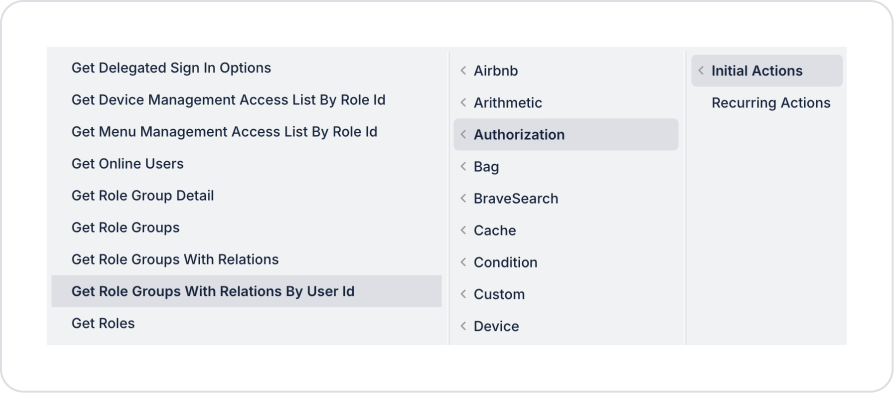
Select the relevant element and add the Authorization → Get Role Groups With Relations By User Id action from the + ADD ACTION menu, depending on the trigger event to be used.
2. Configuring Action Parameters
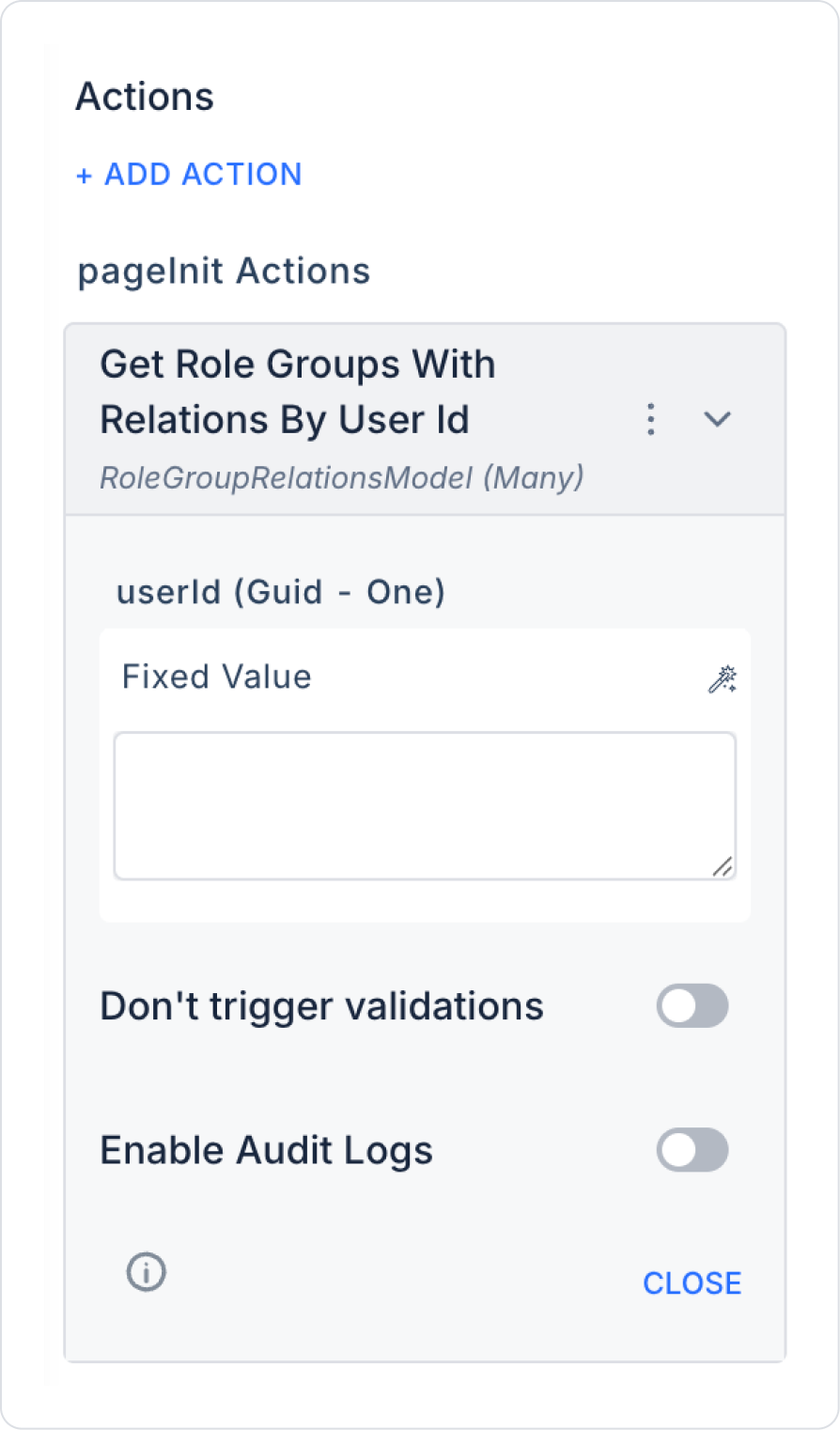
userId (Guid – required): The unique ID of the user whose role groups will be queried (User ID).
This field is typically linked via the Symbol Picker tool from one of the following sources:
CurrentUser.Id (to view the logged-in user's own permissions)
Action Result (user ID returned from actions such as Get User / Get User By Id)
Selected row from Table/List (the user selected from the user list)
Screen Input or Fixed Value
3. Optional Settings
Enable Audit Logs (Boolean – optional): When enabled, the process of querying the user's role groups along with their relationships is added to the audit log records. This allows you to track which user's permission information was viewed, when, and through which action. It is recommended to enable this in applications that require permission management and security tracking.
Usage Scenario: Reviewing User Permission Structure
In an admin panel, the admin user selects a person from the user list and clicks the “View Permissions” button.
This triggers the Get Role Groups With Relations By User Id action, and the following information for the selected user is retrieved and displayed in the details panel:
Role groups
Roles associated with role groups
Role group relationships (sub/super group structure, etc.)
This allows the admin to review the user's authorization scope holistically.
Technical Risks
Invalid userId: Ensure that a valid user ID from the system is entered in the userId field.
Unauthorized Viewing: The process of viewing other users' permissions should be restricted to users with authorized roles.
Audit Tracking: In corporate applications, it is recommended to enable the Enable Audit Logs option.