Kuika's Get Role Groups action is used to list all role groups defined in the system. This action allows role groups to be viewed and selected within the application and used as a data source in authorization management scenarios.
The Get Role Groups action is particularly preferred in role group listing screens, role group selection fields (dropdown, table, list, etc.), and role-role group association processes. The action contributes to the centralized management of role groups as part of the authorization system.
Technical Features
Role Groups Listing (Authorization Panel): Returns all role groups defined in the system as a list. The returned data can be linked to tables, lists, select boxes, or other UI elements.
Authorization Compatibility: The retrieved role groups are compatible with the Authorization infrastructure and can be used securely in user, role, or permission management scenarios.
Web & Mobile Support: The action is supported on both web and mobile platforms.
Steps to Implement the Get Role Groups Action
1. Define the Action in UI Design
Open your project on the Kuika platform.
Go to the UI Design module and select the relevant screen.
Create a button, table, dropdown, or page open trigger to list role groups (e.g., “List Role Groups”).
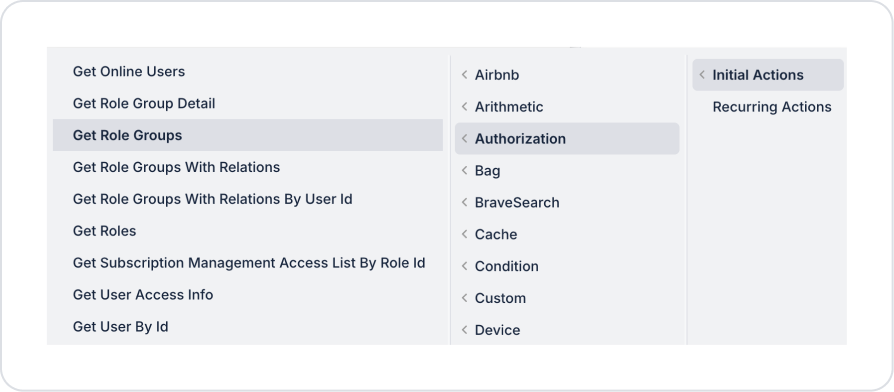
Select the relevant element and add the Authorization → Get Role Groups action from the + ADD ACTION menu, depending on the trigger event to be used.
2. Action Parameters
The Get Role Groups action does not contain any mandatory parameters. When the action runs, all role groups defined in the system are automatically listed.
3. Optional Settings
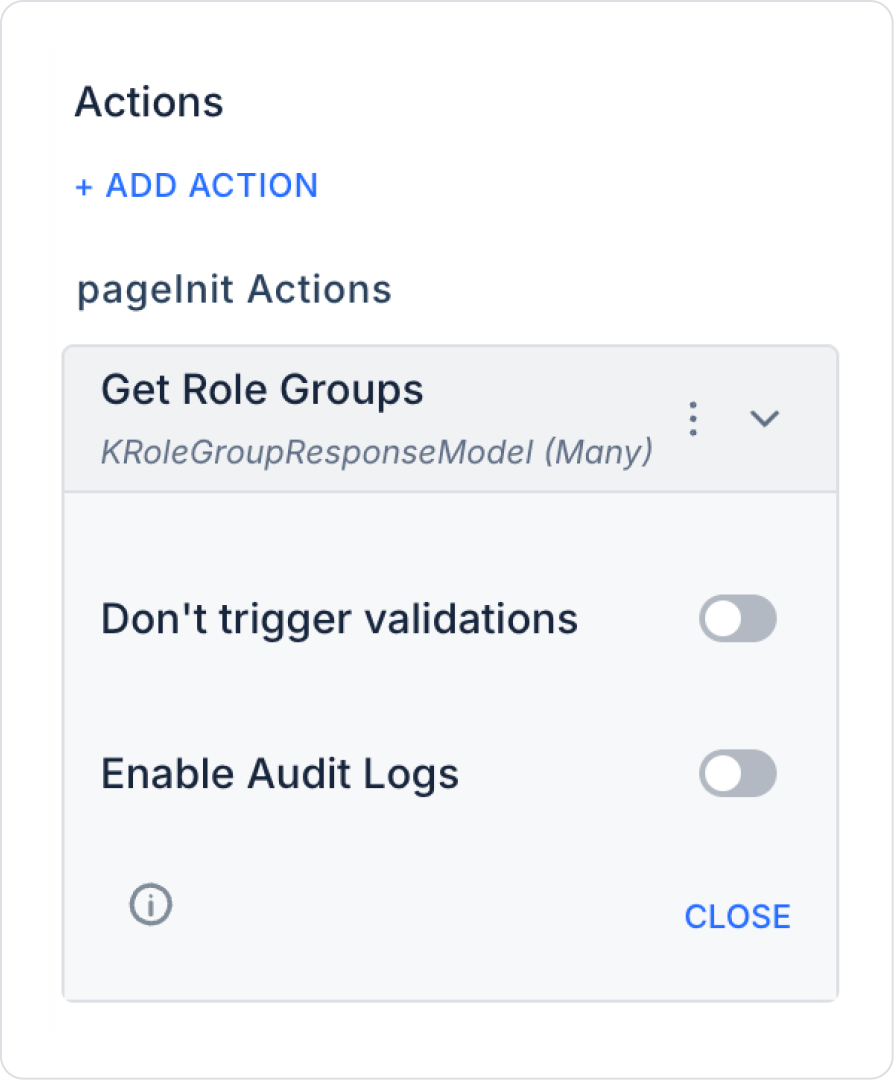
Enable Audit Logs (Boolean – optional): When enabled, the role group listing process is added to the audit log records. This allows you to track when, by which user, and through which action the role groups were viewed. It is recommended to enable this for applications that require authorization and security tracking.
Usage Scenario: Listing Role Groups
In an administration panel, all role groups defined in the system are listed in a table. When the page loads or the user clicks the “List Role Groups” button, the Get Role Groups action is triggered and:
Role group names
Role group definitions
Selectable role groups
are presented to the user. The selected role group can be linked to other actions (e.g., Get Role Group Detail) for detailed viewing or editing.
Technical Risks
Unauthorized Access: This action should only be triggered by authorized users.
Audit Tracking: In applications involving permission management, it is recommended to enable the Enable Audit Logs option.
Data Usage: In large structures, it is recommended to filter the returned role group list using appropriate UI elements.