Kuika's Get Process Details action is used to view the past steps of a business process and the operations performed in those steps. This action allows you to examine the history of processes in detail and perform analysis.
Technical Specifications
Past Step Tracking: Tracks the stages the process has gone through.
Operation Review: Shows the details of the operations performed in past steps.
Web & Mobile Application Support: Compatible with both web and mobile applications.
Get Process Details Action Application Steps
Log in to the Kuika platform.
Open the project you will be working on from the Apps screen.
Go to the UI Design module and select the relevant screen.
Open the Properties panel on the right side.
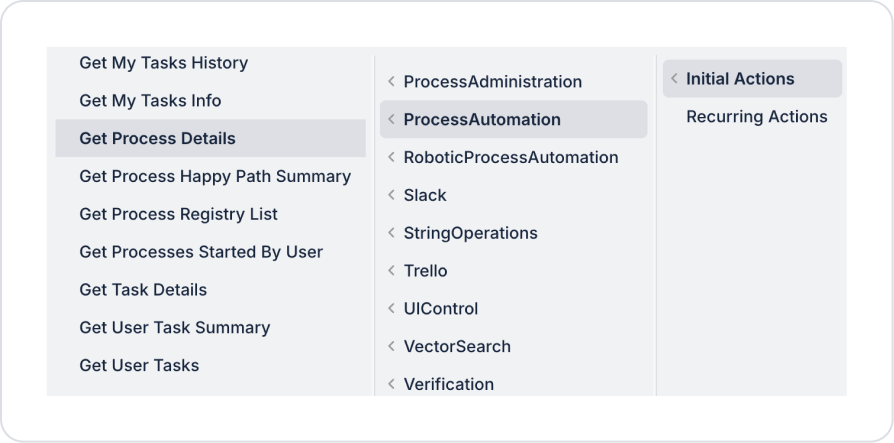
From the + ADD ACTION menu, add the Process Automation > Get Process Details action according to the trigger event you want (Initial Actions, OnClick, OnBlur, etc.).
Configuring Action Parameters
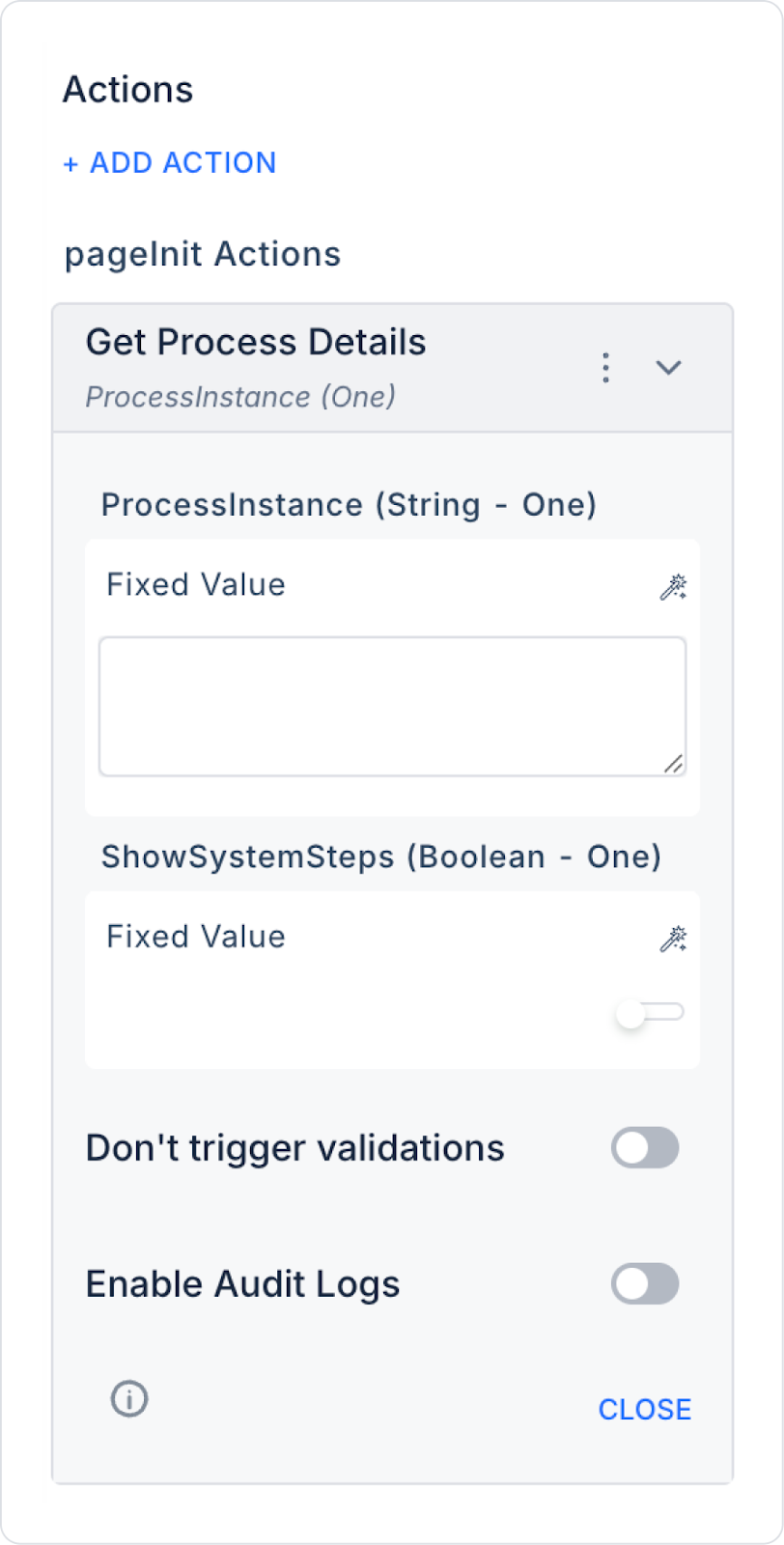
Process Instance (String - required): The unique ID of the business process whose history will be queried. This field determines which process's past steps will be displayed.
Show System Steps (Boolean - optional): Determines whether automatically executed system steps are displayed. If you want system steps to be visible, enable this parameter.
Enable Audit Log: When enabled, user and operation information related to the execution of this action is added to the audit log records.
Usage Scenario: Monitoring and Analyzing Process History
A process manager wants to examine in detail which steps a specific business process has gone through in the past and the operations performed in these steps. When the Get Process Details action is triggered, all past steps and operation details of the relevant process instance are displayed. This allows potential bottlenecks or areas for improvement in the process to be identified.
Configuring the Get Process Details Action
Process Instance: “PROCESS_2024_001” (Unique ID of the business process whose history will be reviewed)
Show System Steps: true (Ensures that steps automatically executed by the system are visible)
When the action runs, the past steps of the specified business process and related operations are listed in detail. Process management becomes more transparent and traceable.
Get Process Details Action Advanced Customizations
Filtering: Only important or specific types of steps can be displayed in the history.
Integration: The obtained process history data can be integrated into reporting and analysis tools.
Technical Risks
Invalid Process ID: The Process Instance value must be valid and defined.
Unauthorized Access: Care must be taken to ensure that the action is only used by authorized users.
The Get Process Details action allows you to track the history of business processes on the Kuika platform and make process improvements. With flexible parameter support, you can perform comprehensive analyses and optimize your workflows.