Kuika’s Get Multiple Reports Base64 action allows multiple reports to be combined into a single PDF file. This way, instead of creating different reports separately, a single action produces a combined, portable, and shareable PDF output.
Technical Specifications
Page Layout: Determines how the combined reports will be arranged within the PDF.
Each report on a new page: Each report starts on its own page.
Fit reports on the same page: Reports are arranged one after another on the same page as much as possible.
Reports: This is the area where reports to be included in the PDF are added. Multiple reports can be added to the queue using the + Add report button. If no reports have been added, the warning “No reports yet — Add a report to include in the merged PDF.” is displayed.
Don’t Trigger Validations: When enabled, validation rules on the page are prevented from being triggered while the action is running.
Enable Audit Logs: When enabled, audit logs related to the execution of the action are stored in the system.
Steps to Implement the “Get Multiple Reports Base64” Action
1. Defining the Action in UI Design
Open your project in the Kuika platform.
Go to the UI Design module and select the screen from which you want to generate the merged PDF output.
Under the Actions heading in the right panel, click the + ADD ACTION option.
2. Finding and Adding the Action
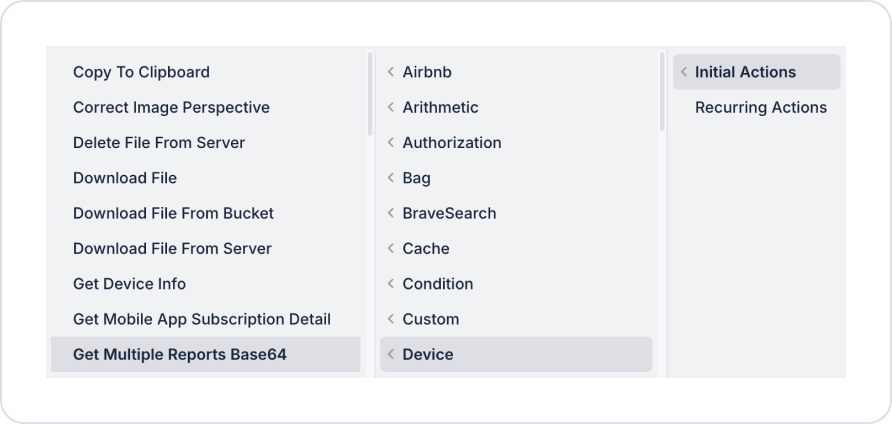
From the menu that opens, select the desired trigger event (Initial Actions or Recurring Actions).
Navigate to the Custom → Device category.
Select the Get Multiple Reports Base64 action from the list.
3. Configuring Action Parameters
Page Layout: Select whether each report should be on a separate page or on the same page.
Reports: Click the + Add report button to add the reports to be included in the PDF one by one.
Don’t Trigger Validations: Leave this on or off as needed.
Enable Audit Logs: Leave this on or off as needed.
Use Case: Combining Monthly Performance Reports into a Single PDF
In a management application, a user may want to download reports from different departments (Sales, Finance, Operations) as a single PDF file. This process can be performed with a single button click.
Steps:
Go to the UI Design module and add a Button element.
In the Properties panel, enter a label such as “Download All Reports” in the button’s Label field.
Select the button and add the + ADD ACTION → OnClick → Custom → Device → Get Multiple Reports Base64 action.
In the Page Layout section, check the Each report on a new page option.
Add the Sales Report, Finance Report, and Operations Report to the Reports section in that order.
With this configuration, when the user clicks the button, the three separate reports are combined into a single PDF file.
Get Multiple Reports Base64 Action: Advanced Customizations
Dynamic Report List: The reports to be included can be dynamically determined based on the user’s selections or process parameters.
Conditional Report Inclusion: Depending on a specific condition (e.g., permission level), certain reports can be included or excluded from the PDF.
Traceability with Audit Logs: When “Enable Audit Logs” is turned on, a record is kept of which user combined which reports and when.
Technical Risks
Empty Report List: If no reports are added to the “Reports” field, the action will not produce a meaningful PDF.
Page Layout Incompatibility: The “Fit reports on the same page” option may cause unexpected display issues with reports of different sizes or formats; in such cases, “Each report on a new page” should be selected.
The “Get Multiple Reports Base64” action provides an effective and practical solution for scenarios in Kuika applications where multiple reports need to be consolidated into a single output (management summaries, multi-department reports, consolidated documents).