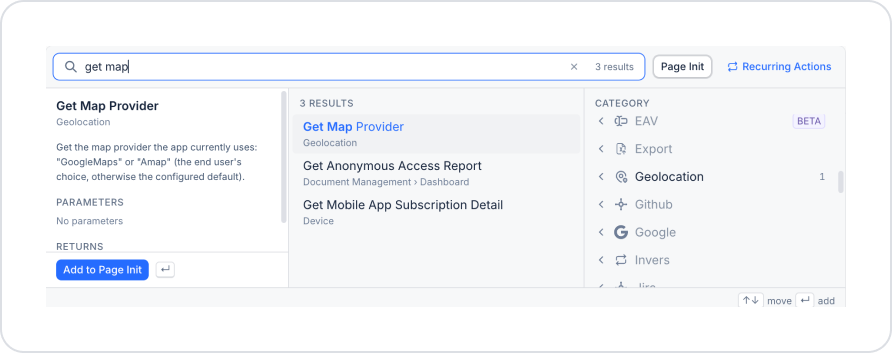
The Get Map Provider action retrieves the map provider currently being used by the application. If the end user has selected a map provider, the action returns that selection; if no selection has been made, it returns the default provider defined in the Config Manager.
In apps where end users can select their own map provider, this action is used to display the user’s current preference on the screen or to adjust the app flow based on the selected provider.
Technical Specifications
Usage Without Parameters: Requires no parameters.
String-Type Result: Returns a single value of type String: GoogleMaps or Amap.
Default Value Support: If the end user has not yet made a selection, it returns the provider selected in the Default provider field in Config Manager.
Web & Mobile Support: Can be used in both web and mobile applications.
For this action to produce meaningful results, the Let end users choose the map provider option must be enabled in the Maps setting in Config Manager, and both Google Maps and Amap configurations must be defined.
Steps to Implement the “Get Map Provider” Action
1. Defining the Action in UI Design
Log in to the Kuika platform.
Open the project you’ll be working on from the Apps screen.
Switch to the UI Design module.
Select the screen or element where you want to add the action.
In the Properties panel on the right, click the + button next to the Actions heading.
In the window that opens, type “get map” in the search field or select the Geolocation category from the Category list.
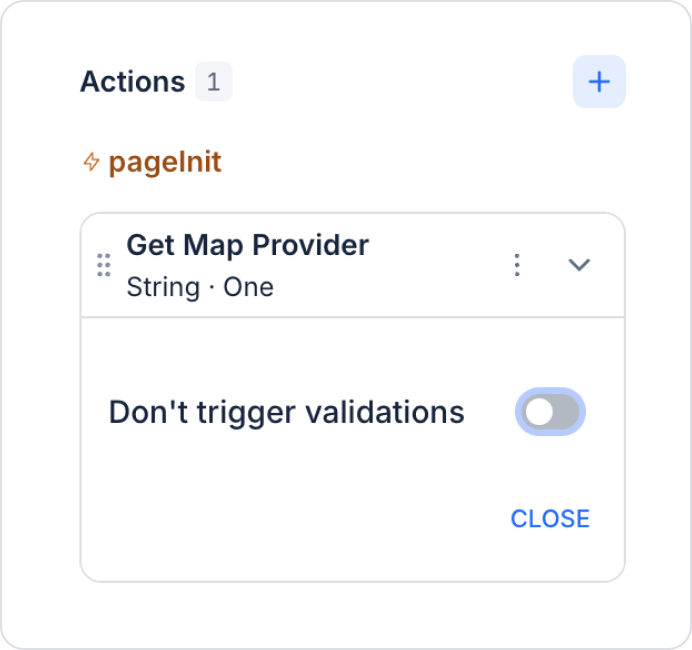
Select the Get Map Provider action and click the Add to Page Init button.
The action is listed under pageInit with a return type of String · One.
2. Configuring Action Parameters
The Get Map Provider action does not accept any parameters. The action’s return value can be used in subsequent actions (e.g., Set Value) or in element properties via the Symbol Picker.
Use Case: Displaying the User’s Map Preference
On a settings screen, you want to display which map provider the end user is using in a SelectBox.
Application Flow:
Switch to the UI Design module.
Drag and drop a SelectBox element onto the screen from the Elements panel (e.g., selectMapProvider).
Define the SelectBox options with values set to GoogleMaps and Amap.
Action Flow and Configuration:
Add the Get Map Provider action to the screen’s pageInit actions.
Immediately afterward, add the Set Value action as a second action:
Target: selectMapProvider
Value: The result of the Get Map Provider action
When the user opens the screen, the current map preference is displayed as selected in the SelectBox.
Get Map Provider Action: Advanced Customizations
Conditional Flow: Can be used in conjunction with conditional actions (e.g., displaying a different informational text if the value is “Amap”) to show different screens or elements based on the returned value.
Use with Set Map Provider: On screens where the user can change their preference, use the Get Map Provider action to display the current value and the Set Map Provider action to save the new value.
Technical Risks and Controls
Comparison Values: The returned value is in the format GoogleMaps or Amap. In conditional comparisons, use these values with exactly the same spelling.
Missing Configuration: If the Maps setting is not defined in Config Manager, the action may not return the expected result.
The Get Map Provider action allows you to read the end user’s map preference within the app and helps you create flows tailored to the map provider.