Firebase Settings allows you to manage the configurations needed to integrate your iOS app with Firebase. By configuring this setting in the Kuika Config Manager module, you can establish a Firebase connection for your iOS app and send push notifications through Firebase.
Creating a Mobile App
Before configuring Firebase settings, you must create a mobile app:
Sign in to the Kuika platform.
On the Apps screen, click the B New App button.B Enter a name for your app.Check the B Mobile Compatible App option.B Click the B Create button to complete the process.B
Configuring Firebase Settings
1. Open or Create a Configuration
Open the mobile app project you created.
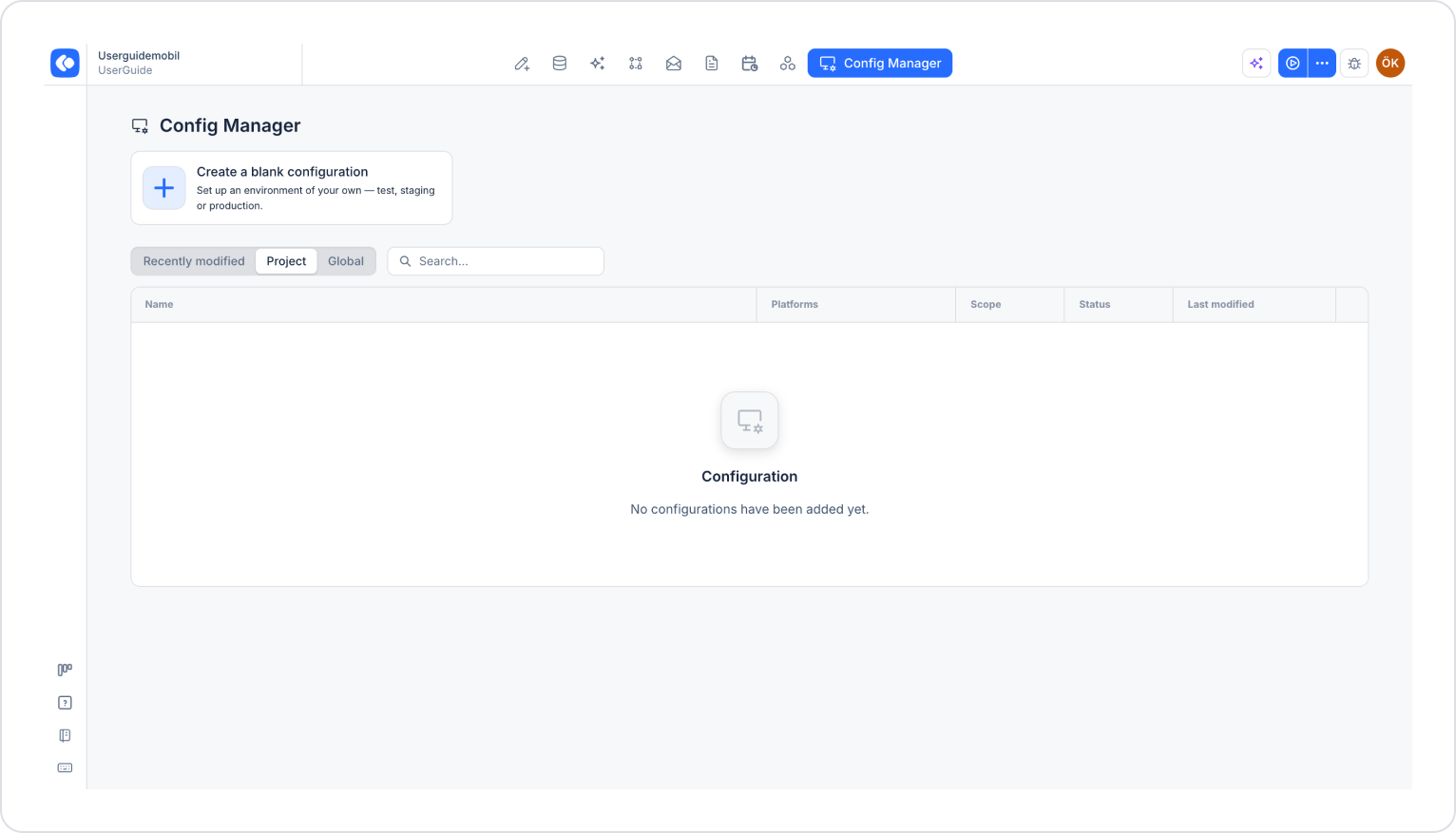
From the top menu, click the Config Manager module.
To create a new configuration, click the Create a blank configuration card, give the configuration a name, and complete the creation process. If you want to use an existing configuration, click its name in the list.
2. Add Firebase Configuration
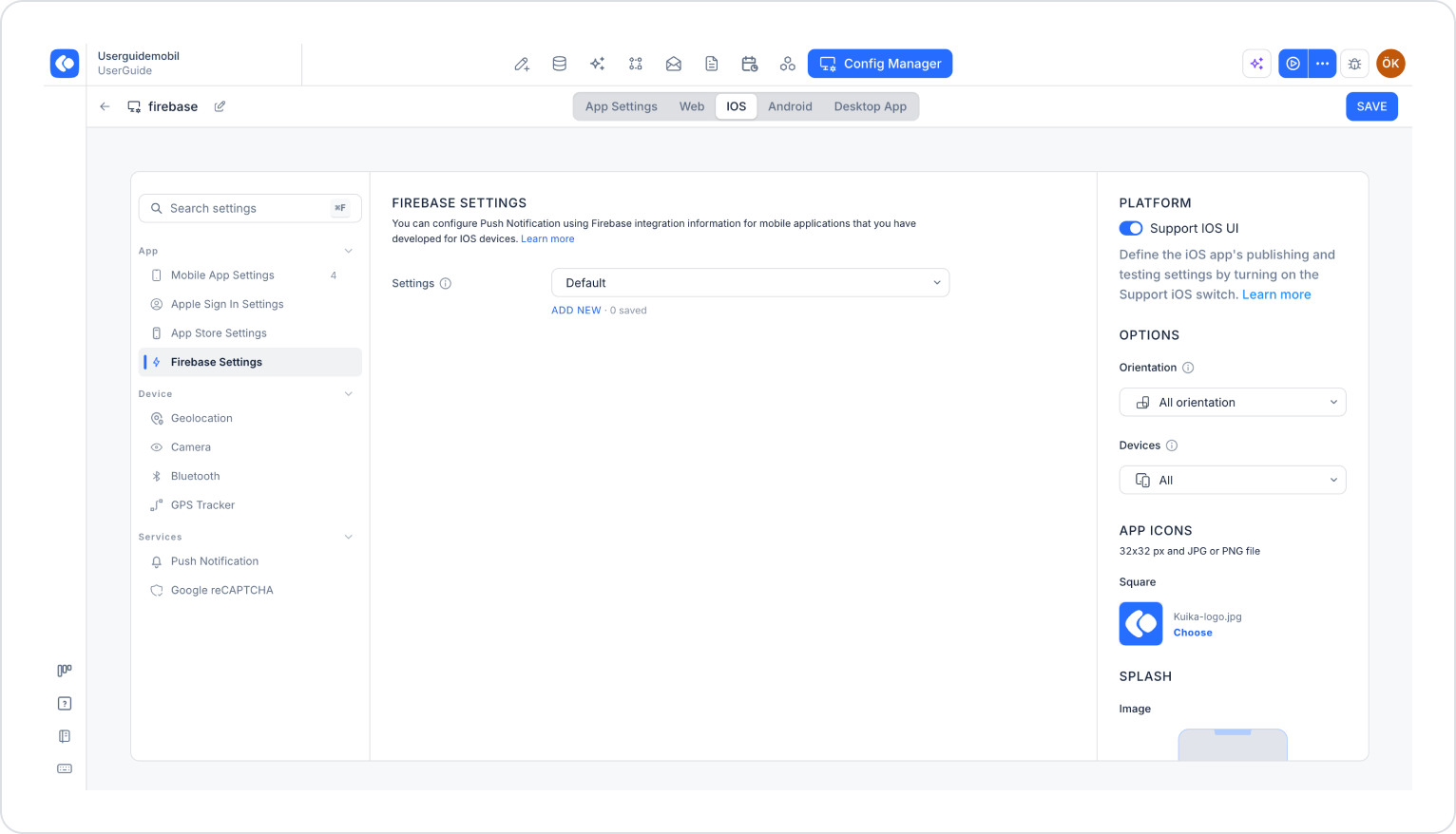
Click the iOS tab at the top of the configuration screen.
In the left menu, click the Firebase Settings option under the APP heading.
Click the Add New link below the Settings section.
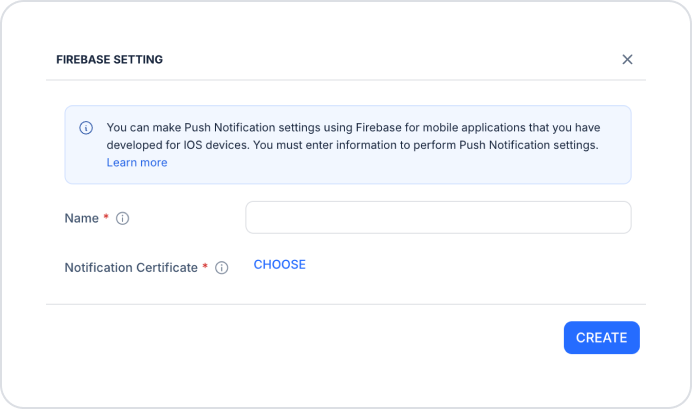
In the Firebase Settings window that opens, fill in the following fields (all fields are required):
Name: A descriptive name for the Firebase configuration. This name helps you distinguish between different Firebase configurations in your project.
Notification Certificate: The GoogleService-Info.plist file associated with your Firebase project. You can upload only files in PLIST format by clicking the Choose button. You can download this file from the General tab of your project settings in the Firebase Console, under your iOS app.
After filling out all fields, click the Create button.
Select the configuration you created from the Settings dropdown menu.
Click the Save button in the top-right corner to save your changes. (In an existing configuration, this button appears as Update.)
3. Test the Settings
Click the three dots next to the Preview button in the top-right corner of the screen.
From the dropdown menu, click the Run option.
Run the test to verify that the Firebase connection is successful.
By following these steps, you can fully complete the Firebase integration for your iOS app.