The Export Node Tree action allows the Node Tree (hierarchical tree) structure created on the Kuika platform to be exported in PDF format. With this action, organizational charts, decision trees, process structures, or category hierarchies can be downloaded and shared with a single click.
This action is only supported in web applications.
Technical Features
Tree Structure Export: The selected Node Tree component is exported as a PDF with its current view.
Hierarchy Preservation: The connections and level structure between Nodes are preserved.
Zoom and View Compatibility: The export process takes into account the Node Tree's current layout, orientation, and zoom settings.
Web Application Compatibility: This action only works in web applications.
PDF Title and File Name Customization: The ExportPdfTitle and ExportFileName settings defined in the Node Tree element are used.
Export Node Tree Action Application Steps
Adding the Export Node Tree Action
Log in to Kuika and open your project.
Go to the UI Design module.
Select the screen containing the Node Tree.
Create a button (for example: “Export Tree”).
Select the button.
Click the + ADD ACTION button in the Properties panel on the right.
Select the relevant trigger event (for example, OnClick).
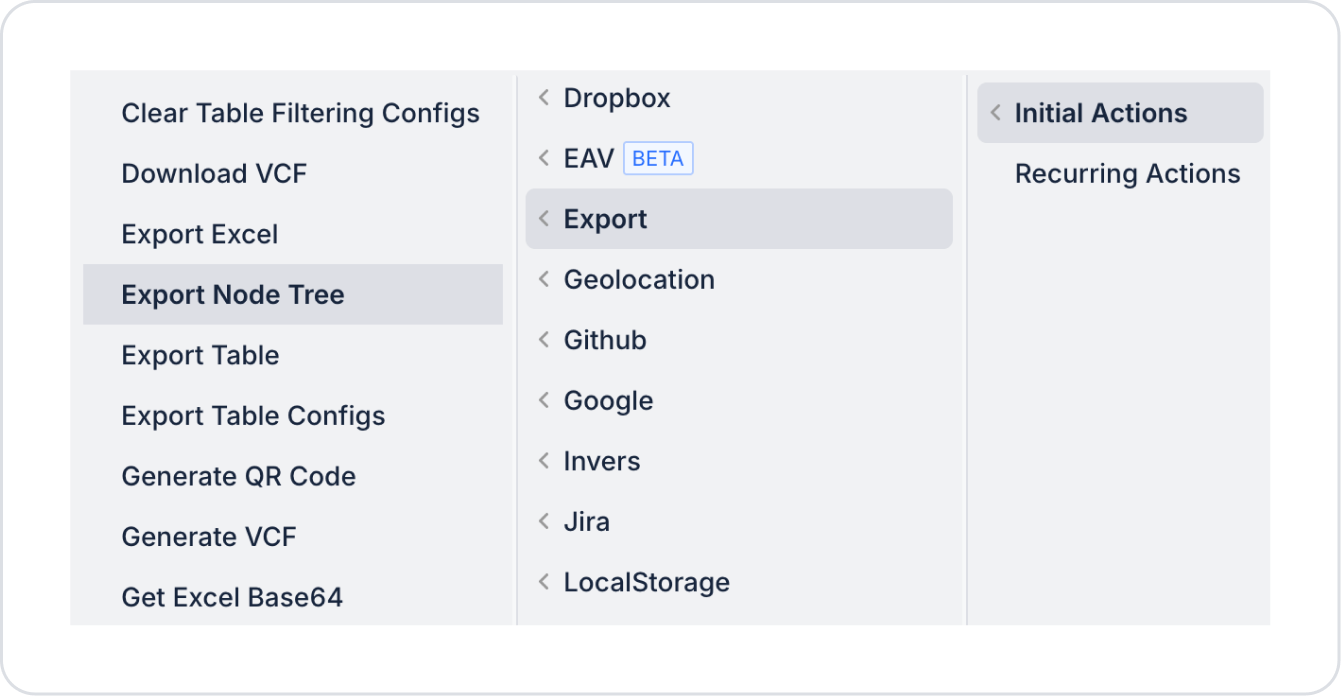
Select Export → Export Node Tree action.
Configuring Export Node Tree Parameters
When the action is added, the following parameters are configured:
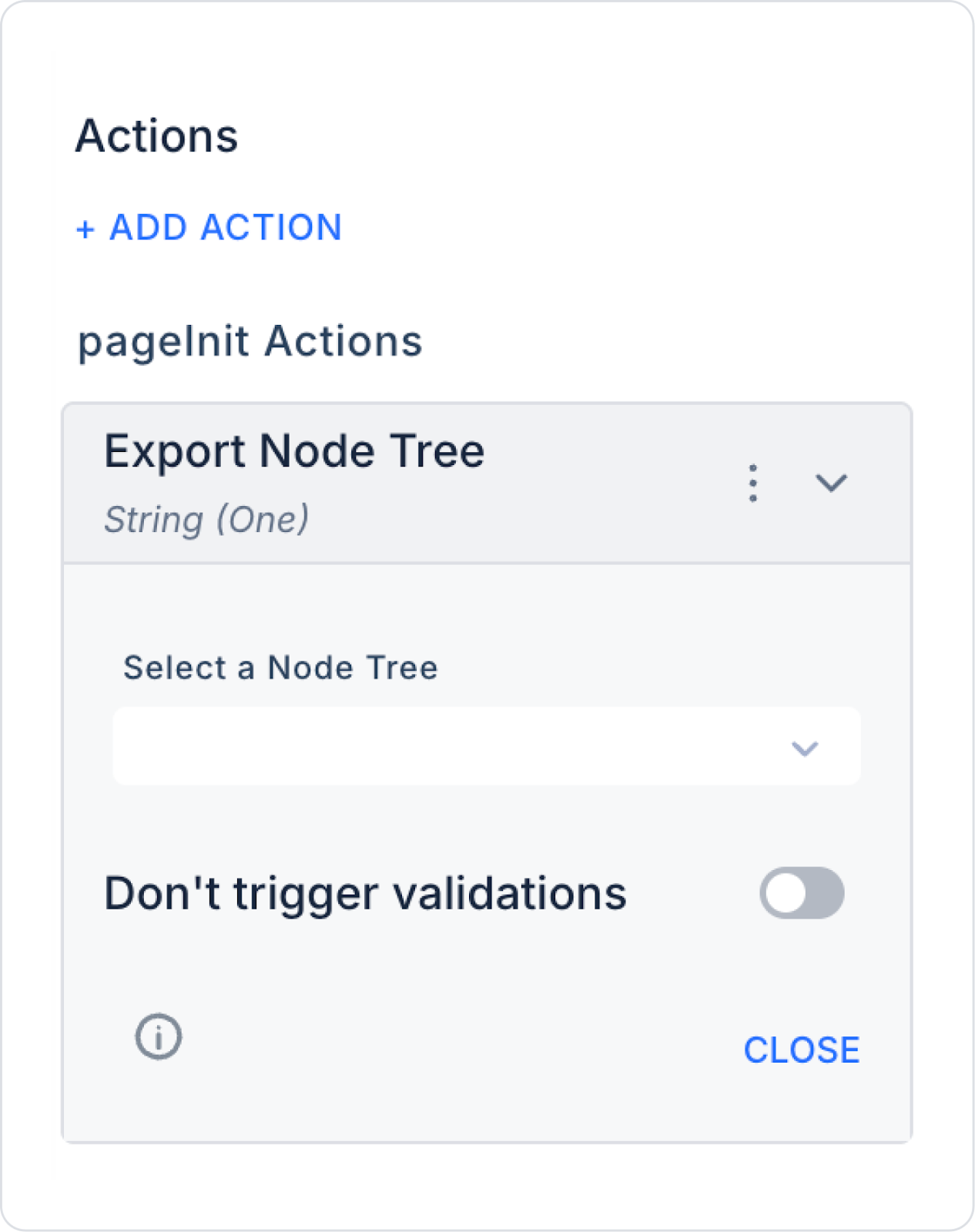
Select a Node Tree (Required)
Allows you to select the Node Tree element to be exported. If there is more than one Node Tree on the screen, make sure the correct component is selected.
Use Case: Exporting the Organization Chart as a PDF
A company wants to download and share the organization structure within the application as a PDF.
The user clicks the “Export Organization Chart” button.
The Export Node Tree action is triggered.
The Node Tree is created as a PDF with its current layout.
The file is automatically downloaded to the user's device.
In this scenario:
Orientation → vertical
Compact View → active
Zoom → 0.8
ExportFileName → organization_chart
ExportPdfTitle → 2026 Organizational Structure
can be configured.
Export Node Tree Action Advanced Customizations
Dynamic File Name: The ExportFileName field can be linked to dynamic data (e.g., a date can be added).
PDF Title Customization: ExportPdfTitle can be used to specify the header to be displayed in the PDF.
Compact View Usage: In large organization structures, CompactChildView can be activated before export to obtain a more balanced output.
Zoom Setting: Export quality can be improved by optimizing the InitialZoom value.
Technical Risks and Controls
Very Large Tree Structures: If the number of nodes is very high, the PDF size may increase.
Incorrect Node Selection: On screens with multiple Node Trees, ensure the correct element is selected.
Visual Overflows: Node width/height and sibling margin settings may affect the export appearance.
The Export Node Tree action enables professional and shareable PDF outputs of hierarchical structures created in Kuika applications. It facilitates the reporting of organizational charts, category trees, and decision structures.