Elastic APM (Application Performance Monitoring) is a monitoring solution that allows you to monitor your application’s performance, detect errors, and analyze transaction times. By configuring Elastic APM settings through the Kuika Config Manager module, you can centrally monitor your application’s runtime behavior.
With Elastic APM, you can monitor the performance of application transactions, analyze errors and exceptions, measure performance by service, and segment data by environment (production, staging, development).
In this guide, you’ll learn step-by-step how to configure Elastic APM settings, how to fill out each field, and how to test the integration.
How to Set Up Elastic APM?
1. Open or Create a Configuration
Log in to the Kuika platform.
From the Apps screen, open the project you’ll be working on.
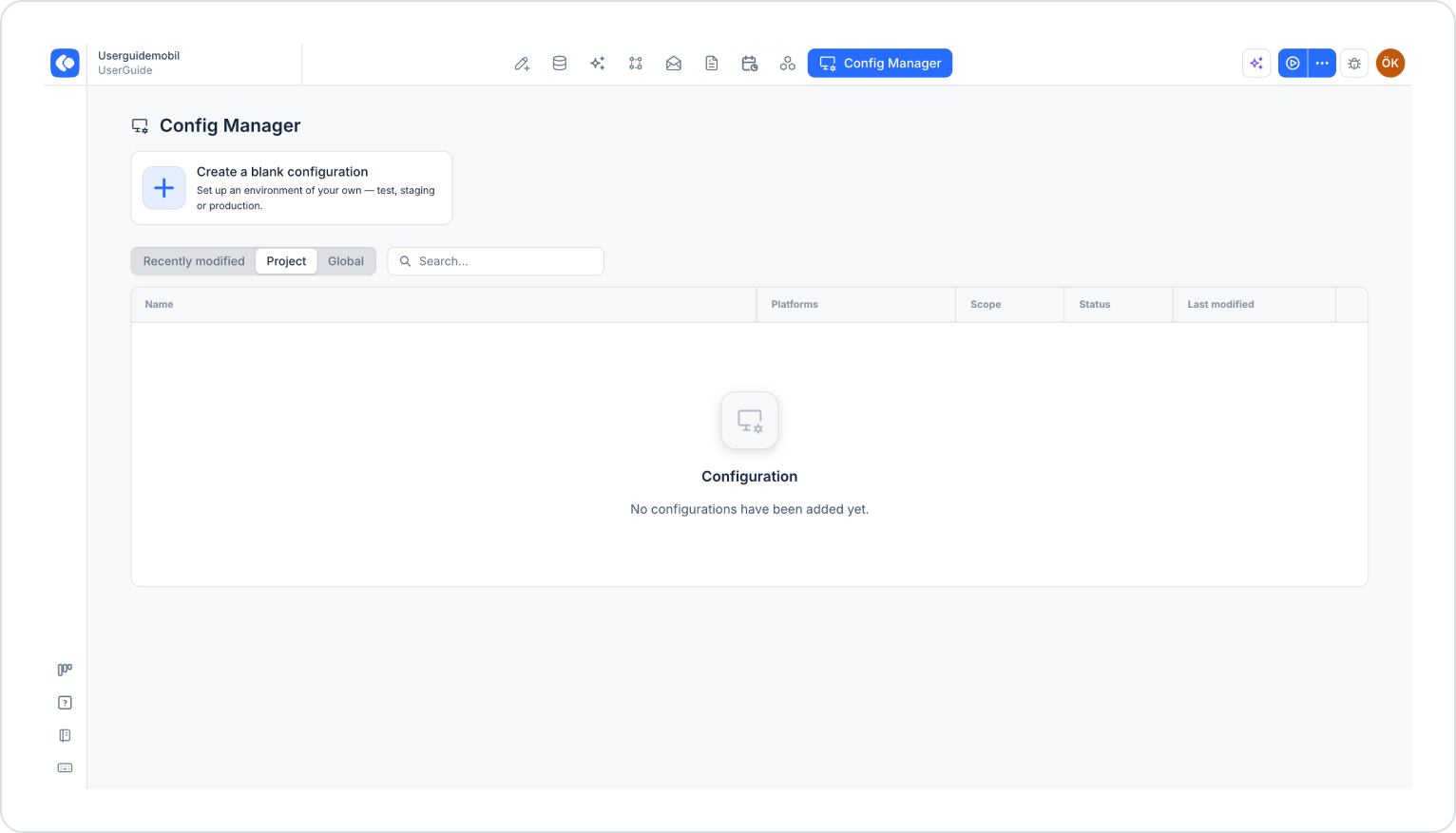
Click the Config Manager module in the top menu.
To create a new configuration, click the Create a blank configuration card, give the configuration a name, and complete the creation process. If you want to use an existing configuration, click its name in the list.
2. Go to the Elastic APM Settings
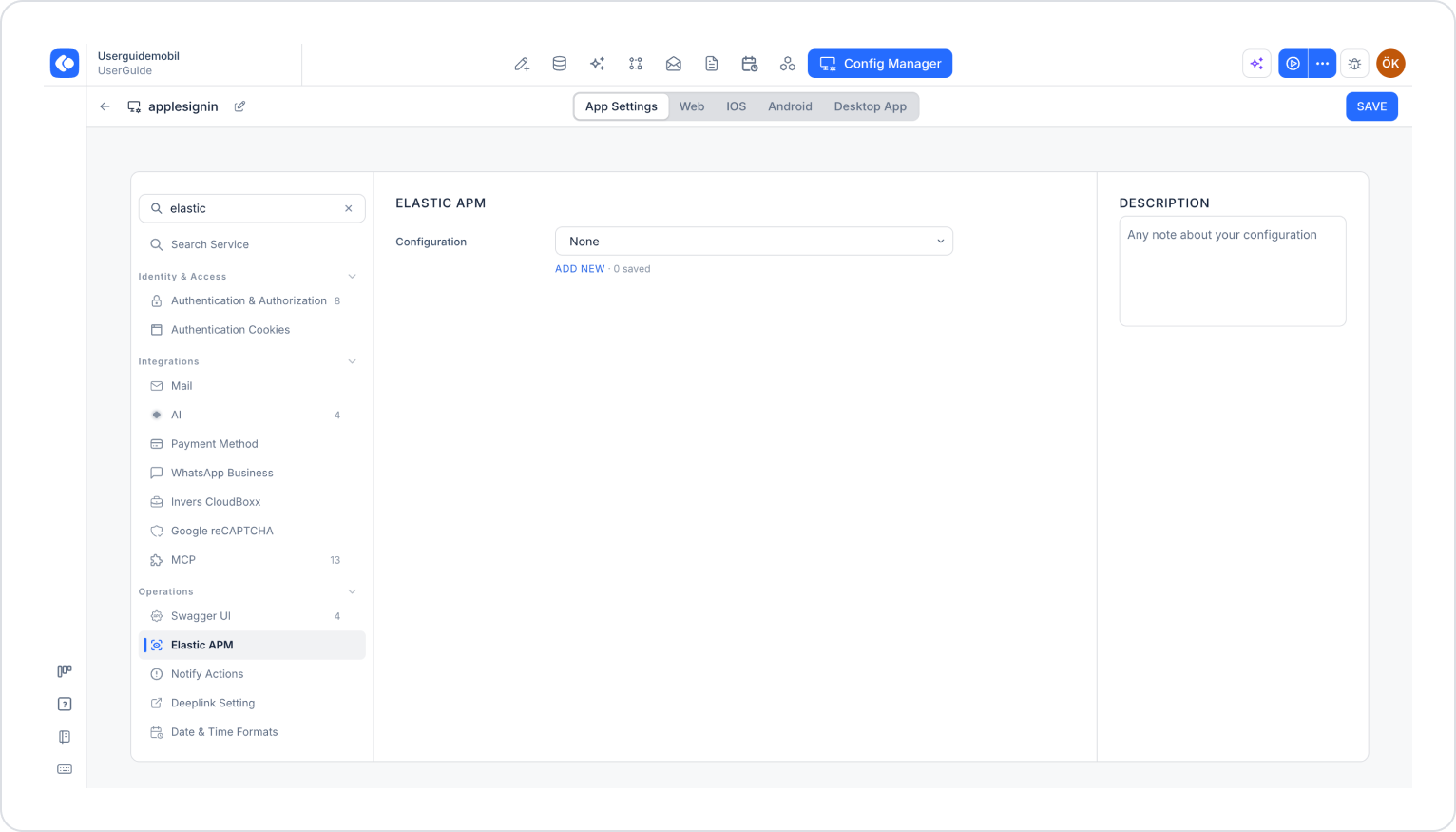
Make sure the App Settings tab is selected at the top of the configuration screen.
In the left menu, click the Elastic APM option under the Operations heading. You can also quickly access this setting by typing “elastic” into the Search settings field at the top of the menu.
Configuration: By default, None is selected. Click the ADD NEW link below the dropdown menu.
3. Fill Out the Elastic APM Settings Window
Basic Fields
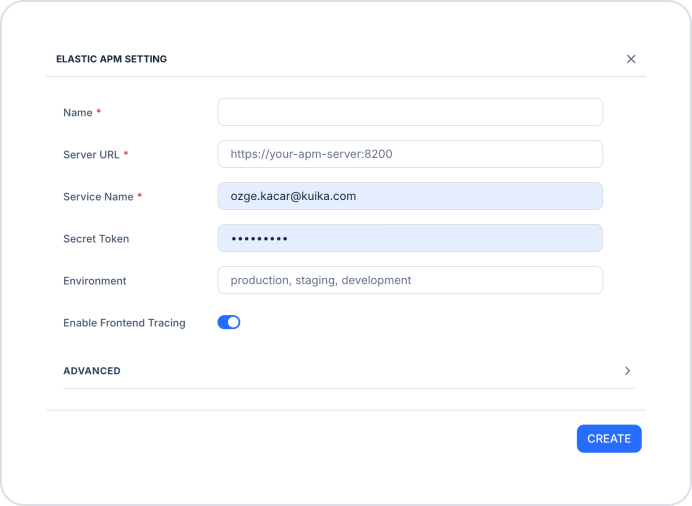
In the Elastic APM Settings window that opens, fill out the following fields:
Name (required): A descriptive name for the configuration.
Server URL (required): The Elastic APM Server address (e.g., https://your-apm-server:8200).
Service Name (required): The name of the service to be monitored in Elastic APM. Used to distinguish between services in the Elastic APM interface.
Secret Token: The security token provided by the Elastic APM Server.
Environment: The environment in which the application runs (e.g., production, staging, development).
Enable Frontend Tracing: A toggle that enables tracing of operations occurring on the application’s front end (browser side).
Advanced Settings (Optional)
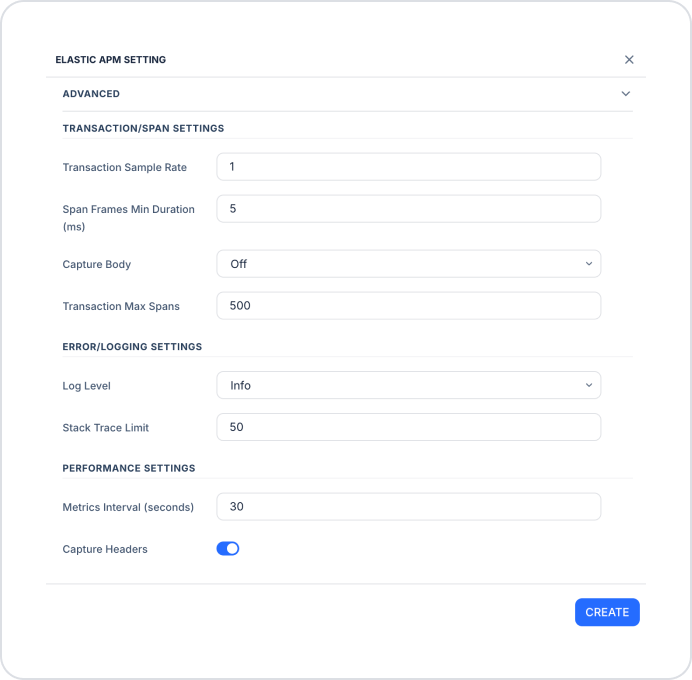
Click the ADVANCED section to expand it and control transaction, error, and performance tracing details. The fields are pre-filled with default values. You can leave any fields you do not wish to change as they are.
The TRANSACTION/SPAN SETTINGS section determines how transactions and spans are traced in the application:
Transaction Sample Rate: The rate at which transactions are monitored. A value of 1 ensures that all transactions are monitored (default: 1).
Span Frames Min Duration (ms): The minimum duration required to capture a stack trace for a span (default: 5).
Capture Body: Whether to record request and response body information (default: Off).
Transaction Max Spans: The maximum number of spans that can be recorded within a single transaction (default: 500).
The ERROR/LOGGING SETTINGS section defines error logging and logging details:
Log Level: The log level to be sent to Elastic APM (default: Info).
Stack Trace Limit: The maximum number of stack trace lines to capture when an error occurs (default: 50).
PERFORMANCE SETTINGS section defines the frequency and scope of performance metric collection:
Metrics Interval (seconds): The interval at which system and application metrics are sent to Elastic APM (default: 30 seconds).
Capture Headers: A toggle that enables the recording of HTTP request and response header information (default: on). When enabled, you can perform header-based analysis through Elastic APM.
After entering the information, click the CREATE button to create the configuration.
4. Save and Test the Settings
Saving Settings
Select the configuration you created from the Configuration dropdown menu.
Make sure all required fields are filled out completely and correctly.
Click the SAVE button in the top-right corner to save your changes.
Testing
Click the three dots next to the Preview button in the top-right corner, then select RUN from the menu that appears.
After the application runs, navigate through different screens and perform actions to generate transactions.
In the Elastic APM interface, verify that your service is listed and that transaction and error logs have been generated.
Once you’ve completed these steps, your application’s performance and error data will be available for monitoring via Elastic APM.
Important Tips
Incorrect or missing entries in the Server URL, Service Name, or Secret Token fields will prevent data from being sent to Elastic APM. If you don’t see any data, check these fields first.
In high-traffic production environments, you can reduce performance and storage load by lowering the Transaction Sample Rate value (e.g., 0.2).
Capture Body and Capture Headers settings may result in the recording of personal or sensitive information. Use these settings with caution in production environments.
To prevent confusion between environments, fill in the Environment field in every configuration.
By properly configuring Elastic APM settings, you can continuously monitor your application’s performance and detect issues before they affect your users.