The Document Compare element is a UI component used to compare two different versions of a document and present the differences between them to the user in a clear and visual manner. It is particularly used in scenarios requiring document review, version control, and change tracking.
With this element, users can view changes in text content on a line-by-line or word-by-word basis, examine cell-level differences in table structures, and perform visual comparisons between PDF documents. Additionally, with Collabora integration, tracked changes are supported, so additions, deletions, and updates are marked in a manner similar to standard office tools.
The Document Compare element adapts to different data formats, offering versatile comparison capabilities through a single interface. This allows users to perform quick and accurate analyses based on changes highlighted by the system, rather than manually reviewing differences between documents.
The Document Compare element is supported only in web applications.
1. 1. Common Use Cases
The Document Compare element is commonly used in the following scenarios:
It is used to review changes between different versions of the same document. For example, by comparing the old and new versions of a contract, added, deleted, or updated sections can be quickly identified.
It is preferred in approval and revision processes to verify changes made. It simplifies the change verification process, particularly for content editors, legal teams, or technical documentation teams.
It is used in situations where line- or word-level differences need to be analyzed in text-based content (e.g., Word, plain text).
It is used in scenarios where cell-level changes need to be identified in documents containing tables. For example, financial tables or report comparisons.
It is preferred when visual differences between PDF documents need to be examined. Changes can be visually analyzed using page-based or overlay (layered) comparisons.
With Collabora tracked-changes support, it is used in scenarios where changes made by users (additions, deletions, edits) need to be tracked in a manner similar to office applications.
It can be used in audit and compliance processes to record and compare changes made to documents over time.
It is used in situations where the user must review differences between two documents to make a decision. For example, it supports decision-making processes such as determining “which version is valid” or “which changes will be accepted.”
2. Key Features
The Document Compare element provides the following key features to present the document comparison process to the user in a clear and visually trackable manner:
Supports different comparison modes. While the Collabora mode displays tracked changes, the textDiff, cellDiff, slideDiff, and pageDiff modes use the classic diff (side-by-side comparison) structure.
With Collabora integration, Word-like change tracking is available. In this mode, the document opens within an iframe, and:
Added text is displayed in green,
Deleted text is displayed in red with a strike-through.
In Diff modes (textDiff, cellDiff, slideDiff, pageDiff), it displays a side-by-side two-panel view:
Left panel: Old version
Right panel: New version
It provides line-based color coding support:
Green background: Added content
Red background: Deleted content
Yellow background: Updated/modified content
Gray background: Separator or unchanged lines
A summary of changes is displayed in the header area. For example:
It offers scroll sync support. When the user scrolls up or down in one panel, the other panel automatically moves to the same position. This makes comparison easier.
Performs version checking. If the versions of the two documents being compared are the same, a notification message is displayed to the user:
“The two version IDs are the same — no changes.”
Includes a warning mechanism for unsupported formats. For file types that cannot be compared, an appropriate warning message is displayed to the user.
Manages error conditions. System errors occurring during the comparison are communicated to the user as red error messages.
Visually indicates the loading status. A spinner is displayed in the center of the screen to inform the user while the comparison data is being prepared.
Offers theme support. The element can be used in light or dark mode to match the application’s overall theme.
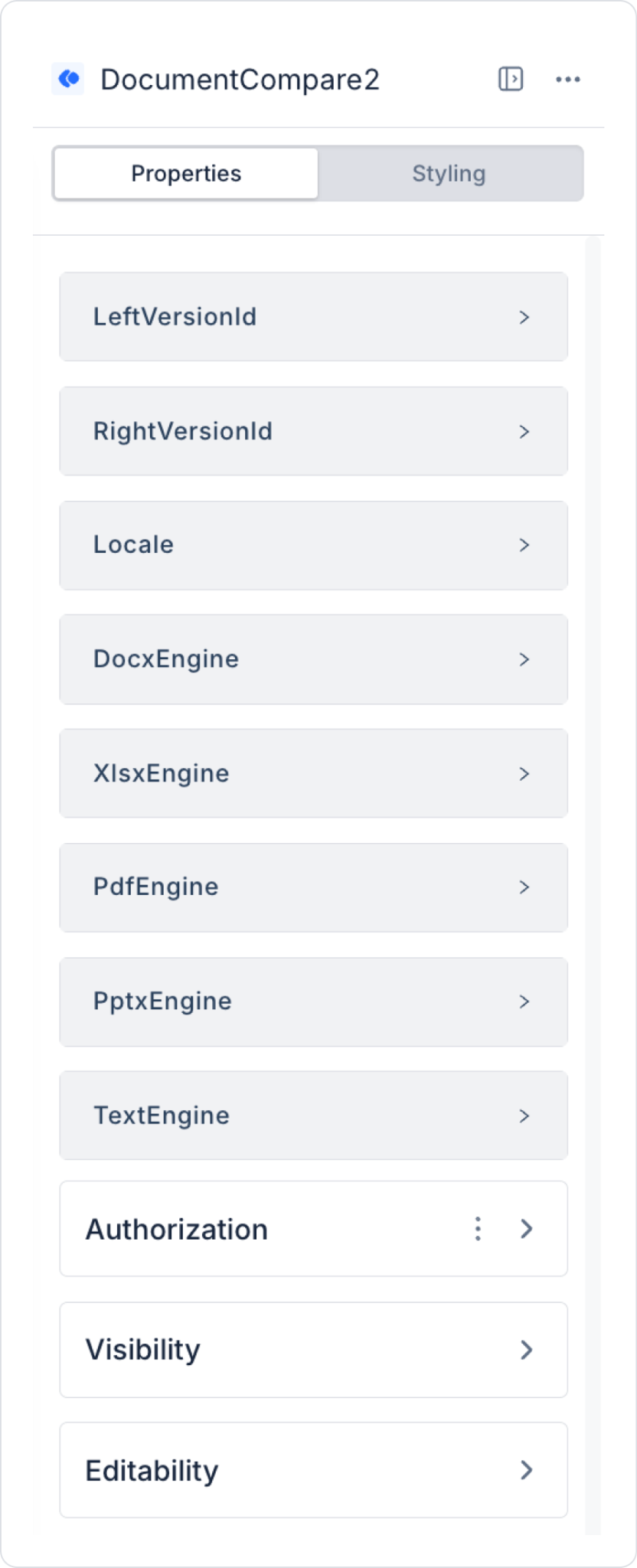
2.1. Element Settings (Properties)
When you select the Document Compare element, you can control the document versions to be compared, the comparison engines, and visual behaviors via the Properties panel located on the right side.
The basic properties available in this element are as follows:
leftVersionId: Specifies the ID of the old version to be displayed in the left panel (KDocumentVersion.Id - GUID). This field is required and determines the starting data for the comparison.
It is typically obtained from the GetVersions action.
Since isValueProp=true, it can be dynamically updated using SetValueOf.
The comparison process is triggered when the value changes.
rightVersionId: Represents the ID of the new version to be displayed in the right panel (KDocumentVersion.Id - GUID). This field is required and defines the target data for the comparison.
Obtained from the GetVersions action.
Since isValueProp=true, it can be assigned using SetValueOf.
If the leftVersionId and rightVersionId fields are updated in quick succession, the system applies a 50ms debounce and initiates the comparison process only once. This prevents unnecessary duplicate requests.
Locale: Specifies the interface language of the element.
Supported values:
tr
en
This property determines the language of the summary messages, information texts, and labels shown above.
docxEngine: Specifies the comparison engine to be used for DOCX / DOC / ODT files.
Supported values:
auto → Default selection (typically uses wmlcomparer)
wmlcomparer → True Track Changes (recommended)
diffplex → Text-based diff
docxexport → Color-coded DOCX output
libreoffice → Docker-based LibreOffice service
This setting should be selected based on accuracy and performance requirements.
xlsxEngine: Specifies the comparison engine for XLSX / XLS / ODS files.
Supported values:
auto
deep → Cell-based detailed comparison
diffplex → Text-based diff
pdfEngine: Specifies the comparison engine for PDF files.
Supported values:
auto
pdfpage → Page-based comparison
pdfvisual → Pixel-based visual comparison
diffplex → Text-based diff
pptxEngine: Specifies the comparison engine for PPTX / PPT / ODP files.
Supported values:
auto
diffplex
textEngine: Specifies the comparison engine for text-based files such as TXT, CSV, JSON, XML, and HTML.
Supported values:
auto
Diffplex
2.2. Event Actions That Can Be Added to the Element
The Document Compare element has a structure capable of executing actions based on events occurring during the comparison process. When the element is selected, actions can be added to the following events via the ADD ACTION button:
OnLoad: Triggered when the comparison process is successfully completed.
This event is used for operations that need to be performed when the comparison result is ready. For example:
Displaying the comparison summary in another area
Performing conditional operations based on the number of changes
Initiating logging or analysis operations
Detailed operations can be performed using the ComparisonResult data returned with the event.
OnError: Triggered when an error occurs during the comparison.
This event is used for error handling and providing feedback to the user. For example:
Displaying the error message to the user
Opening alternative content or a fallback screen
Performing error logging
2.3. Comparison Modes
The Document Compare element operates in different modes based on the comparison result returned by the backend. The mode used is automatically determined based on the file’s MIME type and the selected comparison engine.
The supported comparison modes are as follows:
textDiff: Performs line-based text comparison (DiffPlex). Typically used for text-based files.
Supported formats:
TXT, CSV, JSON, XML, HTML, MD
Code files
cellDiff: Performs cell-based table comparison. Suitable for Excel and similar table structures.
Supported formats:
XLSX, XLS, ODS
slideDiff: Performs slide-based text comparison. Used to analyze content changes in presentation files.
Supported formats:
PPTX, PPT, ODP
pageDiff: Performs page-based text comparison. Enables page-level analysis of PDF content.
Supported formats:
PDF (pdfpage engine)
pdfVisualDiff: Performs pixel-based visual comparison for PDF documents. Used in situations where visual differences need to be identified instead of text.
Supported formats:
PDF (pdfvisual engine)
Collabora: Offers a tracked-changes view via Collabora integration. Provides a Word-like change tracking experience.
Supported formats:
DOCX, DOC, ODT, RTF (if Collabora is active)
Identical: The two compared versions are exactly the same. This mode is typically returned when the same versionId is submitted.
Error: An error occurred during the comparison.
Used in the following cases:
Backend error
Invalid data
Engine failure
Unsupported: The file format is not supported for comparison.
Supported formats:
Image files (e.g., PNG, JPG)
3D files
Archive files (ZIP, etc.)
2.4. Automatic Engine Selection
When the engine property is set to “auto,” the system automatically selects the comparison engine. This selection is based on the MIME type.
The logic works as follows:
The file format family is determined based on the file’s MIME type (docx, xlsx, pdf, pptx, text).
The relevant engine property is checked (e.g., docxEngine for DOCX).
If the value is “auto,” the following defaults are used:
DOCX / DOC / ODT: wmlcomparer (true Word Track Changes — default and recommended)
XLSX / XLS / ODS: deep (cell-based detailed comparison)
PDF: pdfpage (page-based text comparison)
PPTX / PPT: diffplex
Text files: diffplex
2.5. Word-Based Inline Diff and Navigation
The DocumentCompare element offers support for word-based inline diff in addition to line-based comparison. This allows users to see not only which line has changed but also at which word or phrase level the difference occurs within the relevant line or content block.
This feature enables more precise and readable analysis of differences, particularly in documents with numerous small text changes.
Word-based inline diff support: DocumentCompare can highlight changes at the word level using the InlineSegment structure.
Thanks to this structure:
added words
deleted words
replaced phrases
are displayed more clearly within the same line or paragraph.
The Myers LCS algorithm is used: The Myers LCS (Longest Common Subsequence) algorithm is used to detect differences at the word level. This algorithm helps identify the most meaningful differences between two texts and ensures high accuracy, particularly in text comparisons.
DOCX files support sentence splitting: In DOCX-based comparisons, sentence splitting is applied to generate more accurate diffs. This allows long text blocks to be analyzed at the sentence level rather than being compared as a single unit. As a result:
more readable diff output is generated
small text changes are detected more accurately
unnecessary large difference blocks are reduced
Similarity percentage can be displayed for image files: In files undergoing image comparison, the system not only highlights the differences between the two contents but also displays the similarity % information. This percentage is used to summarize how similar the two images are.
Format-based diff support is available for PDF and PPTX:
For PDF files, page-based diff is applied.
In PPTX files, slide-based diff is applied. Thanks to this structure, each file type is processed using a comparison model suited to its own structure.
Next/Previous change navigation is supported:
The user can quickly navigate between changes on the comparison screen. This feature significantly speeds up the review process, especially in documents containing a large number of differences. Supported shortcuts:
Ctrl + N → Go to the next change
Ctrl + P → Go to the previous change
3. Document Compare Element Use Case
The user wants to compare versions v2 and v3 of a contract. The user selects the two different versions; the Document Compare element automatically compares these versions and displays the result on the screen.
Page Init: When the page opens, the version list for the relevant document is first retrieved. This list is bound to two separate dropdown elements for selecting the old and new versions.
GetVersions(documentId) is executed → dsVersions
DropDown_OldVersion.options = dsVersions
DropDown_NewVersion.options = dsVersions
This structure allows the user to select from the available versions of the same document.
DropDown_OldVersion.onChange: When the user changes the old version, the selected value is assigned to the DocumentCompare element’s leftVersionId field.
DocumentCompare automatic comparison process: Once both version IDs are assigned, the DocumentCompare element automatically initiates the comparison process.
The system applies a 50ms debounce to aggregate consecutive changes made in quick succession into a single operation.
A comparison request is then sent to the backend.
The appropriate display mode opens based on the result type.
The flow proceeds as follows:
POST /documentmanagement/compare is called
The backend generates the comparison result
Depending on the result:
If Collabora mode is used, the tracked-changes view opens in an iframe
If Text diff mode is used, side-by-side diff panels are rendered
DocumentCompare.onLoad: When the comparison process is successfully completed, additional actions can be executed using the result information.
In this scenario, the user can immediately see the total number of changes, and a message indicating that the process was successfully completed is displayed on the screen.
DocumentCompare.onError: If an error occurs during the comparison, an error message is displayed to the user.
This structure allows issues such as invalid version selection, access problems, or comparison engine errors to be communicated to the user in a controlled manner.
4. Best Practices
Valid version IDs must be provided for the leftVersionId and rightVersionId fields.
The comparison engine should be selected based on the usage scenario.
The locale setting must be configured to match the user’s language in multilingual environments.
Users should be prompted to select versions of the same document whenever possible.
The onLoad event should be used to process the comparison result.
Error conditions should be clearly displayed to the user via the onError event.
For performance in large documents, an appropriate engine and loading management should be implemented.
5. Limitations
Comparison cannot be initiated if an invalid versionId is used.
If the selected comparison engine fails, the system does not switch to another engine.
For Collabora mode, the Collabora service must be active on the server.
PDF files cannot be rendered with Collabora.
Not all file formats are supported for comparison.
Results may have limited accuracy when comparing different MIME types.
Scroll sync behavior cannot be disabled in diff panels.
When a new comparison request arrives, the previous request is canceled.