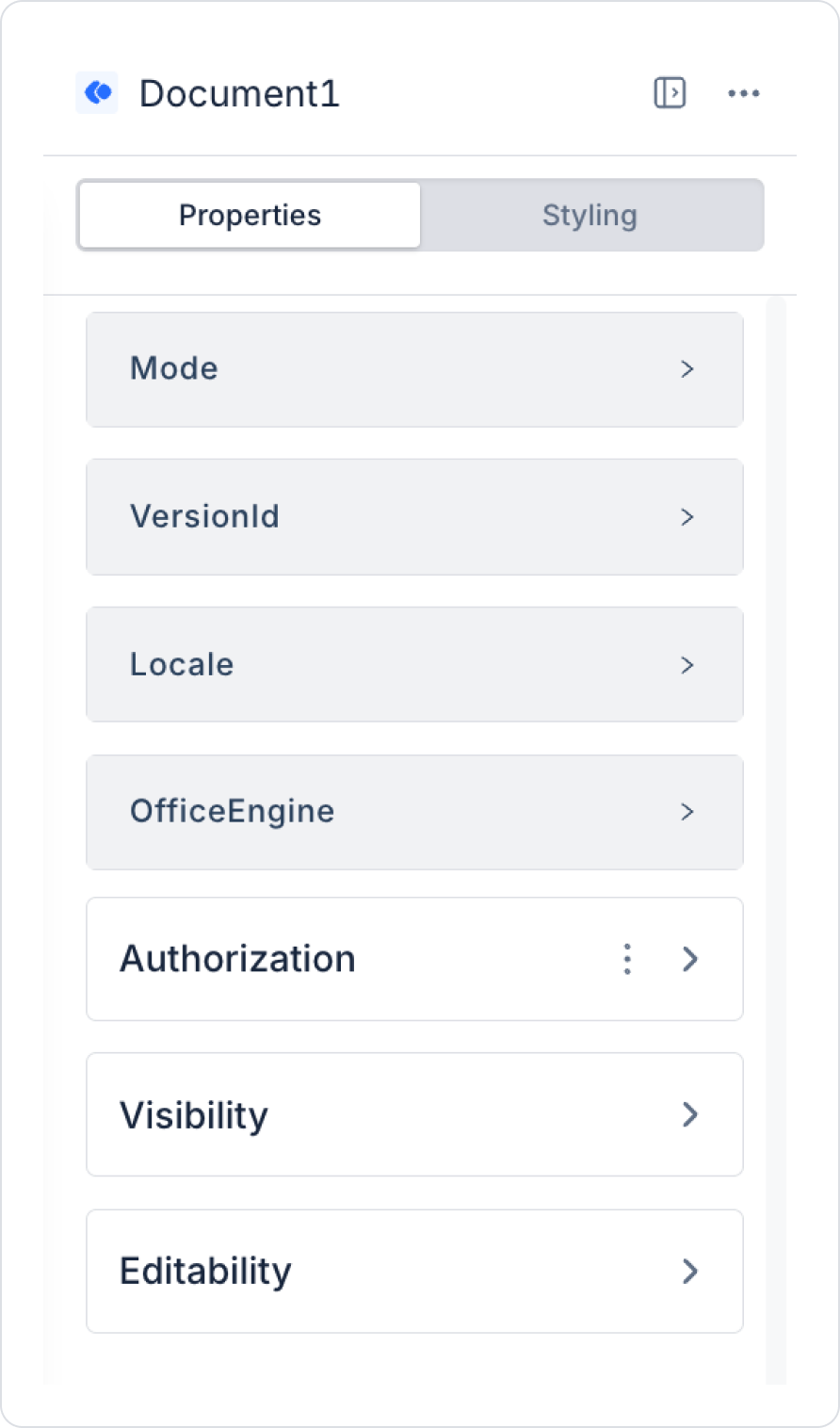
The Document element is a UI element used to display a document stored in the backend by retrieving it via its versionId (GUID) in the browser, or to edit it depending on the user’s permissions.
With this element, users can view or edit documents stored in the system without leaving the application. Depending on the document type, the appropriate viewer or editor is automatically activated, and the content is processed in the browser. This makes document management processes more centralized, controlled, and user-friendly.
The Document element can render Office files (DOCX, XLSX, PPTX) via OnlyOffice or Collabora integration, PDF files using PDF.js, code files using the Monaco Editor, images using the TUI Image Editor, and 3D models using three.js.
The Document element is supported only in web applications.
1.1. Common Use Cases
The Document element is commonly used in the following scenarios:
It can be used to retrieve a document stored in the backend using the versionId and display it within the application.
It is preferred in scenarios where PDF, DOCX, XLSX, or PPTX files need to be presented to the user within the application.
It can be used in scenarios where the user needs to view a document or, if authorized, edit it.
It is suitable for opening the selected document in a separate panel or page within document detail screens.
In Document Management System (DMS) structures, it can be used to securely manage document content via the browser.
In applications where different document types need to be managed through a single structure, it ensures that the appropriate viewer or editor is automatically selected based on the file type.
2. Key Features
The Document element offers the following key features for document viewing and editing processes:
Renders document content within a container of full width and height.
For Office documents, the toolbar (ribbon) from the OnlyOffice or Collabora editor is displayed.
For PDF files, page navigation and zoom controls are provided.
A “Loading...” indicator appears in the center of the screen during loading.
In case of an error, an error message is displayed to the user in red text.
If no versionId is provided or during design time, a dashed placeholder is displayed. This area features a document icon and the text “Document” in the center.
Watermark support is available. Text watermarks can be digitally overlaid onto the document.
2.1. Element Properties
When you select the Document element, you can control this element’s data connection to the document and its behavior via the Properties panel on the right.
The basic properties available for this element are as follows:
VersionId: Specifies the version ID of the document to be displayed or edited. This field is required. The Document element determines which document to work with via this field. The backend automatically resolves the documentId and language information based on the versionId.
Mode: Determines how the document will open. Available values:
view → standard view
readonly → view-only (no changes allowed)
edit → edit mode
The Mode setting directly affects the user experience and permission control. Therefore, it must be configured carefully based on the usage scenario.
Locale: Specifies the interface language. This is particularly important in multilingual applications. Editors such as OnlyOffice and Collabora use this setting. Supported example values:
tr
en
OfficeEngine: Specifies which engine should be used to open Office documents.
Supported values:
onlyoffice
collabora
If not specified, the system uses the default engine.
2.2. Event Actions That Can Be Added to an Element
The Document element has a structure capable of executing actions based on user interactions. When the element is selected, actions can be added to the following events via the ADD ACTION button:
OnLoad: Triggered when the Document is loaded. Used for tasks that need to be performed when the document opens. For example, fetching data, running checks, or notifying the user.
OnError: Triggered when an error occurs while the document is loading or rendering. Can be used for error handling and providing feedback to the user.
OnTempLoaded: Triggered when data is loaded from the Temp layer. Can be used in recovery scenarios.
2.3. Temp-Based Save Structure
All OnlyOffice and Collabora save operations are first written to the Temp buffer layer. No changes are reflected in Draft or Version until the user explicitly confirms them.
The save flow works as follows:
Ctrl+S operations or automatic saves performed via OnlyOffice are written directly to the Temp layer. This layer is visible only to the user making edits.
Depending on the user’s action, the following operations can be performed:
SaveTemp → Updates the Temp data (used for intermediate save scenarios)
PublishTempAsNewVersion → Creates a new version
SaveTempAsDraft → Saves the content as a draft
DiscardTemp → Deletes the Temp data and discards the changes
When the Document element is opened with mode="edit", if a Temp record exists, a Recovery Dialog is automatically displayed.
This dialog offers the user the following options:
Continue with recovered content → The Temp data is loaded and editing continues based on this data
Start with the last published version → The Temp data is deleted and the original version is loaded
Cancel → The transition to edit mode is canceled
The saveMode setting determines the saving behavior.
newVersion → creates a new version
draft → saves as a draft
overwrite → overwrites the current version
2.4. OnlyOffice / Collabora Integration
The Document element supports two different engines for viewing and editing Office documents:
Offers full editing capabilities, including text, table, and presentation edits.
PDF files can also be viewed via OnlyOffice (Collabora does not support PDF).
The saveMode feature works only with OnlyOffice.
To use it, the documentServerUrl configuration must be set on the server side.
Collabora
Provides LibreOffice-based viewing and editing for DOCX, XLSX, PPTX, and ODF formats.
Offers stronger support for track changes scenarios.
It is enabled with the officeEngine: “collabora” setting.
To use it, the `serverUrl` configuration must be set on the server side.
Engine Selection Logic
If the `officeEngine` prop is defined, the specified engine is used.
If not defined, the `activeProvider` configured on the server side takes effect.
If neither is present, OnlyOffice is used by default.
PDF files are never sent to Collabora. If OnlyOffice is active, PDFs are opened with OnlyOffice; otherwise, they are displayed in read-only mode using PDF.js.
Image files are always rendered using the TUI Image Editor, while 3D models are rendered using three.js.
2.5. Temp Auto-Save (Monaco and Draw.io)
The Monaco Editor (CodeAdapter) and Draw.io (DiagramAdapter) use a debounce mechanism to automatically save changes.
When the user makes edits, the SaveTemp action is automatically triggered after a delay of approximately 5 seconds (debounce), and the changes are saved to the Temp layer.
The recoverTemp() method is used to load the retrieved Temp data into the relevant editor.
2.6. OnlyOffice Version-Specific Support
The Document element passes the versionId information to the OnlyOfficeAdapter via the SDC (Software Development Container) layer.
The OnlyOfficeAdapter uses this value to call the POST /onlyoffice/config endpoint and creates the relevant document configuration.
The DownloadVersionById endpoint supports oo_token and AllowAnonymous. This allows the OnlyOffice Document Server to directly download and render a specific document version.
3. Document Element Use Case
Integration with Directory
The Document element is typically used in conjunction with Directory. When a user selects a document from the tree structure, the following flow occurs: