Kuika's Create Role Group action is used to create role groups that bring multiple roles together under a single umbrella in the system. This simplifies authorization management, makes role-based access easier to control, and makes the Authorization structure more scalable.
Role groups allow roles with the same permission set to be managed from a single point, especially in complex authorization scenarios. Created role groups can be used directly in user assignments and Authorization rules.
Technical Features
Role Grouping (Authorization Panel): Combines multiple roles under a single role group. Centralizes permission management, eliminating repetitive definitions.
Role and Role Group Compatibility: Role groups work with roles defined in the system and are fully compatible with Authorization settings.
Web & Mobile Support: The Create Role Group action is available in both web and mobile applications.
Create Role Group Action Application Steps
1. Defining the Action in UI Design
Open your project on the Kuika platform.
UI Design module and select the relevant screen.
Add a button to initiate the role group creation process (e.g., “Create Role Group”).
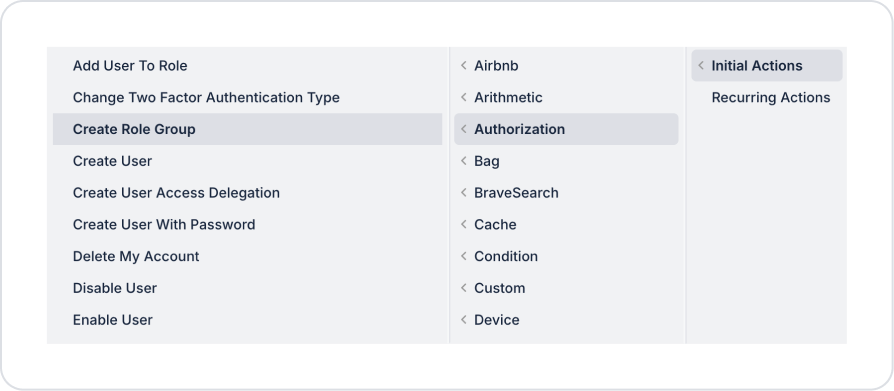
Select the button and, from the + ADD ACTION menu, add the Initial Actions / OnClick → Authorization → Create Role Group action from the + ADD ACTION menu according to the trigger event to be used.
2. Configuring Action Parameters
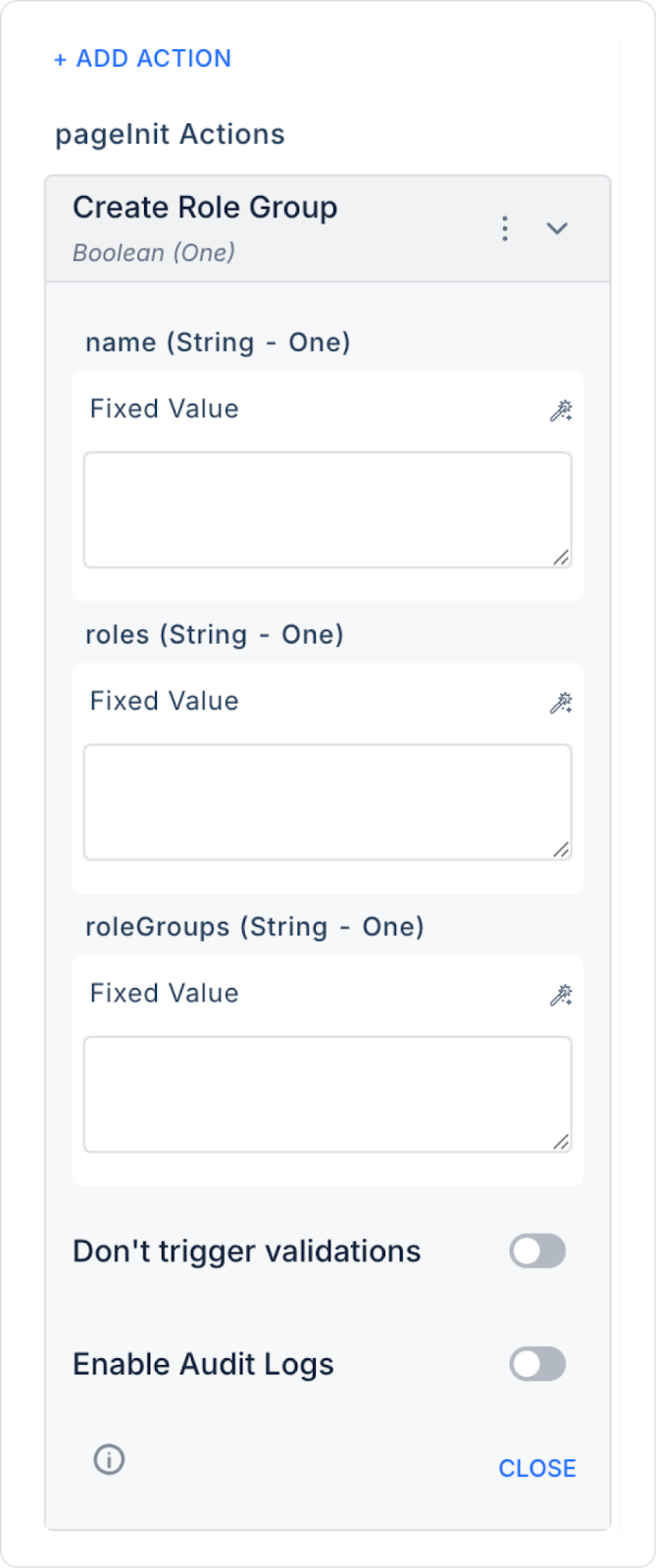
name (String – required): The name of the role group to be created in the system.
Fixed Value,
Form Component,
Screen Input,
Action Result
data sources can be used to define it and it can be linked with Symbol Picker.
roles (String – optional): The list of roles to be included in the role group. Multiple roles can be assigned using role names defined in the system.
roleGroups (String – optional): Used to include existing role groups in another role group. This allows hierarchical role groups to be created.
Don’t trigger validations (Boolean): When enabled, additional validation checks are not triggered while the action is running.
Enable Audit Logs (Boolean): When enabled, the role group creation process is added to the audit log records.
Use Case: Authorization Management with Role Groups
In an enterprise application, a role group named “Content Management” can be created to group the following roles under a single structure:
Editor
Content Manager
Reviewer
This way, all users included in this role group automatically have common permissions related to content management.
Adding a Role Group Creation Action
Enter the UI Design module.
Add a Button element from the Elements panel.
In the Properties panel, enter “Create Role Group” in the button's Label field.
Select the button and add the OnClick → Authorization → Create Role Group action from the + ADD ACTION menu.
Example of Configuring the Create Role Group Action
name: content_management_group
roles: editor, reviewer, content_manager
With this configuration, when the action is triggered, the specified roles are added to the newly created role group in the system. This makes user authorizations easier to manage on a group basis.
Create Role Group Action Advanced Customizations
Creating Dynamic Role Groups
The role group name and the roles it contains can be determined dynamically.
Different role groups can be created based on the user type, application module, or workflow.
Role Assignment via SQL or Service
Roles can be retrieved from the database or backend services and transferred to the roles field.
Role lists from the system can be used dynamically via the Symbol Picker.
Hierarchical Role Groups
A role group can be configured to contain another role group.
This allows for layered authorization management in large organizations.
Technical Risks and Controls
Incorrect Role Definition: Ensure that the roles added to the roles field are defined in the system.
Authorization Complexity: Careful management is required when multiple role groups have conflicting permissions.
Audit Traceability: It is recommended to enable the Enable Audit Logs option in critical applications.
The Create Role Group action simplifies the authorization structure in Kuika applications, making role and permission management centralized and scalable. Thanks to advanced configuration options, both simple and complex authorization scenarios can be implemented securely.