With Conditional Styles, you can change the appearance of elements dynamically based on their data. You can define style rules that apply when a specific condition is met to any element, from a table column to a button. For example, you can highlight rows with a filled status in red or make critical records stand out with a different font.
Conditional Style Rule (Condition)
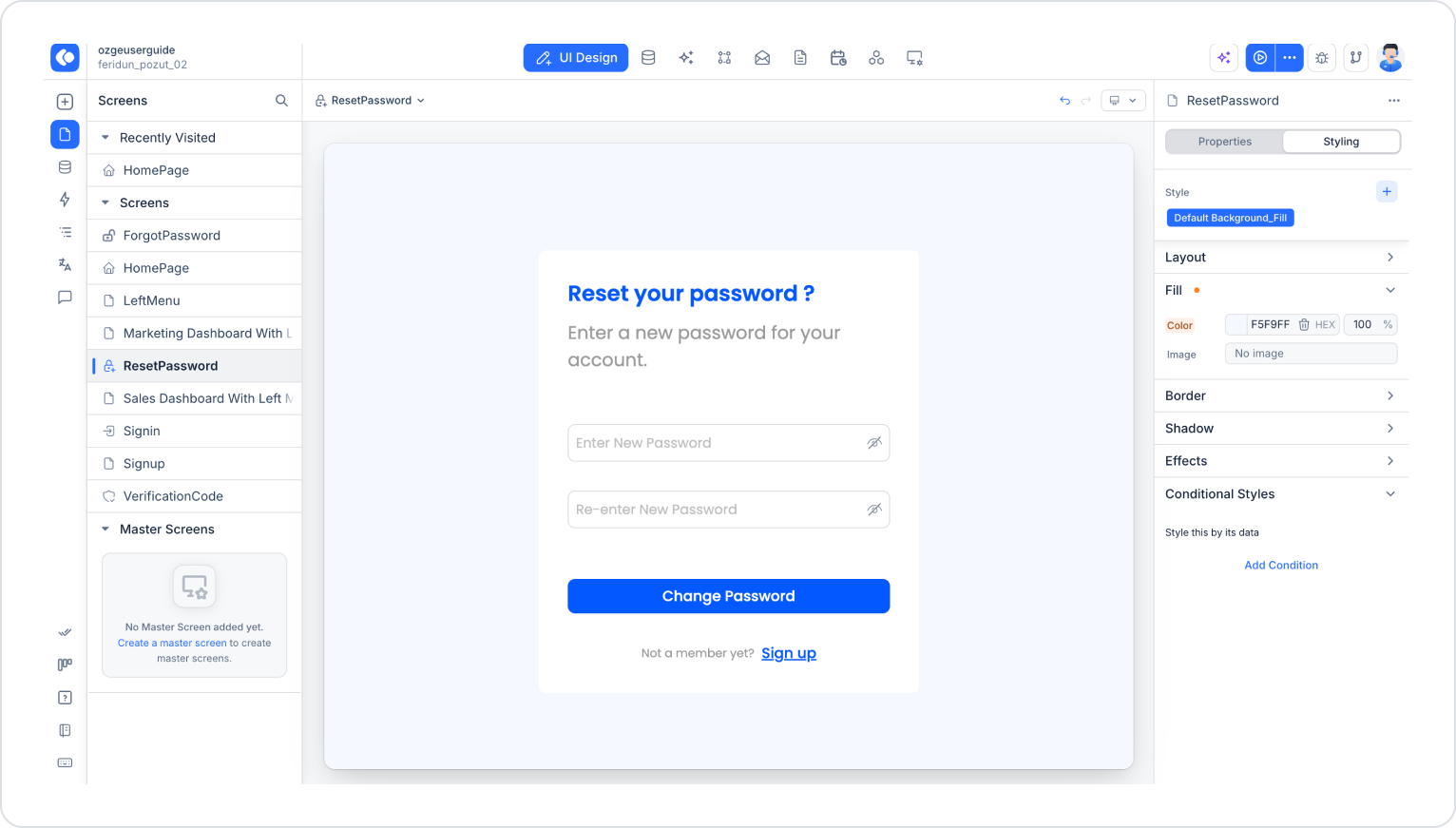
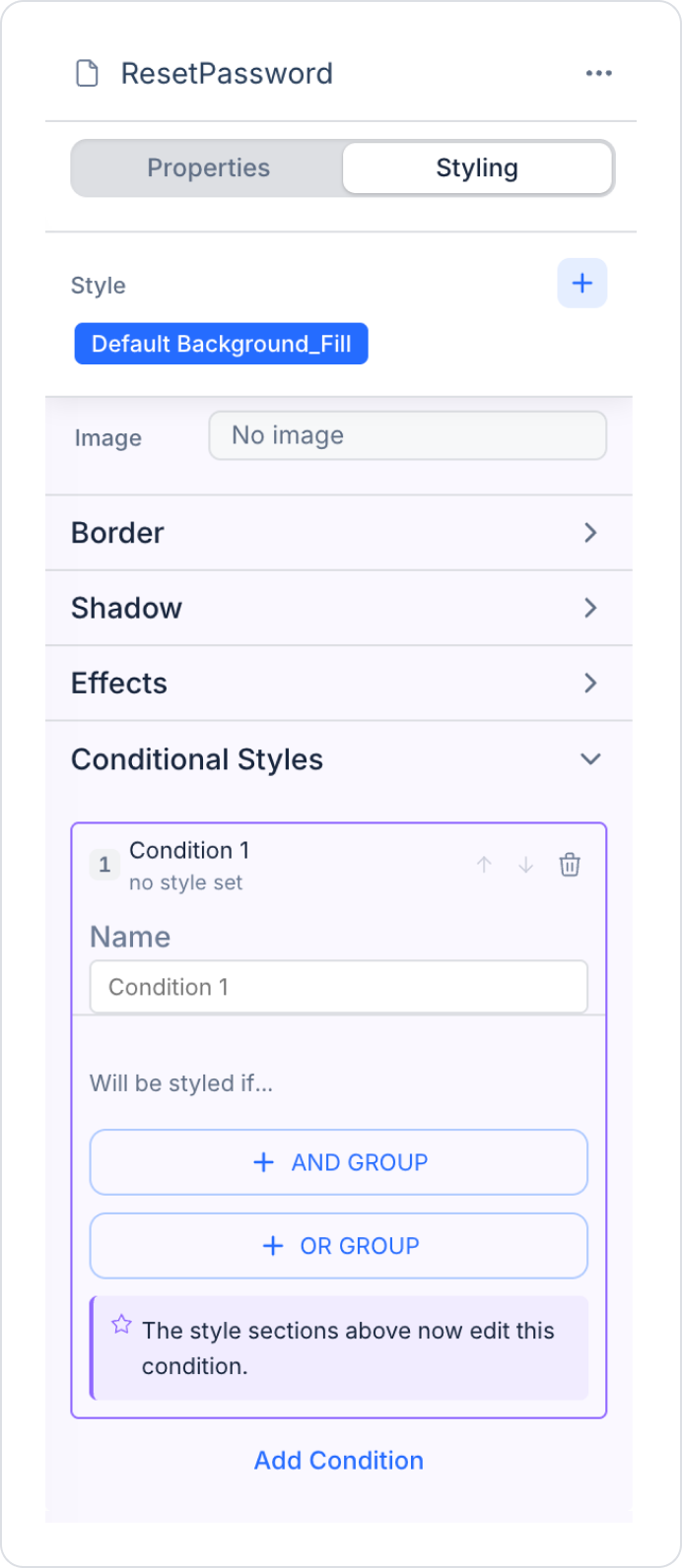
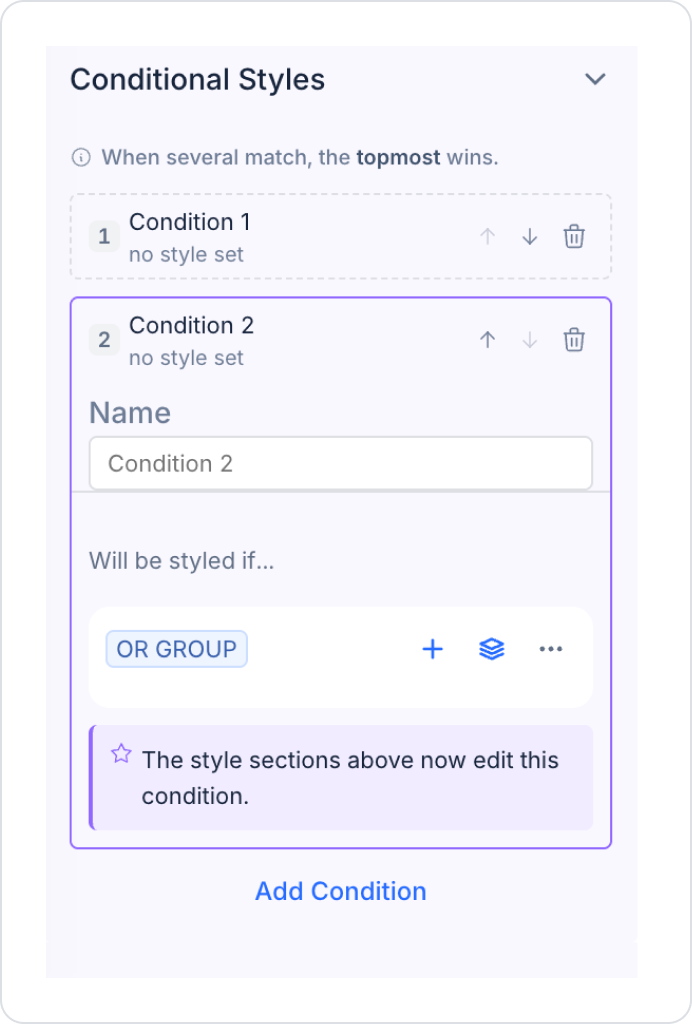
The Conditional Styles section is located at the bottom of the Styling panel. You can add an unlimited number of rules to an element with "Add Condition". Each rule consists of three main parts:
Name:
The name that identifies the rule. A default name such as Condition 1 or Condition 2 is suggested.
The Name field is required. Two rules on the same element cannot have the same name.
Will be styled if… (Condition):
Determines when the rule is applied. The condition editor is the same as the one used elsewhere on the platform.
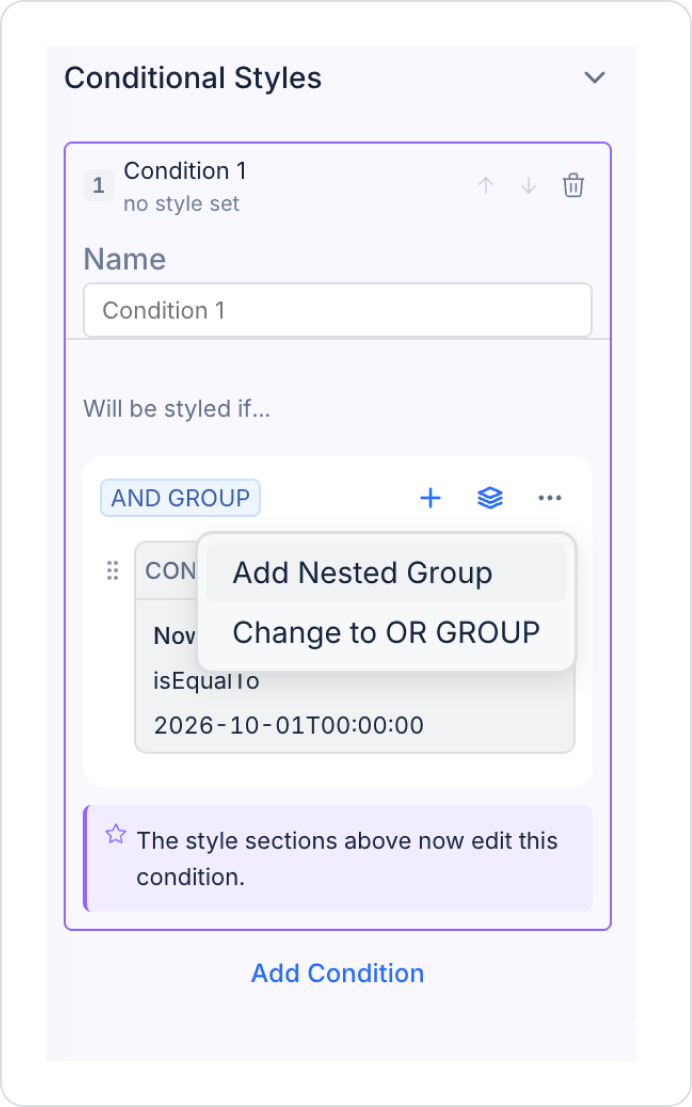
AND GROUP: The style is applied when all conditions in the group are met.
OR GROUP: The style is applied when any condition in the group is met.
From the three-dot menu, you can add a nested group (Add Nested Group) or change the group type (Change to OR GROUP / AND GROUP).
Style Settings:
While a rule is selected, the Layout, Text, Fill, Border, Shadow and Effects sections in the Styling panel edit that rule.
The note "The style sections above now edit this condition." appears under the selected rule.
Rules without a style show "no style set" under the rule name.
Creating a Condition (Add Condition)
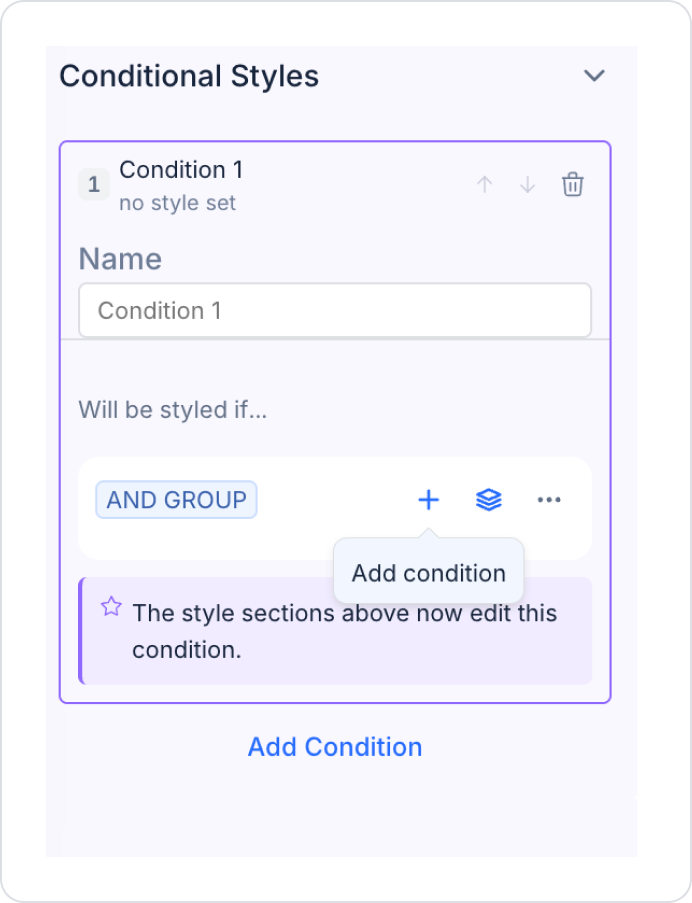
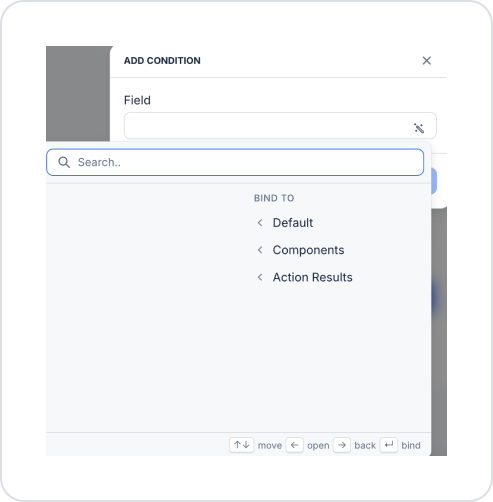
Click the + icon next to the group to open the condition window.
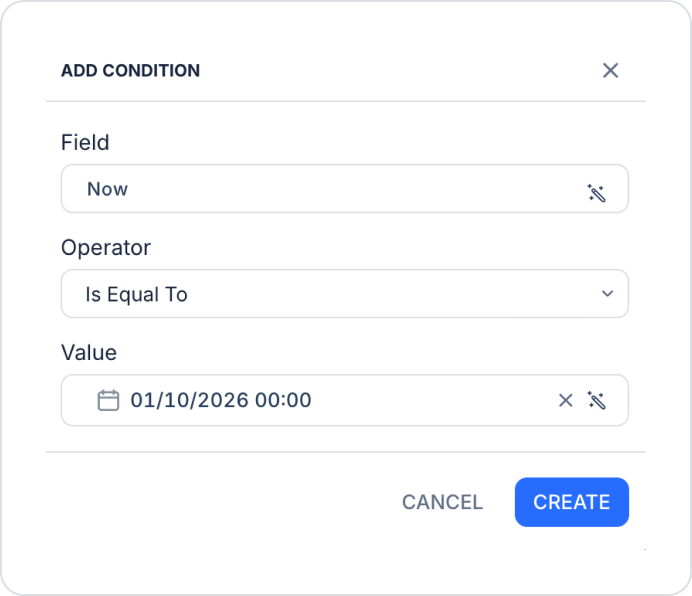
The ADD CONDITION window has three fields:
Field: The data the condition checks. It can be bound from Default, Components or Action Results. For elements bound to a table, Current Row fields are listed so you can use the row's own data.
Operator: Determines the comparison type (e.g. Is Equal To, Is Not Empty).
Value: The value the field is compared to. It may not be required depending on the selected operator.
Priority Order
If several rules match at the same time, the topmost rule in the list is applied. When an element has two or more rules, the panel shows the message "When several match, the topmost wins."
You can change the order of rules with the up and down arrow buttons.
Managing Conditional Styles
Edit: Click a rule to update its name, condition and style settings.
Reorder: Change the priority of rules with the arrow buttons.
Clear a single property: Use the trash icon next to a style property to delete only that value from the rule; the rule's condition is kept.
Delete: Use the rule's trash icon to remove the rule completely. When all rules are deleted, the section returns to its initial state.
Adding Conditional Styles to Elements
Log in to the Kuika platform and select your project from the Apps screen.
Click the UI Design module.
Select the element you want to style (e.g. a Label in a Table cell).
Open the Styling panel and expand the Conditional Styles section at the bottom.
Click the Add Condition button and give the rule a name.
Select AND GROUP or OR GROUP in the Will be styled if… area, then click the + icon.
Fill in the Field, Operator and Value fields in the window that opens (e.g. Current Row.Status → Is Not Empty) and click CREATE.
While the rule is selected, set the style to apply from sections such as Fill, Text or Border (e.g. Fill → Color: FF0000).
Save the screen and click Preview to see the result.
Important Notes
Conditional Styles is available only in Web and Desktop projects. It is not available on mobile (iOS and Android) screens or in Report Designer.
Conditional styles are not visible on the designer canvas; they appear only in Preview and in the running app.
The condition is evaluated separately for each row. In the same table, one row may be styled while another is not.
A rule overrides the element's normal style but does not delete it; the normal style returns when the condition is not met.
Hover, Pressed, Focused and Disabled colors take precedence over the rule. For example, when the mouse hovers over a matching row, the Hover color is shown. This is intentional and keeps mouse feedback on styled rows.
A rule without a condition does not style any element but remains in the list.
In this release, conditions can only be based on row data; conditions based on screen-level variables are not supported.
By following these steps, you can style the elements in your application dynamically based on their data and offer your users a clearer interface.