AgentCustomDashboard is an element that can be added via drag-and-drop. When you place the AgentCustomDashboard element in your application, the Custom Boards created by users on KuikAgents are embedded into your page through this element. The Board picker is embedded within the element; therefore, the end user selects which Board to display at runtime, not at design time. The element handles operations such as connecting to the relevant data source, querying, or creating cards internally; the low-code author does not need to write any integration code. However, for the element to display content, a complete KuikAgents Integration configuration (URL, Access Secret, Identity Secret) must be created in App Settings and selected for the application.
The AgentCustomDashboard element is supported only in web applications; it cannot be used in mobile applications.
1.1. Common Use Cases
Adding an AI-powered summary/dashboard to your application via a board without writing code
Displaying boards (reports, summaries, metrics, etc.) prepared by KuikAgents on your page
Creating a quick-view area on management or monitoring pages where users can select their own board
Presenting up-to-date data needed by internal teams in a single embedded dashboard
Adding a rich, data-driven visual area to your page without any additional development
2. Key Features
Easy setup with drag-and-drop. Simply drag and drop the AgentCustomDashboard element from the Elements panel onto your page; the element itself has no additional settings (configuration is done at the App Settings level, for the entire application).
Placeholder view on the design canvas. The element appears on the canvas as a labeled placeholder card; the actual board content is loaded only in the running application and for a logged-in user.
Secure connection. The Access Secret and Identity Secret are stored in encrypted form and are never hardcoded into the application; the connection is established via the configuration selected in App Settings.
Language compatibility. AgentCustomDashboard automatically adapts to the application’s language (if the application is in Turkish, the embed is in Turkish; for all other languages, it is in English); there is no separate language setting.
Self-contained structure. The element contains a fully functional viewing experience within itself; it does not require any additional elements to function.
2.1. Element Settings (Properties)
The AgentCustomDashboard element does not have a dedicated Properties panel. The element is inline; its size is determined by the size of the Container/Column elements it is placed within and by the general Styling Panel settings.
Therefore:
AgentCustomDashboard has no configurable settings.
The board to be displayed is selected by the end user at runtime via the picker within the embed, not at design time.
The element functions as a self-contained widget.
2.2. Actions That Can Be Added to the Element
The AgentCustomDashboard element does not support adding actions (ADD ACTION) directly to itself. When the element is selected, no action triggers appear in the right panel.
Basic principles regarding action behavior:
No actions can be assigned to the AgentCustomDashboard itself.
The element contains its own display functionality; it does not require an externally triggered action.
AgentCustomDashboard functions solely as a ready-made display widget.
3. How to Use the AgentCustomDashboard Element?
In this section, we will cover the end-to-end use of the AgentCustomDashboard element through an example scenario.
Scenario: Management Summary Page
In an application, users are to be provided with a dashboard where they can select and view one of the Boards they have created in KuikAgents.
Prerequisite
Before adding the element (at the latest, before generation), a KuikAgents Integration (Twin Dashboard) configuration must be created under App Settings → Configuration Manager (KuikAgents URL, Access Secret, and Identity Secret must be entered) and selected for the application via App Settings → Twin Dashboard → Choose Configuration. If the configuration is missing or not selected, screens containing the element will return a generation error.
Step 1 - Adding the Element
Open the UI Design module.
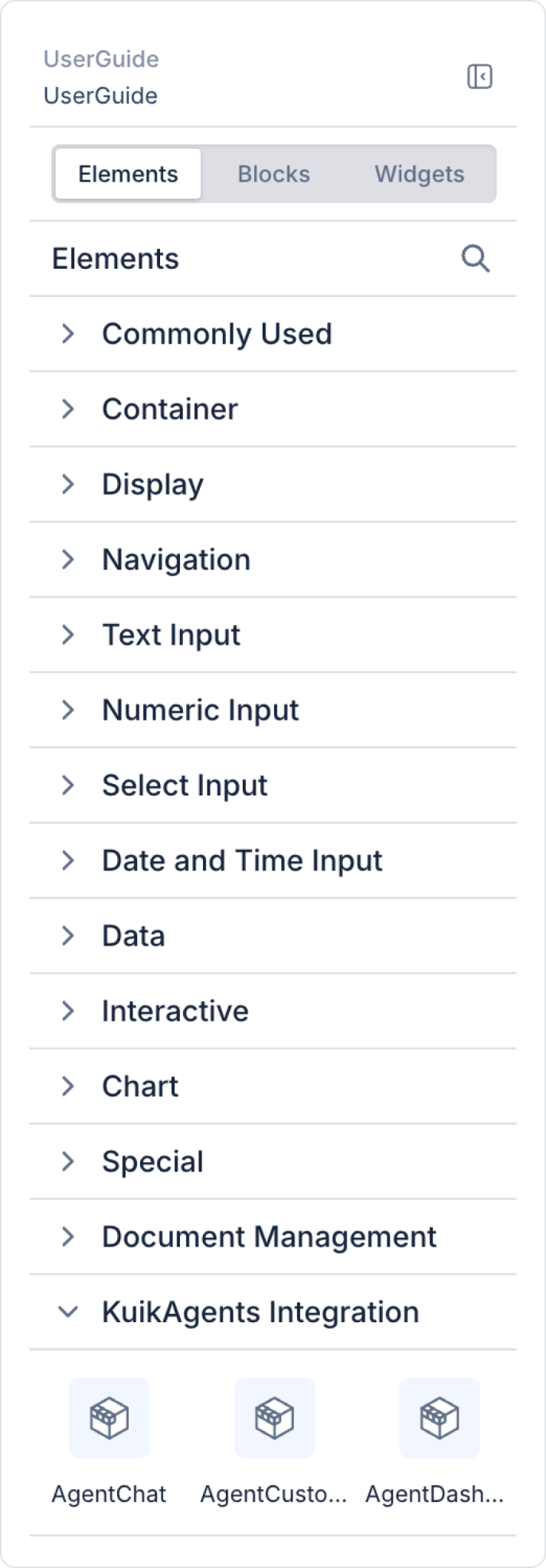
From the left-hand panel, click Elements > KuikAgents Integration > AgentCustomDashboard, or drag and drop it onto your page.
The element positions itself automatically; you do not need to make any additional settings for it.
Step 2 - Positioning
You can place the AgentCustomDashboard element anywhere on your page (e.g., inside a Container or Column).
Since the element is inline, it fills the Container it’s in; general Styling Panel settings can be used for resizing.
Preview: A placeholder card labeled in this area appears on the design canvas. When the application is launched and the user logs in, the board selector and the content of the selected board load in the area where the AgentCustomDashboard element is located; the email address the user used to log in must be defined in KuikAgents, otherwise the “No KuikAgents user found” error will be displayed.
4. Common Properties
Some fields on the AgentCustomDashboard element are shared across all UI elements. Therefore, detailed descriptions of the following properties can be found on the relevant general guide pages:
Authorization Settings
Visibility
Editability
Styling Panel
5. Best Practices
Place the AgentCustomDashboard in an area of your page where users can easily access it.
Leave sufficient space (padding/margin) around the card; a cramped layout negatively impacts the user experience.
Choose a layout that matches your page’s overall theme colors.
On pages intended for management or monitoring, place the AgentCustomDashboard in a prominent, easily noticeable location.
If there are multiple distracting elements on the page, position the AgentCustomDashboard in a clean, uncluttered area.
In KuikAgents, ensure that the boards you want to display are marked as visible in the embeds; otherwise, the picker will appear empty.
6. Limitations
AgentCustomDashboard does not have its own Properties panel; the element is designed to function automatically.
AgentCustomDashboard does not trigger or perform actions on its own.
It cannot be configured by adding other UI elements inside it.
AgentCustomDashboard is not supported in mobile apps; it can only be used in web applications.
If no KuikAgents Integration configuration is selected in App Settings, or if any of the URL, Access Secret, or Identity Secret fields are missing in the selected configuration, project generation will fail and stop for screens containing this element.
The published app’s domain must be in the embed token’s allowed origins list; otherwise, the embed may work in one environment but appear blank in another.
Offline operation is not supported; the embed requires a live connection to KuikAgents.