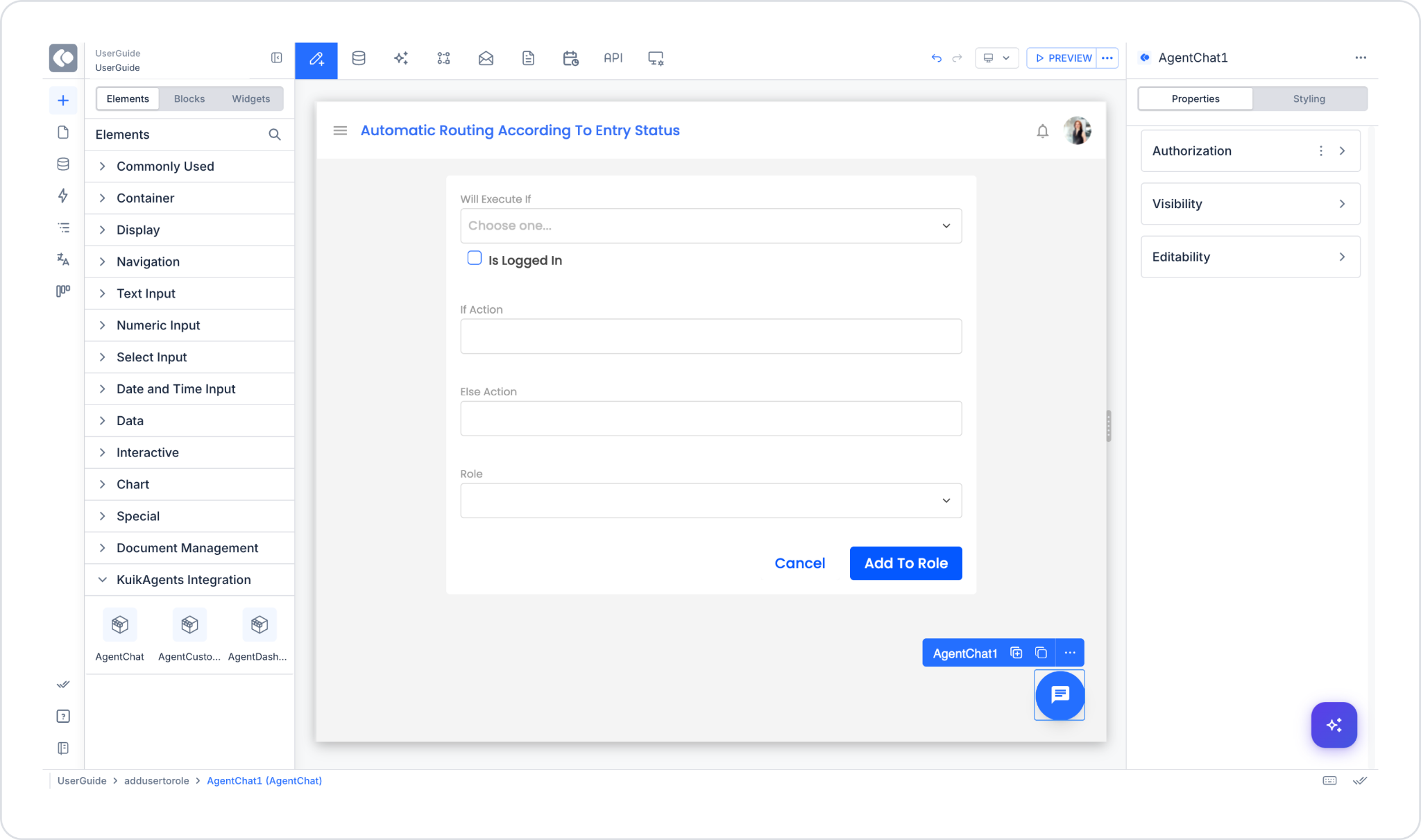
AgentChat is an element that can be added via drag-and-drop. When you place the AgentChat element on a screen in your application, a round chat button appears in the lower-right corner of that screen. When a logged-in user taps this button, a chat panel opens where they can chat with Agents in the connected KuikAgents Workspace.
AgentChat is not a widget that is placed inside a Container and resized; positioning is the element’s entire configuration — wherever the element is dropped, the button appears on that screen. The element brings a ready-to-use chat experience to your application, running in the background over a secure connection; the low-code author does not need to write any integration code. However, before the element displays anything, a complete KuikAgents Integration configuration (URL, Access Secret, Identity Secret) must be created in App Settings and selected for the application.
The AgentChat element is supported only in web applications; it cannot be used in mobile apps.
1.1. Common Use Cases
Adding an AI chat assistant to your app without writing code
Providing live AI responses on customer support screens
Creating a help desk experience that answers user questions
Setting up an AI assistant interface for internal teams
Providing an assistant that follows the user throughout the entire app, not just on a single screen (see “Show chat on all screens,” Chapter 3)
2. Key Features
Easy setup with drag-and-drop. Simply drag and drop the AgentChat element from the Elements panel onto your page; there are no settings to fill out on the element itself. However, for it to work, a KuikAgents Integration configuration must be selected at the App Settings level.
Live preview on the canvas. AgentChat is previewed on the design canvas as an actual button, in the exact position it will appear in the running app (the bottom-right corner of the screen).
Secure connection. The Access Secret and Identity Secret are stored in encrypted form and are never hardcoded into the app; the chat session is established via the configuration selected in App Settings.
Language compatibility. AgentChat automatically adapts to the app’s language (if the app is in Turkish, the chat is in Turkish; for all other languages, it is in English); there is no separate language setting.
Self-contained structure. AgentChat contains a fully functional chat experience within itself; it does not require any additional elements to function.
No styling options. The button’s color, size, or position cannot be adjusted within the element itself; the appearance is determined by KuikAgents, and the low-code author’s control is limited solely to which screen it is added to.
2.1. Element Settings (Properties)
The AgentChat element does not have a dedicated Properties panel. The element is designed to start working automatically as soon as it is added to the page.
Therefore:
AgentChat has no configurable settings; placement (which screen it is added to) is the only configuration option.
The visual appearance and behavior are managed by KuikAgents, not by the element itself.
The element functions as a self-contained widget.
2.2. Actions That Can Be Added to the Element
The AgentChat element does not support adding actions (ADD ACTION) directly to itself. When the element is selected, no action triggers appear in the right panel.
Basic principles regarding action behavior:
No actions can be assigned to AgentChat itself.
The element contains its own chat functionality; it does not require an externally triggered action.
AgentChat functions solely as a ready-to-use chat widget.
3. How to Use the AgentChat Element?
In this section, we will cover the end-to-end use of the AgentChat element through an example scenario.
Scenario: Customer Support Page
You want to add an AI chat button to the Support page in an app to quickly answer users’ questions.
Prerequisite
Before adding an element (at the latest, before generation), a Twin Dashboard configuration must be created under App Settings → Configuration Manager (the KuikAgents URL, Access Secret, and Identity Secret must be entered) and selected for the application via App Settings → Twin Dashboard → Choose Configuration. If the configuration is missing or not selected, screens containing the element will return a generation error.
Step 1 - Adding the Element
Open the UI Design module.
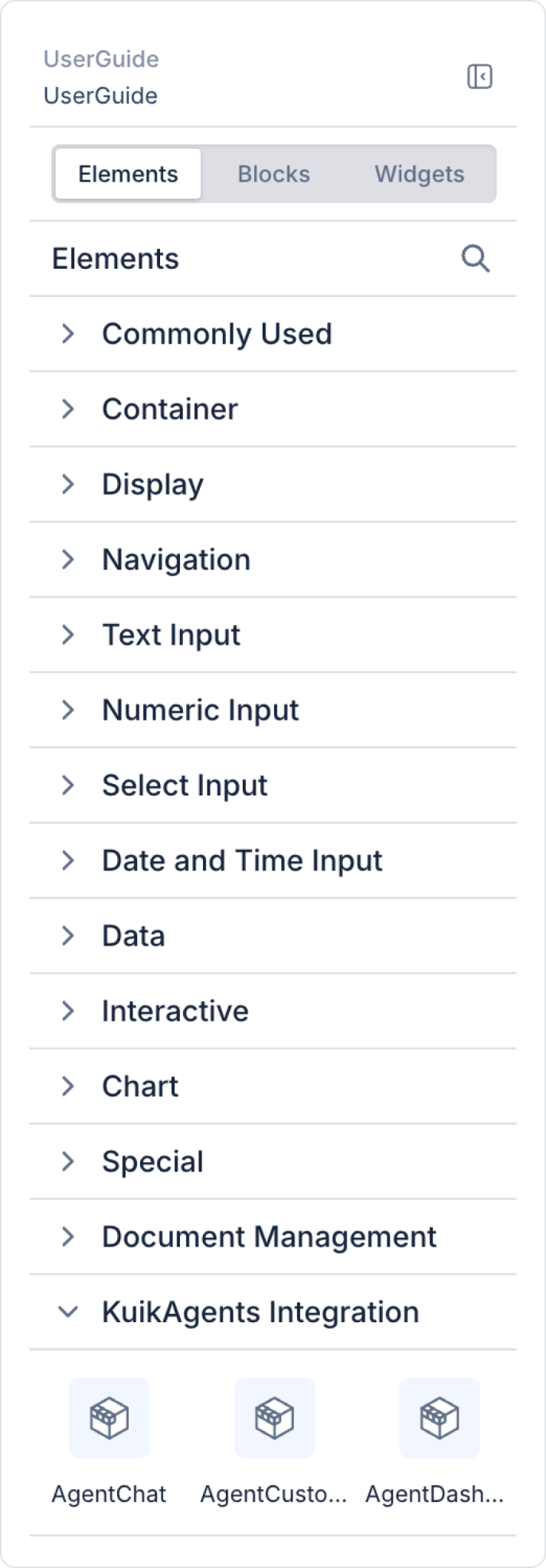
From the left sidebar, click Elements > KuikAgents Integration > AgentChat, or drag and drop it onto your page.
The element positions itself automatically and becomes operational without requiring any additional settings.
Step 2 - Positioning
AgentChat appears as a round button in the lower-right corner as soon as it is added to the screen; it is not an element that is resized by being placed inside a Container or Column.
Only one AgentChat can be added to a screen; the designer prevents the addition of a second AgentChat and explains why.
If you want to display the chat throughout the entire application rather than on a single screen, instead of adding the element to a screen, you can enable the “Show chat on all screens” option in the App Settings → Twin Dashboard configuration (the button will appear on all screens of the application, except for the login screen and other pre-login screens). If both this global setting is enabled and an AgentChat element is present on a screen, the element takes precedence on that screen, and only a single button appears—the two buttons do not overlap.
AgentChat can coexist on the same screen as Float Buttons; in this case, instead of overlapping, they are arranged in a row in the corner. AgentChat is at the bottom of this stack; Float Buttons are arranged on top of it according to their order in the screen tree.
Preview: On the design canvas, AgentChat appears as an actual button in its real position (bottom-right corner). When the app is launched and the user logs in, the user can start chatting directly with the AI by tapping the button; the email address the user used to log in must be defined in KuikAgents, otherwise the “No KuikAgents user found” error will be displayed. The button does not appear at all on pre-login screens, such as the login screen.
4. Common Properties
Some fields on the AgentChat element are shared across all UI elements. Therefore, detailed descriptions of the following properties can be found on the relevant general guide pages:
Authorization Settings
Visibility
Editability
Styling Panel
5. Best Practices
If you want the chat to appear throughout the entire application, use the “Show chat on all screens” setting instead of adding AgentChat to each screen individually; if you want to display the chat only on a specific screen (e.g., a single support page), add the element to that screen.
If you want AgentChat to be present on support or help pages, leave the global setting enabled and do not add the element separately on that screen—the element always overrides the global setting, so there’s no need for confusion.
If there are Float Buttons on the page as well, review the order in the Item Tree; AgentChat is at the bottom, and Float Buttons are arranged above it in that order.
Keep in mind that users who haven’t been invited to the KuikAgents Workspace will receive a “No KuikAgents user found” error; make sure the support team’s and end users’ email addresses are defined in the Workspace.
6. Limitations
AgentChat does not have its own Properties panel; the element is designed to run automatically.
AgentChat does not trigger or perform actions on its own.
It cannot be configured by adding other UI elements inside it.
AgentChat is not supported in mobile apps; it can only be used in web apps.
Only one AgentChat can exist on a screen.
There are no customizable style properties for the button’s color, size, or position.
If no KuikAgents Integration configuration is selected in App Settings, or if any of the URL, Access Secret, or Identity Secret fields are missing in the selected configuration, project generation will fail and stop for screens containing the element.
The published app’s domain must be on the Embed Token’s allowed origins list; otherwise, the embed may work in one environment but appear blank in another.
Offline operation is not supported; the embed requires a live connection to KuikAgents.