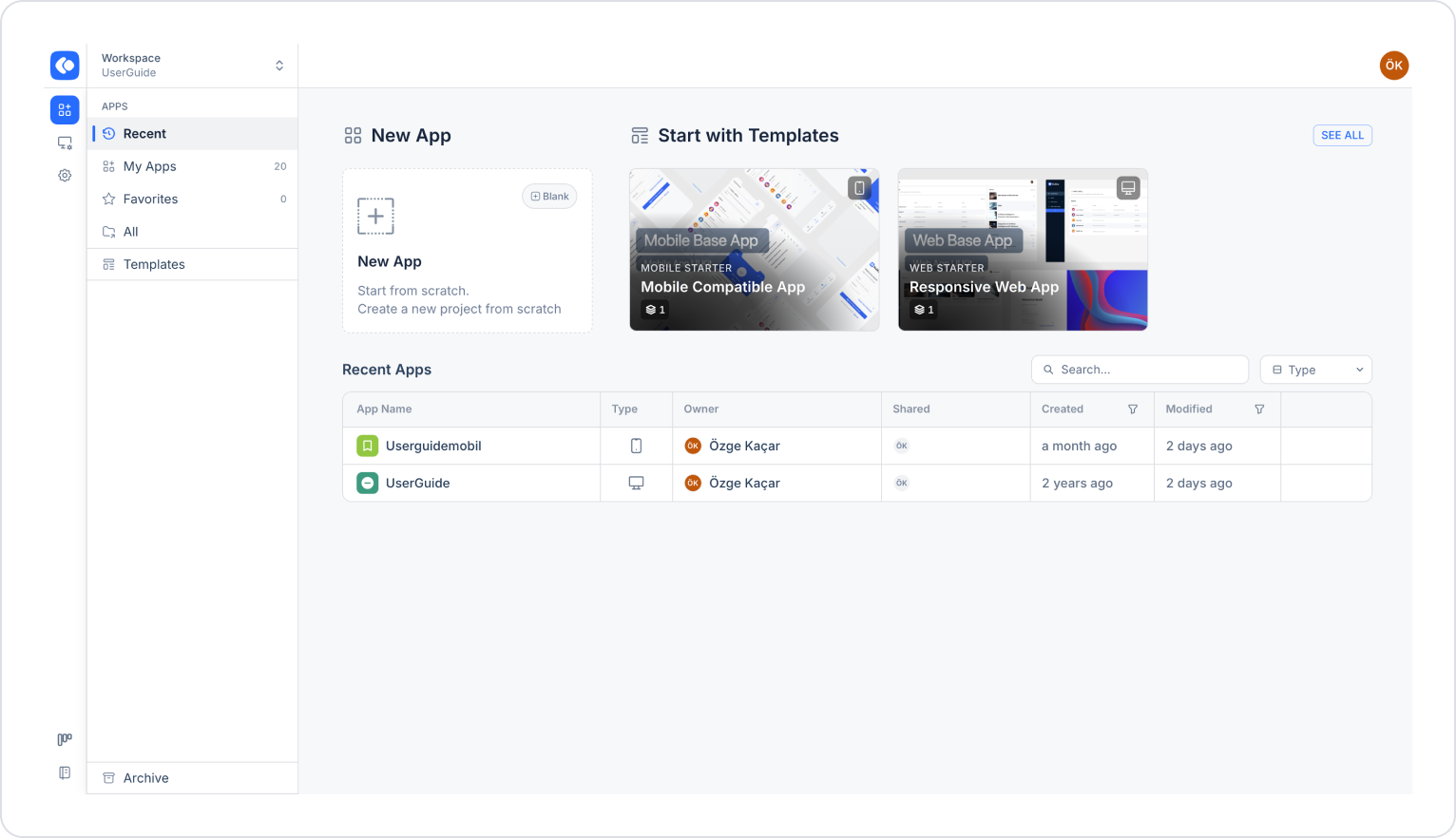
Log in to the Kuika platform. The Apps screen opens.
Make sure the Workspace you’ll be working in is selected in the Workspace area in the top-left corner.
On the toolbar at the far left of the screen, click the Config Manager icon located below the Apps icon.
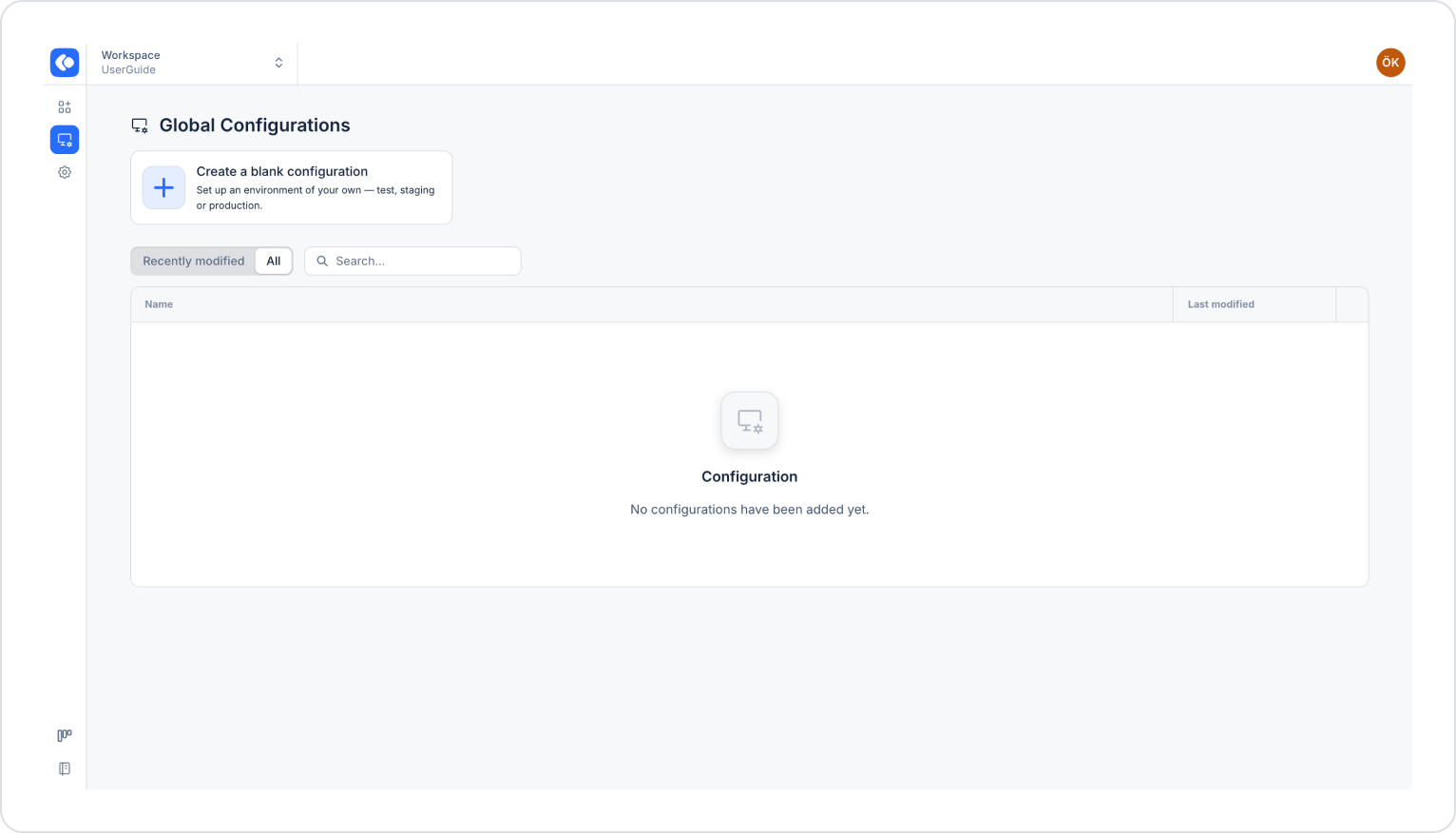
The Global Configurations screen opens. You can view existing global configurations under the Recently modified and All tabs, or search for them using the Search field.
2. Create a New Configuration
Click the Create a blank configuration card.
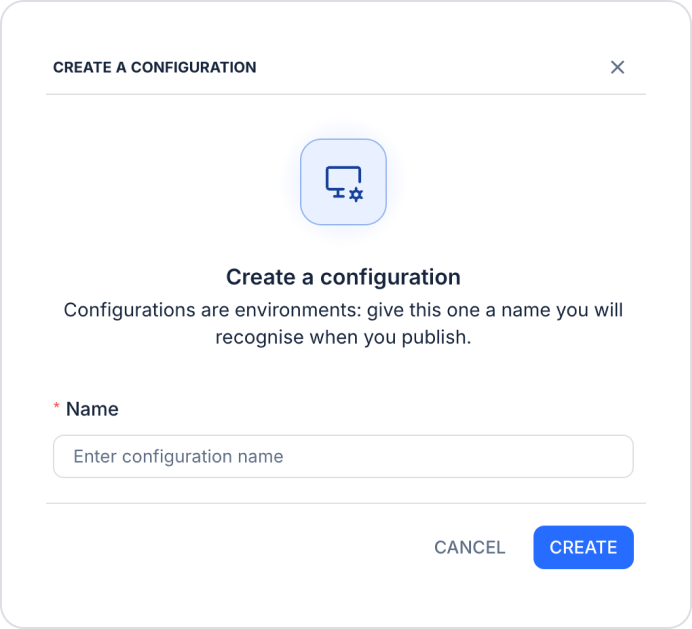
In the Create a Configuration window that opens, enter a descriptive name for the configuration in the Name (required) field. Since configurations represent environments, choose a name that you can easily recognize during deployment (e.g., test, staging, production).
Click the CREATE button.
If you want to edit an existing configuration, click its name in the list.