What is Two-Factor Authentication (2FA) and How to Use It?
7/10/26
Two-Factor Authentication (2FA)
Two-factor authentication (2FA) provides an additional layer of security to protect user accounts. By enabling 2FA through the Kuika Config Manager module, you can require your users to complete a second verification step in addition to their username and password. This prevents unauthorized access to the account even if the password is compromised. This method provides a crucial layer of security, particularly for applications involving financial transactions and personal data.
Login with 2FA occurs in two steps:
Step 1: The user enters their username and password.
Second step: The user enters the one-time password (OTP) received via email, SMS, or an authentication app.
In this guide, you’ll learn step-by-step how to enable 2FA, configure the methods for sending verification codes, and customize the Verification Code screen.
How to Enable 2FA?
1. Open or Create a Configuration
Log in to the Kuika platform.
From the Apps screen, open the project you’ll be working on.
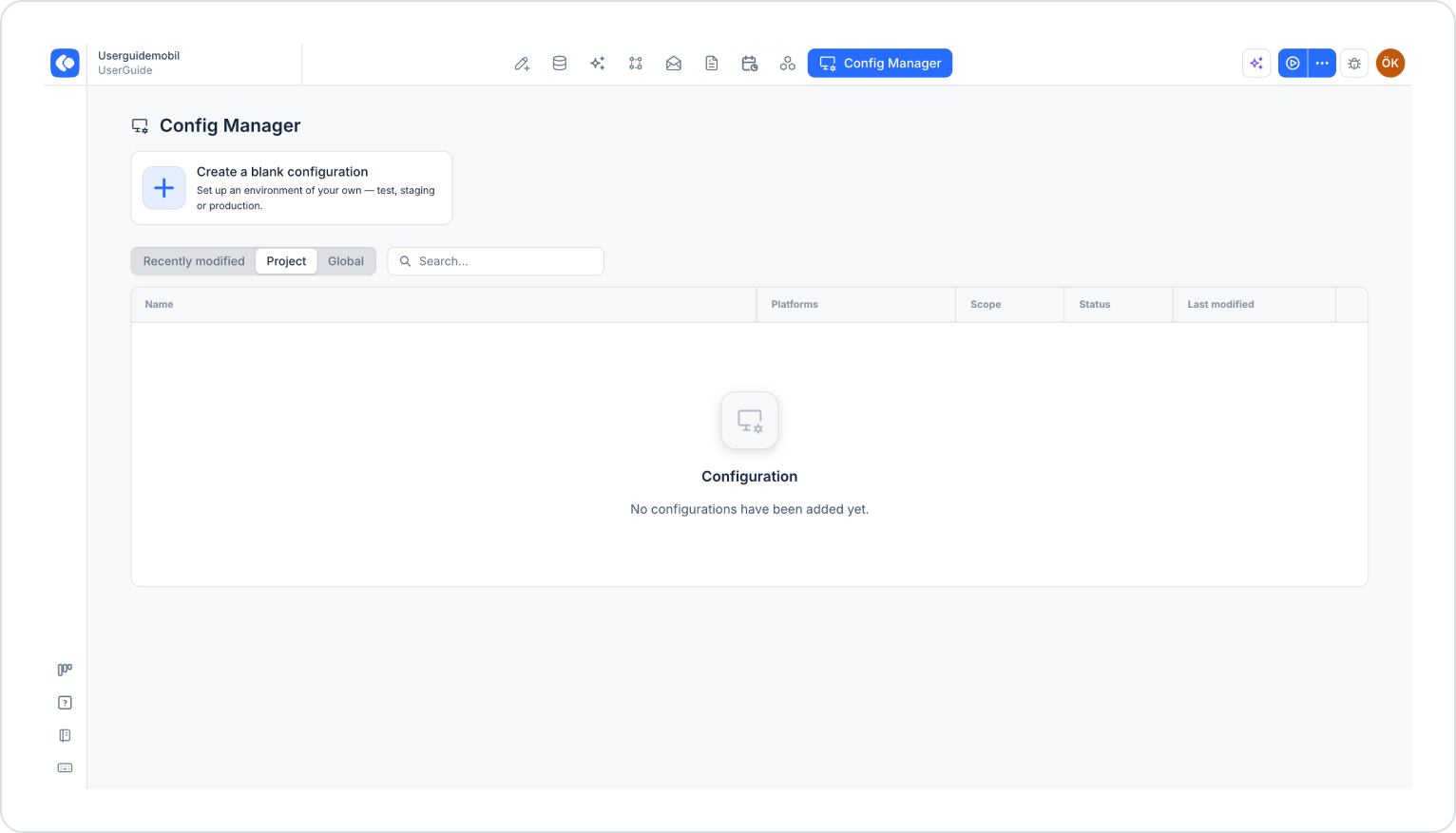
Click the Config Manager module in the top menu.
To create a new configuration, click the Create a blank configuration card, give the configuration a name, and complete the creation process. If you want to use an existing configuration, click its name in the list.
2. Go to the Authentication & Authorization Settings
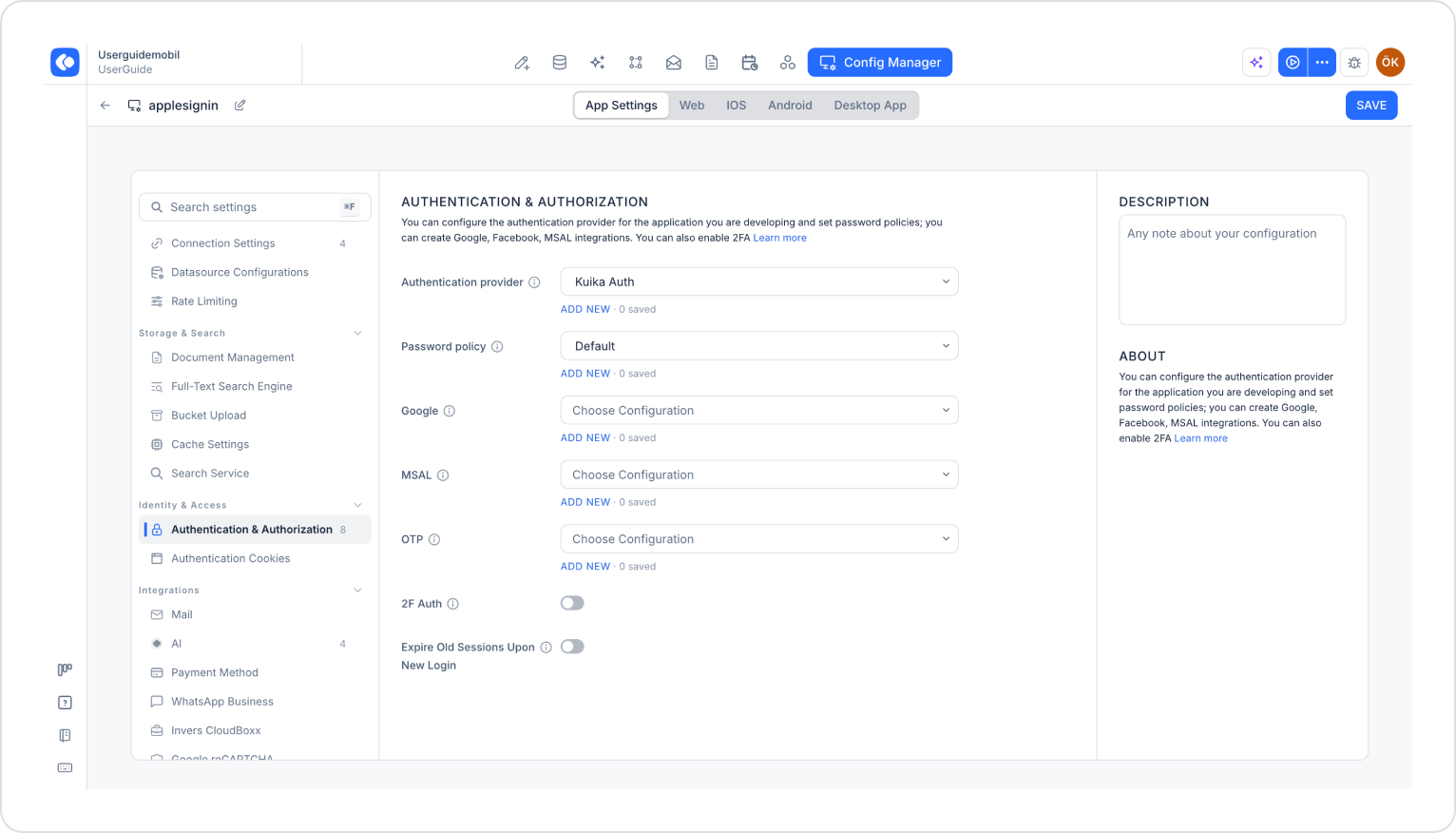
Make sure the App Settings tab is selected at the top of the configuration screen.
In the left menu, click the Authentication & Authorization option under the Identity & Access heading. You can also quickly access this setting by typing “authentication” into the Search settings field at the top of the menu.
3. Configure 2FA Settings
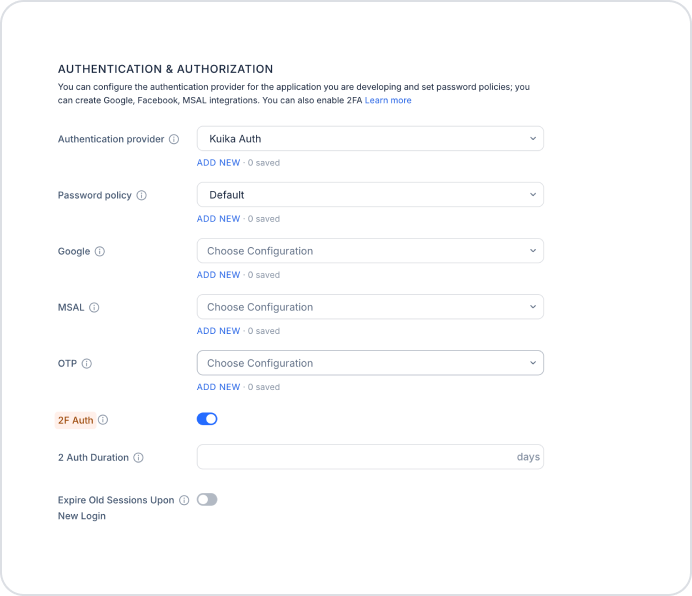
Enable the 2F Auth toggle. Once enabled, the 2 Auth Duration field will appear.
Enter the duration for two-factor authentication in days in the 2 Auth Duration field (e.g., 15).
4. Save the Settings
Make sure you’ve filled out all required fields completely and correctly.
Click the SAVE button in the top-right corner to save your changes.
Verification Code Delivery Methods
1. Verification via an Authentication App
You can use the Generate Authenticator App URI action to allow your users to generate codes using apps such as Google Authenticator or Microsoft Authenticator. For more information, see the 2FA Integration with the Generate Authenticator App URI Action documentation.
2. Sending Verification Codes via Email
Customize the design and content of the verification code email by editing the Verify Email template in the Email Builder module.
3. Sending Verification Codes via SMS or Notifications
To send the verification code via SMS or notification, you can create a custom sender in the Datasources module:
Open the Datasources module.
Click the + icon in the left panel to create a new data source.
Select the C# option.
Select the Custom Verification Code Sender Provider option as the template.
Create the message content using the user information provided in the template:
User Email: The user’s email address.
First Name / Last Name: The user’s first and last name.
User Phone: The user’s phone number.
Add the code for the delivery method you want to use above the “return false” line in the template.
Click the CREATE button to create the data source.
Customizing the Verification Code Screen
Open the Verification Code screen—where users enter their verification code—from the Screens panel in the UI Design module and customize it according to your app’s design.
Once you’ve completed these steps, you’ll have set up a secure login flow protected by two-factor authentication in your app.
Important Tips
Select the appropriate verification method based on your users’ target audience and your app’s security needs.
Store the API credentials for the service you use to send SMS messages securely.
Before deploying to production, test the 2FA flow end-to-end for each delivery method in the test environment.
By configuring 2FA correctly, you can protect your users’ accounts with an additional layer of security against unauthorized access.